What Your Router Firewall Does
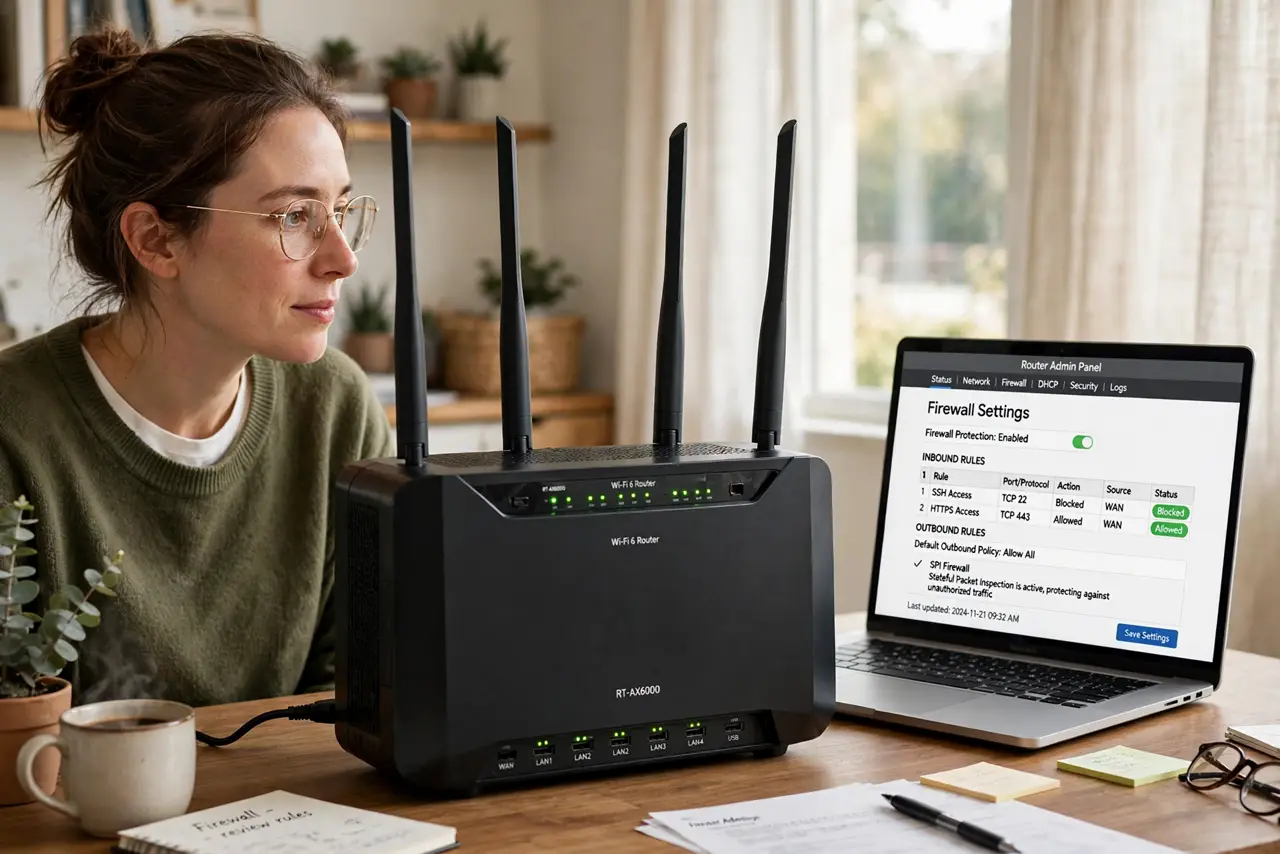
Your router has a firewall, it is on by default, and you have probably never thought about it — which is exactly how it should be. But knowing what it does matters the moment something asks you to turn it off or poke holes in it. The short version: it blocks unsolicited traffic from the internet while letting your own requests through. Leave it on, understand the exceptions, and you will never be the person who disabled their protection for a game. If an app asks for UPnP, think twice first.
TL;DR / Quick Fix
Quick fix: your router's firewall blocks unsolicited incoming traffic from the internet and is on by default — leave it on. Port forwarding handles the rare app needing inbound access. Never put your main computer in the DMZ to fix a connection problem.
Follow these steps
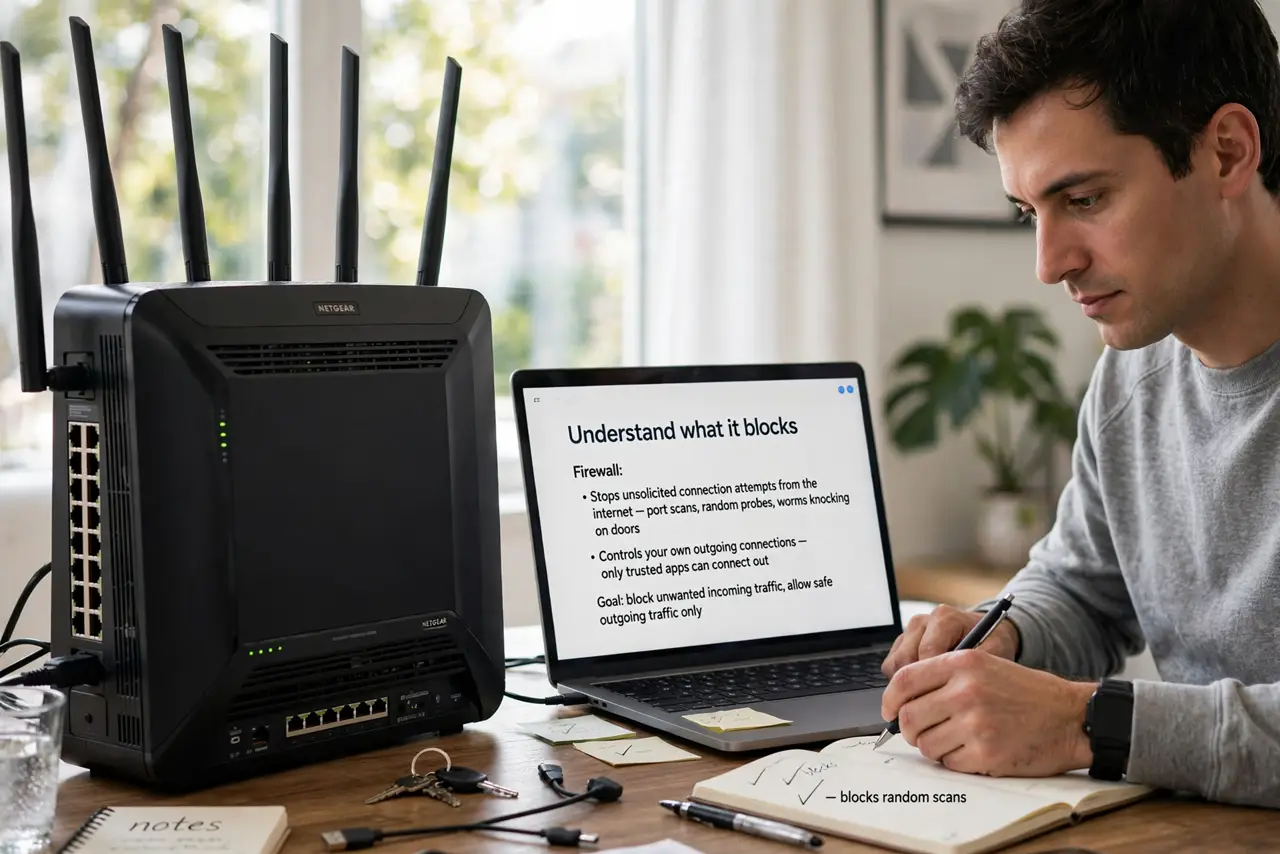
- Understand what it blocks. The firewall stops unsolicited connection attempts from the internet — port scans, random probes, worms knocking on doors. Your own outgoing requests and their replies pass through freely.
- Know what it does not do. It does not scan for viruses, block malicious websites, or protect you from phishing. It is a bouncer at the network door, not a bodyguard for your browsing.
- Leave it enabled. The default setting is correct for nearly everyone. If a game or app tells you to disable the firewall, that is a red flag about the app — use port forwarding for that one app instead.
- Learn about port forwarding. When one specific app genuinely needs inbound connections, forward only its ports to only the device that needs them. A targeted hole beats demolishing the wall.
- Understand the DMZ warning. Some routers offer a DMZ that exposes one device fully to the internet. Never put your everyday computer there — it removes every layer of protection at once. See the DMZ risks before touching it.
- Check it after a reset. Factory-resetting a router can restore defaults — usually firewall-on, but verify. A reset is also a good moment to confirm the admin password is not still the default.
What NOT to do
- Do not disable the firewall to fix a connection issue. Diagnose properly or forward the specific port — disabling everything is never the fix.
- Do not put your PC in the DMZ casually. It is the nuclear option for connectivity problems and removes all inbound protection.
- Do not forward ports you do not understand. Every open port is a door; open only the ones a specific app needs.
- Do not assume the firewall replaces antivirus. They protect different layers — you need both, not one instead of the other.
Frequently asked questions
Do I need a separate firewall app too?
For most people, the router firewall plus the operating system's built-in firewall is plenty. Extra firewall software is for unusual needs.
Why does my game say I have a strict NAT?
The firewall is doing its job a bit too well for peer-to-peer gaming. Forward the game's ports instead of disabling protection.
Can the firewall slow my internet?
No, not measurably. It inspects connection setup, not every byte — your speed is unaffected.