Isolate Your Guest Network
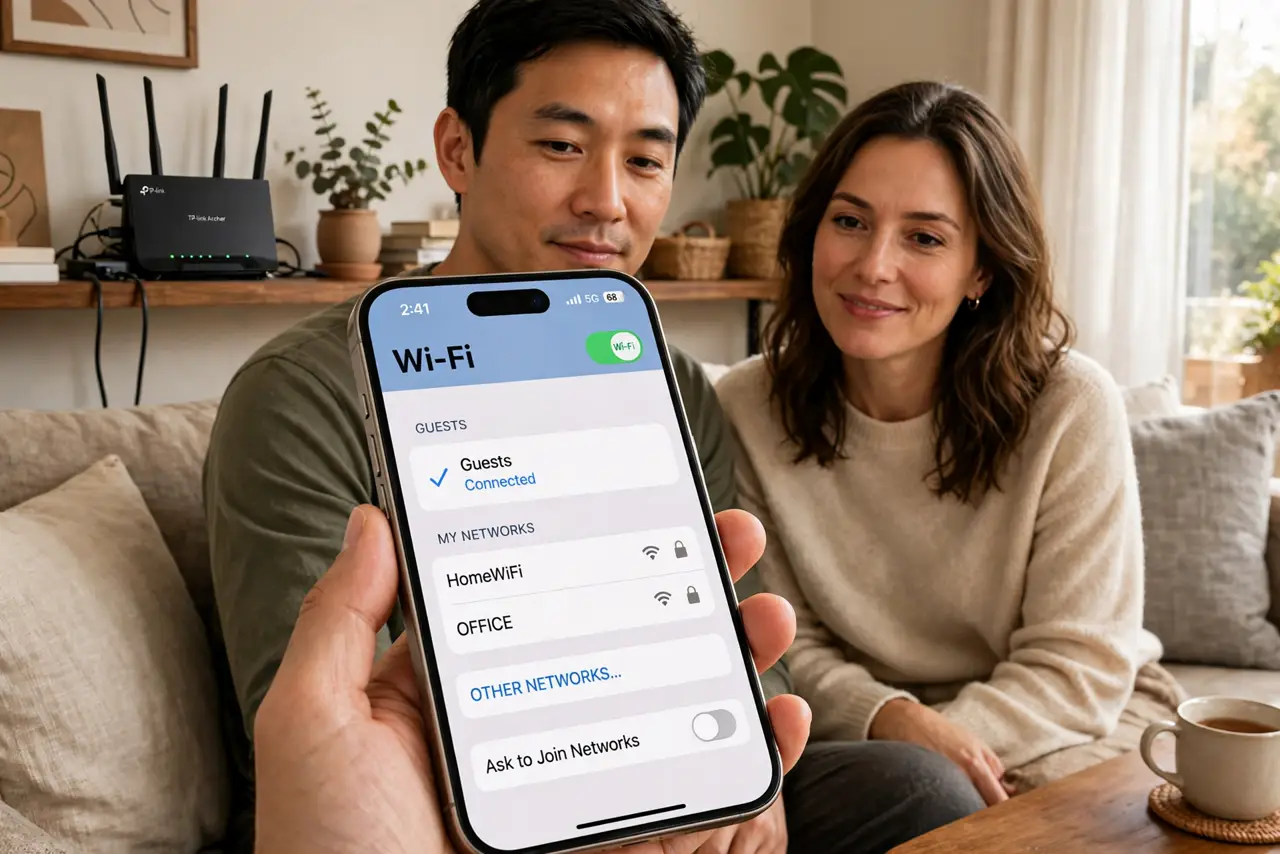
You hand a guest your Wi-Fi password and they can suddenly see your shared folders, your printer, and your smart TV — because one password puts everyone on the same network. A guest network with isolation fixes that: visitors get internet, and nothing else. Most routers have the feature built in; it is just off by default. If you also run smart home gadgets, they deserve the same separation.
TL;DR / Quick Fix
Quick fix: turn on your router's guest network and enable client isolation (AP isolation) so visitors get internet but cannot see your devices or each other. Give it its own password, separate from your main network. Test from your phone that the printer and shared folders are unreachable.
Follow these steps
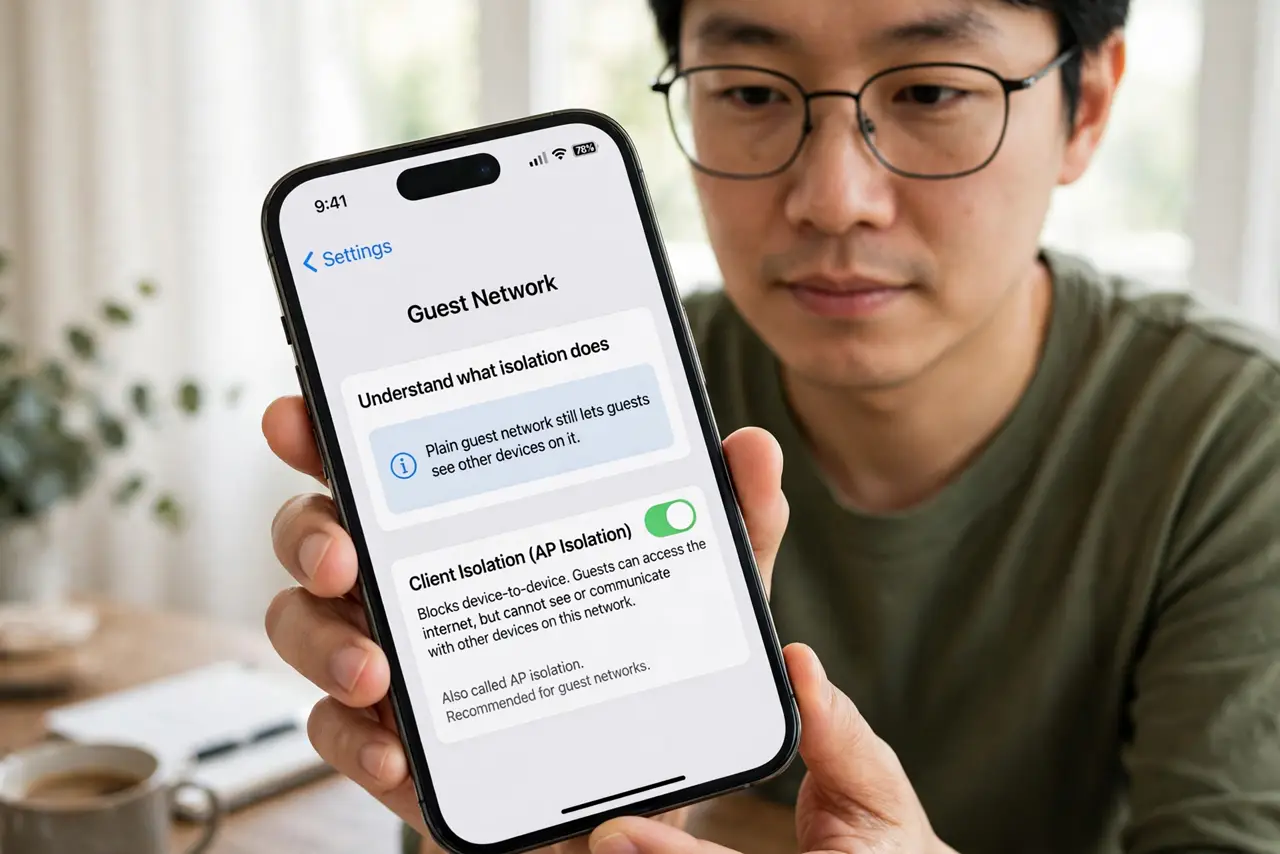
- Understand what isolation does. A plain guest network still lets guests see other devices on it. Client isolation (also called AP isolation) blocks device-to-device traffic, so each guest sees only the internet — not your laptop, not each other.
- Open your router's settings. Log into the router admin page from a browser — usually an address printed on the router itself. This is also where you should change the default admin password if you never have.
- Enable the guest network. Find the guest network or guest Wi-Fi section and turn it on. Give it a clear name like Home-Guest so visitors do not accidentally join your main network.
- Turn on client/AP isolation. In the guest settings, enable the isolation option. Wording varies — isolate clients, AP isolation, block intranet access — but the effect is the same: guests cannot reach your devices.
- Set a simple, separate password. Give the guest network its own password, different from your main one. Simple enough to read aloud, but not the same as the keys to your digital house.
- Test it like a guest. Join the guest network with your phone and try to reach your printer, shared folders, or router admin page. If you cannot see them, isolation is working.
What NOT to do
- Do not share your main Wi-Fi password with visitors out of habit. That is exactly the exposure the guest network prevents.
- Do not enable the guest network but skip the isolation toggle. An unisolated guest network is barely better than the main one.
- Do not leave the guest network on with the default password. If you never set one, anyone nearby can join.
- Do not forget to turn it off between long stretches without guests. A network nobody uses is still a network someone could probe.
Frequently asked questions
Can guests still print to my printer?
With isolation on, no — that is the point. If a guest genuinely needs the printer, share the file another way instead of opening the network.
Will a guest network slow my Wi-Fi?
Barely. It shares the same radio and bandwidth, but guests browsing and streaming use little. Heavy guest usage is the only time you would notice.
Should smart home devices go on the guest network?
Better: give them their own network segment entirely. Cheap cameras and plugs are the devices you trust least — isolate them like guests that never leave.