Scan Documents with Your Phone
The scanner is unavailable — broken, at the office, a relic you never owned. Your phone is the scanner now: modern phone cameras plus built-in scan modes produce crisp, straight, shadow-free PDFs. Receipts, contracts, whiteboards — two minutes, no hardware, results that embarrass old flatbeds.
TL;DR / Quick Fix
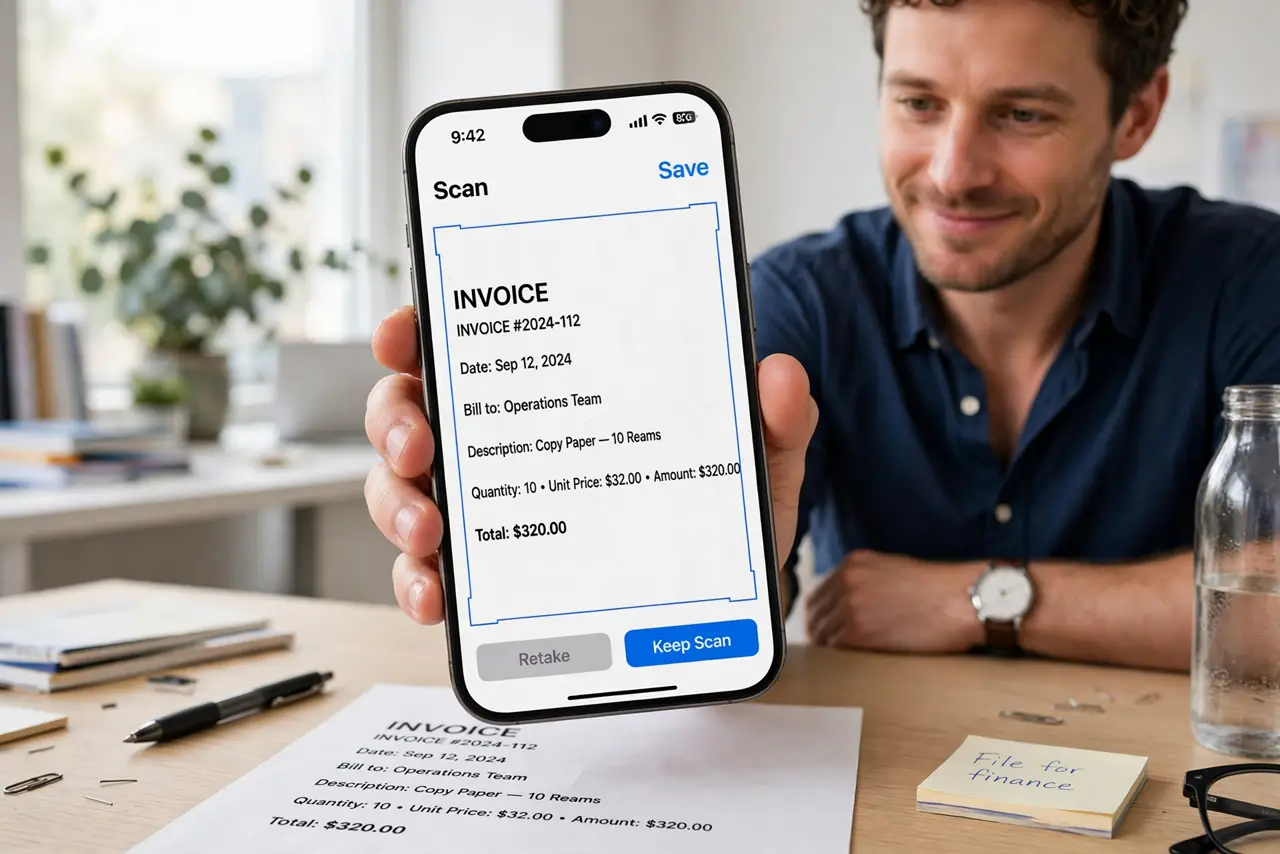
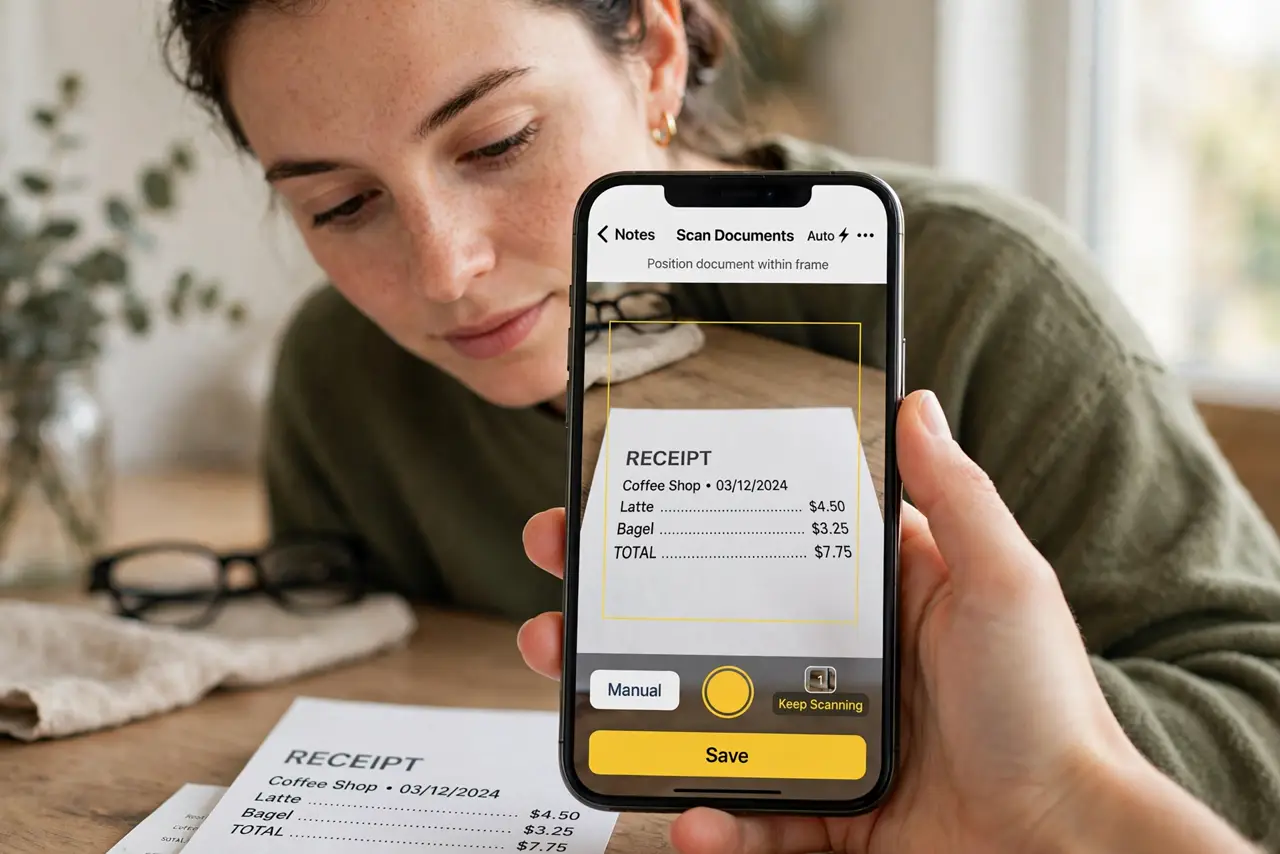
Quick fix: on iPhone open Notes, new note, attach, Scan Documents — the camera auto-captures, crops, and saves a PDF. On Android use the Drive scan widget or equivalent. Shoot in good light on a dark background. Name the file immediately; the scan pile is how digital chaos starts.
Follow these steps
- Use the built-in scanner. iPhone: Notes, Scan Documents — the iPhone scan walkthrough details the flow. Android: Drive or the makers scan mode. No app download needed.
- Mind the light. Bright, even, indirect light — near a window, no flash. Shadows and glare are the difference between a scan and a photo of paper.
- Use a dark background. Contrast helps the edge detection. Dark desk, white paper — the auto-crop snaps cleanly.
- Capture multi-page. Keep shooting; the scanner stacks pages into one PDF. Contracts and booklets become single documents, not photo rolls.
- Name it now. Scan 2026-10-29 contract beats IMG_4829. Name on save — the Mac scan alternative follows the same discipline on desktop.
- Turn it into text. Scanned PDFs are pictures until OCR reads them. The OCR basics turn the images into searchable, copyable text.
What NOT to do
- Do not photograph documents in dim yellow light. Bad light makes bad scans — move to a window first.
- Do not skip the review pass. Check every page for blur and cut-off edges before sending — re-shooting beats apologizing.
- Do not save scans as IMG_4829. Name immediately or the scans become a second paper pile, digital edition.
- Do not scan sensitive documents on random apps. Built-in tools keep data local; sketchy scanner apps upload everything.
Frequently asked questions
Are phone scans good enough for official documents?
Usually yes — flat, legible, complete scans satisfy most institutions. Check the recipients requirements for edge cases.
iPhone or Android — which scans better?
Both are excellent now. Technique (light, background, steadiness) matters more than the phone.
Can I scan to searchable PDF?
With OCR enabled — many built-in scanners offer it, or run the OCR step after. Searchable beats image-only.