Scanner DPI for Documents vs Photos
Scanner DPI is a classic more-is-better trap: crank it up and you get giant files with no visible gain. Documents and photos want very different settings, and knowing which is which saves both time and disk space.
TL;DR / Quick Fix
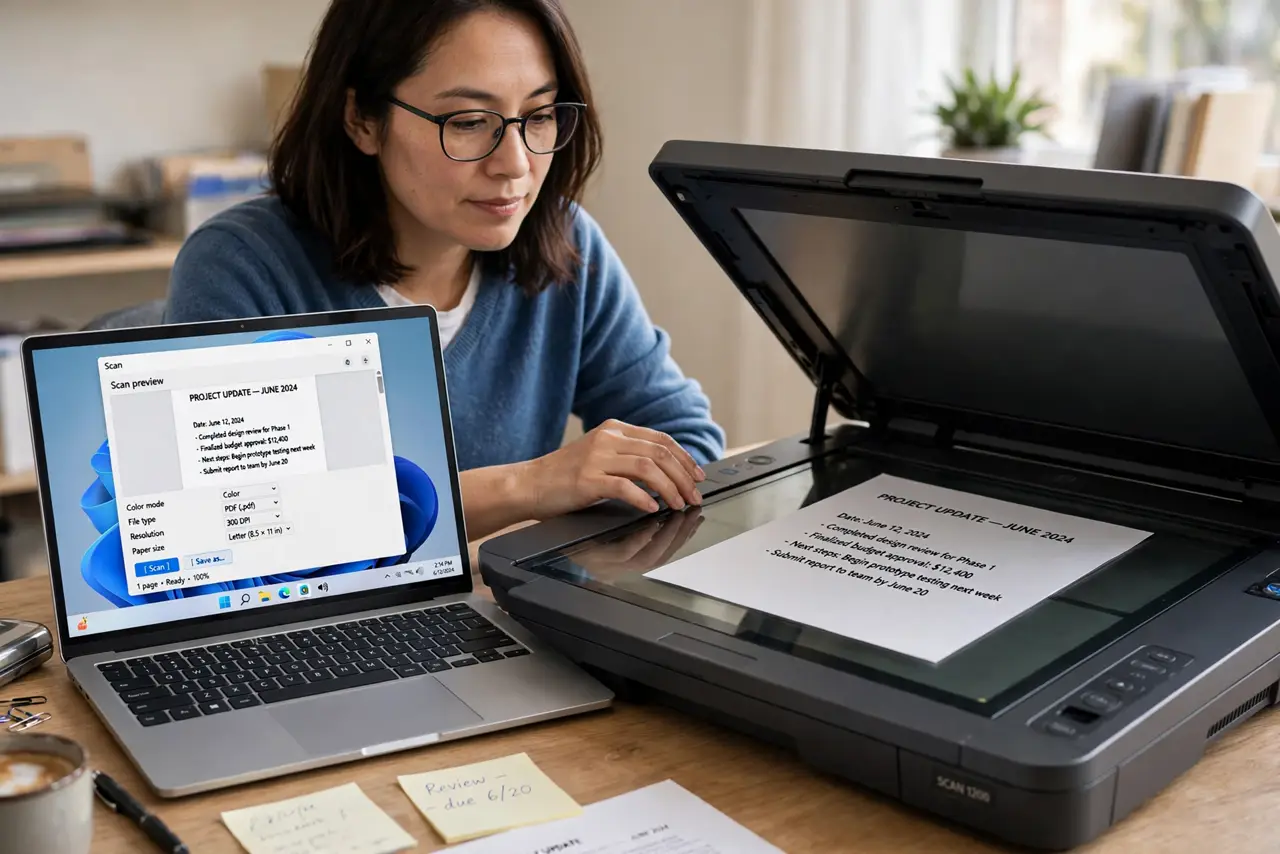
Quick fix: scan text documents at 300 DPI in black-and-white or grayscale, and photos at 600 DPI in color. Higher than that only helps if you plan to enlarge the image far beyond its original size, and clean the scanner glass before any scan you plan to keep.
Follow these steps
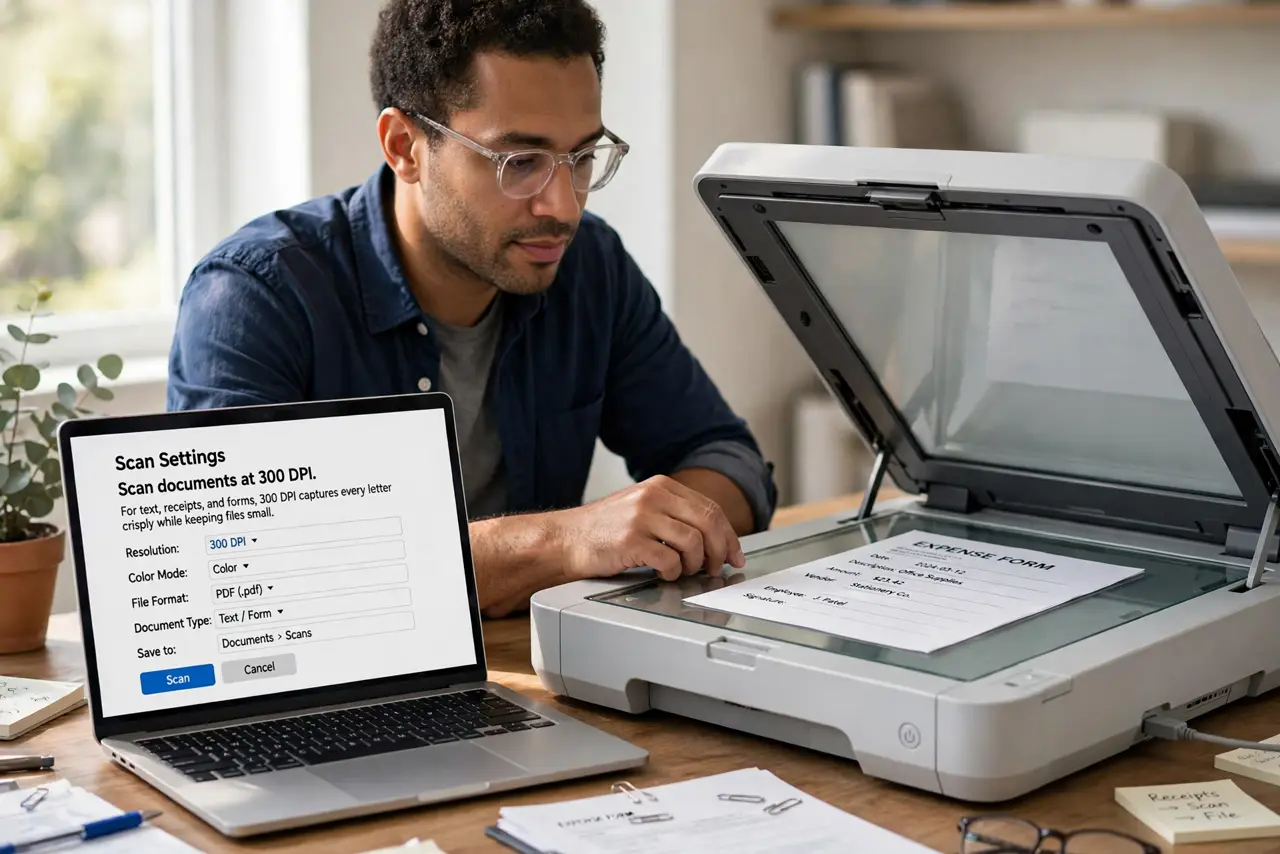
- Scan documents at 300 DPI. For text, receipts, and forms, 300 DPI captures every letter crisply while keeping files small. Higher DPI on text just multiplies file size without adding readable detail.
- Scan photos at 600 DPI. For prints you may reprint or enlarge, 600 DPI preserves the detail. Old family photos deserve 600, since you cannot rescan a faded original at higher quality later.
- Choose the right color mode. Use black-and-white for plain text, grayscale for documents with stamps or shading, and color only for photos and color originals. Color mode triples file size for no benefit on text.
- Save documents as PDF, photos as TIFF or PNG. PDF keeps multi-page documents together and compact. For photos, a lossless format preserves quality; JPEG is fine only for casual sharing.
- Clean the glass before important scans. Wipe the scanner glass with a soft cloth before scanning anything you will keep. A speck of dust becomes a permanent line across every scan until you clean it.
- Check the scanner is found before rescanning. If the computer cannot see the scanner at all, see the guide for a scanner not found on Mac before blaming the DPI settings.
What NOT to do
- Do not scan everything at 1200 DPI. You get enormous files, slow scans, and no visible improvement for documents or screen viewing.
- Do not scan photos as low-quality JPEGs for archiving. Compression artifacts are permanent, so keep a lossless master and make JPEG copies for sharing.
- Do not auto-crop without checking. Aggressive auto-crop can slice off edges of photos, so preview the crop on important scans.
- Do not scan a photo still in a frame or sleeve. Glass reflections and texture blur the result, so remove the photo first when possible.
Frequently asked questions
What DPI should I scan documents at?
300 DPI in black-and-white or grayscale is the sweet spot for text: crisp letters, small files.
Why are my scan files so huge?
Because the DPI or color mode is higher than the job needs. Drop to 300 DPI grayscale for documents and watch files shrink.
Is higher DPI ever worth it?
Yes, for small originals you plan to enlarge a lot, like 35mm negatives or tiny prints — not for ordinary documents.