Check Active Sessions?
Every account you own keeps a list of devices currently signed in — your phone, your laptop, and possibly a stranger's browser in another country. Checking active sessions takes two minutes and is the fastest way to catch an account takeover in progress. This guide shows where the lists live and exactly what to do when something looks wrong.
TL;DR / Quick Fix
Quick fix: every major account has a page listing devices currently signed in — find it in security settings. If you see a device you do not recognize, sign it out and change your password immediately. Review sessions after any login alert. It takes two minutes and catches takeovers early.
Follow these steps
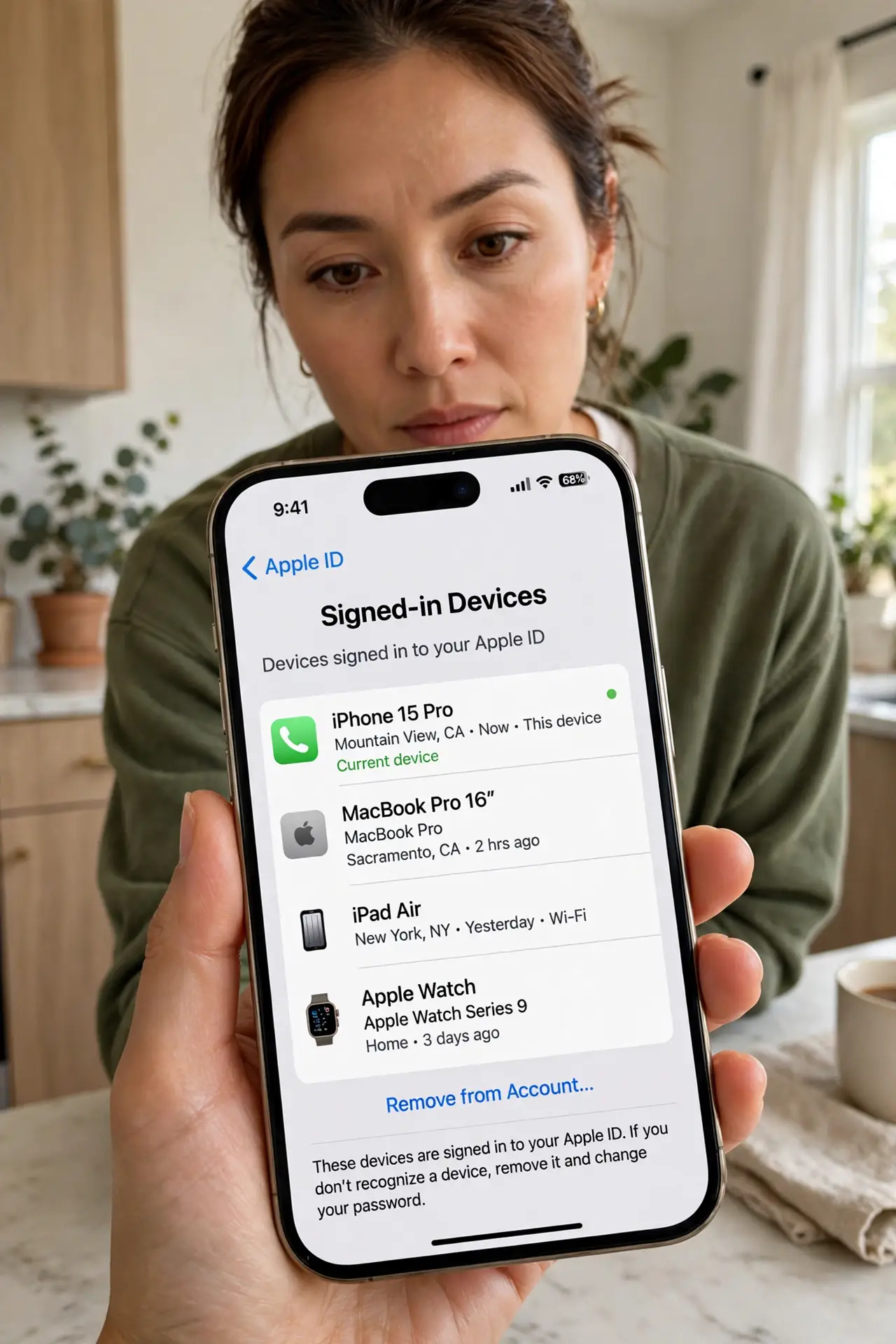
- Open the security settings. Google: myaccount.google.com, Security, 'Your devices.' Apple: Settings, your name, scroll to devices. Microsoft: account.microsoft.com, Devices. Facebook and Instagram: Settings, Security, login activity.
- Read each entry carefully. Each session shows the device type, rough location, and last active time. Your own phone in your own city is fine; a Windows PC in a country you have never visited is not.
- Sign out anything unknown. Every list has a 'sign out' option per device or a 'sign out everywhere' button. Use it on the stranger first — this kills their access immediately, even if they know the password.
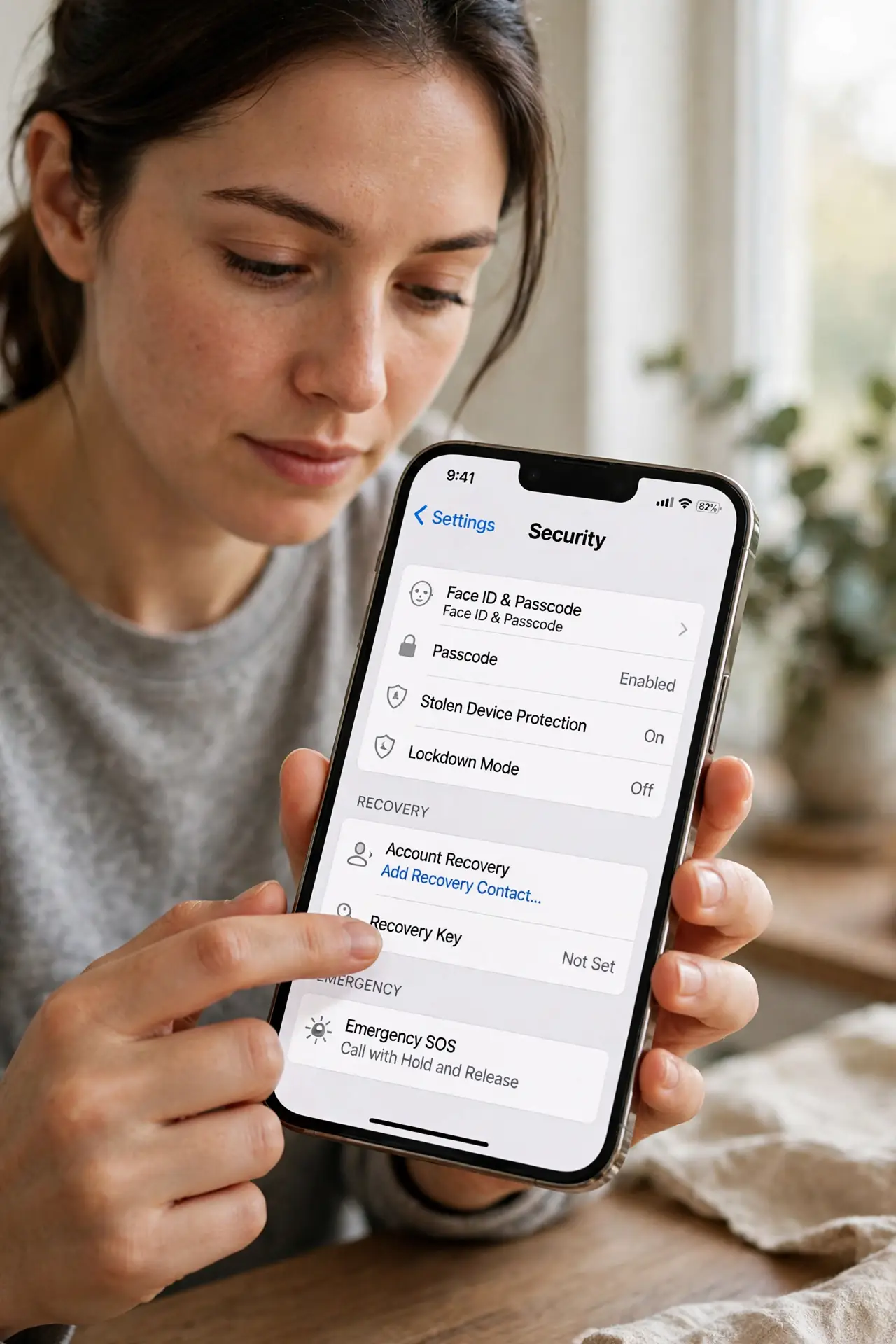
- Change the password next. Signing out is step one; changing the password is step two. If they got in once, they may have the password — a new one plus two-factor authentication locks the door properly.
- Check after every login alert. A login alert you did not trigger means someone tried your account — the sessions list shows whether they succeeded. Make this check a reflex, not a chore.
- Repeat for your other accounts. Attackers reuse leaked passwords across sites. If one account shows a stranger, check your email and bank sessions too — they are the high-value targets.
What NOT to do
- Do not sign out your own devices in a panic and lock yourself out. Read the list first — sign out the unknown device, then secure the account.
- Do not assume a nearby city means it is you. Attackers often appear in neighboring cities; judge by device type and timing, not just location.
- Do not stop at signing out. Without a password change, anyone holding your credentials just signs back in — the sign-out buys minutes, the new password buys safety.
- Do not ignore sessions on old services. Forgotten accounts with reused passwords are classic backdoors — check them or close them.
Frequently asked questions
What does 'last active' mean?
The last time that device did something with your account. A session active two minutes ago on a device you do not own means someone is inside right now — act immediately.
Can I see sessions on all my accounts?
Nearly all major services offer it: Google, Apple, Microsoft, Facebook, Instagram, and most banks. If a service hides it, that is a reason to prefer one that shows it.
Will signing out everywhere log me out too?
Yes — including your own phone. It is a small price for certainty; sign back in on your devices with the new password right after.