Login Alerts? Turn Them On
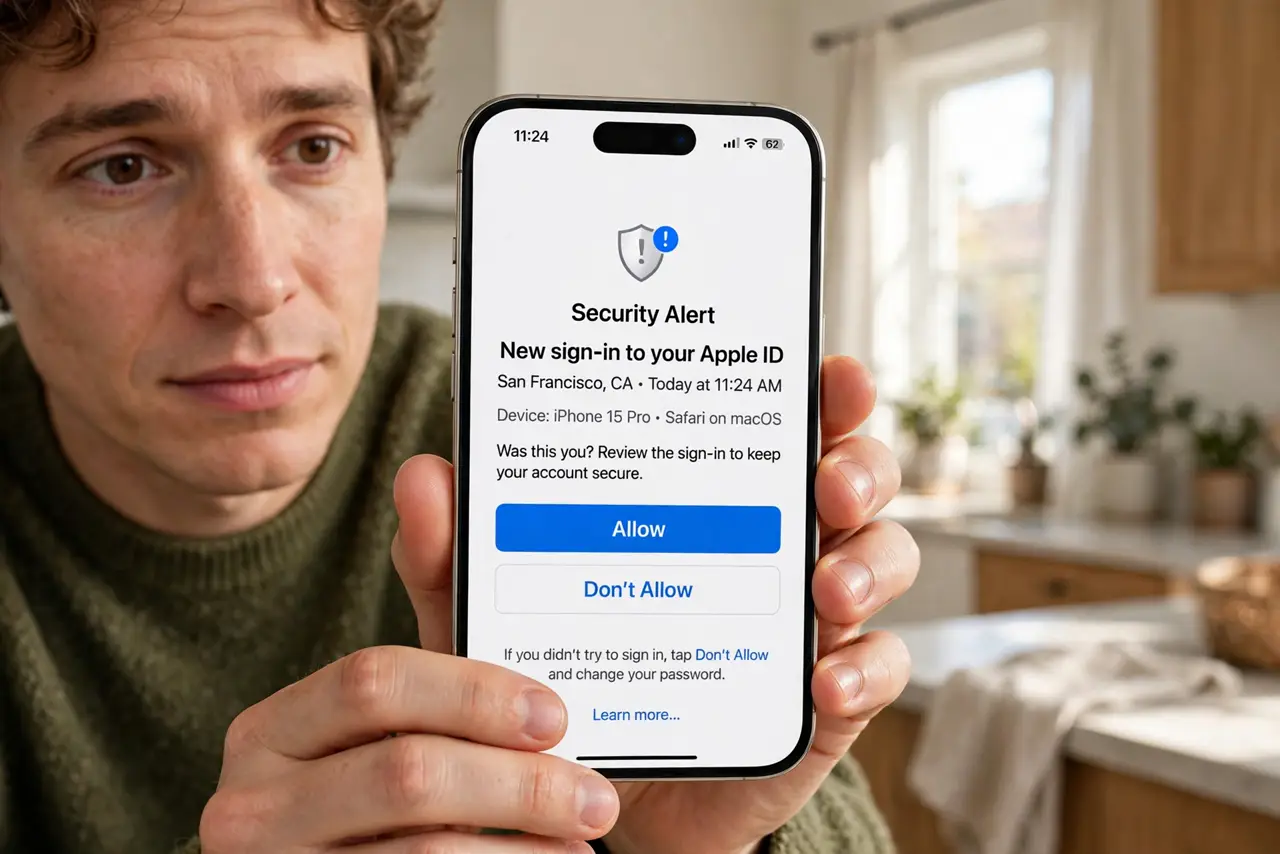
Login alerts are the 'new sign-in' emails and push notifications your accounts send when someone logs in from an unfamiliar device or place. They are the fastest way to learn your password leaked — often before any damage is done. This guide shows where to turn them on for the accounts that matter most, and how to read them without panicking.
TL;DR / Quick Fix
Quick fix: turn on login alerts in your email, bank, and social accounts — they warn you the moment an unfamiliar device signs in. If it was you, ignore it. If not, change the password immediately and review active sessions. Alerts only work if your contact info is current.
Follow these steps
- Start with your email. Your email resets passwords everywhere else, so its alerts matter most. In Google, Apple, and Microsoft security settings, confirm security alerts are on and the contact email and phone are current.
- Enable them on banks and payment apps. Banks usually alert by default — verify the phone number and email they use. Payment apps have login notifications in their security settings; turn them on.
- Enable them on social accounts. Facebook, Instagram, and others send alerts for unrecognized logins. Find them under security settings — an unexpected Instagram login attempt is exactly what these alerts are for.
- Read the details, not just the headline. A good alert shows the device, rough location, and time. A login from your own phone in your own city right after you signed in is you — no action needed.
- Act fast when it is not you. Change the password immediately, then check active sessions and sign out unknown devices. Speed beats perfection — lock the account first, investigate second.
- Keep contact info current. Alerts sent to an old phone number or dead email help no one. Review the contact details on your key accounts once a year.
What NOT to do
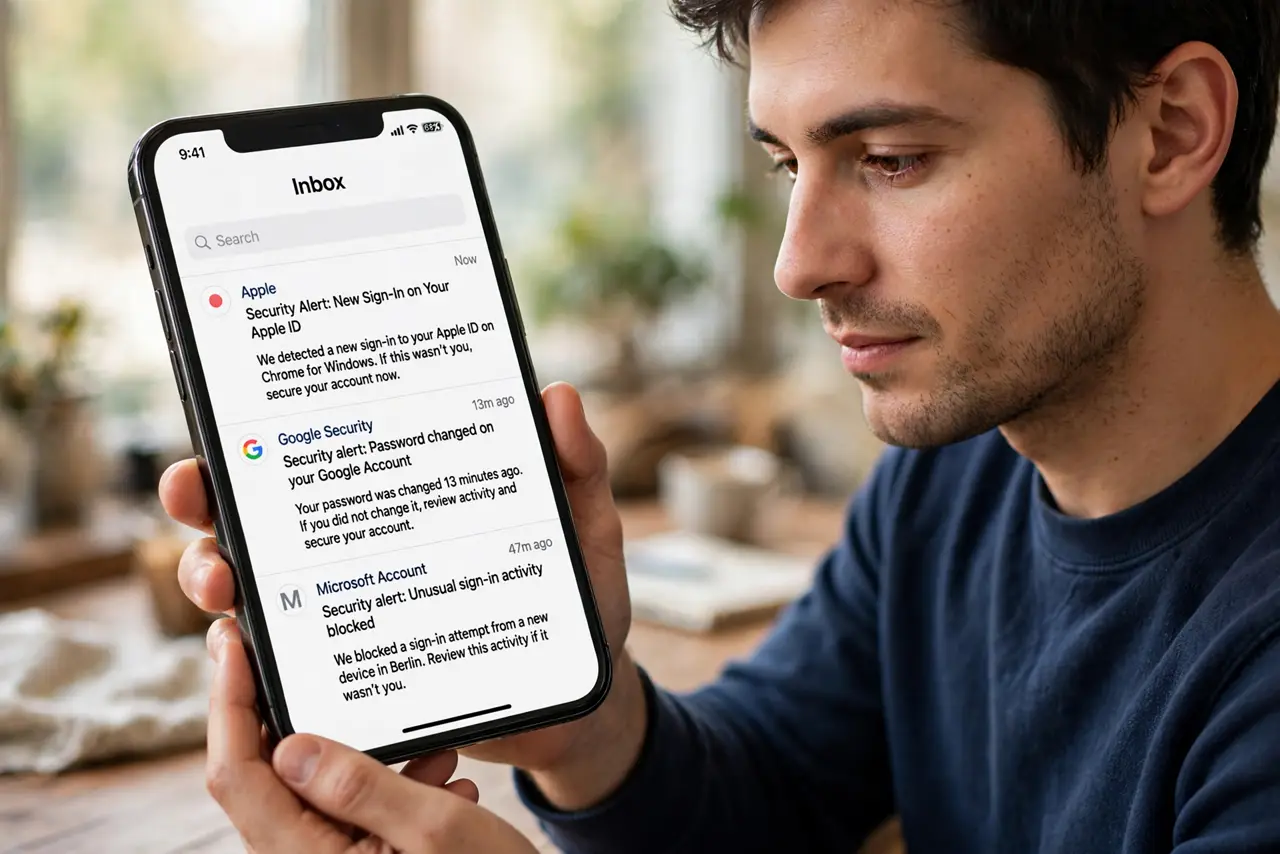
- Do not click 'secure my account' links inside alert emails. Phishers fake these alerts — go to the site or app directly and check security there instead.
- Do not ignore an alert because the location looks 'close enough.' Attackers can appear in nearby cities; if the device is not yours, treat it as hostile.
- Do not turn alerts off because of travel noise. A few extra alerts on vacation beat missing the one that matters — use your authenticator app instead of SMS while abroad if codes are slow.
- Do not assume no alert means no breach. Some attackers are quiet; alerts are one layer, alongside strong passwords and two-factor authentication.
Frequently asked questions
I got an alert but it was me — what now?
Nothing. New devices, VPNs, and travel all trigger alerts. Just confirm the device and time match what you did, and carry on.
Why did I not get an alert for a real login?
Your contact info may be outdated, alerts may be off, or the login came from a recognized device. Check the account's security settings and recent activity directly.
Should I use email or push alerts?
Both if offered. Push is faster; email leaves a record. The important thing is that at least one channel reaches you quickly.