AirDrop From Strangers? Block It
AirDrop set to 'Everyone' lets any nearby iPhone send you files — which is exactly how strangers beam explicit photos to commuters, a harassment trick with its own ugly name. Apple now limits 'Everyone' to ten minutes at a time, but the safe setting is Contacts Only, always. This takes thirty seconds and ends the problem permanently.
TL;DR / Quick Fix
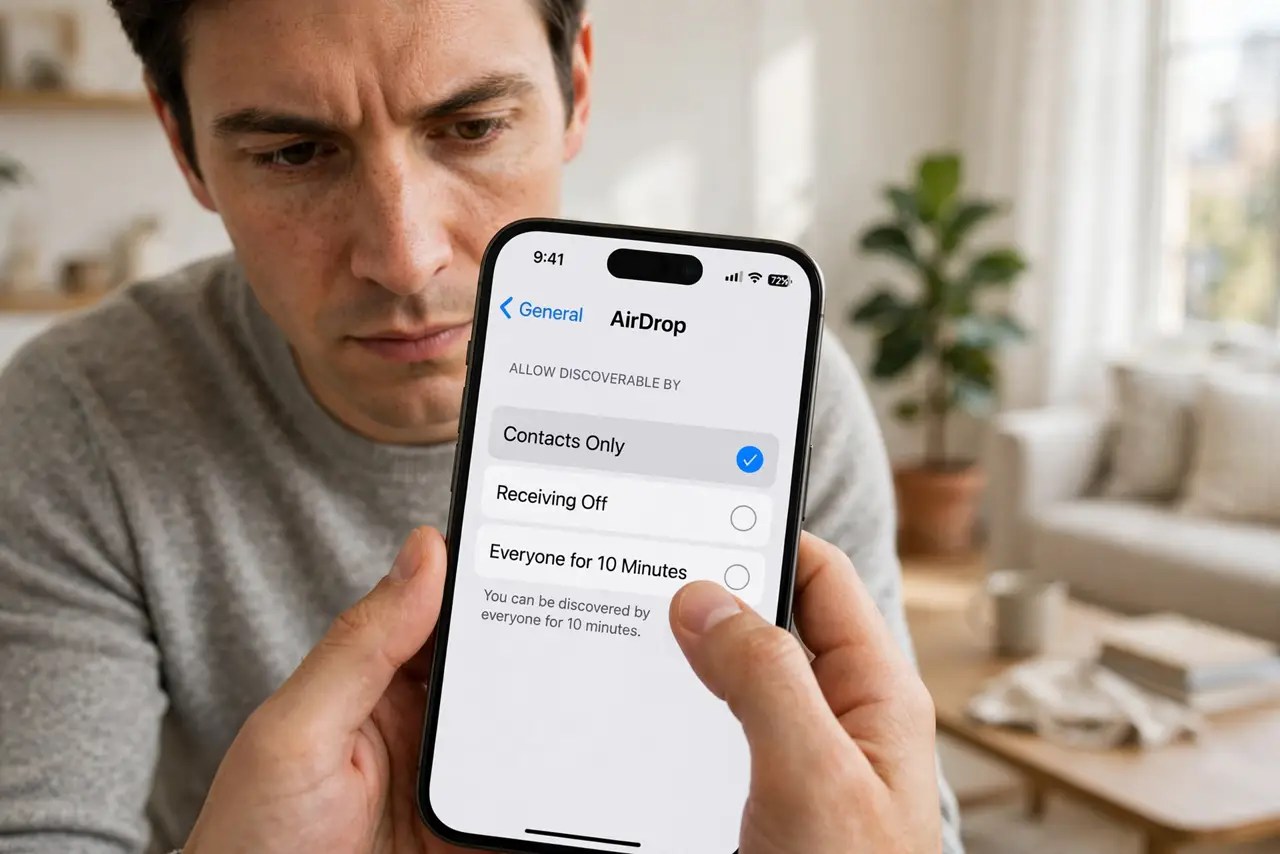
Quick fix: on iPhone open Settings, General, AirDrop, and set it to Contacts Only — never Everyone. Decline any unexpected AirDrop request. If you must receive from a stranger, switch to Everyone for ten minutes, then switch back immediately. Keep Bluetooth and Wi-Fi on only when needed.
Follow these steps
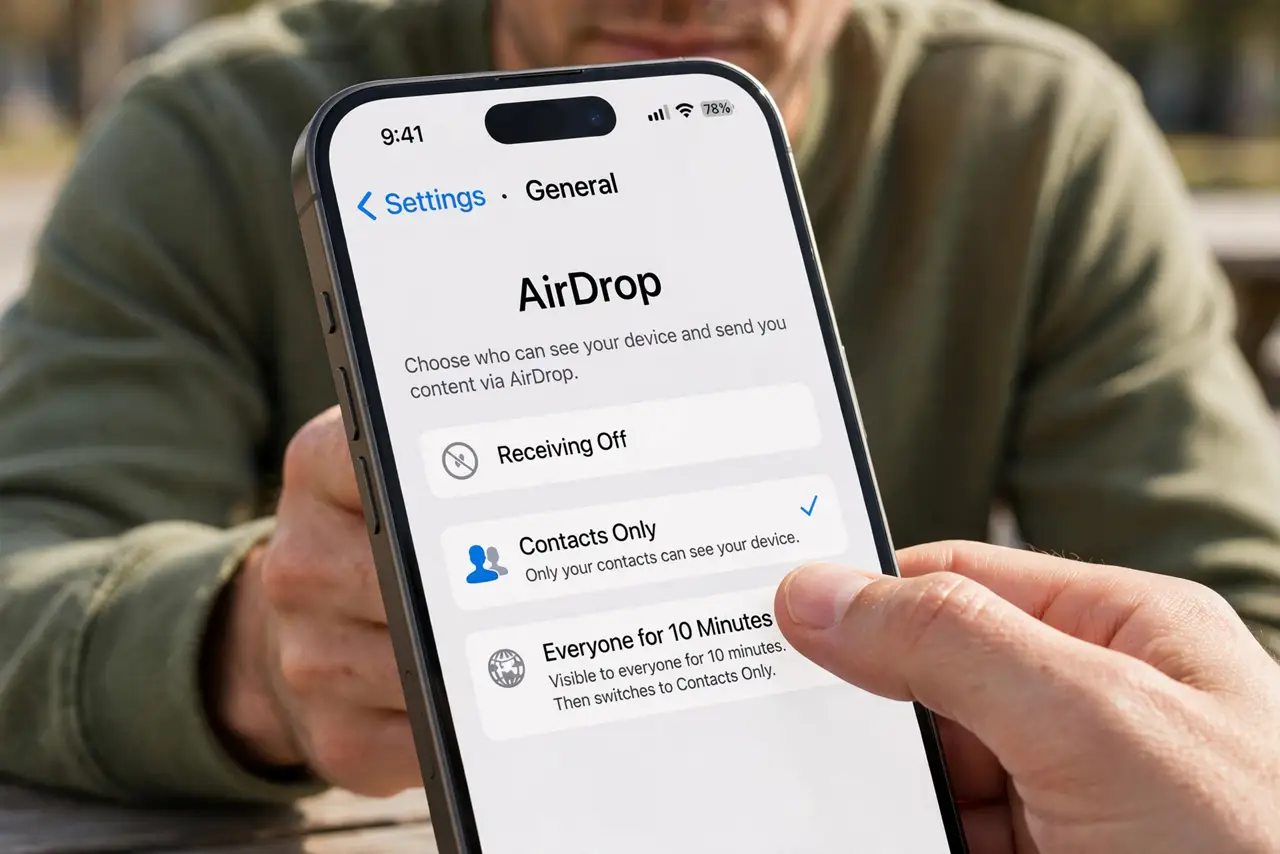
- Set AirDrop to Contacts Only. On iPhone: Settings, General, AirDrop, Contacts Only. On Mac: Finder, AirDrop, 'Allow me to be discovered by: Contacts Only.' This single setting ends unsolicited AirDrops from strangers — the ten-minute Everyone window is the only exception Apple allows.
- Decline unexpected requests. An AirDrop preview from someone you do not know is never legitimate. Tap Decline — do not even preview the image. Previewing is exactly what the sender wants.
- Use Everyone sparingly and briefly. Need a file from a stranger's phone? Switch to Everyone, take the file, switch back to Contacts Only immediately. Treat Everyone like an unlocked front door — open it, use it, lock it.
- Check who counts as a contact. Contacts Only works if the sender is in your contacts with their Apple ID email or number. If a friend cannot find you, that mismatch is usually why — not a broken setting.
- Keep software updated. Apple tightened AirDrop repeatedly — the ten-minute Everyone limit arrived via update. Staying current keeps you on the safest behavior without thinking about it.
- Turn off the radios when done. AirDrop needs Bluetooth and Wi-Fi. In genuinely sketchy crowds, toggling both off is the belt-and-braces option — nothing can reach a radio that is off.
What NOT to do
- Do not leave AirDrop on Everyone. It is an open inbox for anyone within thirty feet — the harassment vector is real and documented.
- Do not preview files from strangers. Decline first; curiosity is the attacker's business model.
- Do not forget to switch back. The ten-minute Everyone window is for a reason — leaving it open defeats the protection.
- Do not assume Contacts Only is broken when a friend cannot send. Check they are saved with the right Apple ID details first.
Frequently asked questions
What is cyber-flashing?
Sending unsolicited explicit images via AirDrop to strangers nearby. Setting AirDrop to Contacts Only blocks it completely.
Why did Apple limit Everyone to 10 minutes?
To curb harassment while keeping quick sharing with strangers possible. It was a direct response to the cyber-flashing problem.
Can strangers see my name via AirDrop?
They can see your device name in their share sheet when you are discoverable. Contacts Only hides you from strangers entirely.