Move Authenticator to a New Phone
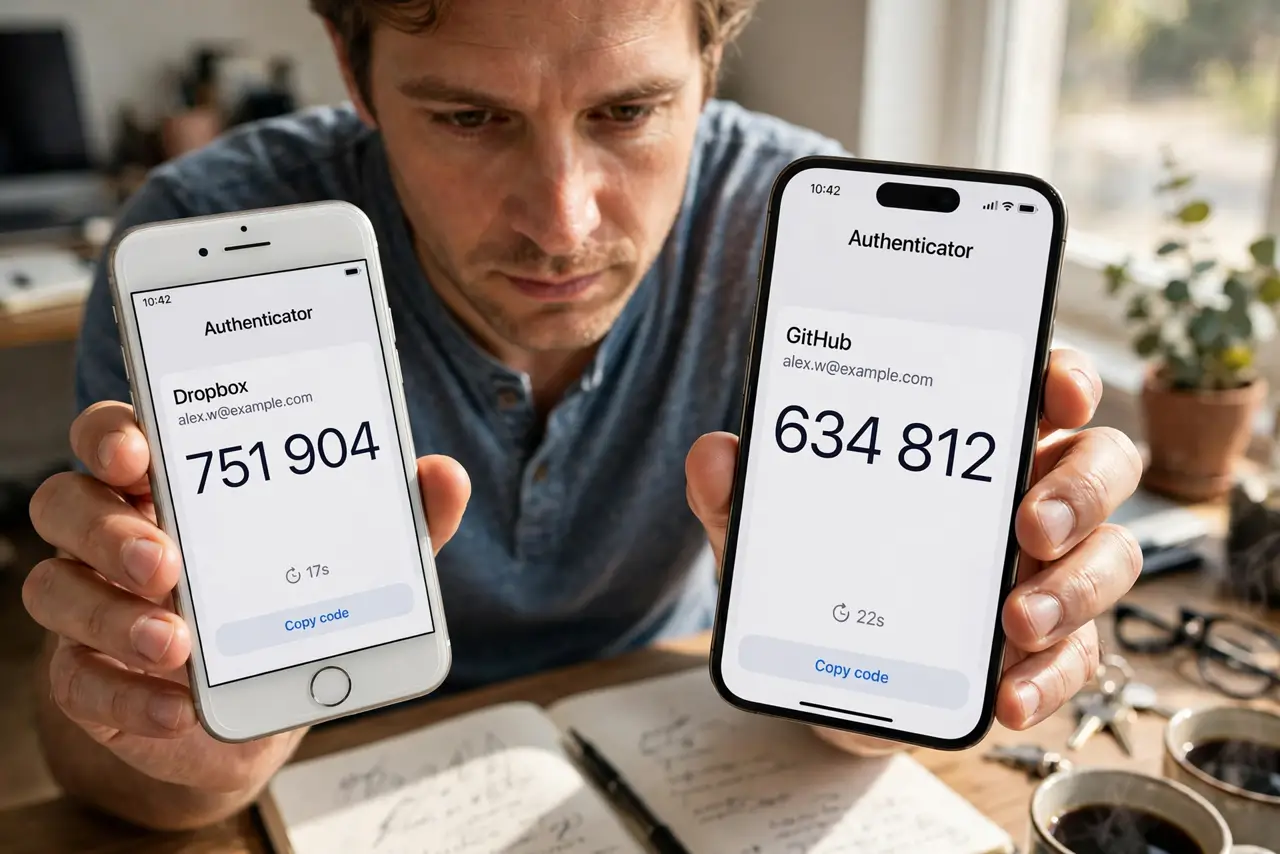
New phone in hand, old phone wiped — and now every login asks for a code from an authenticator app that no longer exists. Authenticator codes live on the device, not in your account, so switching phones needs a deliberate transfer. Do it before you wipe the old phone, not after.
TL;DR / Quick Fix
Quick fix: on the old phone, open the authenticator app's transfer or export option and scan its QR code with the new phone. Verify every account logs in before wiping the old device. If the old phone is gone, use each site's backup codes or recovery flow instead.
Follow these steps
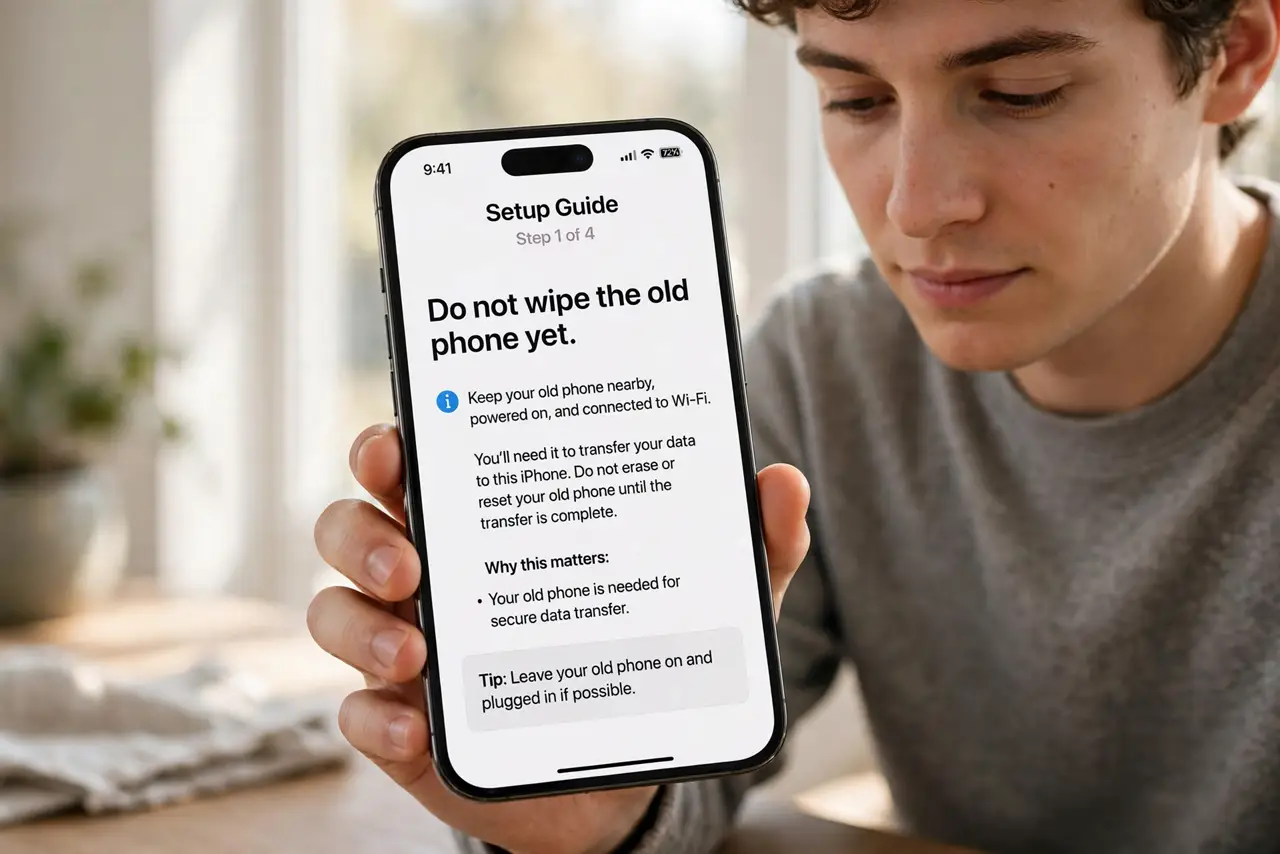
- Do not wipe the old phone yet. The codes live on the old device. Wiping first turns a ten-minute transfer into a multi-day recovery project — see lost-phone recovery.
- Check for cloud backup in the app. Many authenticator apps now offer encrypted cloud backup. If yours does, enable it on the old phone and sign into the same account on the new one — codes sync over.
- Use the in-app transfer. No cloud backup? Open the app's transfer/export tool on the old phone — it shows QR codes — and scan them with the new phone's app. Move accounts in batches if there are many.
- Verify every account. Log into each important account with the new phone's codes before touching the old phone. One unverified account is one future lockout.
- Save backup codes this time. For each account, store its backup/recovery codes in your password manager — see storing backup codes. Future phone swaps become painless.
- Wipe the old phone last. Only after every code works on the new device, factory-reset the old one. Lingering codes on a sold phone are a needless risk.
What NOT to do
- Do not factory-reset the old phone first. This is the number-one way people lock themselves out of everything at once.
- Do not assume codes transfer with a phone backup. iCloud and Google backups often exclude authenticator secrets — use the app's own transfer.
- Do not screenshot the QR transfer codes 'for later.' Those images are the keys themselves — anyone with them owns the accounts.
- Do not skip verification. A transfer that 'looked fine' but silently dropped one account reveals itself at the worst moment.
Frequently asked questions
Do authenticator codes move automatically to a new phone?
Usually not. Codes are stored on the device for security. Use the app's transfer/export, or its cloud backup if it offers one.
I already wiped my old phone — am I locked out?
Not necessarily. Use each site's backup codes, SMS fallback, or account recovery. It is slower, but see lost-phone recovery for the full path.
Which authenticator apps make this easiest?
Ones with encrypted cloud backup — sign in on the new phone and the codes arrive. Apps without it need the manual QR transfer.