Facebook Privacy Settings?
Facebook's defaults lean public — your posts, friend list, and profile details visible further than most people realize. A fifteen-minute privacy pass locks down who sees your posts, who can find you, and what advertisers learn. This guide walks the settings that matter, in order, without the jargon.
TL;DR / Quick Fix
Quick fix: tighten Facebook privacy in Settings, Privacy — set future posts to Friends, limit past posts, and control who can find you by phone or email. Preview your public profile with 'View as.' Recheck yearly; updates add options. Fewer public details means less fuel for scammers.
Follow these steps
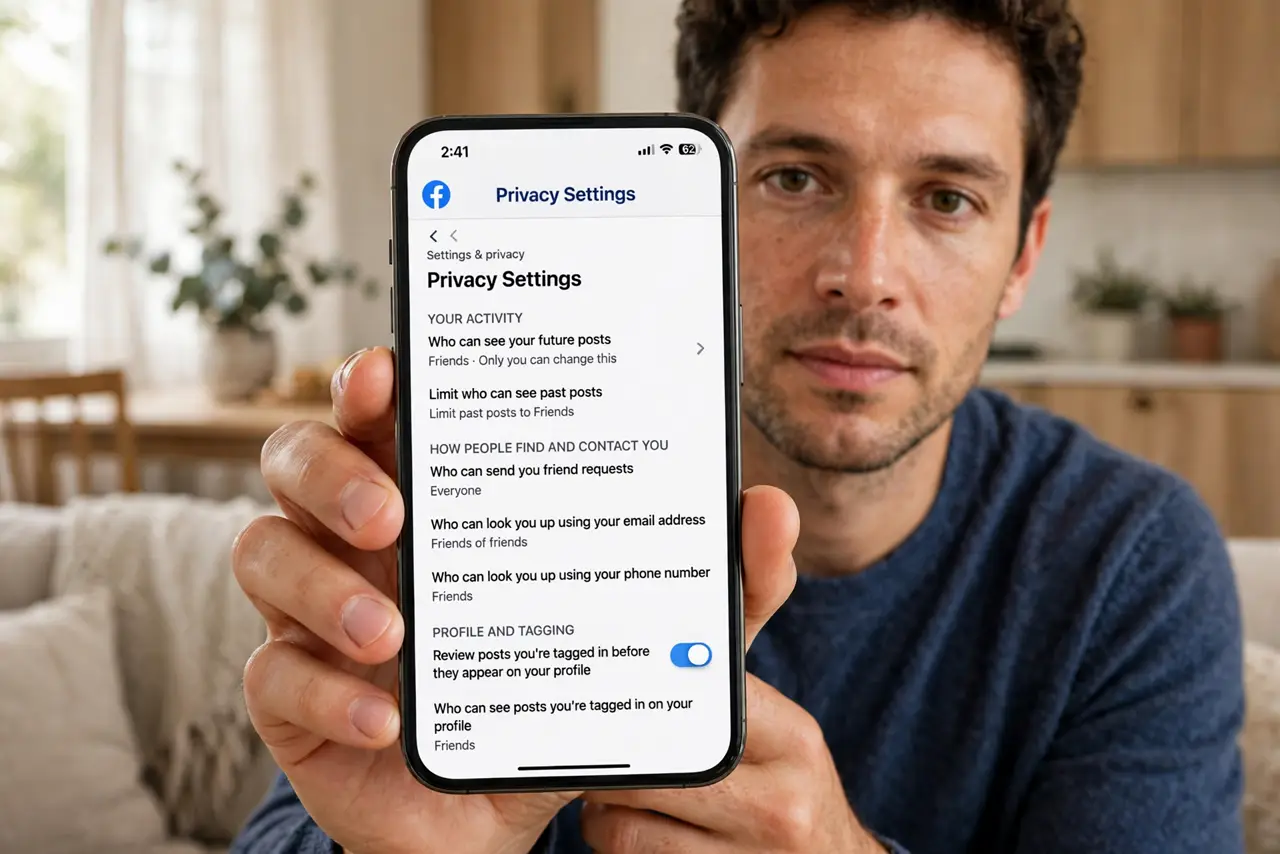
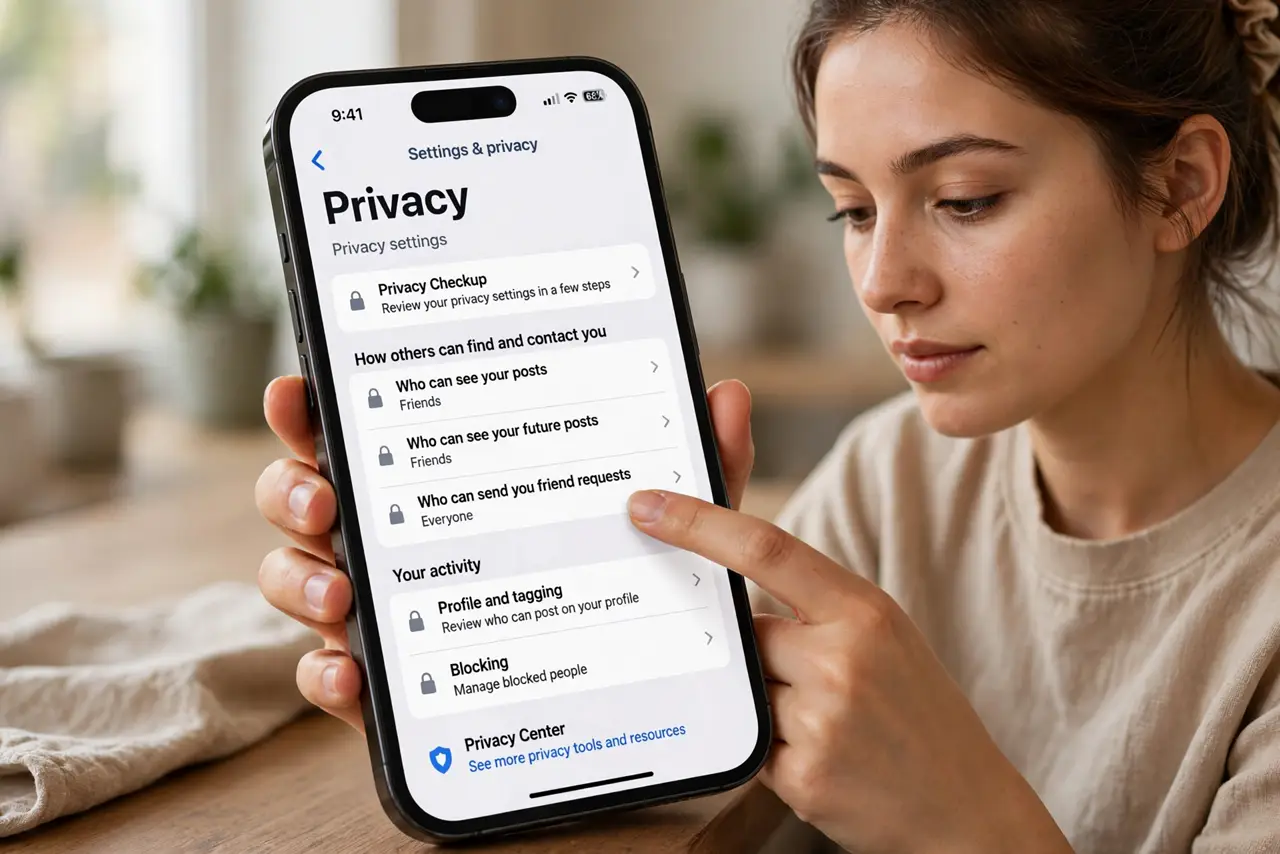
- Open Privacy settings. Tap your profile picture, Settings and privacy, Settings, then Privacy. Everything below lives on this one page — work through it top to bottom.
- Set future posts to Friends. Under 'Who can see your future posts,' choose Friends. Public-by-default is how strangers end up reading your life — Friends is the sane baseline for most people.
- Limit past posts. Use 'Limit the audience for posts you've shared' to retroactively restrict old public posts to Friends. One tap, years of oversharing contained.
- Control who can find you. Set who can look you up by email or phone number to Friends (or Only me), and decide whether search engines may link to your profile. Strangers do not need a phone-number path to you.
- Preview with View as. Open your profile and use 'View as' to see it as a stranger does. This is the reality check — what you see there is what the public sees.
- Review tags and timeline. Turn on tag review so embarrassing photos need your approval before appearing on your timeline. Your friends' tagging habits are not your privacy policy.
What NOT to do
- Do not assume defaults are private. Facebook's defaults favor visibility — every setting here needs an active choice toward Friends or Only me.
- Do not forget the audience selector on each post. Individual posts can override your default — check the little icon before sharing anything sensitive.
- Do not leave old apps connected. Remove third-party apps and games you no longer use; they keep whatever permissions you once granted.
- Do not trust 'Friends' blindly. With hundreds of friends, Friends-visible is semi-public — use Close Friends lists or Only me for truly personal posts.
Frequently asked questions
How do I make my friend list private?
In Privacy settings, set 'Who can see your friends list' to Only me or Friends. A public friend list is a scammer's map of who to impersonate you to.
Can people find me by my phone number?
Only if you allow it — set lookup by phone and email to Friends or Only me in Privacy settings. This is one of the most abused discovery paths.
Does limiting past posts delete anything?
No — it only changes the audience to Friends. The posts still exist; they are just no longer public. Delete separately anything you want gone entirely.