Smart TV Privacy? Basics
Your smart TV watches you back — viewing habits, voice commands, and sometimes even room audio flow to the manufacturer and its partners. The good news: most of it can be limited in the settings, and the TV still works fine. Here is what your TV collects and the settings that rein it in.
TL;DR / Quick Fix
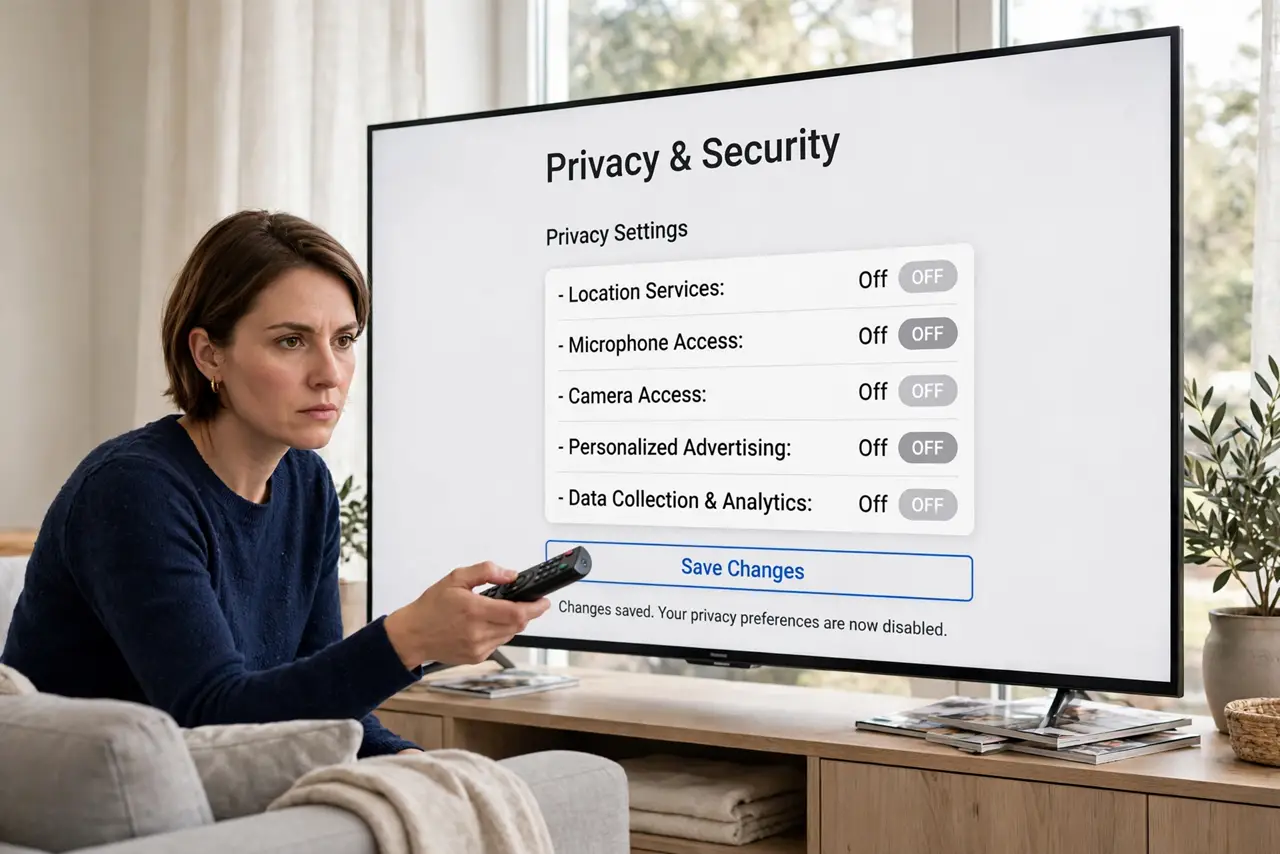
Quick fix: open your smart TV's settings and turn off viewing-data collection (often called ACR), personalized ads, and voice-data sharing. The TV works fine without them. Review the privacy policy once, then revisit settings after major software updates, which sometimes reset them.
Follow these steps
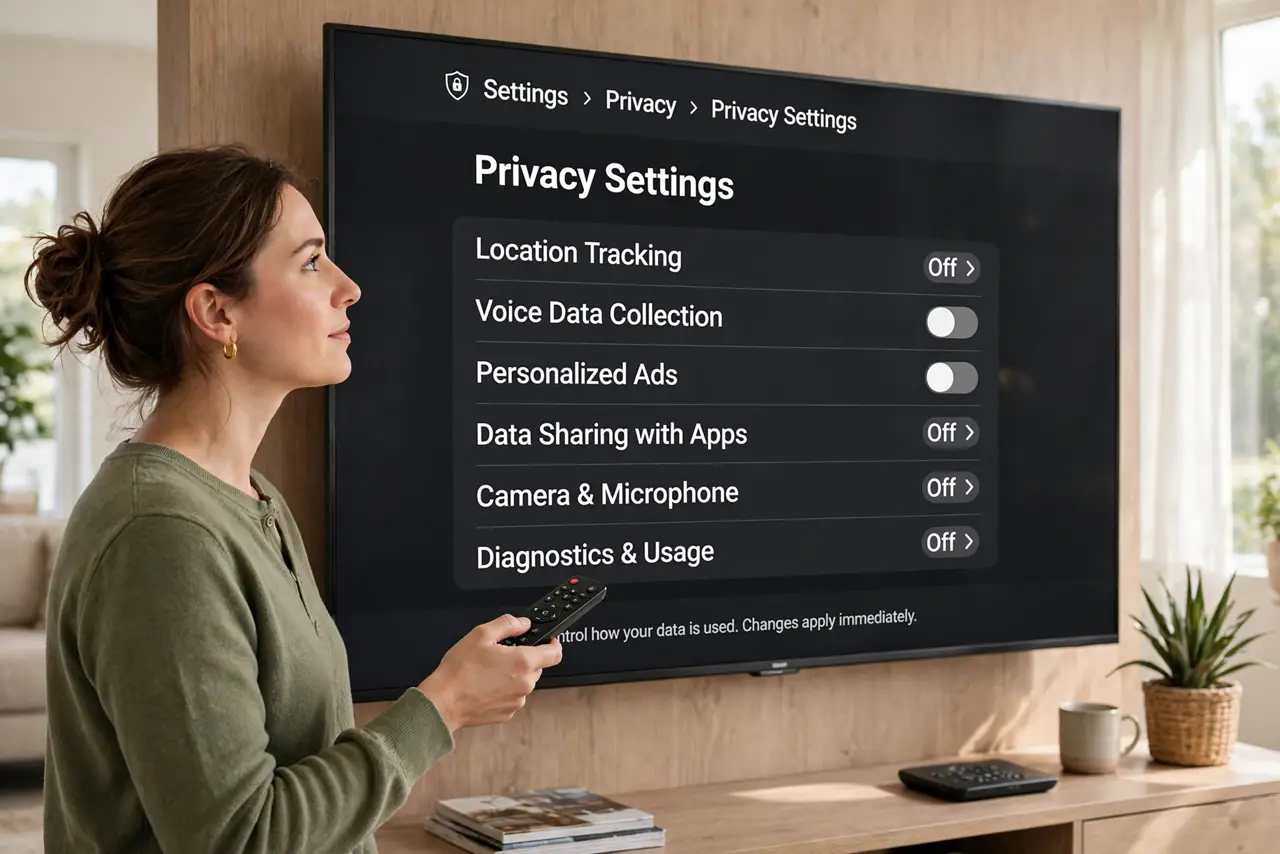
- Find the privacy settings. Settings > Privacy, or Settings > General > Privacy on most brands. The data-collection toggles hide here — ACR (automatic content recognition), viewing information, and interest-based ads.
- Turn off ACR / viewing data. ACR fingerprints everything on screen — cable, streaming, even game consoles — and reports it. Disabling it is the single biggest privacy win, and nothing you watch changes.
- Disable personalized ads. Turn off interest-based or personalized advertising. You will still see ads, but they will not be built from your viewing profile — a fair trade.
- Limit voice data sharing. If you use the voice remote, check whether recordings are stored or used for improvement — opt out where offered. The voice assistant guide covers the speaker side of this.
- Cover the camera if it has one. Some TVs include cameras for video calls — a physical shutter or a webcam cover beats trusting a software toggle for something pointed at your couch.
- Re-check after updates. Major firmware updates occasionally re-enable data collection. A yearly privacy-settings review takes five minutes and keeps your choices intact.
What NOT to do
- Do not accept every default during setup. The express setup path enables all data sharing — choose custom setup and decline.
- Do not assume 'smart' features need your data. The TV plays content fine with collection off — the data serves advertisers, not you.
- Do not ignore the microphone. Voice remotes listen on button-press, but check the settings for always-listening options and disable them.
- Do not connect the TV to Wi-Fi if you only use external devices. No network, no data collection — the nuclear option that always works.
Frequently asked questions
Does my TV really track what I watch?
Yes — ACR technology identifies on-screen content and reports viewing habits to the manufacturer and data partners. It is standard industry practice, and the toggle to stop it exists.
Will turning off tracking break apps?
No. Netflix, YouTube, and other apps work normally — you are only stopping the TV maker itself from profiling you.
Should I just not connect my smart TV?
If you use a streaming stick or console for everything, an offline TV is the simplest privacy posture — and it still works as a display.