Inspect a Link Before Clicking?
That link in your email or text looks like it's from your bank — but looks are exactly what attackers fake. A few seconds of inspection before clicking can reveal the mismatch between what a link claims and where it really goes. You don't need any special tools, just the habit of looking first. This guide shows you exactly what to check.
TL;DR / Quick Fix
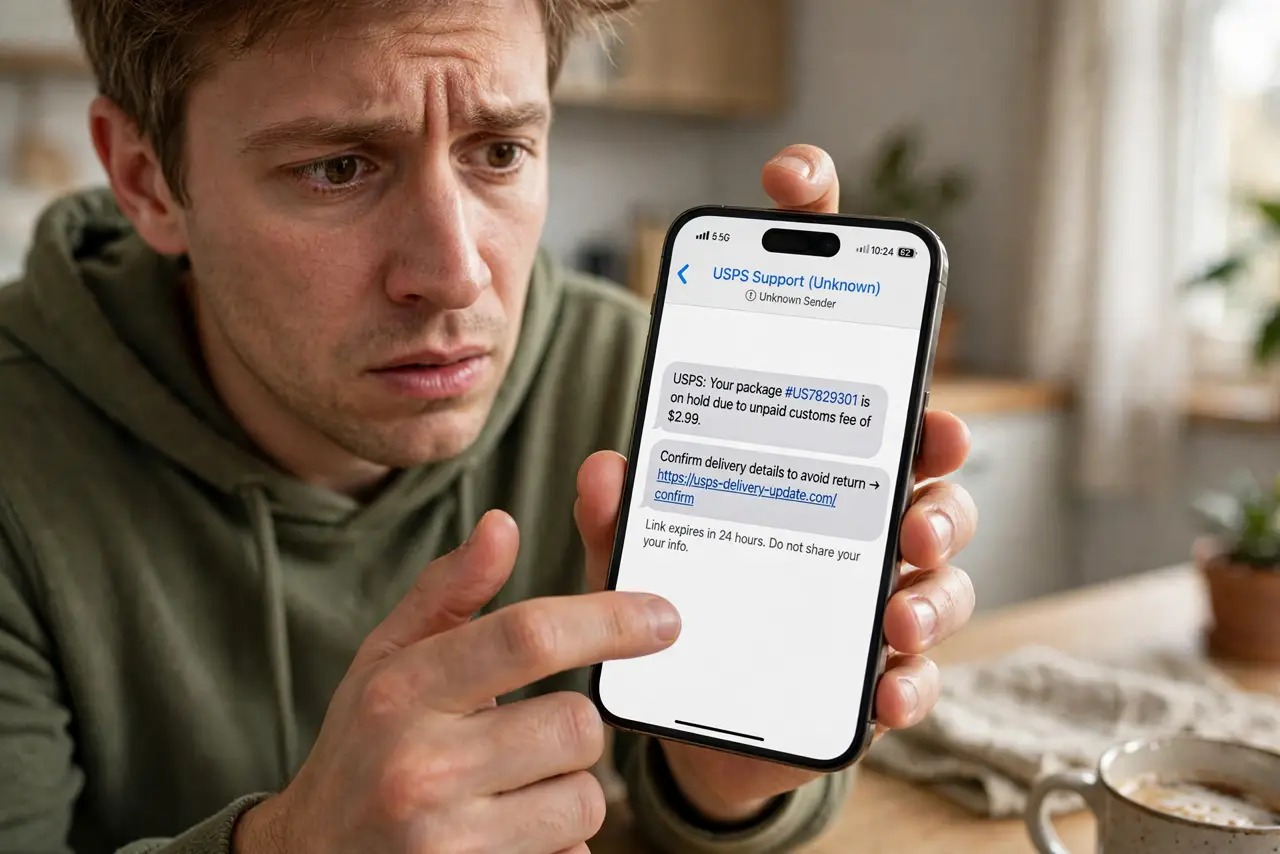
Quick fix: hover over links (don't click) to preview the real destination in the status bar or tooltip. Check the domain carefully — yourbank-secure.com is not yourbank.com. When in doubt, open the site yourself by typing the address instead of clicking the link.
Follow these steps
- Hover before you click. On a computer, hover the cursor over the link and read the real URL in the status bar or popup — no click needed. If the preview doesn't match the claimed sender, that's your answer.
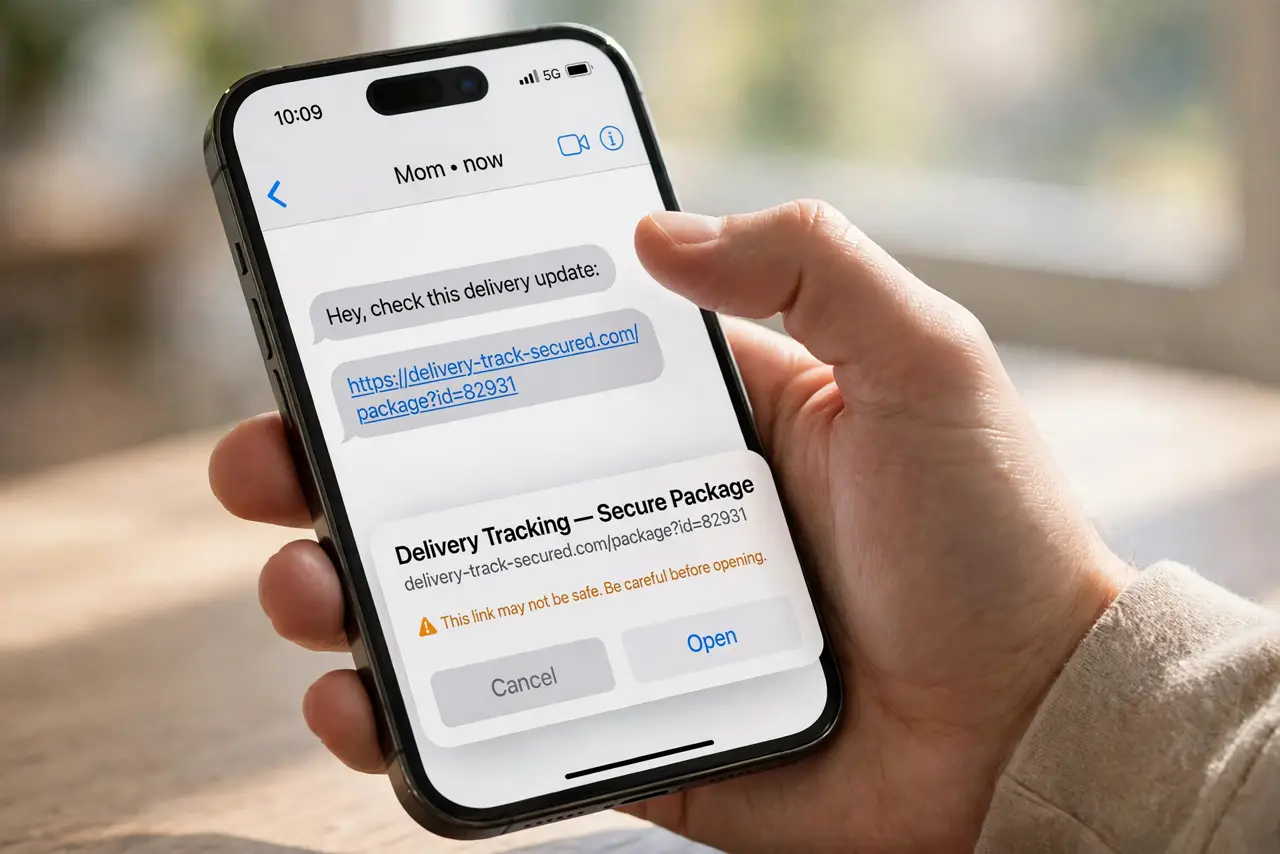
- Long-press on your phone. On iPhone or Android, press and hold the link to preview the destination. Never tap first and inspect later — by then the damage may be done.
- Read the domain, not the words. Attackers dress links in trustworthy words while the actual domain differs. Read right-to-left: in secure-yourbank-login.example.com, the real domain is example.com — everything before it is decoration.
- Watch for lookalike characters. Homograph attacks swap letters — rn for m, 0 for o. If a 'bank' link has odd characters or extra words in the domain, treat it as hostile.
- Check shortened links by expanding them. A bit.ly or t.co link hides its destination by design. Long-press to preview, or paste it into an expander site — never trust a blind short link in an unexpected message.
- Go direct instead of clicking. The safest move: don't click at all. Type the site's address yourself or use your bookmark. If the message was legitimate, you'll find the same information by navigating directly.
What NOT to do
- Do not click a link just because the message creates urgency. 'Your account will be locked in 24 hours' is the oldest trick — urgency is designed to stop you inspecting.
- Do not trust the display text of a link. Blue underlined text can say anything while pointing anywhere — only the actual URL matters.
- Do not enter credentials on a page you reached through a link. Even a convincing login page can be a fake — navigate to the real site first if you must log in.
- Do not forward suspicious links to friends to 'check'. If you clicked already, see what to do next instead of spreading it.
Frequently asked questions
Can just hovering over a link infect me?
No — hovering or long-pressing to preview is safe. The danger starts when you click through and then download something or enter credentials. Preview freely; click carefully.
What if the link looks exactly right?
Then check the context: did you expect this message? Attackers now buy convincing domains. When anything feels off, navigate to the site directly instead of trusting the link — and watch for bank impersonation patterns.
Are QR codes the same risk?
Yes — a QR code is just a link you can't read. Preview the URL your camera shows before opening it, especially on stickers in public places, where QR phishing is common.