Chart in Google Sheets
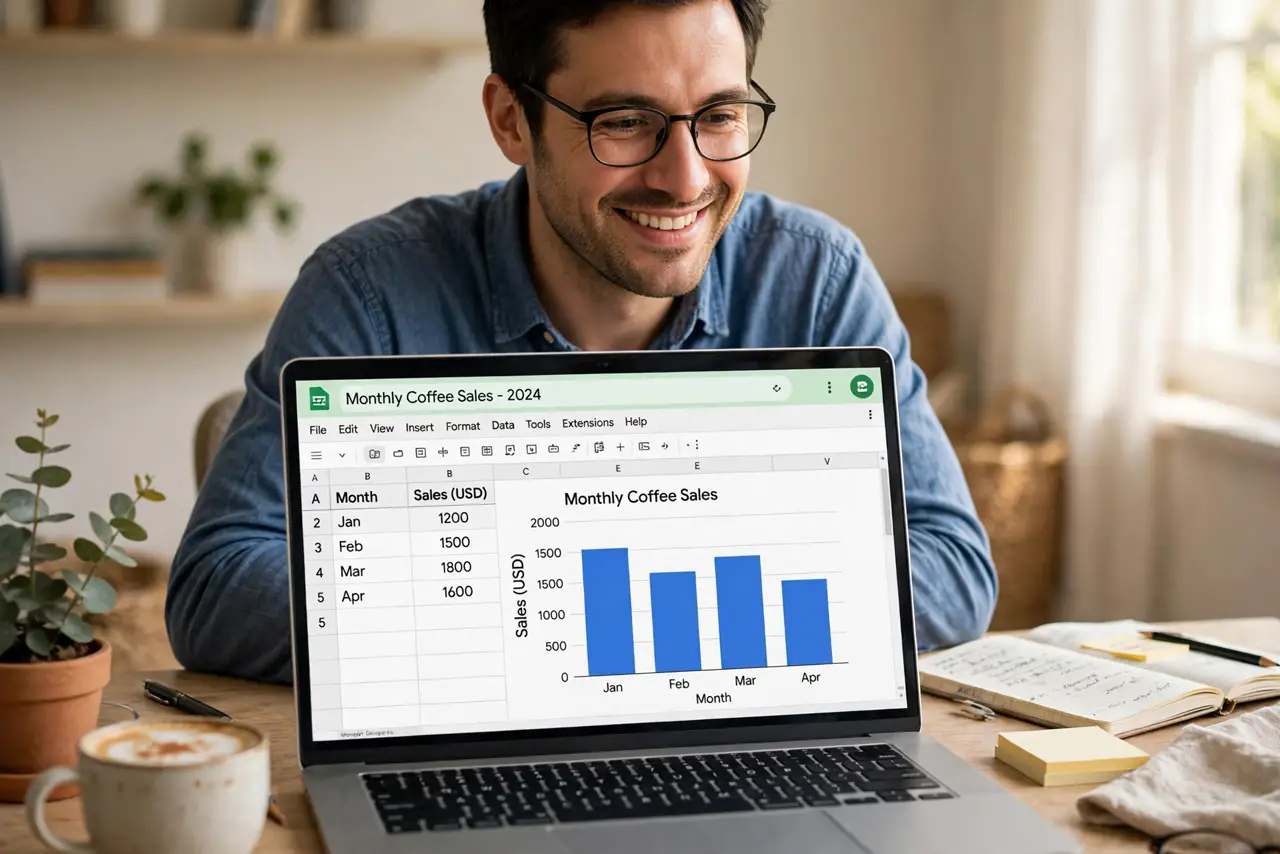
A table of numbers convinces nobody; a chart tells the story at a glance. Google Sheets turns selected data into charts in seconds and suggests the right type for you. The difference between a confusing chart and a clear one is labels, titles, and restraint. Get the chart basics and let Explore suggest visualizations.
TL;DR / Quick Fix
Quick fix: select your data, click Insert then Chart, and let Google Sheets suggest the right visualization — then fix the title and labels. A clear chart beats a clever one every time. Label everything; an unlabeled chart is just colorful confusion.
Follow these steps
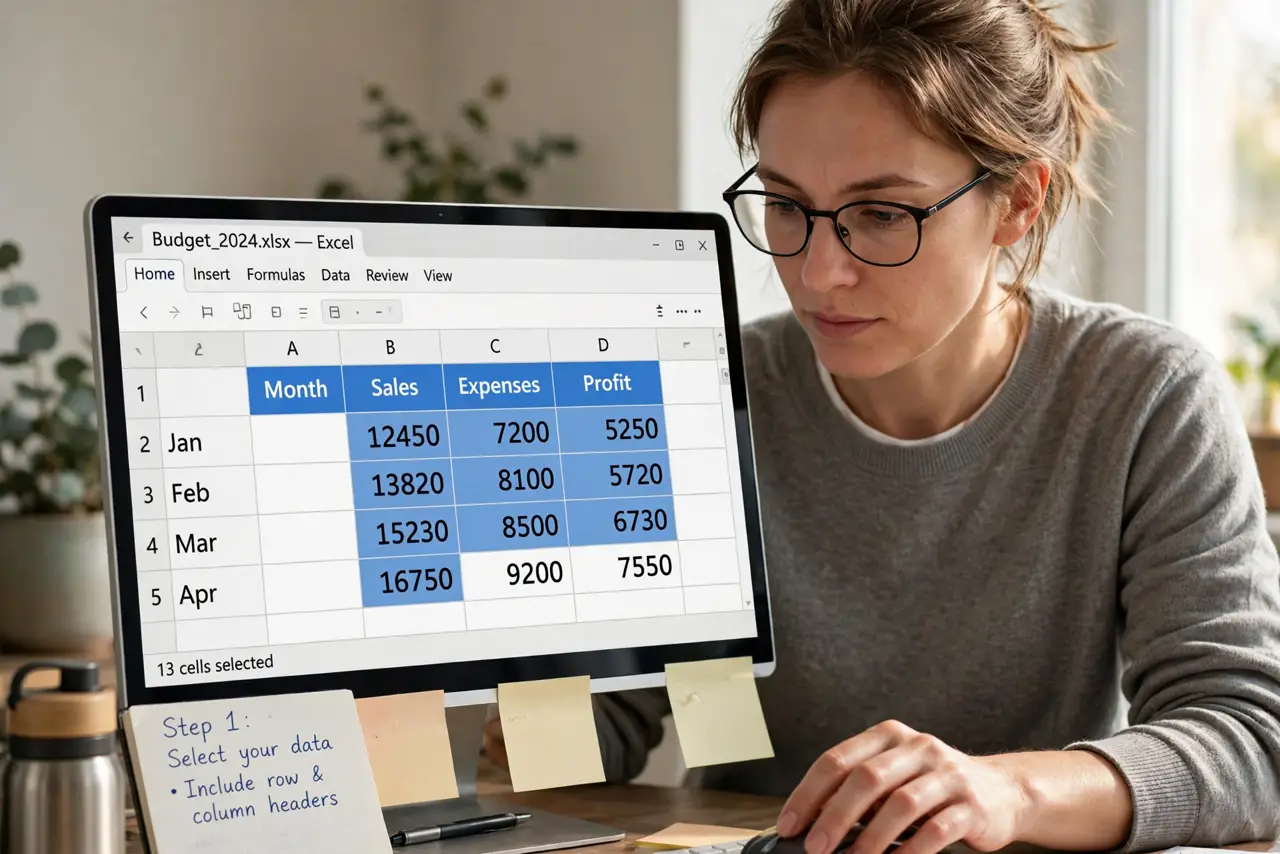
- Select your data. Highlight the numbers plus their row and column headers. Headers become the labels — without them the chart is gibberish.
- Insert the chart. Click Insert, then Chart. Sheets guesses the chart type from your data's shape — it is usually right.
- Pick the right type. Trends over time: line. Comparisons: bar or column. Parts of a whole: pie (sparingly). Match the shape to the story.
- Fix the title and labels. Replace the auto title with what the chart actually shows. Label both axes in plain words — this step separates clear from confusing.
- Simplify ruthlessly. Remove gridlines, 3D effects, and extra series that do not serve the point. One message per chart.
- Place it with context. Put the chart near the data and the paragraph that references it. A chart floating alone loses half its power.
What NOT to do
- Do not use 3D charts. They distort proportions and impress nobody — flat and honest wins.
- Do not chart everything. Three clear charts beat ten confusing ones; choose the numbers that matter.
- Do not forget axis labels. An unlabeled axis makes even perfect data meaningless.
- Do not use pie charts for many slices. Beyond five or six slices, pies become confetti — use bars instead.
Frequently asked questions
Which chart type should I use?
Time trends go line, comparisons go bar, shares go pie. When in doubt, bar charts are the safe universal choice.
Can I update the chart when data changes?
Yes — charts linked to the data update automatically. That is the whole point of charting from the sheet.
How do I make it look professional?
Clear title, labeled axes, no 3D, restrained colors. Professional is mostly the absence of clutter.