Master Slides? The Basics
You are fixing the same footer on forty slides, one by one, and there has to be a better way — there is. The master slide (Slide Master in PowerPoint, Theme Builder in Google Slides) is the template behind all your slides: change it once, and every slide follows. It is the single biggest time-saver in presentation software that most people never open.
TL;DR / Quick Fix
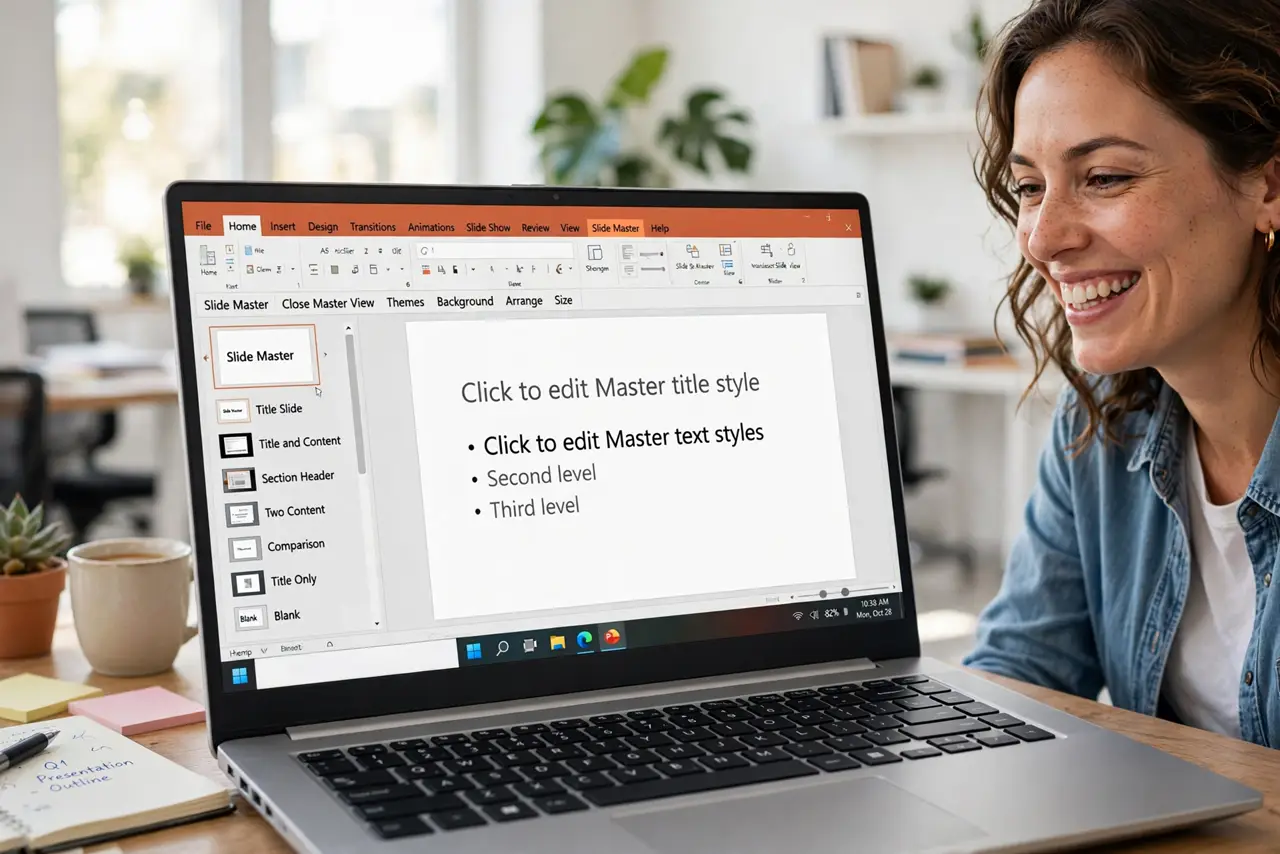
Quick fix: the master slide controls fonts, colors, footers, and layouts for your whole deck. Edit it once instead of fixing slides one by one. In PowerPoint use View then Slide Master; in Google Slides use Slide then Edit theme. Set it up before adding content.
Follow these steps
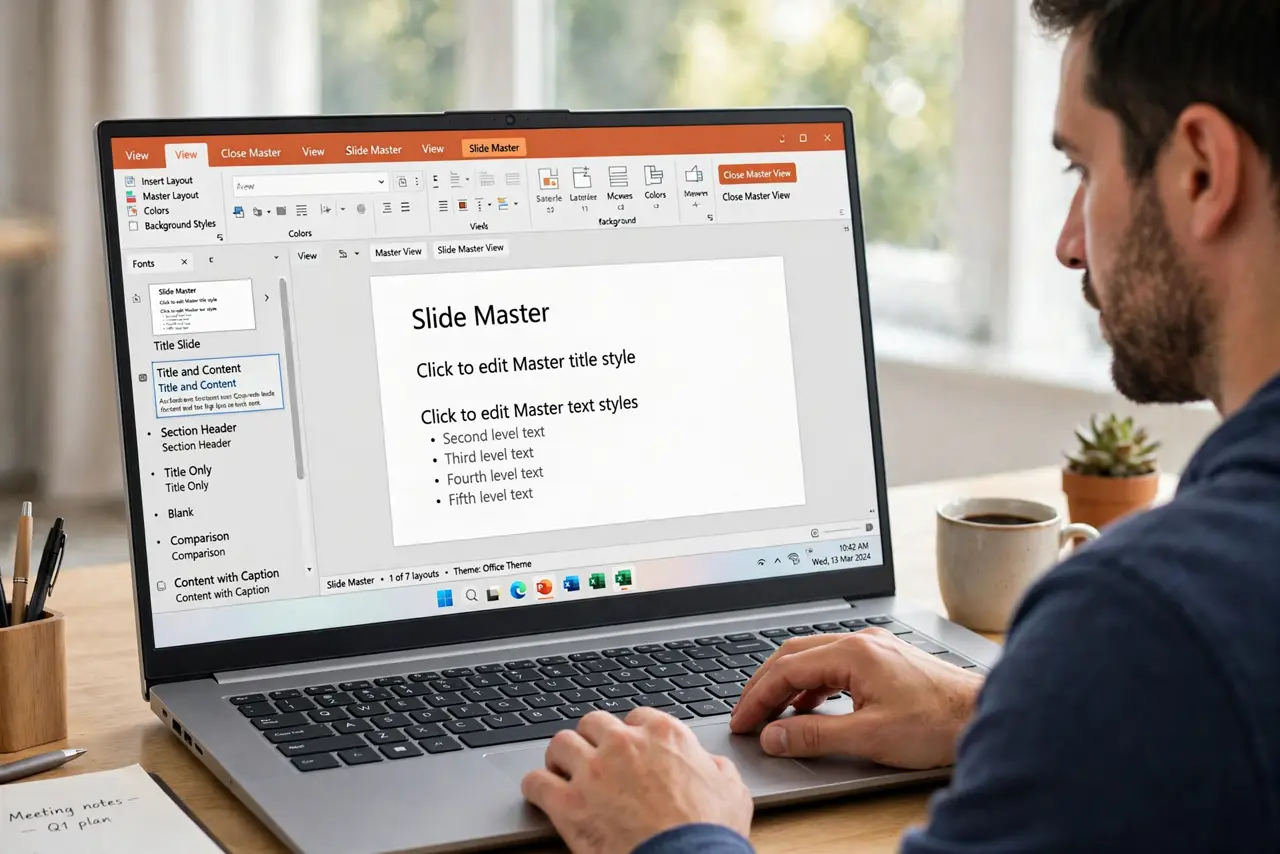
- Open the master view. In PowerPoint: View, Slide Master. In Google Slides: Slide, Edit theme. You will see the big master at top and layout variants below — this is mission control for the deck's design.
- Set fonts and colors once. Change the title and body fonts on the master, and every layout inherits them. This is how you stop the 'three different fonts' disease that infects long decks.
- Fix the footer everywhere at once. Page numbers, dates, confidentiality footers — put them on the master and they appear on every slide. One edit updates the whole deck instantly.
- Customize layouts, not individual slides. Need a two-column layout or a big-quote layout? Build it as a master layout. Slides based on layouts stay consistent; hand-formatted slides drift.
- Apply the master before adding content. The painful lesson: set up the master first, then build slides. Retrofitting a master onto a finished deck means reapplying layouts slide by slide.
- Know its limits. Content already typed directly onto slides does not magically adopt the master — you must reapply the layout. Masters govern structure and style, not existing text boxes.
What NOT to do
- Do not format slides individually when the master exists. Forty manual footers is how decks become inconsistent — one master footer is how they stay clean.
- Do not edit the master mid-presentation panic. Changes cascade everywhere instantly, which is powerful and terrifying — edit masters calmly, before showtime.
- Do not ignore the layout variants. Editing only the top master while slides use custom layouts means your changes silently miss half the deck.
- Do not paste foreign slides without checking. Imported slides bring their own masters and fonts — reapply your layouts or the deck becomes a ransom note. The different-computer look is usually a font the other machine lacks.
Frequently asked questions
What is the difference between a master and a template?
The master lives inside your file and controls its design; a template is a file you start from. Templates contain masters — the master is the working machinery.
Can I have two different designs in one deck?
Yes — add a second master. Useful for a divider section with a different look, though restraint keeps the deck professional.
Why did my fonts change on someone else's computer?
They did not have your fonts installed. Stick to common fonts or embed them (PowerPoint) to keep the design intact everywhere.