Presenter View? How to Use It
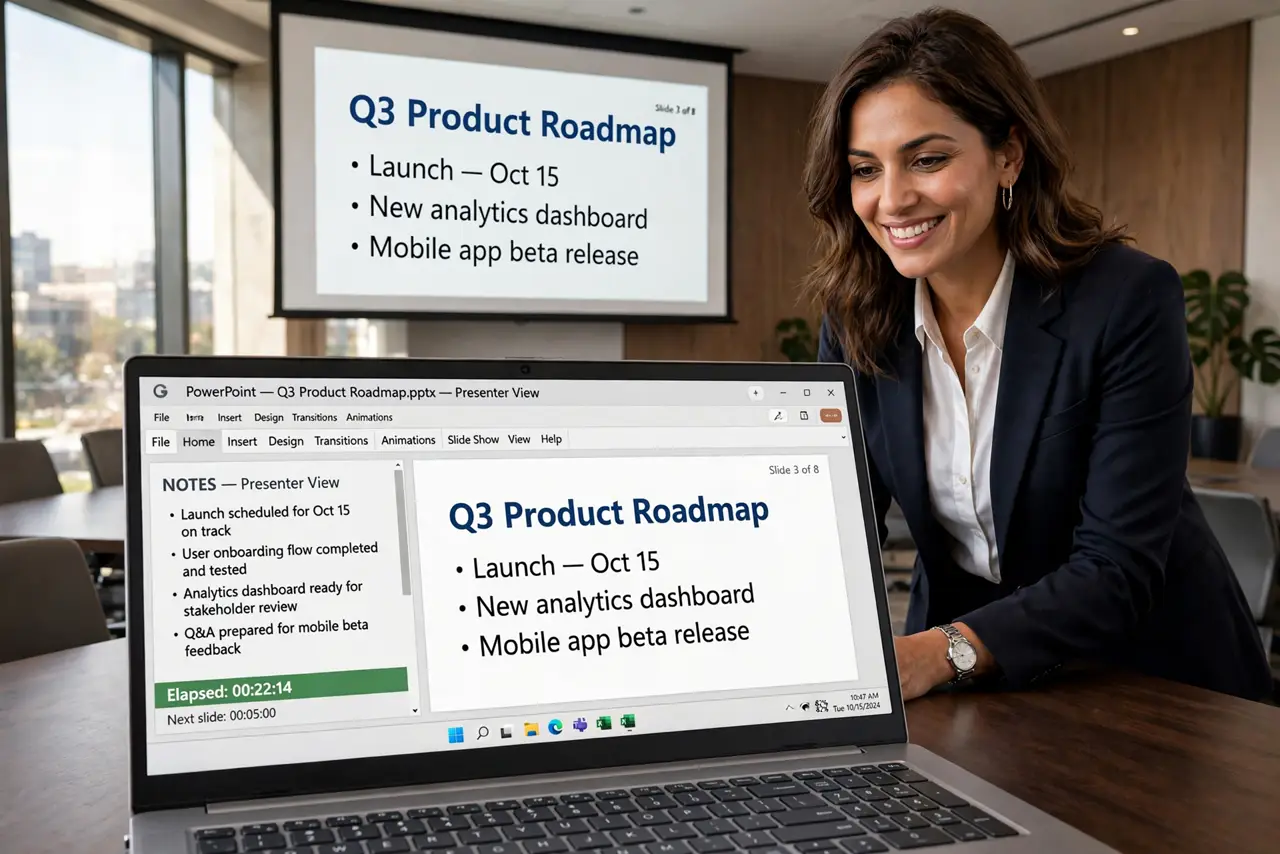
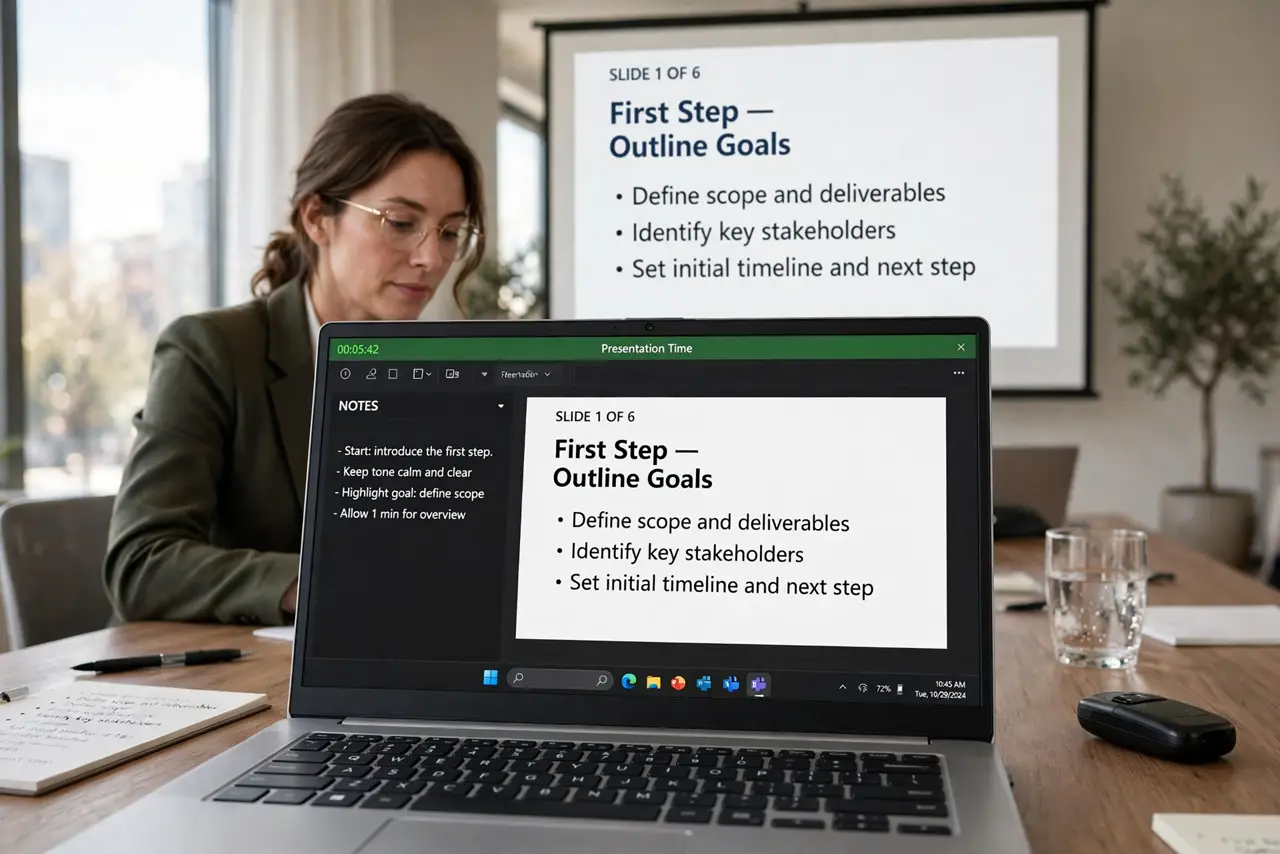
Presenter View is the secret second screen of slideshow software: the audience sees the clean slide while you see the current slide, the next slide, your notes, and a timer. Presenting without it is like driving with the windshield painted over. Yet most people have never turned it on — they mirror their screen and read off the same slide as everyone else.
TL;DR / Quick Fix
Quick fix: Presenter View shows you notes, next slide, and timer while the audience sees only the slide. In PowerPoint and Google Slides it appears automatically when presenting on two displays. Practice with it once before the real talk — the controls are simple but unfamiliar.
Follow these steps
- Use two displays. Presenter View needs the audience display plus your laptop screen — extended desktop, not mirrored. Connect the projector, set displays to Extend, and the software handles the rest.
- Start the slideshow normally. In PowerPoint, Slide Show, From Beginning; in Google Slides, Present. With extended displays, Presenter View opens on your laptop automatically while the audience gets the clean slide.
- Read your notes, not the slide. Your notes appear large and scrollable on your screen — invisible to the audience. This is the whole point: speak naturally while the notes keep you on track.
- Watch the timer. The elapsed-time readout keeps you honest. Set a mental checkpoint ('slide 10 by minute 15') and glance at it — running over is the most common presenting sin.
- Preview the next slide. The next-slide thumbnail lets you land your transitions: 'which brings us to...' works when you can see what is coming. No more surprised-by-your-own-deck moments.
- Rehearse with it once. Run through the deck in Presenter View the night before. The controls — pen, laser pointer, slide jumping — are simple, but first contact should not be in front of an audience.
What NOT to do
- Do not mirror your displays. Mirroring shows the audience your notes, timer, and next slide — the exact things Presenter View exists to hide.
- Do not read the notes word for word. Notes are a safety net, not a script — audiences can tell, and it kills your credibility.
- Do not skip the rehearsal. Fumbling the view controls live is more distracting than any slide design flaw.
- Do not rely on the timer alone. A timer tells you that you are over; checkpoints tell you in time to fix it.
Frequently asked questions
Why do I see the same slide as the audience?
Your displays are mirrored instead of extended. Change to Extend in display settings and restart the slideshow — Presenter View appears.
Can I use Presenter View with one screen?
PowerPoint and Slides can simulate it, but you lose the separation. For real talks, two displays (or a laptop plus projector) is the setup.
The audience can see my notes! What happened?
The displays got swapped — your laptop is showing the audience view. There is a 'swap displays' button in Presenter View; hit it immediately.