Dates Import as Text in a Spreadsheet
When dates land in a spreadsheet as plain text, they look right but behave wrong: sorting scrambles them, formulas skip them, and month names order alphabetically. The fix is to convert those text values into real dates the sheet understands.
TL;DR / Quick Fix
Quick fix: select the date column, use your spreadsheet's Text to Columns or DATEVALUE feature to convert the text into real dates, then apply a date format. Sort the column and spot-check a few rows to confirm the dates now order correctly instead of alphabetically.
Follow these steps
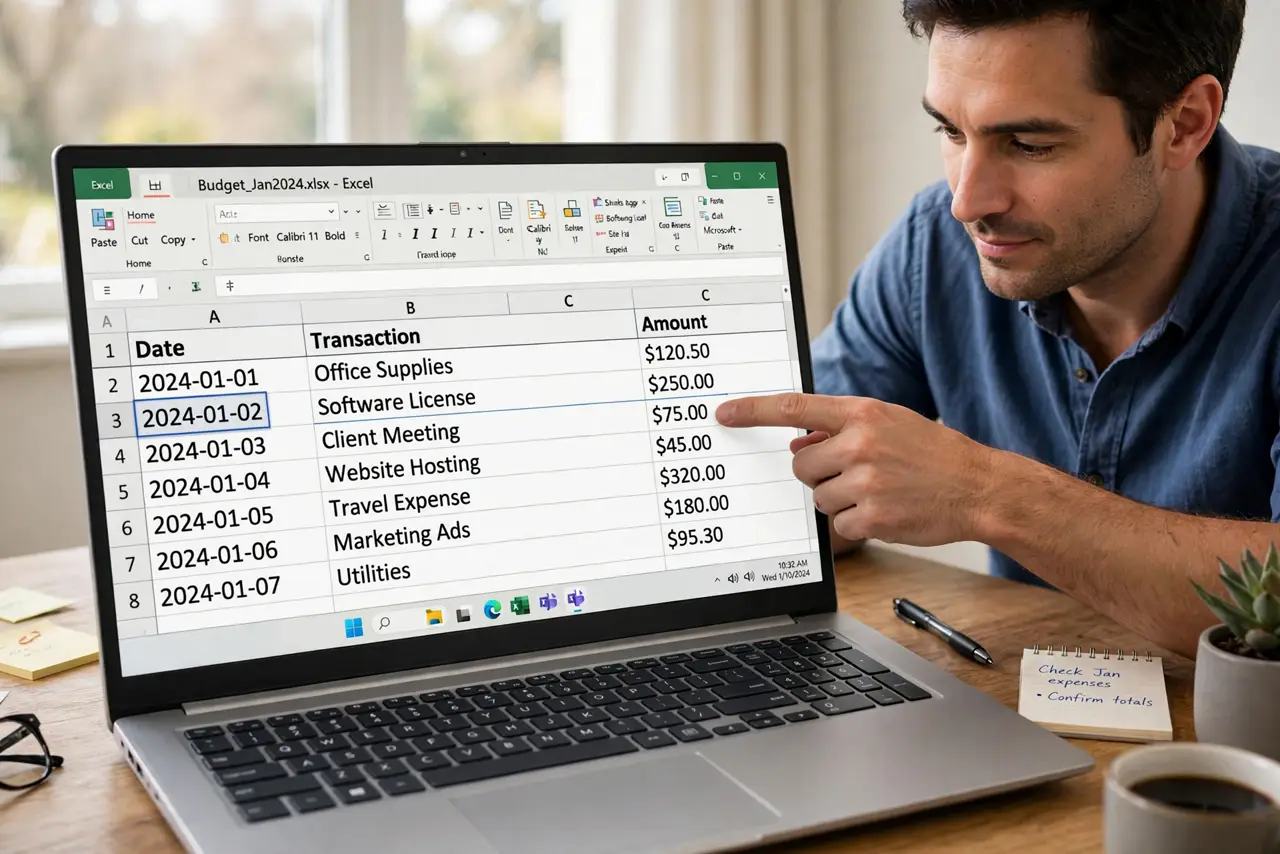
- Check whether the dates are really text. Click a date cell and look at the formula bar. If the value sits left-aligned or formulas ignore it, the sheet treats it as text, not as a real date.
- Convert with Text to Columns. Select the column, open Data, then Text to Columns, and choose Date as the column data format. This rewrites the text as real date values in a single pass.
- Use DATEVALUE for a small range. For a handful of cells, type =DATEVALUE(A1) in a helper column. It converts one text date at a time, which is handy when only part of the column is wrong.
- Match the locale's date order. Tell the tool whether your dates are month-first or day-first. Converting 03/04/2026 with the wrong order silently turns March 4 into April 3.
- Apply a real date format after converting. With the values now real dates, choose a date format from the Format menu. This step only works after conversion, which is why formatting alone never fixed the problem.
- Sort and spot-check the result. Sort the column and scan the top and bottom rows. If March sorts before January, some cells are still text, so convert those too.

What NOT to do
- Do not just change the number format and call it done. Formatting text does not turn it into a date, so sorting and formulas stay broken until the values are truly converted.
- Do not retype the whole column by hand. A long list converts in seconds with Text to Columns, while hand-typing invites fresh mistakes on every row.
- Do not assume the import guessed the day order right. Day-first and month-first dates look identical, so verify a few known dates after converting.
- Do not delete the original import column until the new one checks out. Keep the raw data as backup until the sorted, formatted dates are confirmed.
Frequently asked questions
Why do my dates sort alphabetically?
Because they are text, not dates, so the sheet sorts them character by character instead of by calendar order.
What is the fastest way to convert them?
Select the column and use Text to Columns with the Date option, which converts the whole column in one step.
Why did some dates land in the wrong month?
The converter read them in the wrong day and month order. Redo the conversion with the matching locale order.