Currency Format Changes When You Share a Sheet
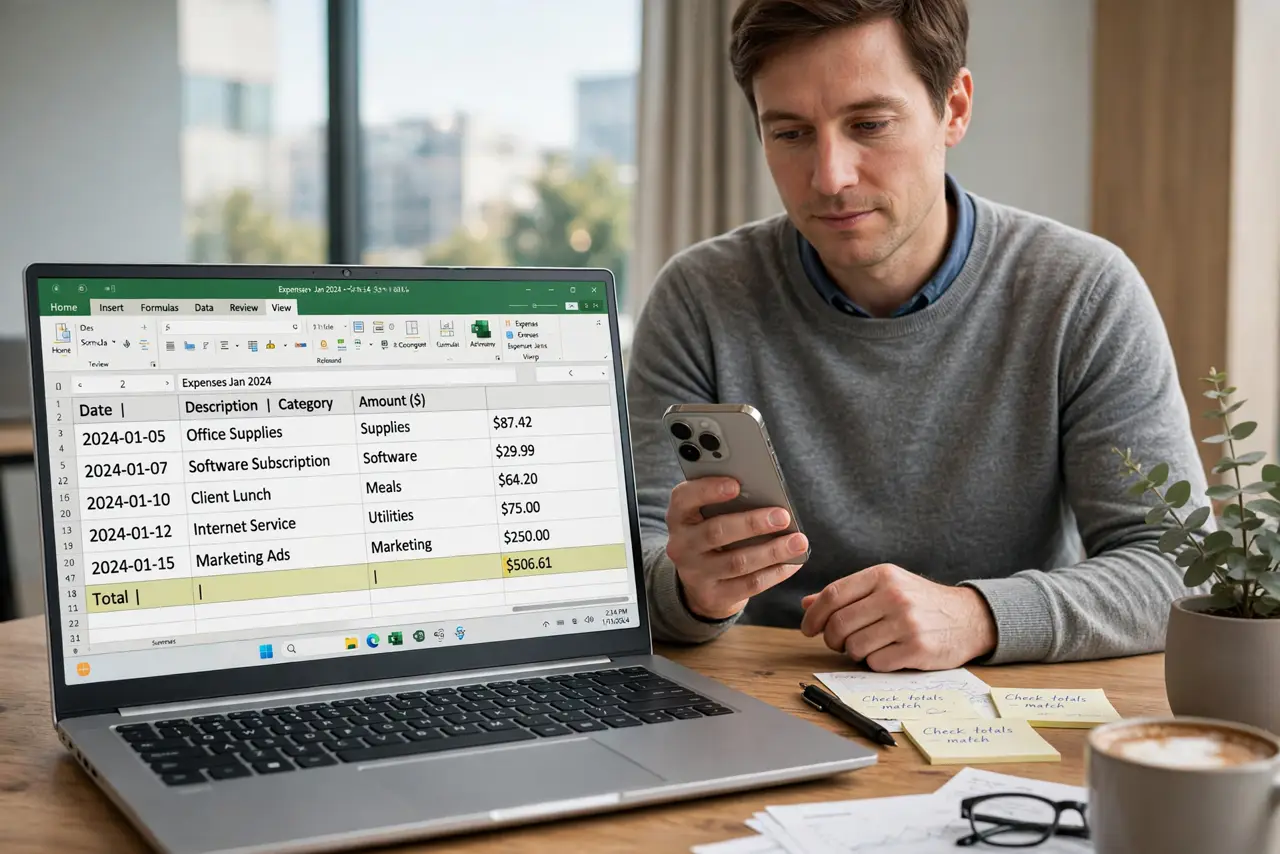
A money column looks perfect on your screen, then a collaborator opens the sheet and the currency symbol or decimals have changed. The format is following the viewer's regional settings instead of the sheet's own locale.
TL;DR / Quick Fix
Quick fix: set the sheet's locale to your region in the spreadsheet settings, then apply a currency format to the amount cells. When you share it, the symbol and decimals stay put because the format now belongs to the file, not to each viewer's settings.
Follow these steps
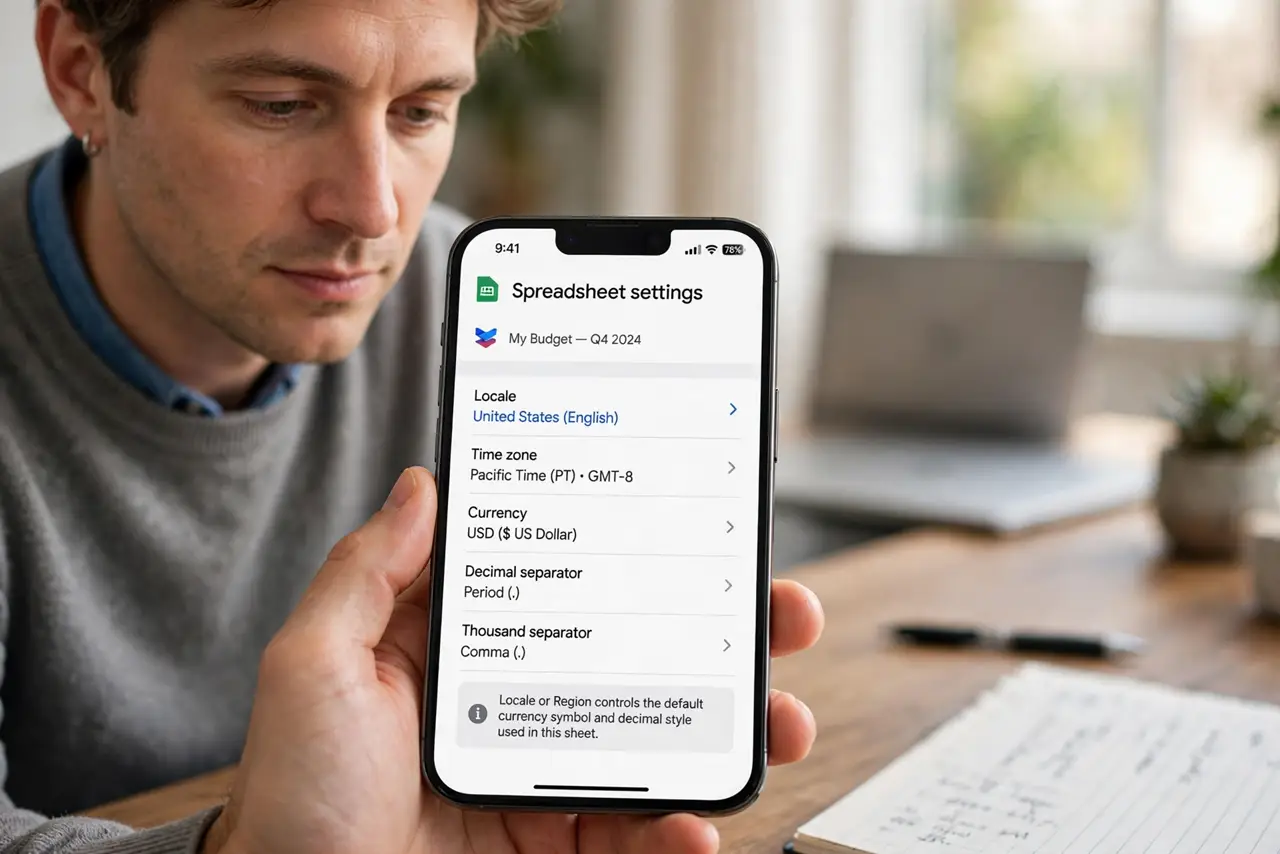
- Find the sheet's locale setting. Open the spreadsheet settings and look for Locale or Region. That one setting decides which currency symbol and decimal style the sheet uses by default.
- Set the locale to your region. Choose your country from the locale list. Amounts will then show your symbol and separators for everyone who opens the file, not just for you.
- Apply a currency format to the cells. Select the amount cells and apply a currency format explicitly. An explicit format sticks to the cells, while unformatted cells keep borrowing the viewer's regional defaults.
- Check the sheet as a viewer would. Open the shared link in a private window or ask a collaborator for a screenshot. If the symbol looks right there, the locale fix took hold.
- Tell collaborators not to reformat. One well-meaning edit can reapply a different region's format. Agree that the owner sets formats, and everyone else edits values only.
- Lock the format cells if edits keep breaking it. Protect the amount range so collaborators can type numbers but cannot change formatting. Protected cells keep the currency display stable over time.
What NOT to do
- Do not format currency with plain typed symbols. Typing $ by hand leaves text behind the number, which breaks totals and sorts while looking identical.
- Do not assume your region is everyone's region. A shared sheet inherits nothing from your computer, so the sheet's own locale has to carry the format.
- Do not fix it by pasting the sheet as values into email. The recipient still opens it somewhere, and the format problem returns with the new viewer.
- Do not change the locale every time someone complains. Set it once to the business region, format the cells, and leave it alone.
Frequently asked questions
Why does the currency symbol change for other people?
Because their viewer applies its own regional defaults to cells without an explicit format, so the symbol follows the viewer instead of the sheet.
Will setting the locale change my numbers?
No. It only changes how they display. The underlying values stay exactly the same.
Can I use two currencies in one sheet?
Yes. Format each column with its own explicit currency format, and both will display correctly regardless of the sheet locale.