Replace Thermal Paste
An old PC that runs hot, sounds like a hair dryer, and throttles under load often suffers from one cheap problem: dried-out thermal paste. The gray goop between CPU and cooler dries over years, and heat stops flowing. Replacing it is a careful but very doable job — this guide shows the safe way.
TL;DR / Quick Fix
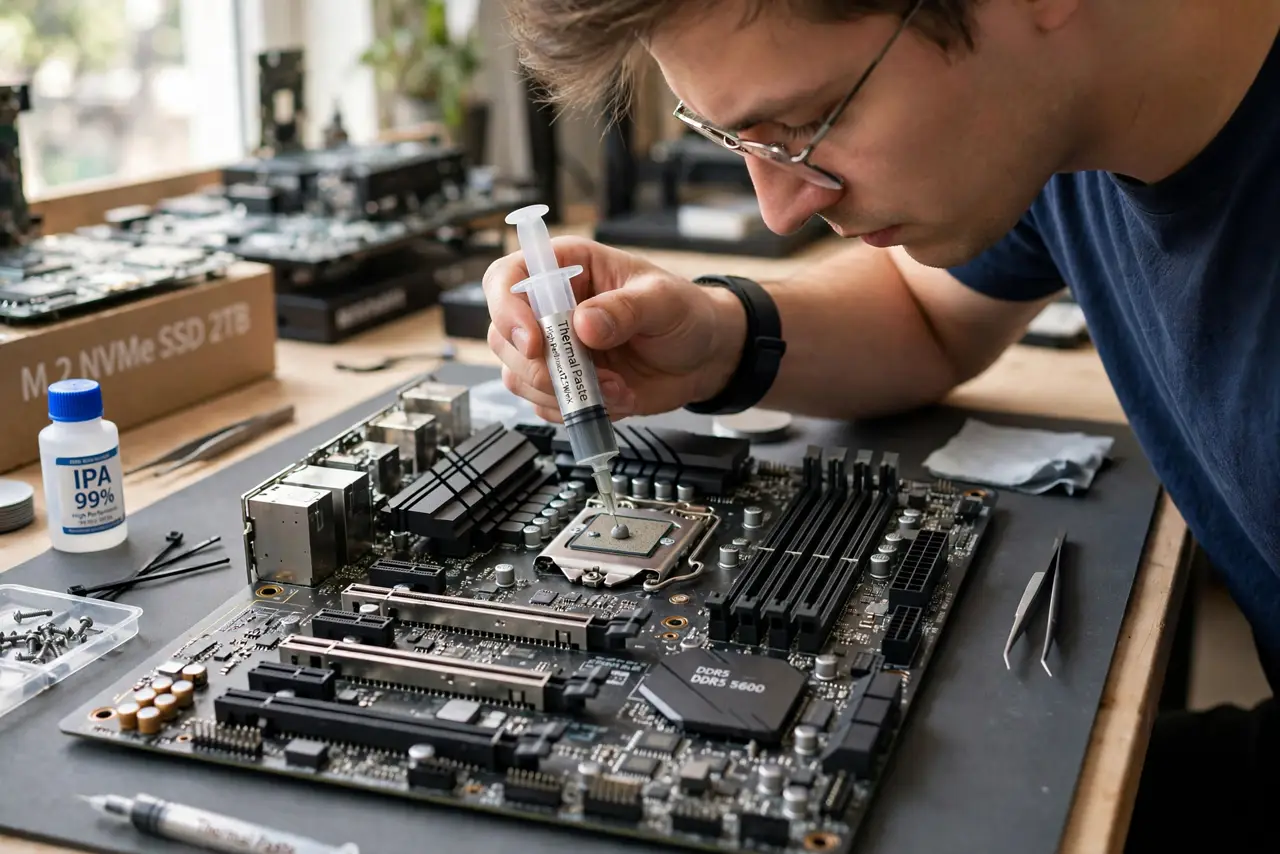
Quick fix: if an old PC runs hot and loud, dried thermal paste is a likely culprit — power down, remove the cooler, clean both surfaces with isopropyl alcohol, apply a pea-sized dot of new paste, and reseat the cooler evenly. Expect a 5-15 degree drop on neglected machines.
Follow these steps
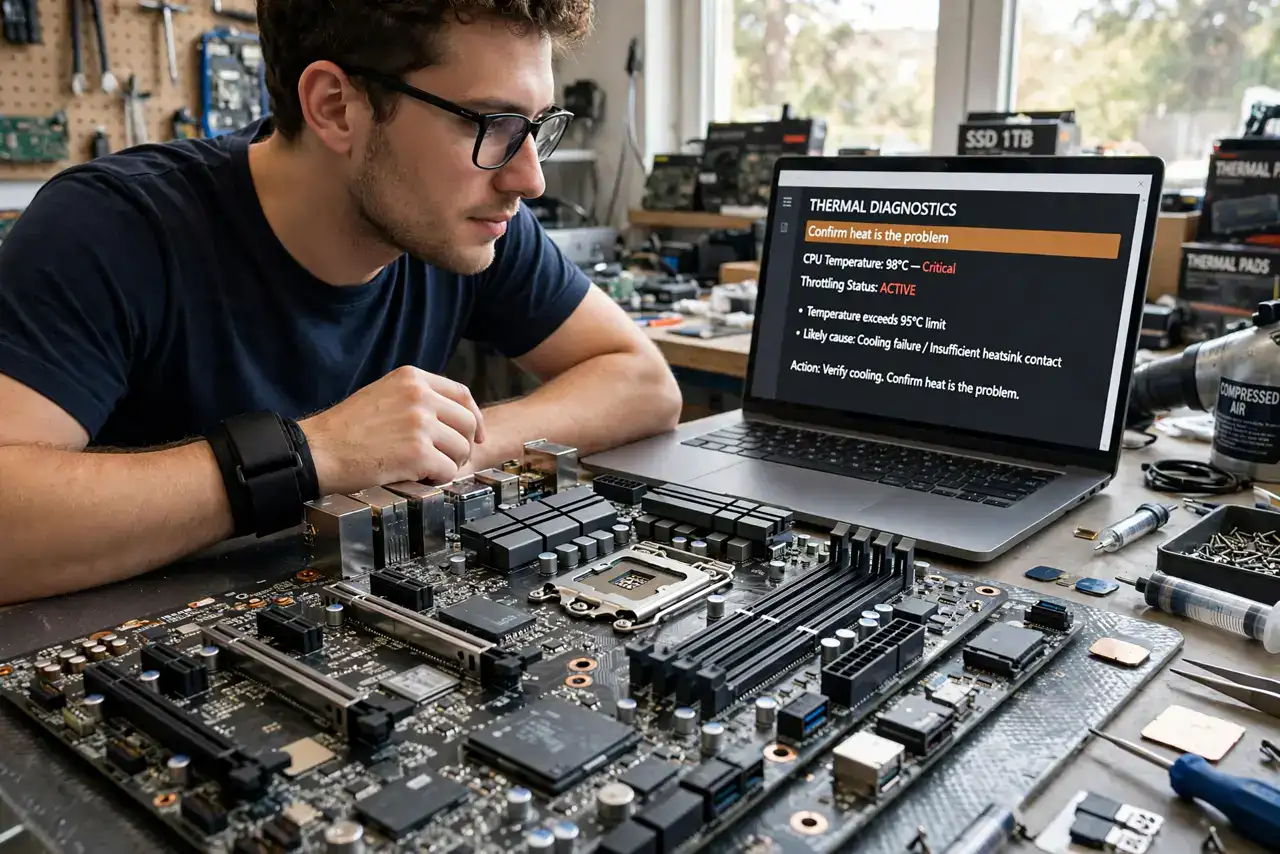
- Confirm heat is the problem. Check temperatures under load with a monitoring tool. Idle temps far above room temperature plus fan screaming point at the cooler interface — not necessarily a dead fan.
- Power down, unplug, and ground yourself. Full shutdown, PSU switch off, plug pulled. Touch the case frame often — static is the silent killer of exposed components.
- Remove the cooler carefully. Unscrew in a cross pattern, then twist gently — old paste can glue the cooler to the CPU. Never yank straight up; you can pull the CPU from its socket.
- Clean both surfaces completely. Wipe old paste with isopropyl alcohol (90%+) and a lint-free cloth or coffee filter until both the CPU and cooler shine. Any residue hurts the new application.
- Apply a pea-sized dot of new paste. One small dot in the center of the CPU — the cooler's pressure spreads it. More is not better; excess oozes onto the motherboard.
- Reseat the cooler evenly and test. Lower the cooler straight down, tighten screws in a cross pattern a little at a time. Boot and check temps — then review radiator placement if you run liquid cooling, since placement and paste work together.
What NOT to do
- Do not use too much paste. A pea-sized dot is right; a big squeeze insulates instead of conducting.
- Do not power on with the cooler removed 'just to test'. Modern CPUs overheat in seconds without a cooler.
- Do not reuse old paste. Once disturbed, it never reseats properly — always clean and reapply fresh.
- Do not use conductive liquid metal unless you know why. Standard paste is forgiving; liquid metal destroys on contact with aluminum and mistakes.
Frequently asked questions
How often should thermal paste be replaced?
Every 4-6 years for most pastes, or when temps climb for no other reason. Quality paste lasts longer than cheap stock paste.
Can I use toothpaste in an emergency?
No — it dries, conducts poorly, and can damage components. Wait for real paste; it costs little.
Do GPUs need repasting too?
Eventually, yes — but GPU disassembly is riskier and can void warranties. Repaste GPUs only when temps clearly demand it.