Time and Date Keep Resetting? Fix It
When the clock resets every time you restart, files get odd dates, sign-ins fail, and websites may warn about security. The fix starts with automatic time settings, and only points to hardware if the resets keep coming back.
TL;DR / Quick Fix
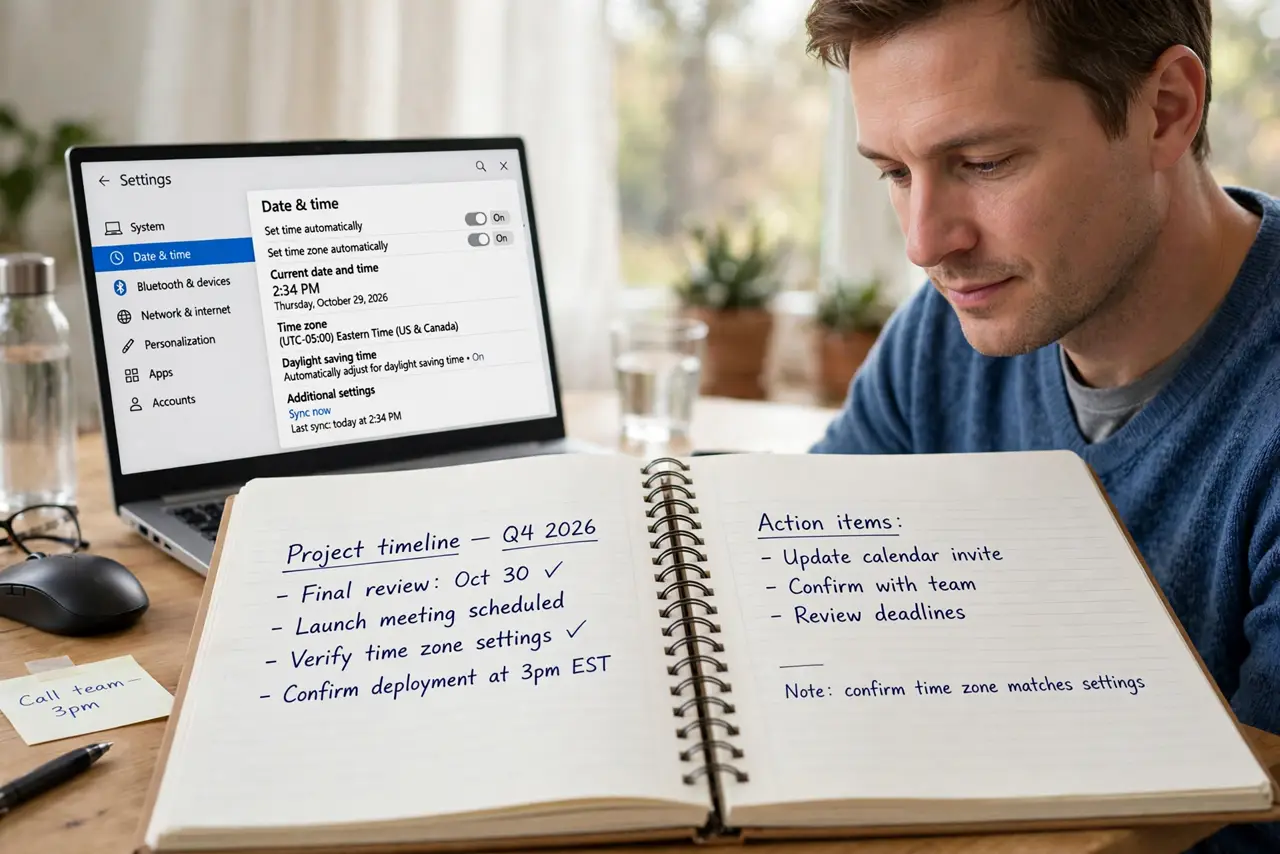
Quick fix: open Settings, then Time and language, then Date and time, and turn on Set time automatically with the correct time zone. Restart once and check the clock. If it resets again, the small internal battery may need a technician.
Follow these steps
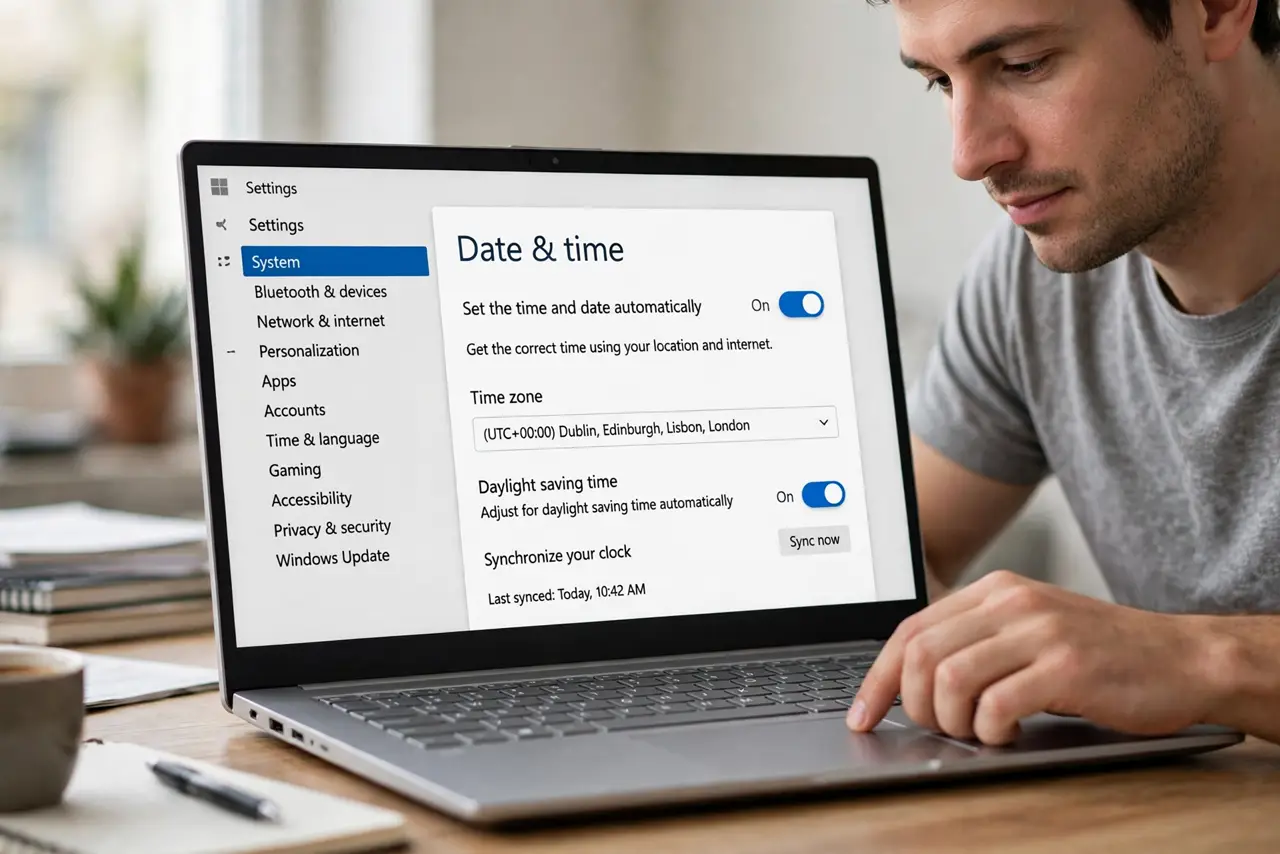
- Turn on automatic time. Open Settings, then Time and language, then Date and time, and turn on Set time automatically. Also turn on Set time zone automatically if you travel or your region observes daylight saving.
- Check the time zone by hand. If automatic time is on but the hour is still wrong, turn off automatic time zone and pick your time zone from the list yourself. A wrong zone shifts the hour even when the minutes are right.
- Sync the clock now. On the same Date and time page, use Sync now. This pulls the correct time from the internet and confirms the computer can reach a time server.
- Restart and watch the clock. Restart the computer, then check the clock as soon as you sign in. If the time is right after a restart, the setting fixed it. If it resets again, keep going.
- Check whether the date also resets. If both the date and the time jump back, especially to an old year, that points to the small internal battery that keeps the clock running while the computer is off.
- Ask a technician about the internal battery. Replacing that battery on a laptop is not a beginner job on many models. Take the computer to a repair shop, and mention that the clock resets on every restart.
What NOT to do
- Do not open the computer to replace a battery yourself unless you know the model and the safe steps. You can damage parts or void a warranty.
- Do not set the clock by hand every day and ignore the resets. Wrong dates cause sign-in failures and odd file dates that are hard to sort out later.
- Do not turn off automatic time and leave it off. Manual time drifts over weeks, so automatic time is the setting that keeps it right.
- Do not change the time zone to force the hour right. That hides the real error and breaks calendar times for meetings and reminders.
Frequently asked questions
Why does the clock reset only after a restart?
The computer loses the time when it powers off, which points to settings first and then to the small internal battery.
Why do websites warn me when the clock is wrong?
Security checks compare the site certificate dates with your clock. A clock set far in the past or future makes valid sites look untrusted.
Can I just set the time by hand?
You can for a day, but it will drift and reset again. Automatic time plus the right time zone is the lasting fix.