Time Tracker Idle Time Not Counted? Fix It
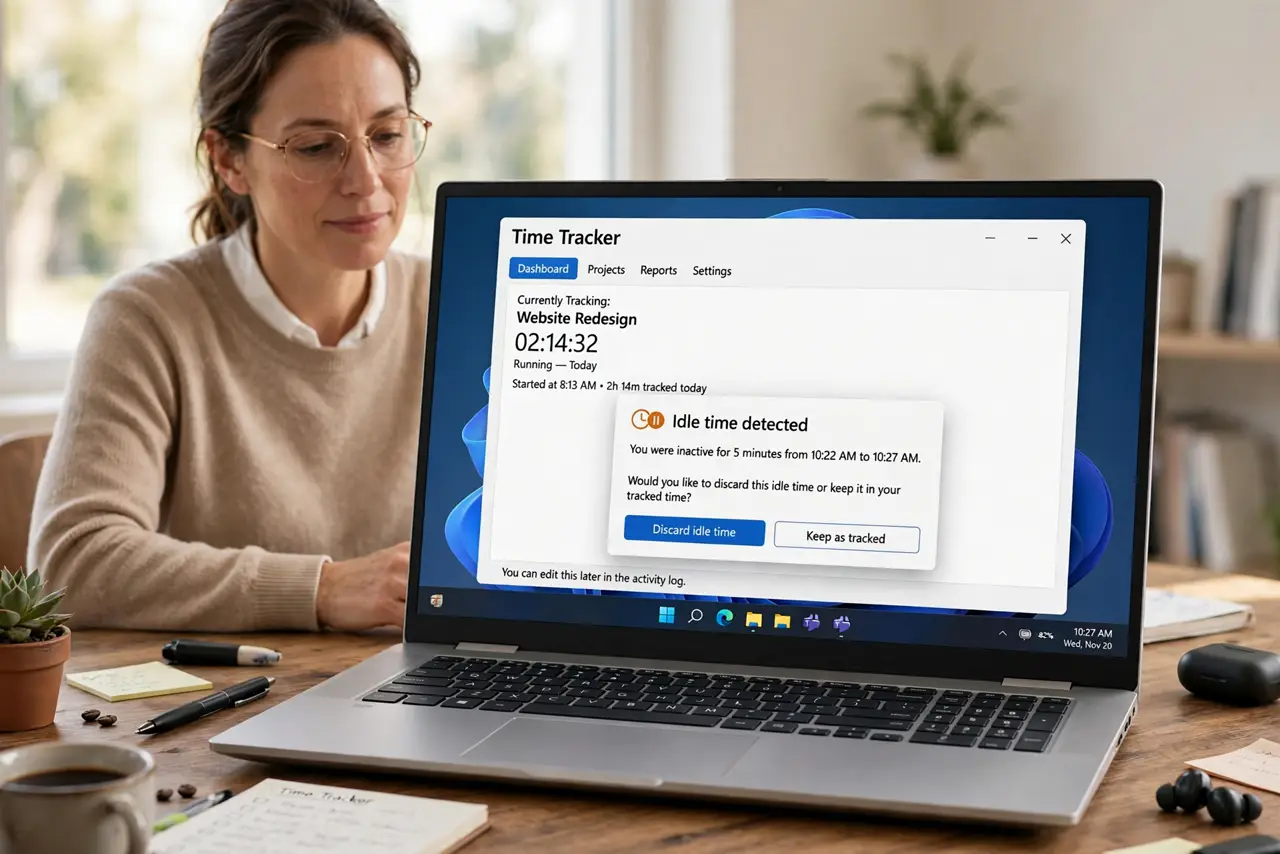
Idle time that vanishes from your tracker can make a workday look shorter than it was, especially when thinking, reading, or calling counts as idle to the app. The fix is deciding how idle time should count, and setting detection to match real work.
TL;DR / Quick Fix
Quick fix: Check the idle detection threshold. Decide how idle time should be treated. Review idle prompts the same day. Check whether calls and reading count as idle. Adjust detection for your real work pattern. Review project totals weekly for gaps.
Follow these steps
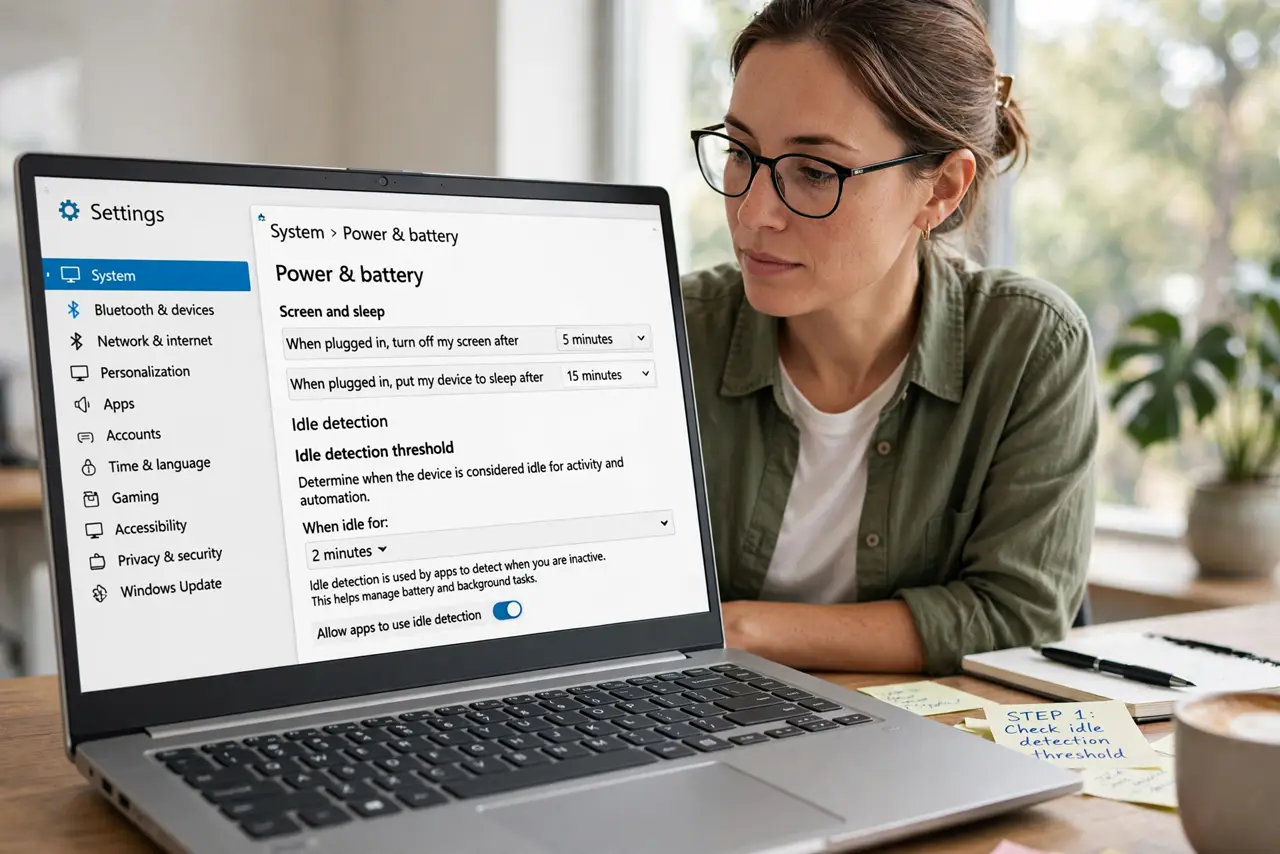
- Check the idle detection threshold. Open the tracker settings and see how many minutes of no input count as idle. A threshold of five minutes flags every phone call as idle; a longer threshold is often fairer.
- Decide how idle time should be treated. Choose whether idle periods are discarded, kept, or asked about. Asking about idle time, rather than auto-discarding it, preserves real thinking and reading time.
- Review idle prompts the same day. When the tracker asks about an idle period, answer it while you remember what you were doing. A week-old idle prompt is unanswerable honestly.
- Check whether calls and reading count as idle. If your work involves calls, paper reading, or whiteboard discussion, input-based detection will mislabel it. Note those periods and assign them manually.
- Adjust detection for your real work pattern. Raise the threshold, or switch to manual idle review, if your work is often hands-off. The tracker should fit your work, not the other way around.
- Review project totals weekly for gaps. Weekly gaps often trace back to discarded idle time. A regular review catches the pattern before it distorts a month.
What NOT to do
- Do not auto-discard all idle time without review. Thinking, calls, and reading are work, even without keystrokes.
- Do not set the idle threshold to one minute. Hair-trigger detection creates more prompts than accurate data.
- Do not answer old idle prompts by guessing. Guessed time is worse than missing time in a report.
- Do not ignore idle settings entirely. Default detection fits typing-heavy work, not every job.
Frequently asked questions
What counts as idle time?
Usually a period with no keyboard or mouse input longer than the detection threshold.
Should idle time count as work?
It depends what you were doing. Thinking, calls, and reading are work; a lunch break is not.
Why does my day look short in the tracker?
Often because idle periods were auto-discarded instead of reviewed and assigned.