Using a TV as a Monitor Makes Text Blurry
A TV makes a tempting big monitor until you open a document and the text looks fuzzy. TVs process their picture for movies, not for crisp letters — but a few settings can make text dramatically sharper.
TL;DR / Quick Fix
Quick fix: switch the TV to PC or Game mode, turn off all sharpening and motion smoothing, set the computer to the TV's native resolution, and sit a bit farther back than you would from a monitor, since larger TV pixels look rough up close.
Follow these steps
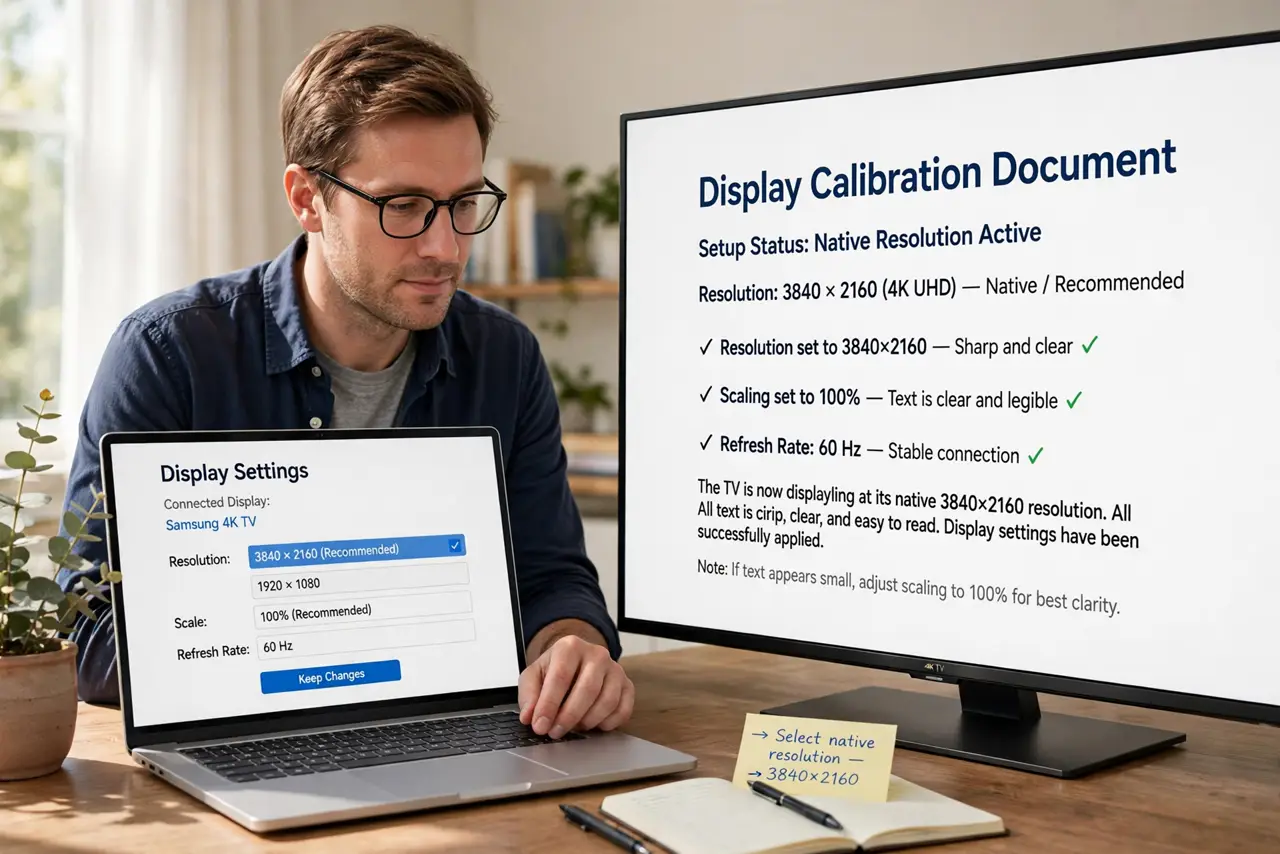
- Set the TV's native resolution. Open your display settings and choose the TV's native resolution — usually 1920x1080 or 3840x2160. Any other resolution forces scaling that blurs text, similar to an external monitor with capped resolution.
- Switch the TV to PC or Game mode. Find the TV's picture mode and choose PC, Game, or Computer. Those modes disable the heavy processing that smears fine text.
- Turn off sharpening and motion smoothing. In the TV's picture settings, set sharpness near zero and turn off motion smoothing and noise reduction. Those movie features actively harm text clarity.
- Check the HDMI input label. Some TVs treat inputs labeled PC or HDMI 1 differently. Try labeling the input as PC in the TV's input settings, which can unlock the cleanest signal path.
- Adjust text scaling on the computer. If text is sharp but tiny on a 4K TV, raise the operating system's text scaling to 125 or 150 percent. Sharp big text beats blurry small text every time.
- Sit farther back than with a monitor. TVs have larger pixels than monitors, so sit a little farther away. Distance hides the pixel structure that looks rough up close.
What NOT to do
- Do not judge text with movie picture modes on. Vivid and Cinema modes process the image for film, and they blur text by design.
- Do not crank the sharpness setting hoping for crisper text. TV sharpness adds halos around letters, which looks worse than slight softness.
- Do not use a TV as a monitor for tiny spreadsheet work. Even tuned, a TV suits media and casual use better than dense text all day.
- Do not forget the right HDMI cable for 4K. An old cable can limit a 4K TV to 30Hz, which makes the mouse feel laggy as well as the text soft.
Frequently asked questions
Why is text blurry on my TV but fine on my monitor?
Because TVs apply movie processing and often run at non-native resolutions, both of which smear fine text.
Which TV picture mode is best for a computer?
PC or Game mode, which disables the processing that blurs text and adds input lag.
Can a TV fully replace a monitor?
For media and casual use, yes. For all-day text work, a real monitor stays sharper and easier on the eyes.