Pick a USB-C Hub
A USB-C hub turns one laptop port into many — monitors, drives, chargers, and card readers. But hubs vary wildly: some drop your monitor, underpower your laptop, or overheat. This guide shows how to match a hub to your setup, including power delivery wattage and video output.
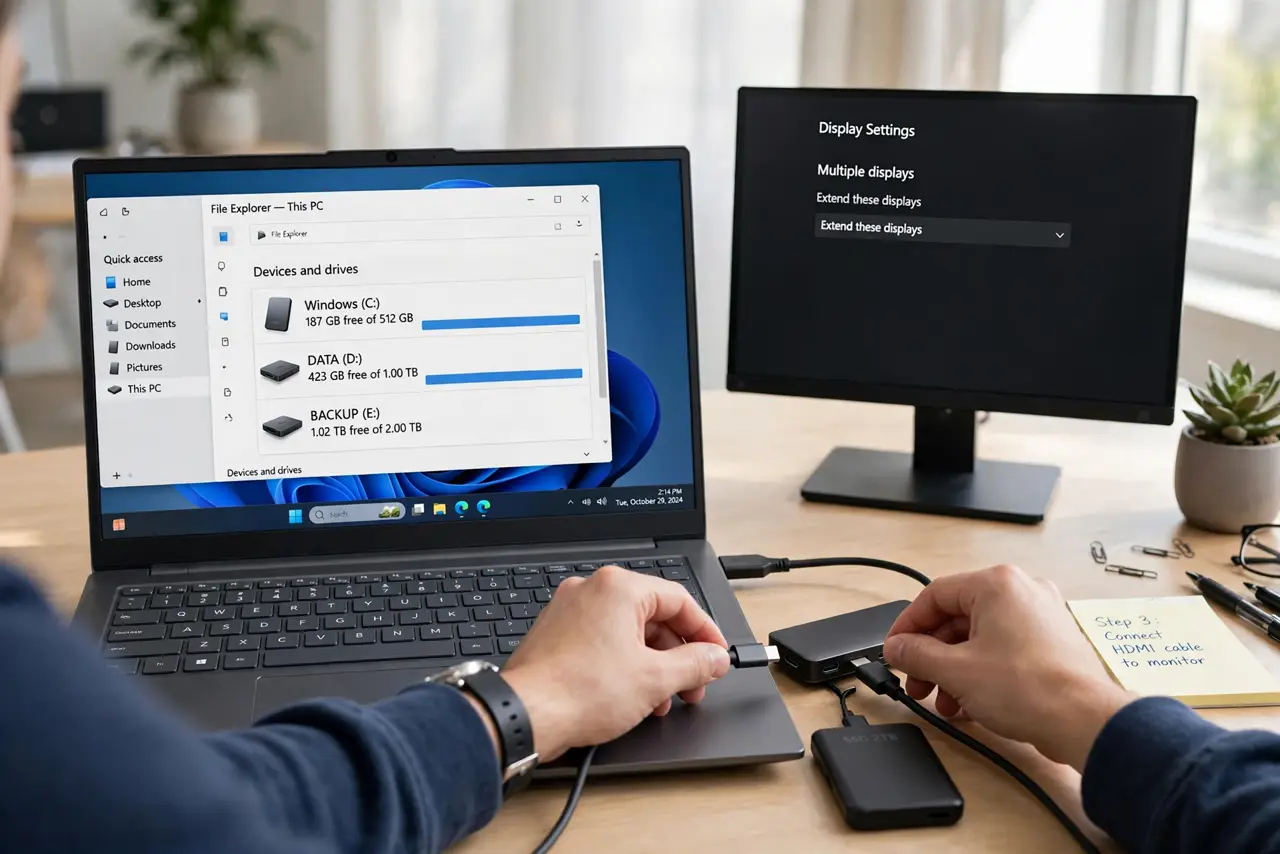
TL;DR / Quick Fix
Quick fix: match the hub to your ports and your needs — count what you must plug in, check the hub's power delivery wattage covers your laptop, and confirm video output works over your cable. A cheap hub that drops your monitor every hour is the classic regret buy.
Follow these steps
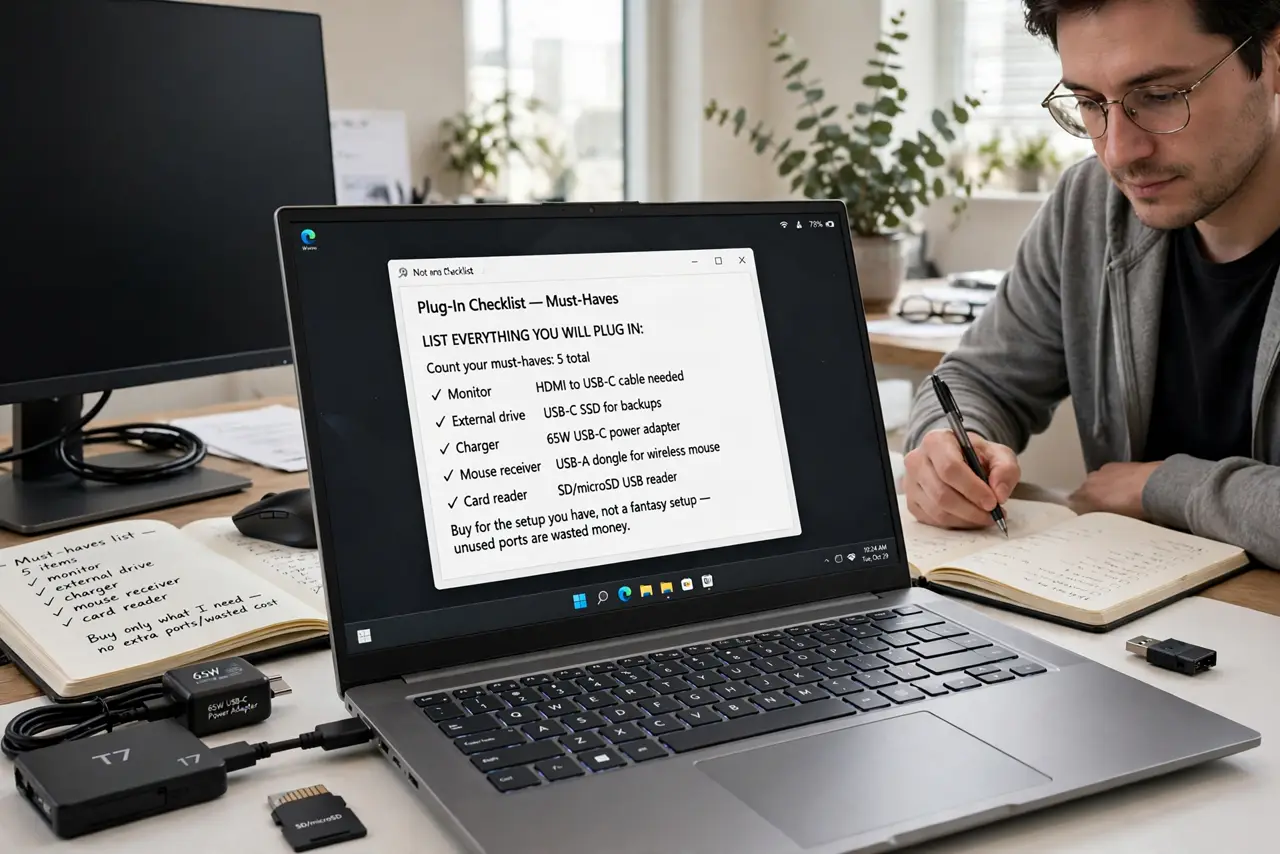
- List everything you will plug in. Count your must-haves: monitor, external drive, charger, mouse receiver, card reader. Buy for the setup you have, not a fantasy setup — unused ports are wasted money.
- Check your laptop's USB-C capabilities. Not every USB-C port carries video or full power. Look up your laptop's specs: you need a port that supports video output for a hub monitor to work, as cable differences explain.
- Match power delivery to your charger. The hub's power delivery wattage should meet or beat your laptop's charger — a 45W hub on a 65W laptop means slow charging or battery drain under load.
- Confirm the video output you need. For one 4K monitor at 60Hz you need a hub rated for it; dual monitors need more bandwidth still. Check the hub's specs for your exact resolution and refresh rate, not just 'supports 4K'.
- Prefer powered hubs for heavy setups. If you run drives and charge through the hub, a hub with its own power adapter is far more stable than one leeching everything from the laptop's single port.
- Read reviews about disconnects. Search reviews for 'disconnect' and 'sleep' before buying — some hubs drop connections when the Mac sleeps. A hub with a pattern of disconnect complaints is not a bargain.
What NOT to do
- Do not buy the cheapest hub for a work setup. Random disconnects during meetings cost more than the savings.
- Do not assume all USB-C cables work with the hub. Cheap cables often lack video or full power delivery.
- Do not daisy-chain hubs off hubs. Each link adds instability — one good hub beats two cheap ones.
- Do not ignore heat. A hub that runs painfully hot under load is a warning sign, not a feature.
Frequently asked questions
Can a hub damage my laptop?
A reputable hub will not, but ultra-cheap no-name hubs with bad power circuits have caused issues. Stick to known brands and check reviews before trusting one with your machine.
Why does my monitor flicker through the hub?
Usually a cable or bandwidth problem: try a better USB-C cable, lower the refresh rate to test, or connect the monitor directly to rule out the hub.
Do I need Thunderbolt or is USB-C enough?
USB-C hubs cover most needs — one monitor, drives, charging. Thunderbolt docks cost more but handle dual 4K monitors and faster drives; buy Thunderbolt only if your workload needs it.