USB Stick Says Write-Protected? Fix It
Your USB stick refuses new files and says it is write-protected, even though you never locked it. A physical switch, a registry setting, or a failing drive can all trigger this. This guide checks them in order, from the easy switch to the honest verdict.
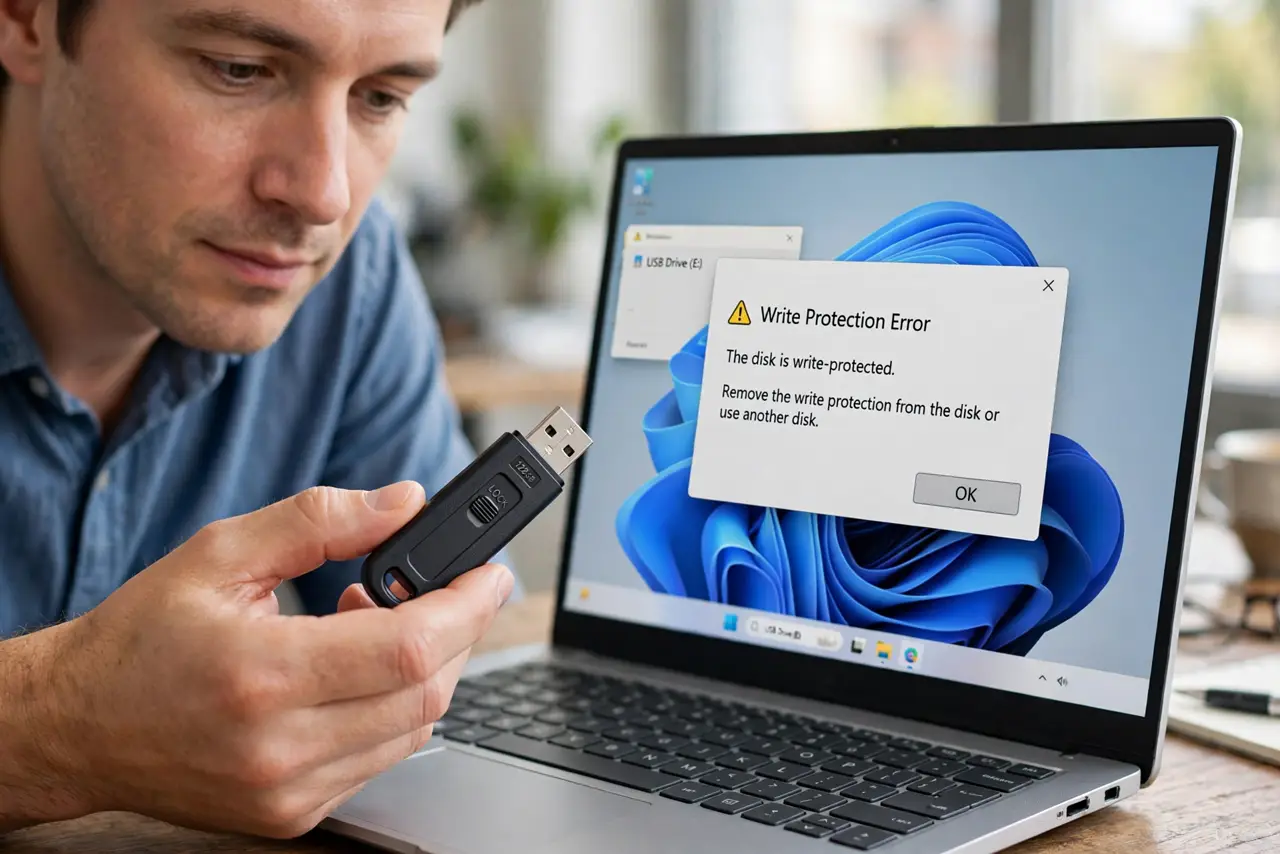
TL;DR / Quick Fix
Quick fix: check the stick for a tiny physical lock switch and flip it. If there is no switch, the protection may be a software flag or a dying drive locking itself to save your data — back up what is on it, then try the software fixes.
Follow these steps
- Check for the physical lock switch. Many full-size SD adapters and some USB sticks have a tiny slide switch. Find it and slide it to the unlocked position — the fix takes five seconds when this is the cause.
- Try the stick in another computer. Plug it into a different machine. If it writes fine there, the protection is a setting on your computer, not the stick — skip to the registry step.
- Clear the read-only attribute. On Windows, open DiskPart, select the disk, and run 'attributes disk clear readonly'. On Mac, check the Get Info panel for a locked flag. These flags flip silently after unsafe ejections.
- Back up the data before forcing anything. Copy everything off the stick now. Some write-protection is the drive's last defense as its memory fails — forcing past it can take your files with it.
- Reformat as the last software step. If the flag will not clear, format the stick to reset its state. This erases everything, which is why the backup comes first — the same order as with a card asking to format.
- Accept a dying drive that relocks. If the stick goes write-protected again after formatting, its flash memory is worn out and locking itself read-only to preserve your data. Thank it, copy the files, and replace it.

What NOT to do
- Do not force-format before backing up. A stick that locked itself to protect data may still let you read — format only after the copy is safe.
- Do not edit the registry blindly. Only change the write-protect key for the affected drive, and back up the registry first.
- Do not ignore the relock pattern. A stick that repeatedly goes write-protected is failing hardware, not a software quirk.
- Do not store the only copy of anything on a suspect stick. Once a drive shows failure signs, it is a transport, not an archive.
Frequently asked questions
Why is my USB write-protected all of a sudden?
Usually a physical switch, a flipped read-only flag from an unsafe ejection, or the drive's memory failing and locking itself to protect your data.
How do I remove write protection without the switch?
Clear the read-only attribute with DiskPart on Windows or the Info panel on Mac. If it will not clear, the drive is likely failing.
Can a write-protected USB be fixed permanently?
If it was just a flag, yes. If the drive relocks itself, no — that is hardware protecting your data on its way out.