Use WhatsApp on Two Devices
WhatsApp used to die on your second device the moment your phone went offline — now companion devices work independently. Linking a second phone or tablet takes a minute with a QR code, and chats stay in sync. Here's the setup plus the limits nobody mentions.
TL;DR / Quick Fix
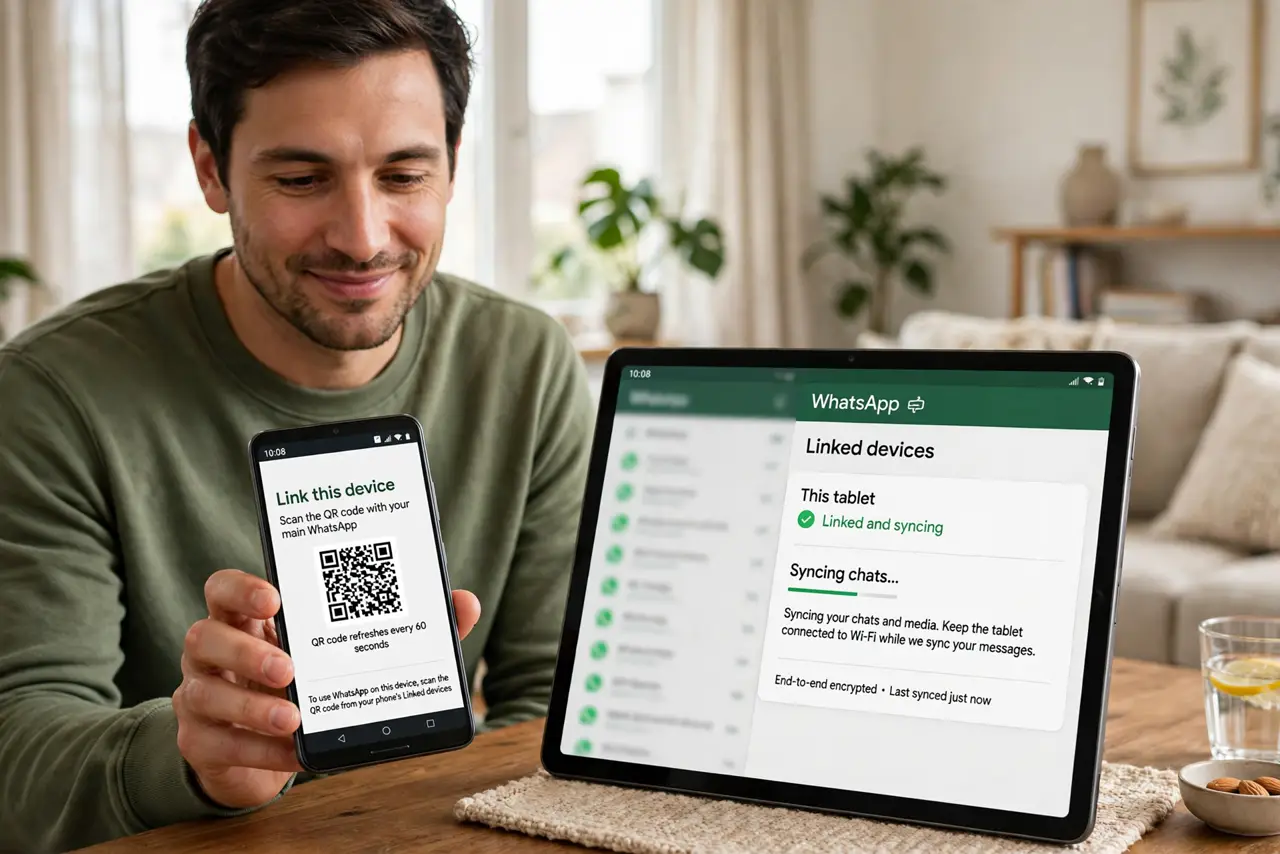
Quick fix: on the second device, open WhatsApp and choose to link it as a companion device, then scan the QR code with your primary phone's WhatsApp. It stays connected for weeks and syncs chats. Keep the primary phone active — and never scan QR codes sent by strangers.
Follow these steps
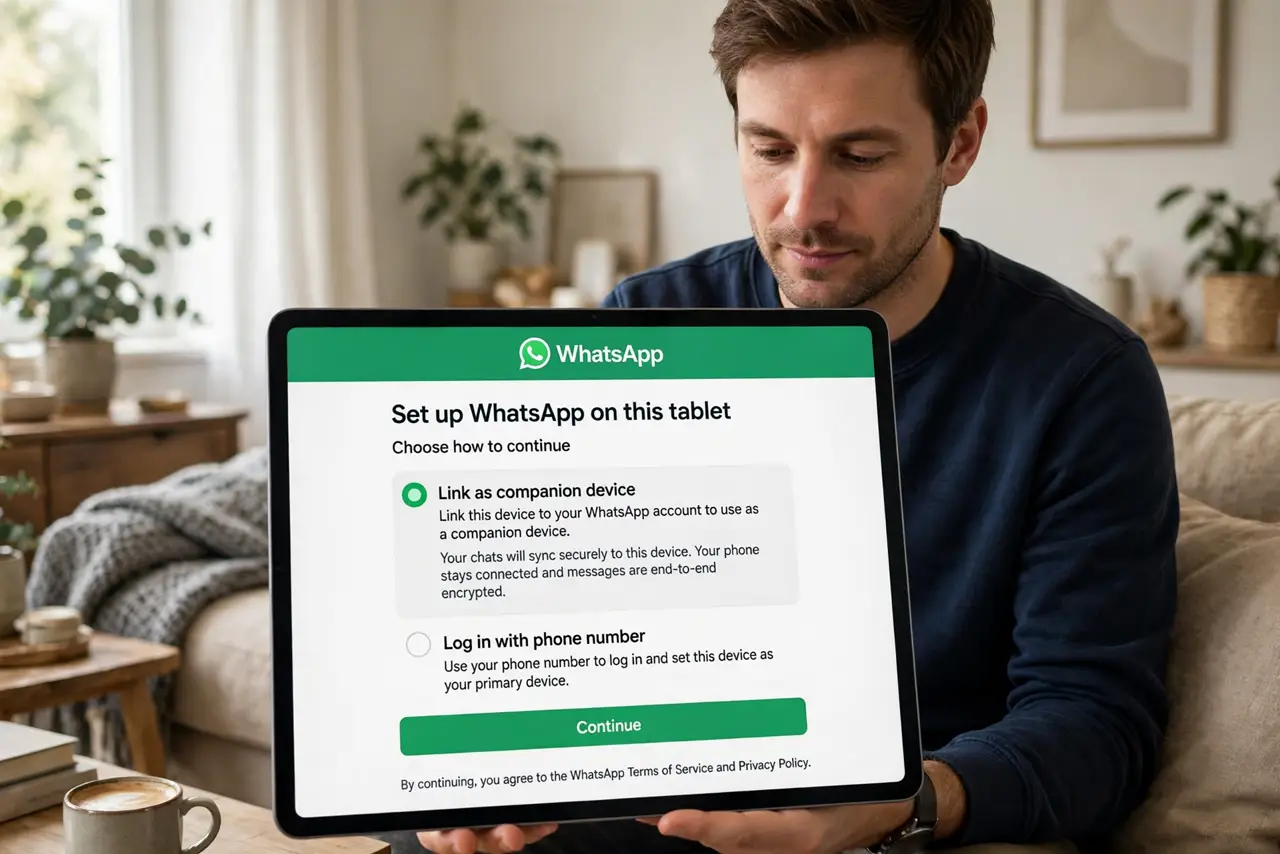
- Install WhatsApp on the second device. Get the official WhatsApp on the tablet or second phone. Open it and look for the link-as-companion-device option instead of registering a new number.
- Choose 'link as companion device.' The app offers this during setup — it's the multi-device path. Don't enter your number as a new account; that creates a separate WhatsApp, not a linked one.
- Scan the QR code with your primary phone. On your main phone, open WhatsApp's linked-devices section and scan the code shown on the second device. The link is encrypted end-to-end — review the WhatsApp privacy settings while you're there.
- Wait for chats to sync. The second device downloads your recent chats — give it a few minutes on Wi-Fi. Older history may be limited; that's normal for companion devices.
- Know the limits. Companion devices can't do everything the primary can — some settings and features stay primary-only. And the primary phone must stay registered; logging it out unlinks companions.
- Unlink old devices you no longer use. In linked devices, remove anything you don't recognize or no longer own. A forgotten linked tablet is an open door to your chats.
What NOT to do
- Do not log out of the primary phone expecting companions to keep working. The primary is the anchor — logging out unlinks everything.
- Do not scan QR codes sent by strangers. A QR link grants full chat access — only scan codes you generated yourself on your own device.
- Do not use unofficial 'multi-device' WhatsApp apps. They're account-theft bait — the official companion mode is the only safe path.
- Do not forget to unlink sold or lost devices. Check linked devices regularly and remove anything you don't actively use.
Frequently asked questions
Can I link an iPhone and an Android?
Yes — companion linking works across platforms. Your primary can be either; the companion just needs the official app.
Can I make calls from the companion device?
Voice and video calls generally work on companions, though some features lag behind the primary. Test yours after linking.
How many devices can I link?
WhatsApp allows several companion devices plus the primary phone. Check the current limit in the app's linked-devices screen — it changes over time.