Band Steering? Basics
Your router broadcasts one Wi-Fi name, but behind it are two or three bands — 2.4 GHz, 5 GHz, maybe 6 GHz. Band steering is the router's attempt to put each device on the best band automatically. Usually it helps; sometimes it parks your laptop on the slow band and won't let go. Here's how it works and when to override it.
TL;DR / Quick Fix
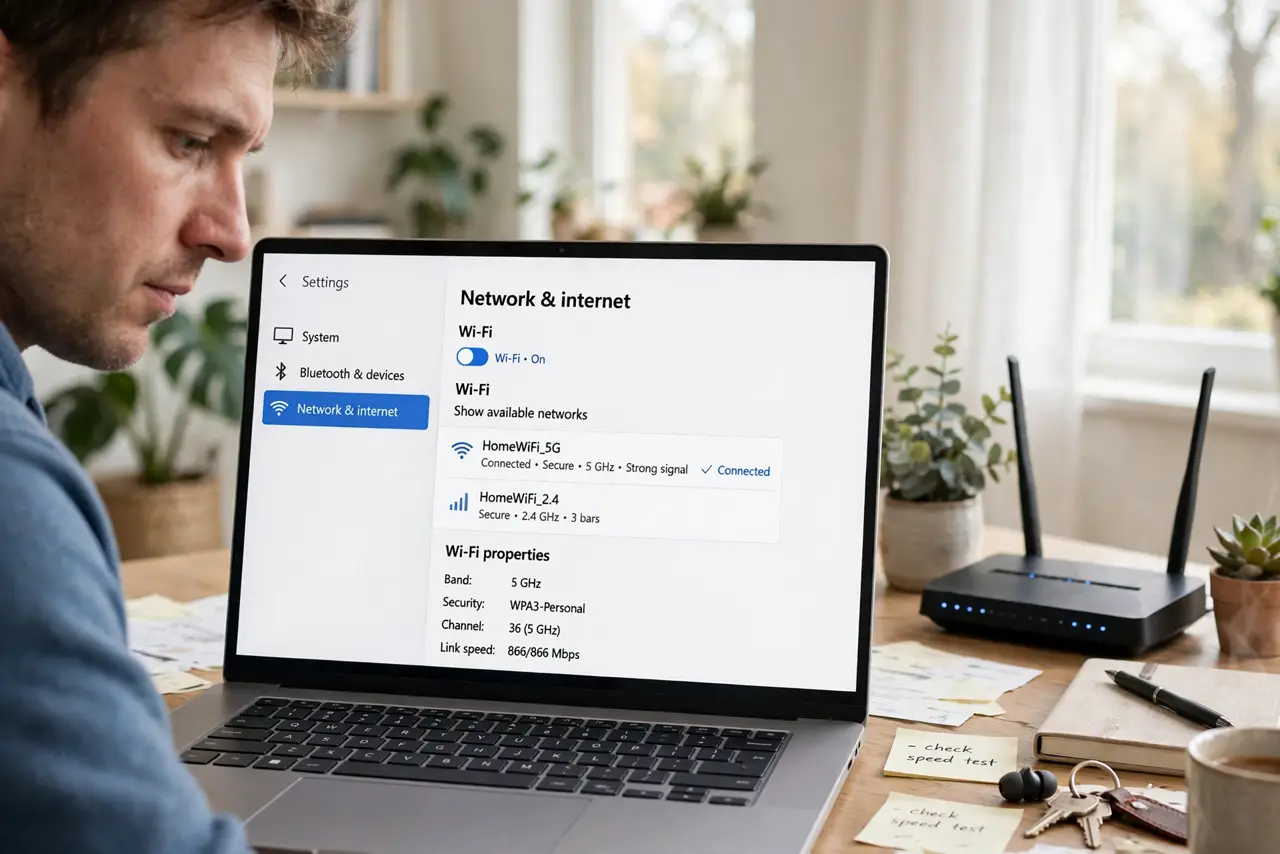
Quick fix: leave band steering on — for most devices it picks the fastest usable band automatically. If one device is stubbornly slow, that's when you split the bands into separate names. Steering helps far more often than it hurts; override only the problem device.
Follow these steps
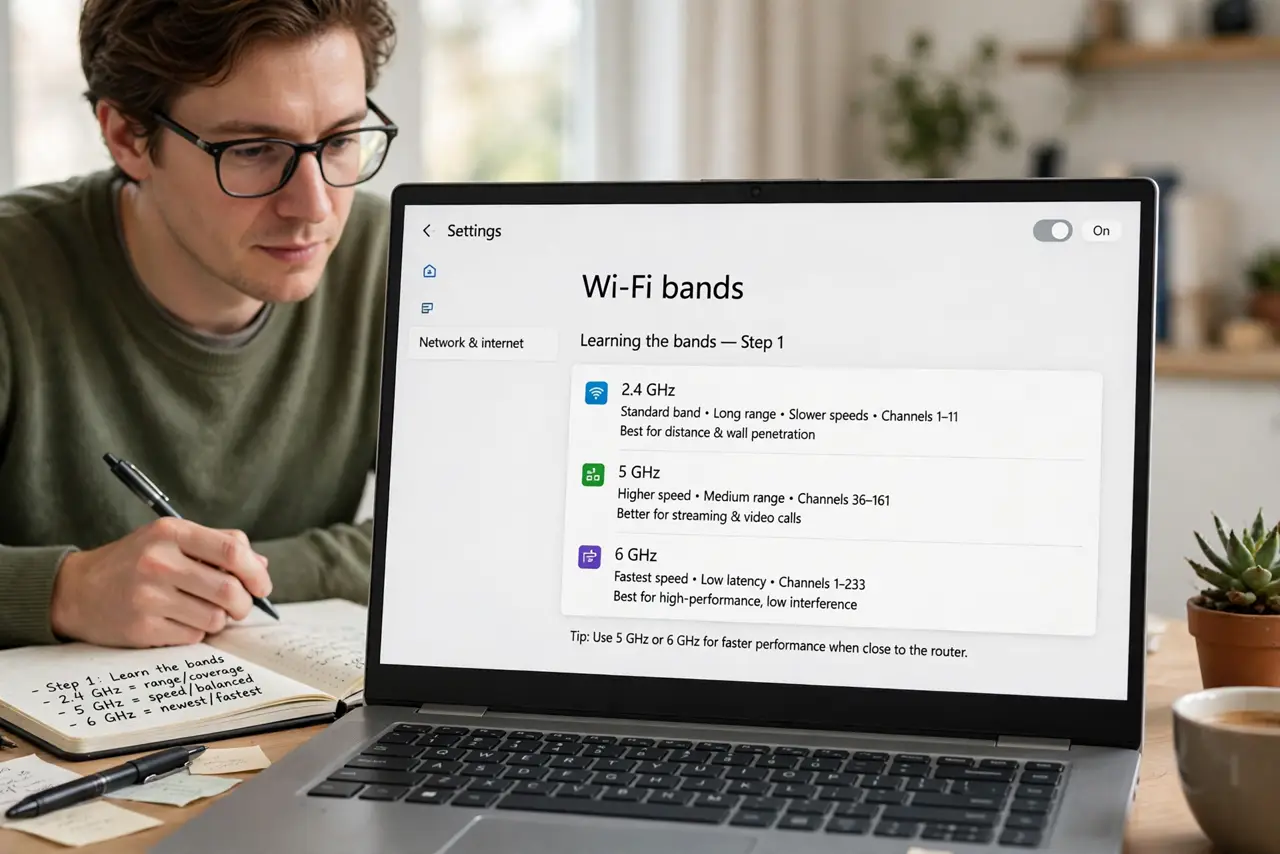
- Learn the bands. 2.4 GHz reaches far but is slow and crowded; 5 GHz is fast but shorter-range; 6 GHz (Wi-Fi 6E/7) is fastest with the shortest reach. See 2.4 vs 5 GHz for the full tradeoff.
- Understand what steering does. With one network name, the router nudges each device toward the best band it can handle — fast devices to 5 GHz, distant ones to 2.4 GHz. It's automatic load-balancing for your airwaves.
- Know when it misfires. Some devices cling to 2.4 GHz even next to the router, getting a fraction of their possible speed. If one device is oddly slow while others fly, see stuck on the slow band — that's the classic symptom.
- Split bands as the fix. Most routers let you create separate network names per band (like Home-5G). Move the problem device to the fast band manually and leave everything else on the steered single name.
- Leave smart home gadgets alone. Smart plugs, bulbs, and cameras usually need 2.4 GHz only — steering handles them fine, and splitting can confuse their setup apps. See smart device band issues before touching them.
- Reboot after changing bands. Band changes confuse some devices' cached connections. Forget the network on the problem device and rejoin fresh — stale band memory causes half the 'it didn't work' reports.
What NOT to do
- Do not disable band steering preemptively. It helps most setups most of the time — only override it for a specific device with a specific problem.
- Do not split bands and put everything on 5 GHz. Distant devices will cling to a weak 5 GHz signal instead of a strong 2.4 GHz one — worse than steering ever was.
- Do not expect steering to fix a dead zone. Bands don't create coverage; they divide it. Dead zones need better placement, not band tricks.
- Do not forget the password when splitting. Separate band names need the same (or a noted) password — mismatched credentials cause the most confusing connection failures.
Frequently asked questions
Should I separate 2.4 and 5 GHz?
Only if a specific device misbehaves on the combined name. For most homes the single steered name is simpler and works well — see separate vs combined for the decision.
Why is my laptop on 2.4 GHz next to the router?
Sticky clients are the usual cause — the device won't roam up. Forget the network and rejoin, or give the bands separate names and join the fast one manually.
Does band steering slow gaming?
No — it usually helps by keeping you on 5 GHz. If your gaming rig lands on 2.4 GHz, wire it with Ethernet instead of fighting the steering.