Router Parental Controls
You set screen-time limits on the tablet, but the kid discovered the Wi-Fi never sleeps — midnight YouTube, 2 a.m. gaming, all routed around your device rules. Router parental controls enforce at the network: bedtime cutoffs, site filters, and per-device pauses that work no matter which app they open. The network does not negotiate.
TL;DR / Quick Fix
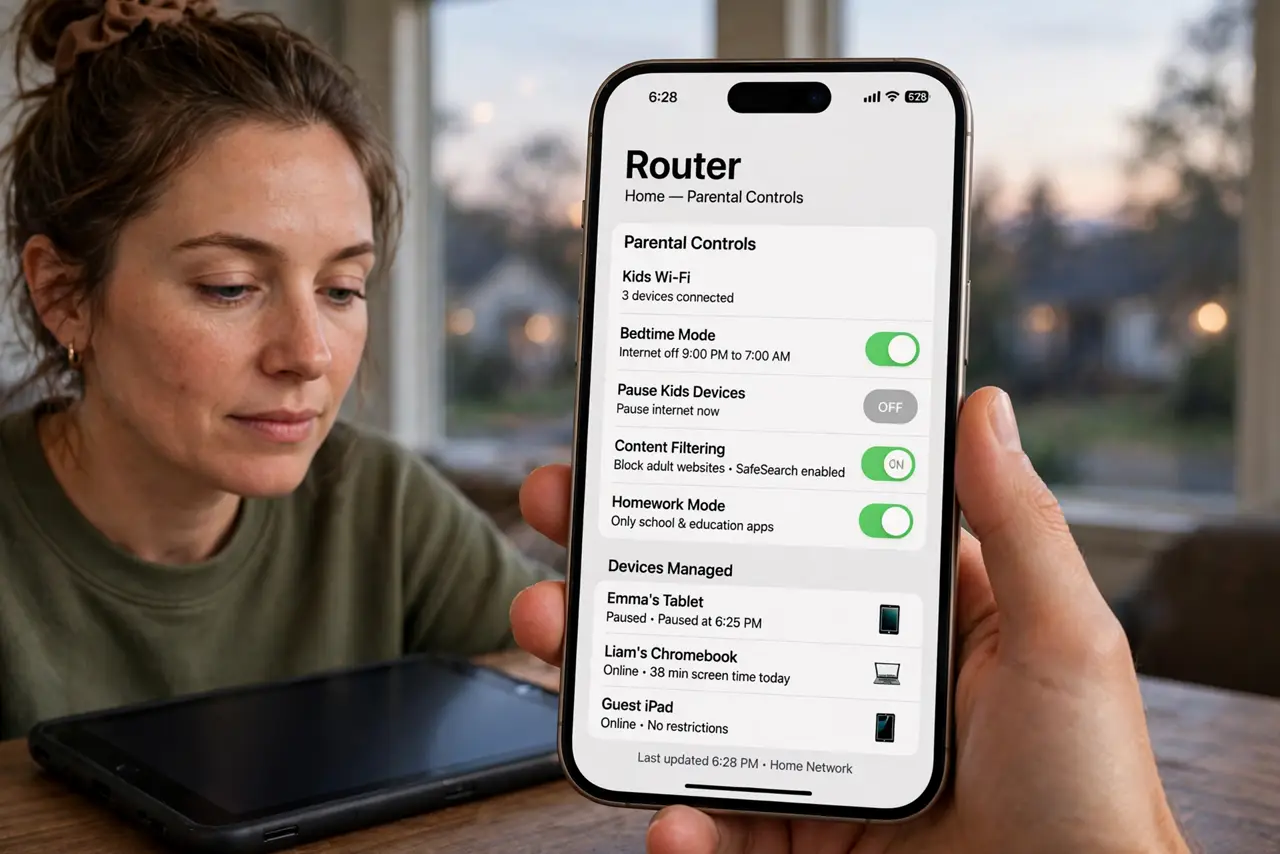
Quick fix: open your router app, enable parental controls, and create a profile for each kid with bedtime pauses and age filters. Apply the profile to all their devices — including the guest network. Tell the kids the schedule first; the router enforces it without nightly arguments from you.
Follow these steps
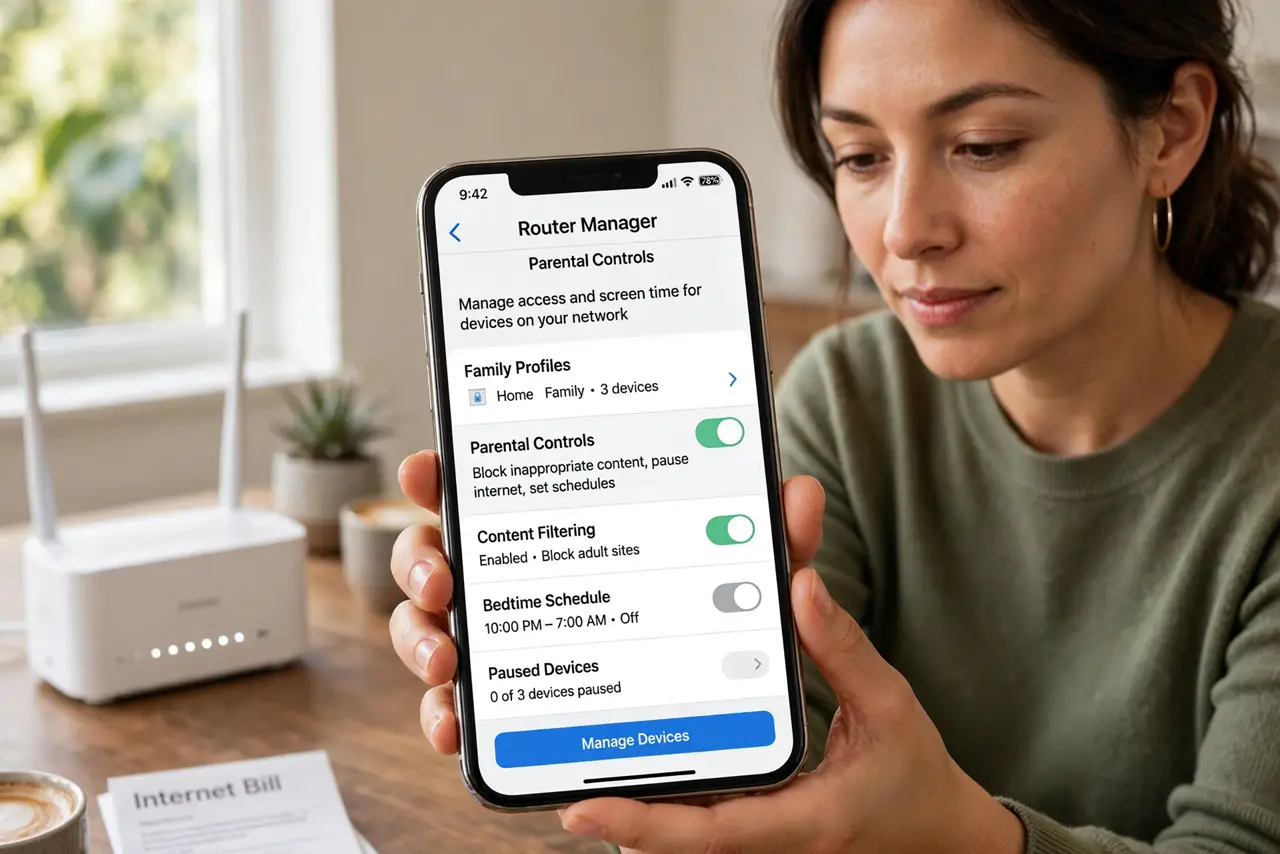
- Open the routers parental controls. Nearly every modern router app has them — look for Parental Controls or Family profiles. The router parental panel basics start here; ISP-provided routers include a version too.
- Build a profile per kid. Name it, set the age band, pick filter strictness. Per-kid profiles beat one household rule — the 8-year-old and the 15-year-old need different fences.
- Set the bedtime pause. Internet off at bedtime, on in the morning — automatic. The bedtime block is the single most effective control routers offer.
- Apply to every device. Phones, tablets, consoles, the smart TV — and the guest network, which clever kids discover fast. Miss one device and the whole system leaks.
- Expect bypass attempts. VPNs, mobile data, the neighbors Wi-Fi — kids bypass limits. That is normal, not failure; see the kids bypass guide mindset for layering device controls on top.
- Review monthly. Filters need tuning as kids grow and sites change. A five-minute monthly review keeps the system fair — fairness is what makes rules stick.
What NOT to do
- Do not set controls in secret and spring them. Announced rules get grudging acceptance; surprise cutoffs get war.
- Do not forget the guest network. It is the number one bypass — lock it or include it in the profiles.
- Do not rely on filters alone. Determined teens route around network controls; device-level limits are the second layer.
- Do not block school sites by accident. Over-strict filters eat homework — whitelist educational domains, and know the school site unblock path.
Frequently asked questions
Can my kid bypass router controls?
With mobile data, VPNs, or another network — yes, partially. Layering with device controls closes most holes.
Do router controls slow the Wi-Fi?
No — filtering is lightweight. Any slowdown blamed on controls is almost always something else.
What age needs what level?
Young kids: strict filters plus bedtime. Teens: lighter filters, firm bedtime, and honest conversation — the goal shifts from blocking to judgment.