Wi-Fi Password Correct but Won't Connect? Fix It
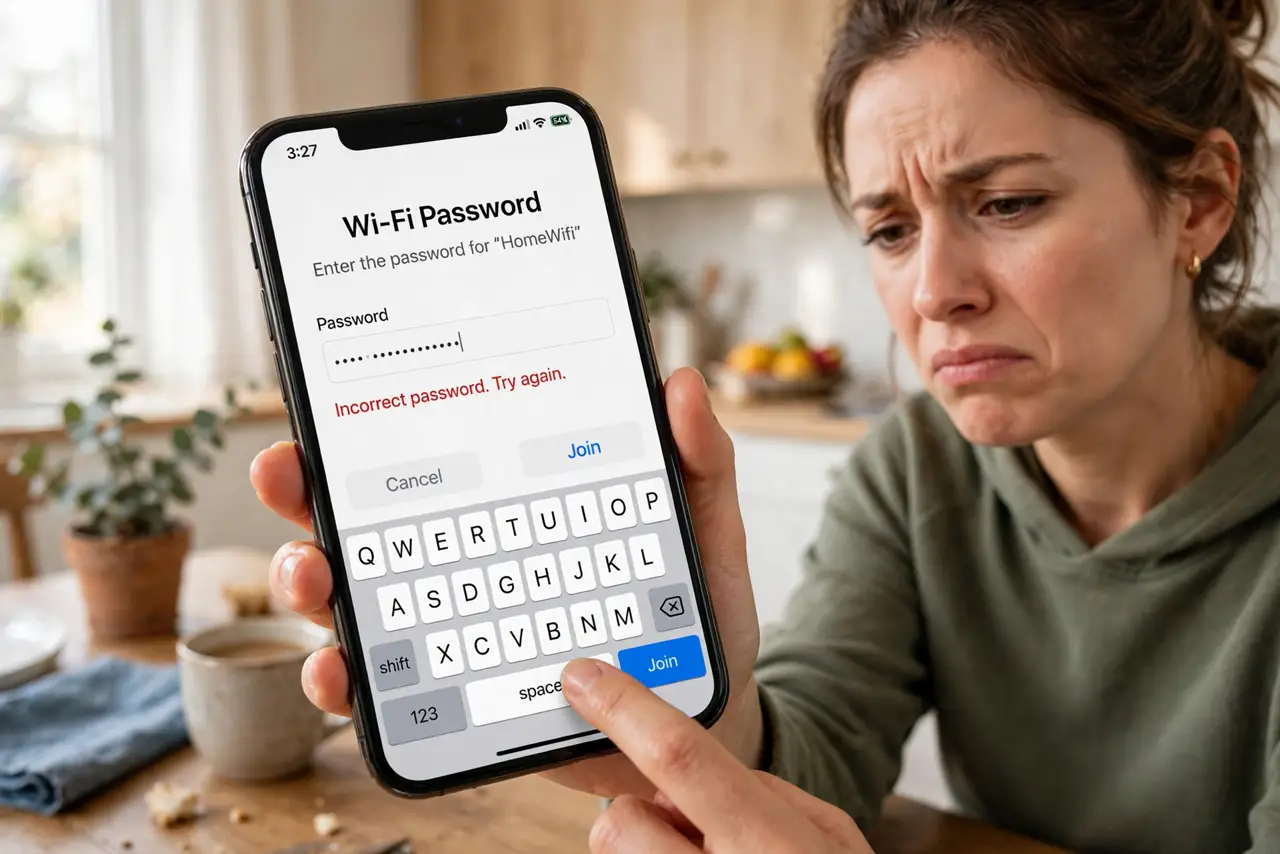
You type the password carefully — it's definitely right — and the phone says incorrect password anyway. Infuriating, and almost never actually about the password. The usual causes are a stale saved profile, a band mismatch, or the router's device limit. Work this list before accusing anyone of changing the password.
TL;DR / Quick Fix
Quick fix: forget the network and rejoin, typing the password fresh — stale saved profiles cause most false rejections. Check caps lock and trailing spaces, and confirm the right band. If guests connect but you cannot, the router may have hit its device limit.
Follow these steps
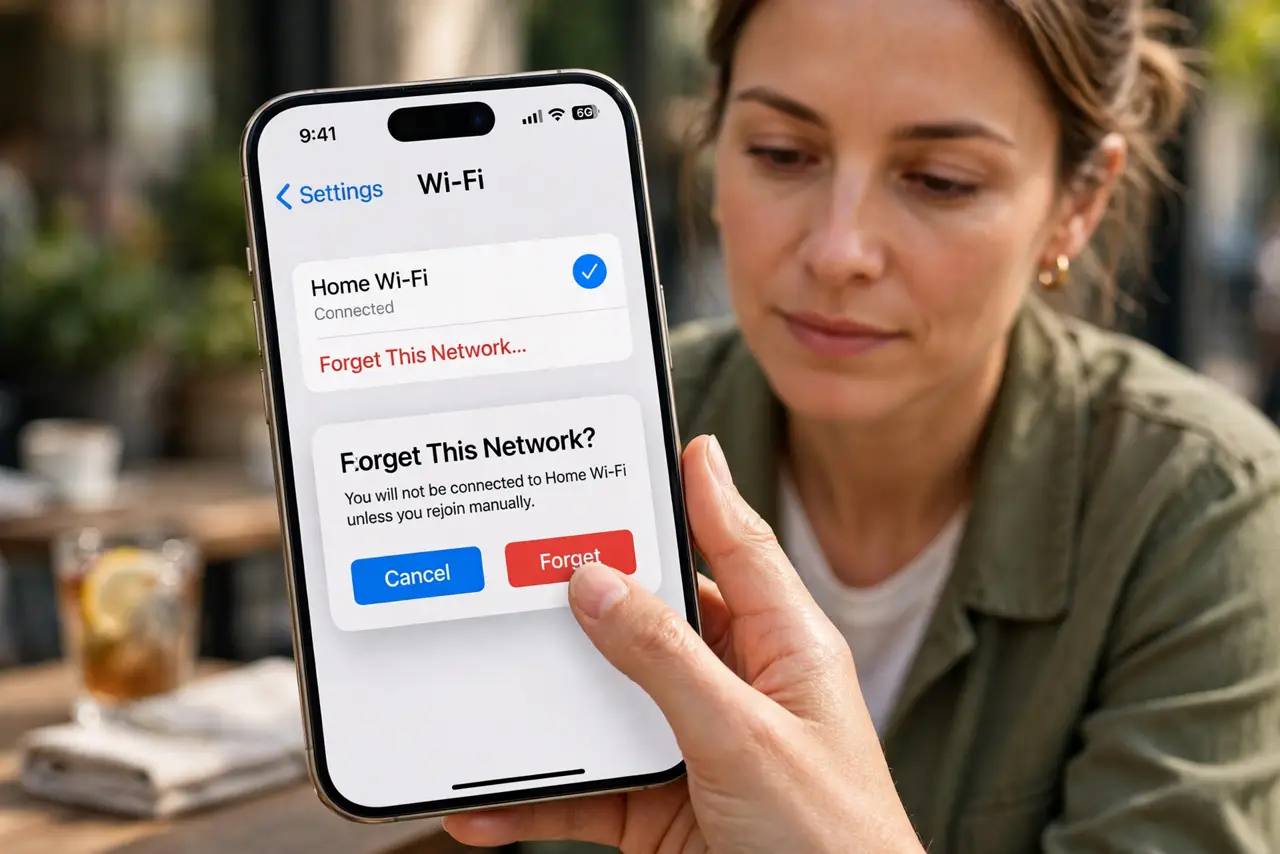
- Forget the network and rejoin fresh. Saved profiles corrupt silently. Forgetting wipes the old handshake data; rejoining rebuilds it cleanly with the password you type now.
- Check caps, spaces, and lookalikes. Wi-Fi passwords are case-sensitive. Watch for trailing spaces from autofill, and 0/O and 1/l lookalikes on printed labels.
- Confirm the right network name. With split bands, 2.4 and 5 GHz names differ slightly. Joining the wrong one with impatience — not the password — is a classic false rejection.
- Restart the device's Wi-Fi. Toggle Wi-Fi off and on, or restart the phone. A wedged wireless stack rejects good passwords convincingly.
- Check the router's device limit. Some routers cap connected devices. If the house is full of gadgets and only new ones fail, check who is actually connected — the router is full, not wrong.
- Reboot the router once. A router that has been up for months can start refusing handshakes. One clean reboot often ends the mystery.
What NOT to do
- Do not change the router password in frustration. Every other device then needs updating, and the password was never the problem.
- Do not share the password by screenshot in a group chat. Read it aloud or use the system's share feature instead.
- Do not assume someone changed it. False rejections from stale profiles are far more common than secret password changes.
- Do not disable Wi-Fi security to get in. An open network 'fix' trades your whole network's safety for one device's convenience.
Frequently asked questions
Why does it say incorrect password when it's right?
The error message is generic — it also appears for stale profiles, band mismatches, and full device tables. The password is the least likely culprit.
Can a router just refuse new devices?
Yes. Device limits, MAC filtering left on from years ago, or a hung DHCP pool all refuse newcomers while old devices sail through.
Should I reset the router?
Only after the gentler steps fail repeatedly. A reset wipes every setting; a reboot preserves them.