Try Split Tunneling
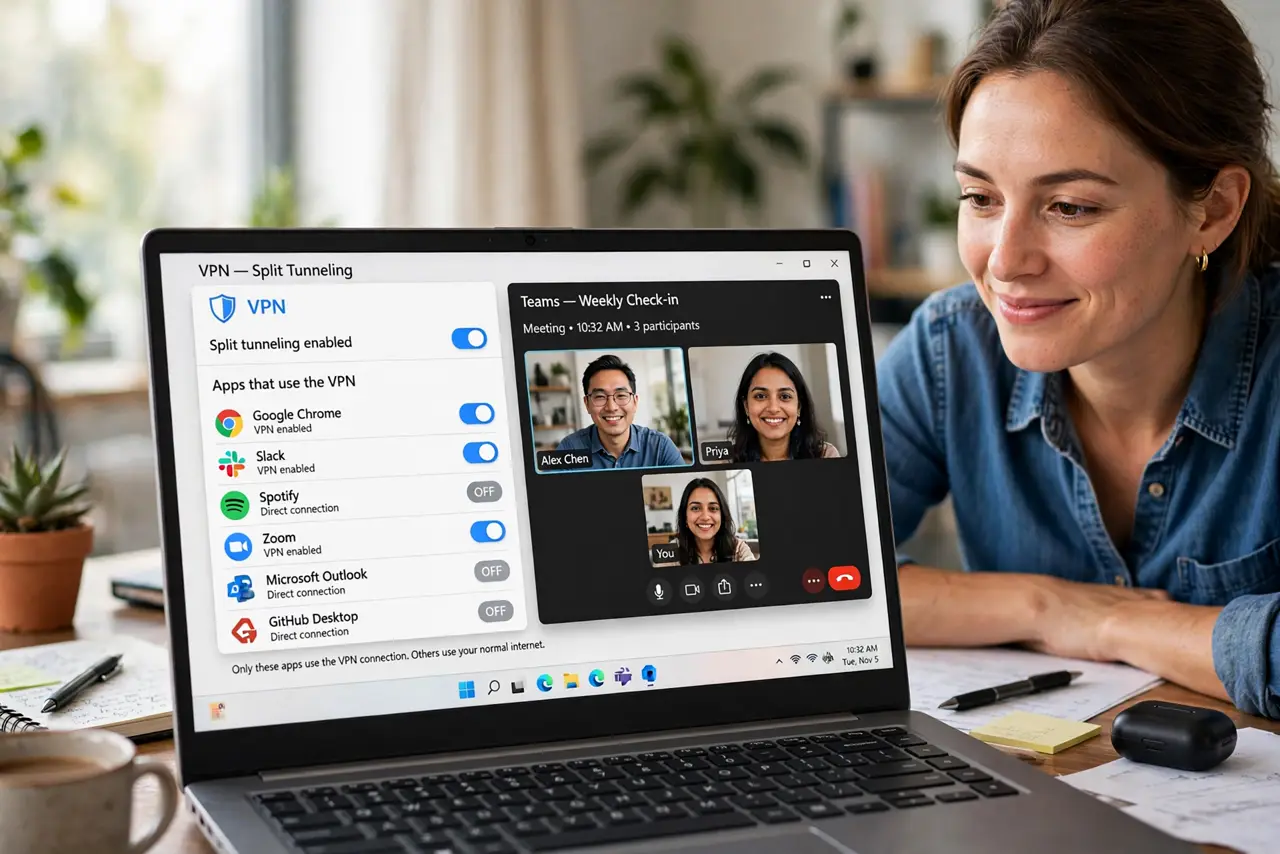
Your VPN makes everything slower — even the local printer and the video call that never needed hiding. Split tunneling lets you choose which apps use the VPN and which go direct, so only the traffic that needs protection pays the speed price. It is the fix for the everything-through-the-tunnel slowdown.
TL;DR / Quick Fix
Quick fix: open your VPN app settings and find Split Tunneling. Put your browser on the VPN side and leave video calls and local devices direct. Test banking and streaming afterward. Remember split traffic is unprotected — only exclude apps you trust on your own network.
Follow these steps
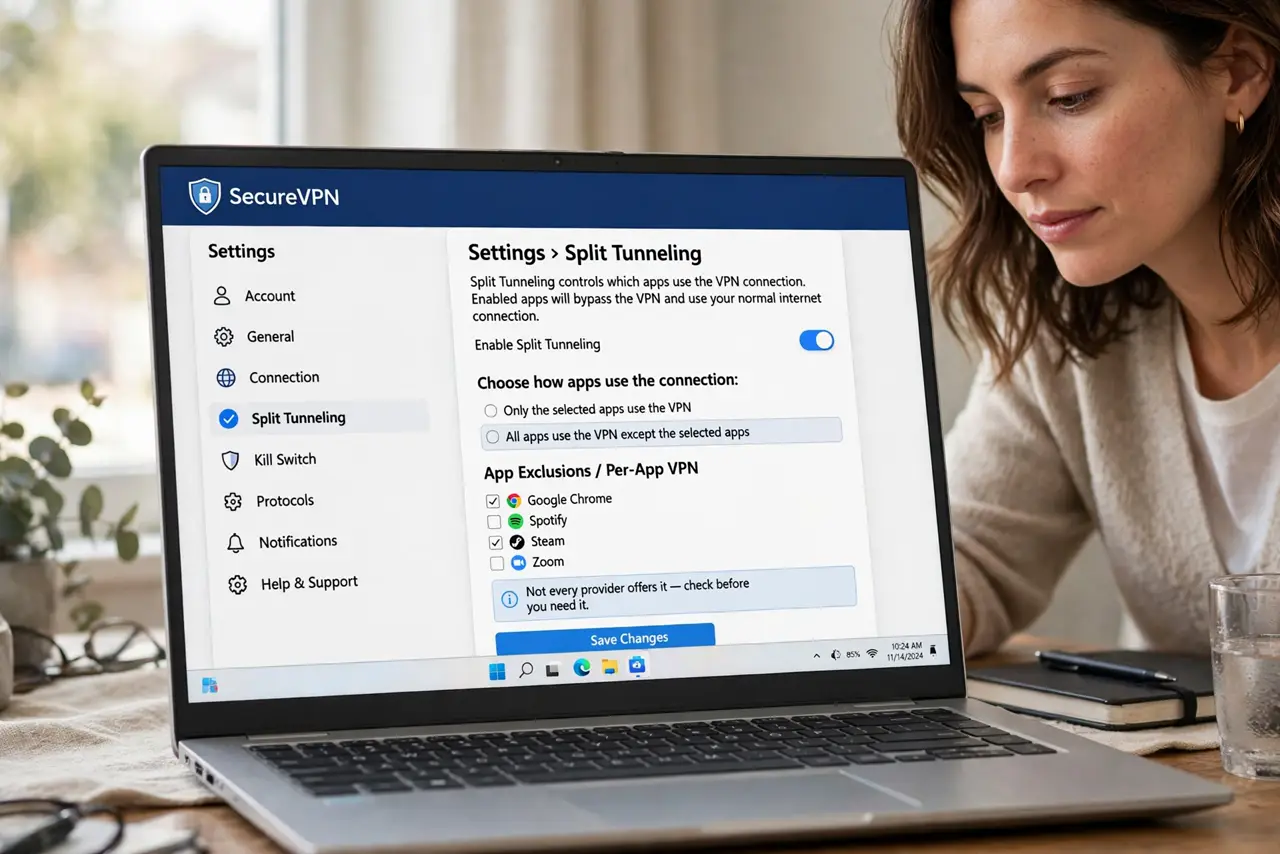
- Find the split tunneling setting. Open your VPN app, go to Settings, and look for Split Tunneling, Per-App VPN, or App Exclusions. Not every provider offers it — check before you need it.
- Choose which apps use the VPN. Add the browser and file-sharing apps to the VPN side. Leave video calls, games, and smart-home apps on the direct side where speed and local access matter.
- Keep local devices direct. Printers, NAS drives, and casting targets live on your local network — VPNs often block them. Excluding them fixes the printer vanishes on VPN problem instantly.
- Test banking and streaming. Some banks and streamers block VPN IPs. Route those apps direct rather than fighting error pages through the tunnel.
- Understand the tradeoff. Split traffic skips encryption entirely. Only exclude apps whose traffic you are comfortable exposing — the slower VPN explainer covers why the tunnel costs speed at all.
- Try the inverse mode if offered. Some apps offer inverse split tunneling: only chosen apps use the VPN, everything else goes direct. For most people this is the simpler setup.
What NOT to do
- Do not exclude your browser from the VPN on public Wi-Fi. Split tunneling is for home networks you trust — cafes deserve full-tunnel protection.
- Do not split-tunnel your file-sharing app to the direct side. That is exactly the traffic the VPN exists to protect.
- Do not assume split tunneling hides the excluded apps. They are fully visible to your ISP — that is the point, so choose deliberately.
- Do not forget which mode you picked. Months later, a mysteriously unprotected app is usually a forgotten exclusion.
Frequently asked questions
Does split tunneling work on iPhone?
Rarely — iOS restricts per-app VPN routing. Most iPhone VPN apps offer only full-tunnel or on-demand rules.
Will my ISP see excluded apps?
Yes, completely. Split tunneling is a deliberate visibility choice, not a leak — only exclude what you are fine exposing.
Can I split-tunnel on a router VPN?
Usually not per app, but you can route by device: put the smart TV on the direct network and everything else through the router VPN.