What's New in Windows 11
A big Windows update lands, the release notes read like marketing poetry, and you have no idea what actually changed on your PC. Windows rolls its headline features out in waves, so your neighbor may get a new Start menu trick weeks before you do. This guide shows where to find the real changelog and how to check whether a missing feature is simply not your turn yet. It also covers the Windows 11 basics so the new bits make sense in context.
TL;DR / Quick Fix
Quick fix: read the official update notes before upgrading, back up your files, and install big Windows updates when you have an hour free. New features roll out in waves, so a missing button usually means your turn has not arrived yet — not a broken install.
Follow these steps
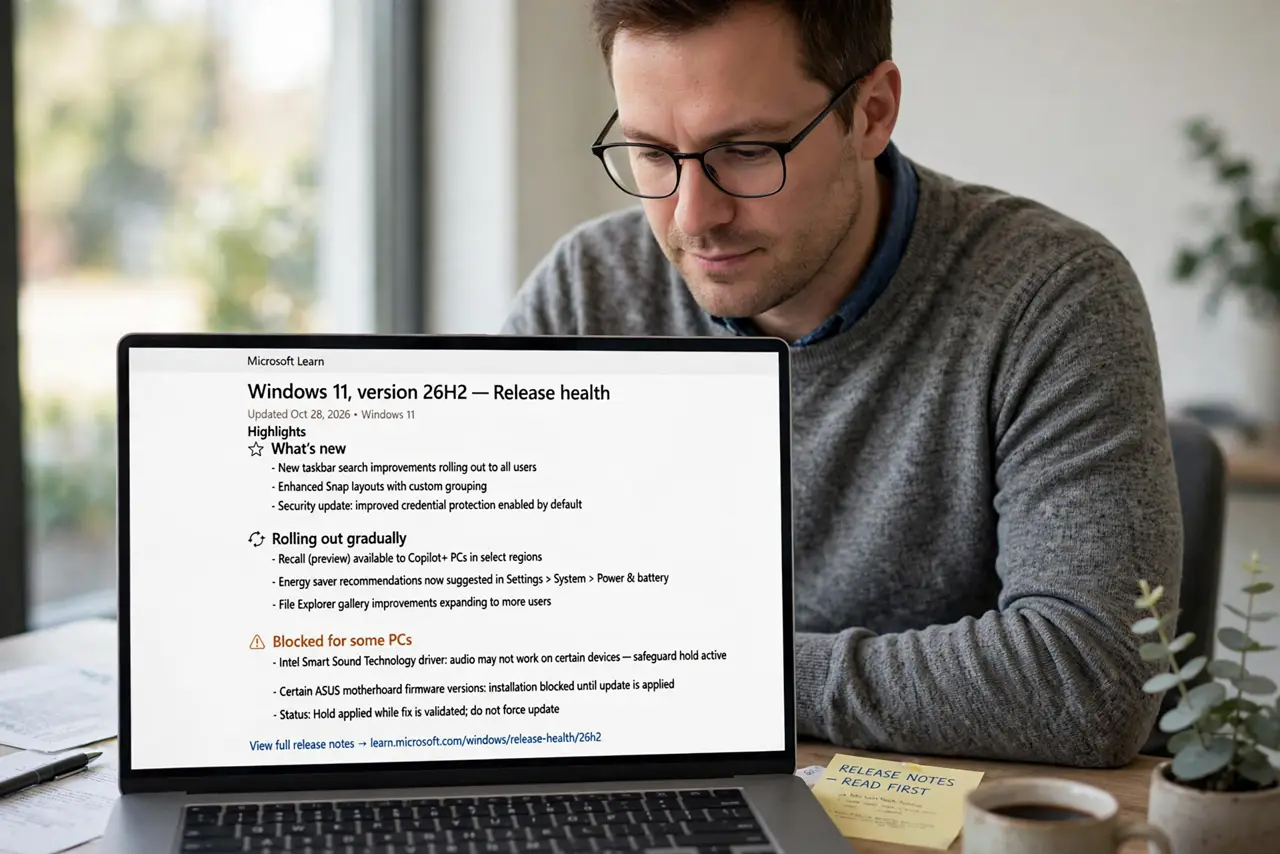
- Read the official release notes first. Open the Windows release health page and skim the highlights section. It lists what is new, what is rolling out gradually, and what is blocked for some PCs — the honest version of the marketing.
- Check whether your PC is even eligible. Some features need specific hardware, like an NPU or a recent processor. If your PC is older, a missing feature is usually a requirement you do not meet, not a failed update.
- Back up before the big install. Feature updates touch the whole system. Save open work, and make sure your files are backed up somewhere safe — an external drive or cloud storage — before you click install.
- Install when you have a free hour. Feature updates can take 30 to 90 minutes with several restarts. Start them when you do not need the PC, not five minutes before a video call.
- Give gradual rollouts time. Microsoft enables new features for small groups first and watches for bugs. If a promised feature is missing after updating, waiting a week or two is normal — see the Copilot basics for one feature that arrived this way.
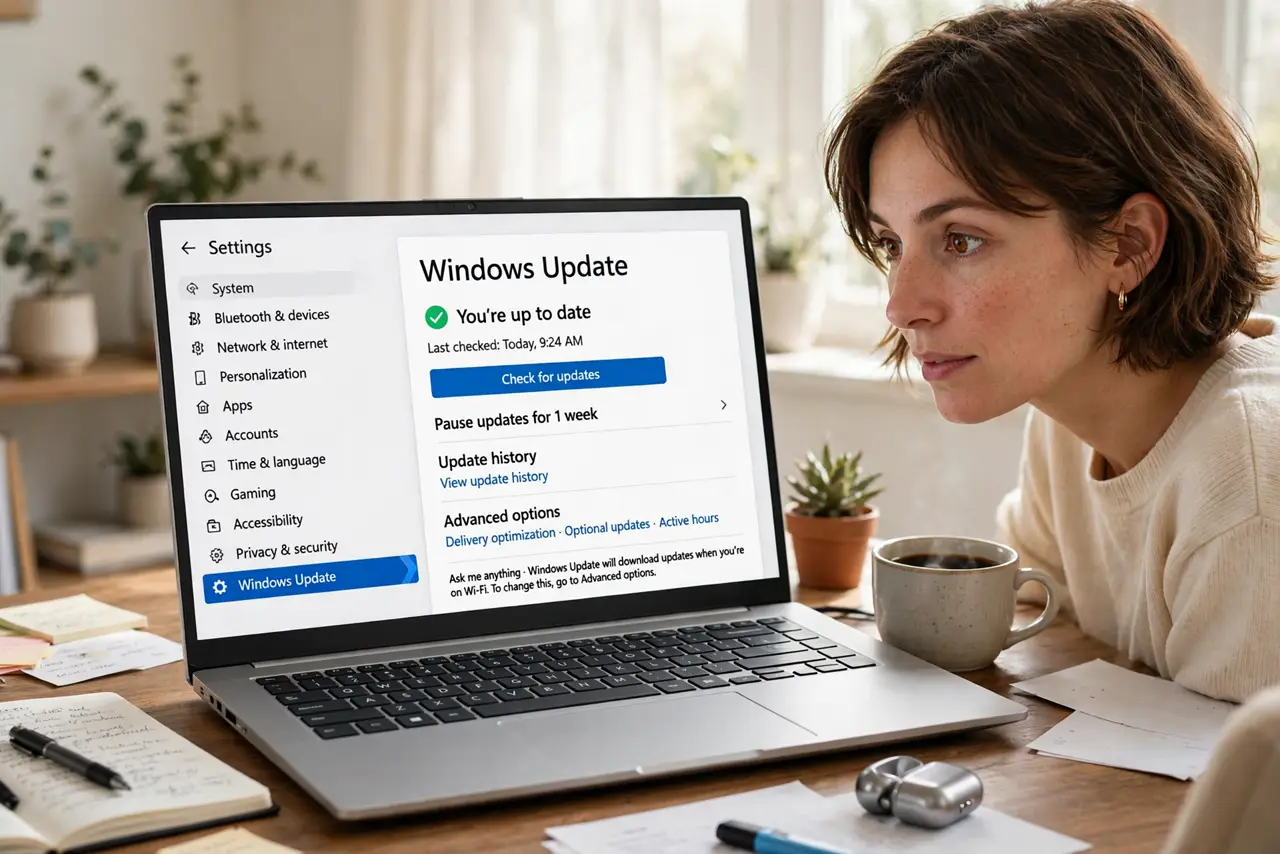
- Verify the install actually finished. After the restarts, open Settings, then Windows Update, and confirm it says you are up to date. If it shows an error code, note it down — that code is what support needs.
What NOT to do
- Do not install a feature update on a deadline day. Restarts and the occasional rollback can eat an afternoon.
- Do not trust third-party 'what's new' videos over the official notes. Many list features your region or hardware will never get.
- Do not skip the backup because 'it always works.' Feature updates are the one update type most likely to go sideways.
- Do not force-install with unofficial tools to get a feature early. You trade a wait of weeks for real system instability.
Frequently asked questions
Why does my friend have a feature I do not?
Gradual rollouts. Microsoft enables features for percentages of users over weeks while monitoring for problems. Same Windows version, different feature flags.
Can I roll back a feature update?
Yes, for about ten days after installing, from Settings, then System, then Recovery. After that window the old files are deleted and rollback is gone.
Do feature updates delete my files?
They are designed not to, but bugs happen — which is why the backup step exists. Programs and files should survive; settings occasionally reset.