Boot Into Advanced Startup
Buried behind a few menus is Windows' recovery hub: Advanced startup. From one blue menu you can reach Safe Mode, Startup Repair, System Restore, and full reset — every rescue tool in one place. You can open it from inside Windows, from the sign-in screen, or even when Windows will not start at all.
TL;DR / Quick Fix
Quick fix: hold Shift while clicking Restart — from the Start menu or sign-in screen — to open Advanced startup, the blue recovery menu. From there you reach Safe Mode, Startup Repair, System Restore, and reset. Learn this one menu and every built-in rescue tool is one click away.
Follow these steps
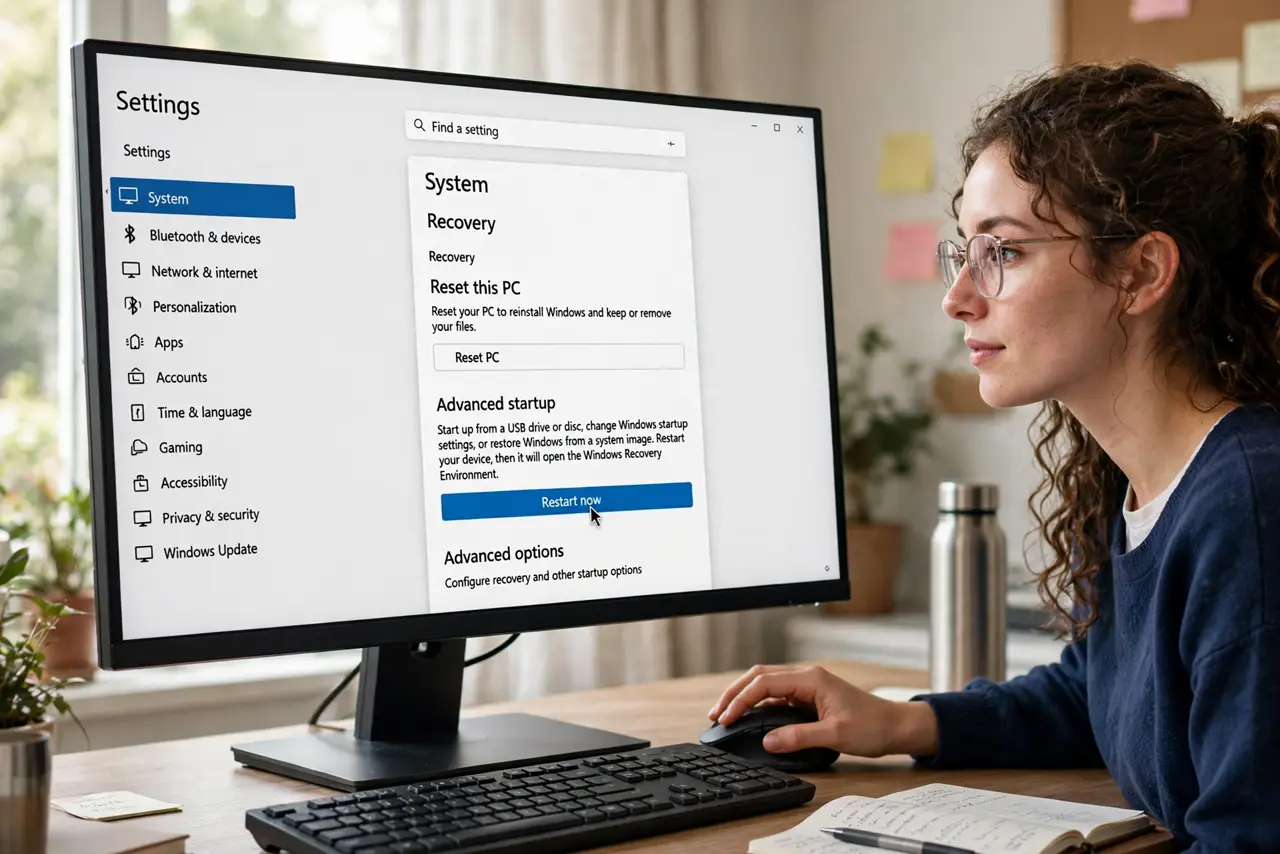
- Open it from Settings. Go to Settings > System > Recovery and click Restart now next to Advanced startup. The PC reboots straight into the blue menu.
- Open it from the sign-in screen. Hold Shift, click the Power icon, and choose Restart. Perfect when Windows boots but you cannot sign in.
- The last-resort method. If Windows will not start at all, interrupt the boot two or three times by holding the power button. Windows then offers the recovery menu automatically — use sparingly, since forced shutdowns carry risk.
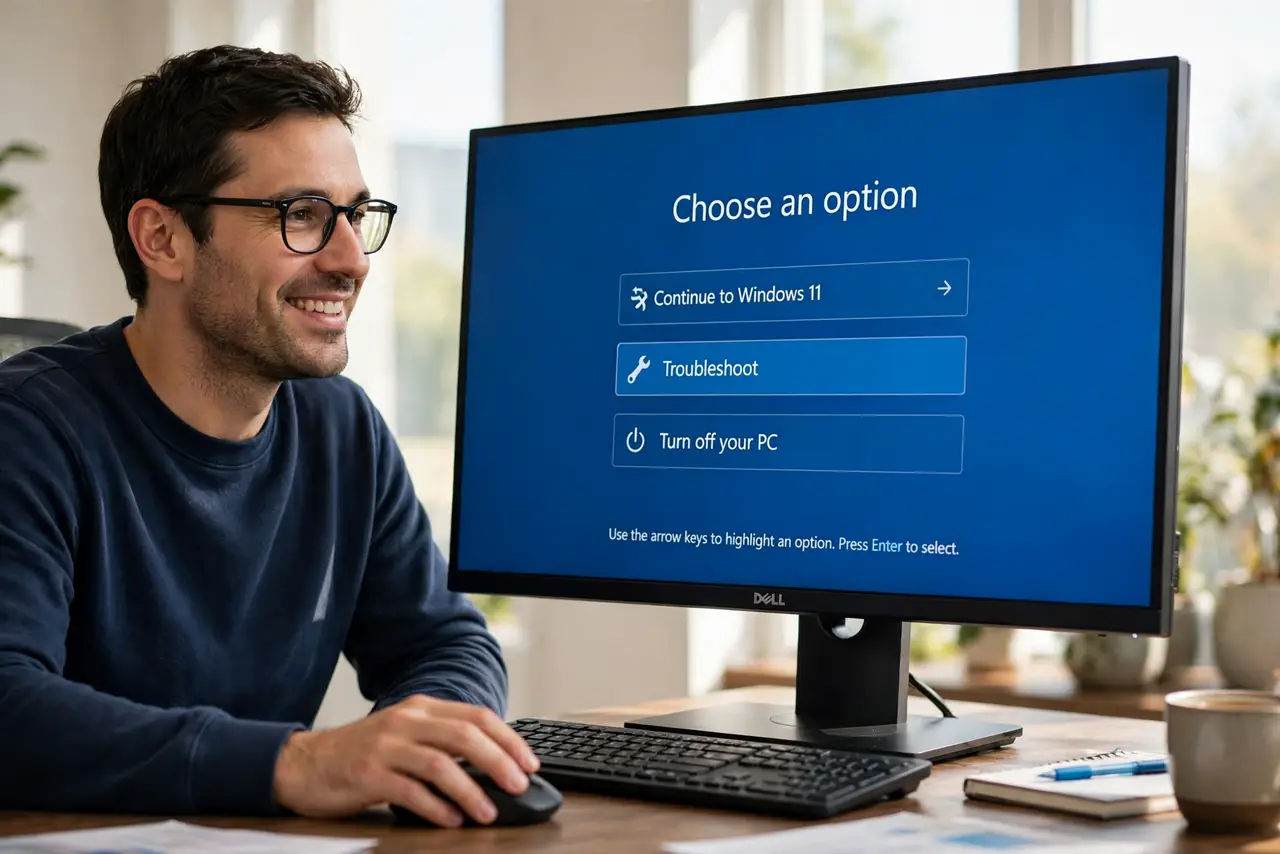
- Meet the menu. You will see Continue, Troubleshoot, and Turn off your PC. Everything useful lives under Troubleshoot — the menu itself changes nothing until you choose.
- Tour Troubleshoot > Advanced options. Here sit Startup Repair, System Restore, Startup Settings (Safe Mode lives there), and the update uninstaller. One menu, every rescue.
- Use a recovery drive if the menu never appears. When even Advanced startup will not open, boot from a recovery drive — it carries the same tools on a USB stick.
What NOT to do
- Do not interrupt boots casually to reach this menu. Forced shutdowns risk data — use the Shift+Restart paths whenever Windows runs at all.
- Do not jump to reset before trying repair. The menu orders tools gently for a reason: Startup Repair and System Restore before the big guns.
- Do not fear the menu itself. Looking around changes nothing — only the tool you deliberately launch takes action.
- Do not follow Command Prompt 'fixes' from random forums. The guided tools here are safer than typed commands copied from strangers.
Frequently asked questions
What if Advanced startup will not open at all?
Then Windows' recovery partition is damaged or gone. Boot from a recovery drive or installation media — same tools, different door.
Is this the same as the BIOS?
No. The BIOS/UEFI runs before Windows; Advanced startup is Windows' own recovery layer. You want this menu for software rescues.
Can I add it to the boot menu permanently?
It is possible through advanced configuration, but unnecessary for most people — Shift+Restart is two seconds when you need it.