Check Your App Permissions
That free flashlight app from 2019 still has access to your location, microphone, and contacts — and you've never looked. Windows lets every app request permissions, but few people ever review what they granted. A yearly permissions audit takes ten minutes and closes privacy holes you forgot existed.
TL;DR / Quick Fix
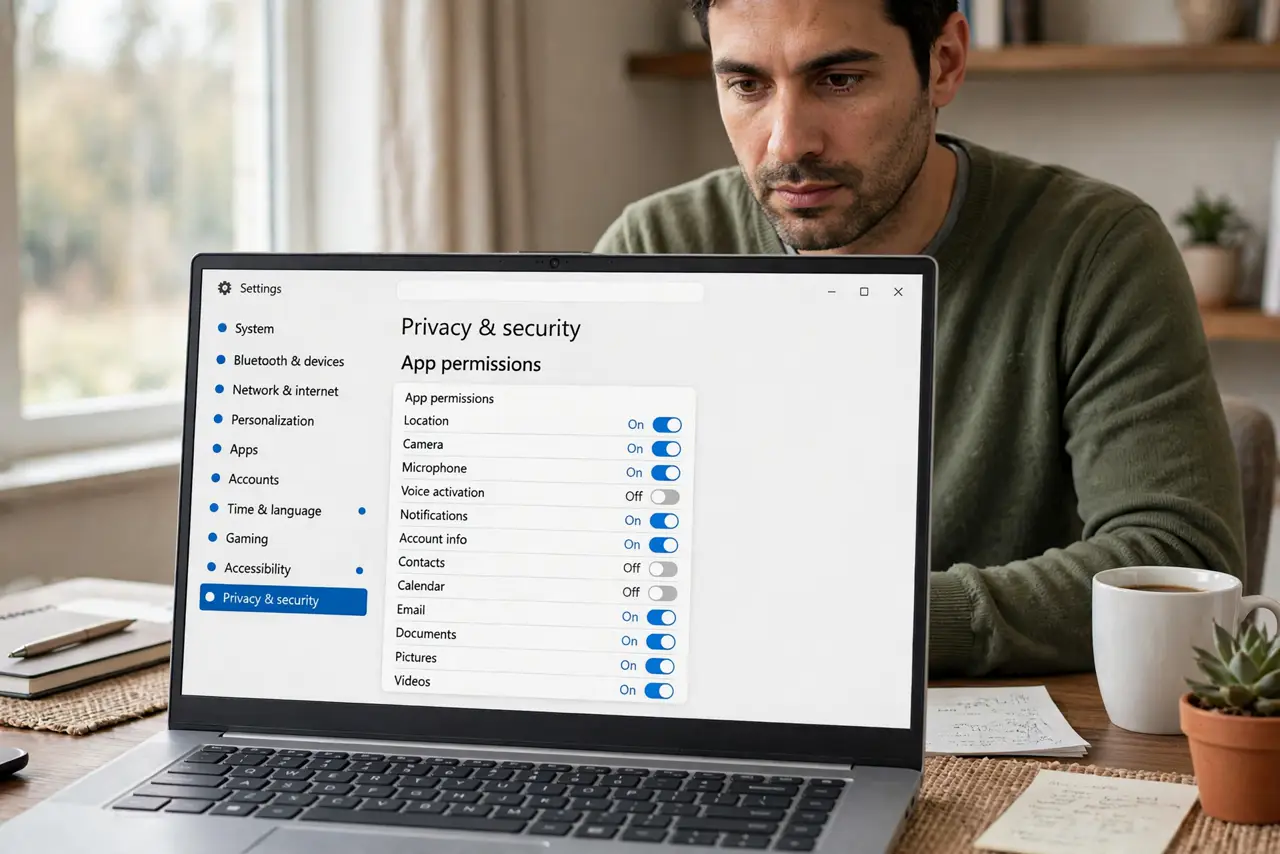
Quick fix: open Settings, Privacy & security, and walk through Location, Camera, and Microphone — toggle off anything that doesn't need it. Do this once a year and after installing new apps. If an app breaks, you can re-enable its permission in seconds.
Follow these steps
- Open Privacy & security settings. Go to Settings, then Privacy & security. Windows groups every permission — location, camera, microphone, contacts — with the list of apps that hold each one.
- Audit location first. Location is the most sensitive and most over-granted. Walk the list and ask: does this app need to know where I am? A photo editor usually doesn't — see location permission quirks if toggles misbehave.
- Check camera and microphone. These are the permissions that feel creepy when abused. Video apps need them; games and utilities usually don't. Toggle off anything without a clear reason — the app will ask again if it truly needs it.
- Review after every install. New apps ask for permissions at install when you're tapping through quickly. Make it a habit: after installing anything, spend 30 seconds checking what it took.
- Do a yearly full audit. Permissions creep over time through updates — the post-update creep problem. Once a year, walk every category and prune ruthlessly.
- Uninstall what you don't use. The cleanest permission is a deleted app. If you haven't opened it in months, uninstall it instead of just toggling permissions — fewer apps, fewer risks.
What NOT to do
- Do not grant 'always allow' location to apps that only need it sometimes. 'While using the app' covers navigation and delivery — always-on is rarely justified.
- Do not ignore permission prompts from updates. An update can quietly request new permissions — read the prompt instead of tapping through.
- Do not assume the Microsoft Store vets permissions perfectly. Store apps are sandboxed, but they can still request broad access you should review.
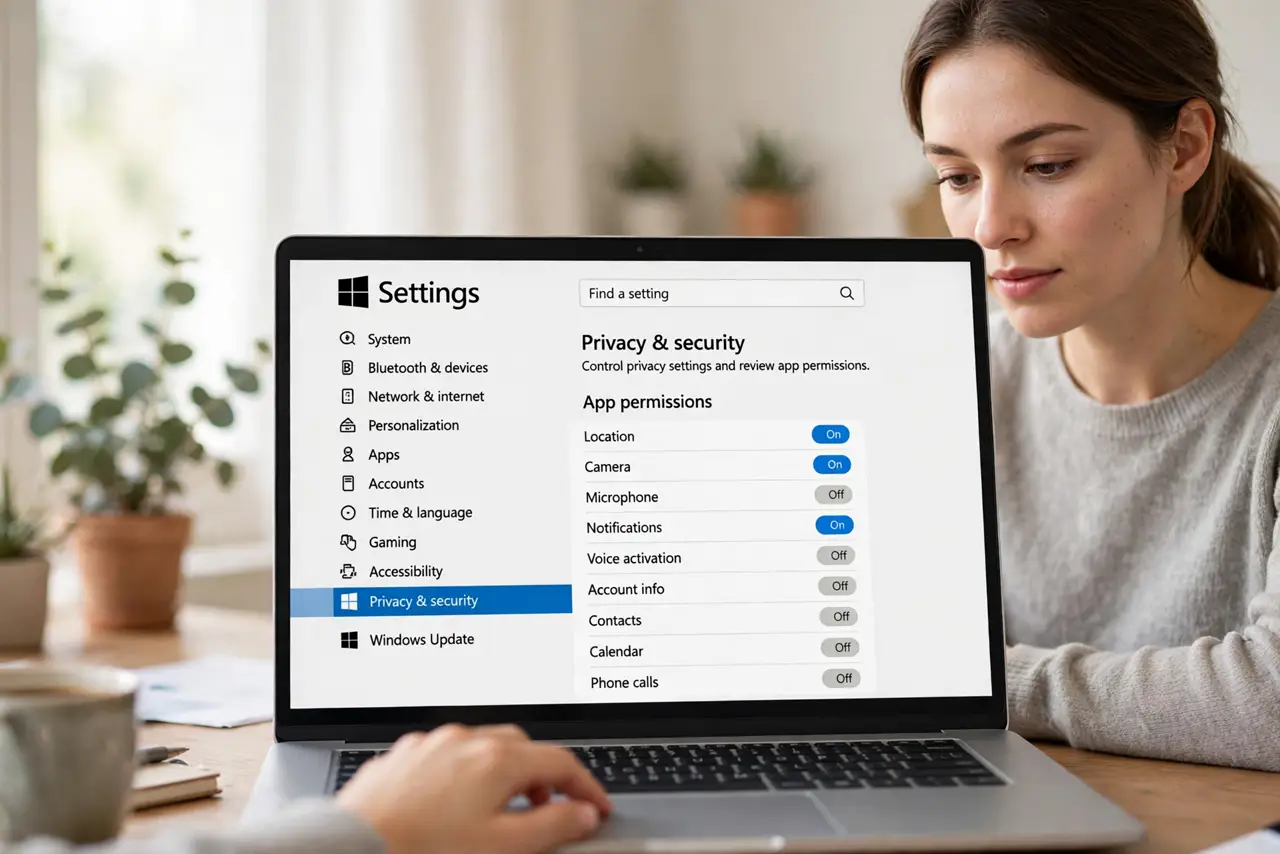
- Do not panic if an app stops working after you revoke. Re-enabling takes seconds in the same settings page — revoking is safe to experiment with.
Frequently asked questions
Will revoking permissions break apps?
Sometimes a feature stops working — maps without location, calls without microphone. That's by design, and re-enabling is instant. Revoke freely; the worst case is a quick toggle back.
What's the difference between Windows and app-level permissions?
Windows controls hardware access (camera, mic, location); individual apps may have their own internal settings too. Check both — a Windows toggle off overrides everything.
How do I know which apps are spying?
You can't see intent, only access — but access is what matters. An app with microphone permission can listen; without it, it can't. Audit access, not trust.