Camera Indicator Stays On After a Call? Fix It
When the camera indicator stays on after a call, it feels as if someone is still watching, even though the call ended. Usually an app did not release the camera when it closed, or a background app still holds it. Finding that app and closing it properly turns the light off.
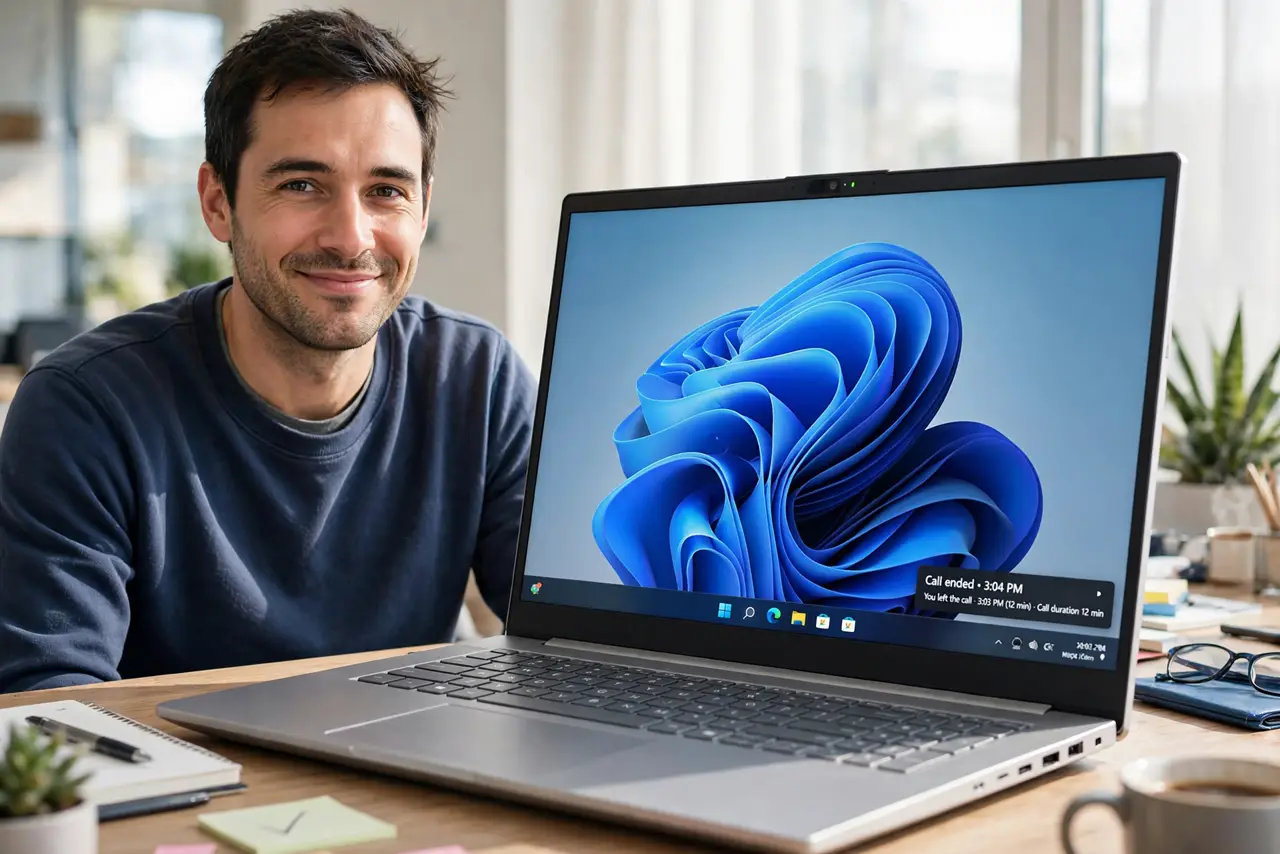
TL;DR / Quick Fix
Quick fix: close the call app fully, including any window left in the taskbar or system tray, then wait a few seconds and check the indicator. If the light stays on, open Settings, then Privacy and security, then Camera, and check which apps recently used the camera.
Follow these steps
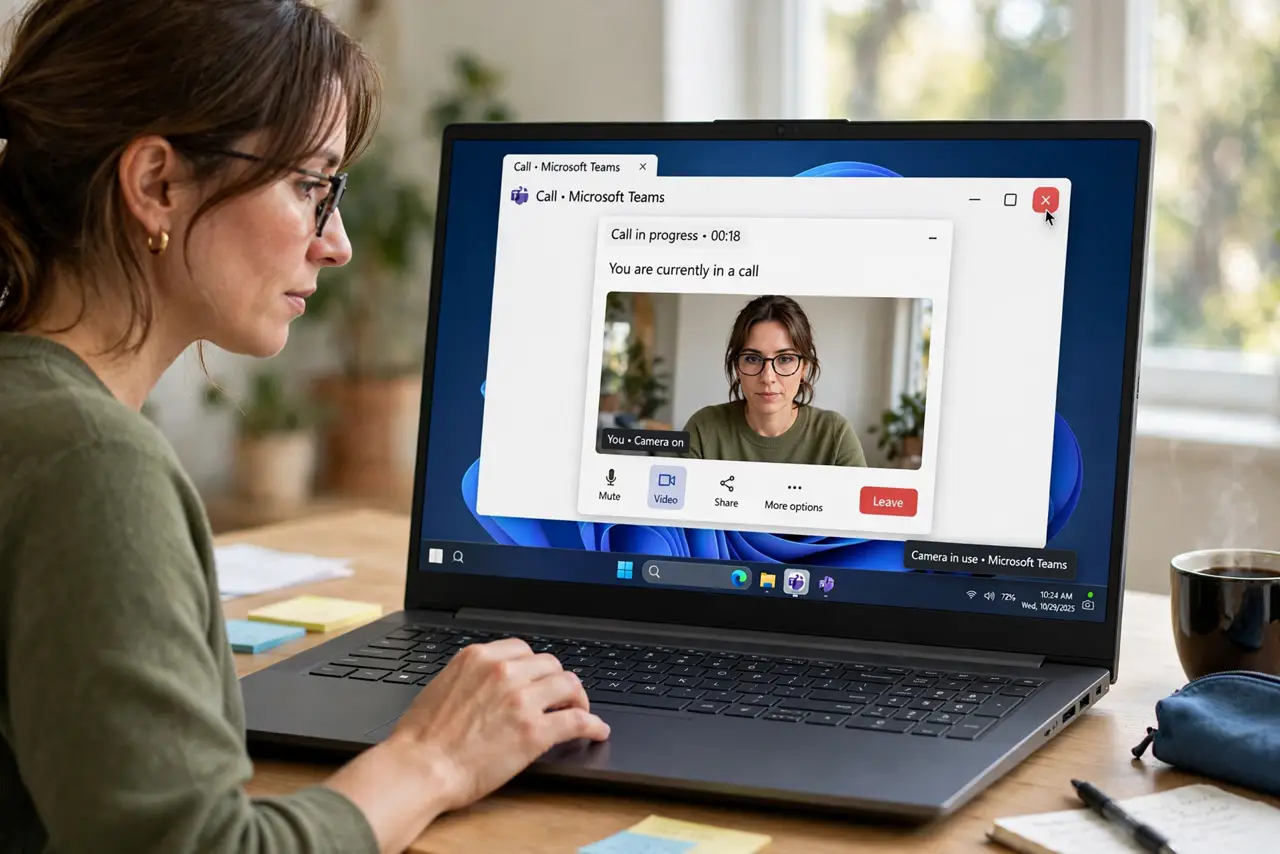
- Close the call app fully. Close the call app, then check the taskbar and system tray for a leftover window or icon. An app minimized to the tray can still hold the camera open.
- Wait a few seconds. Wait about ten seconds after closing. Camera release is not always instant, and the indicator can stay lit briefly while the app shuts down.
- Check recent camera use. Open Settings, then Privacy and security, then Camera, and look at recent activity. The app listed most recently is the one that held the camera last.
- End the app in Task Manager if needed. Open Task Manager, find the call app, and end its task. Then check the indicator again, because ending the task forces the camera release.
- Restart if the light still stays on. Save your work and restart the computer. A restart releases every camera hold at once, and it confirms whether the problem was a stuck app or something deeper.
- Test the camera once after the fix. Open the camera app briefly, then close it fully, and watch the indicator. It should turn on during the test and turn off when you close the app.
What NOT to do
- Do not cover the camera and ignore a stuck indicator. A cover hides the lens, but it does not answer which app held the camera, and the app may still be running.
- Do not uninstall the camera driver for a stuck light. The light usually means an app hold, not a driver fault, and a driver change will not close the app.
- Do not keep restarting the call app to fix the light. Reopening the same app can re-hold the camera, so close it fully first and check the indicator before you reopen it.
- Do not assume the light means someone is watching you. A stuck app hold is far more common, and the recent activity list shows which app held the camera last.
Frequently asked questions
Why does the indicator stay on after I hang up?
The call app did not release the camera when it closed, often because a window stayed open in the tray. Closing it fully releases the camera.
Is my camera recording when the light is on?
The light means an app holds the camera open. Check recent camera activity to see which app, and end that app if you do not want it holding the camera.
What if the light stays on after a restart?
Check the startup apps list for a video app that launches at startup and holds the camera. Disable it from startup, restart, and check again.