Everyday Copilot Uses
That Copilot button sits on the taskbar and most people ignore it, assuming it is just another search box. It is not — it is a plain-language helper that drafts, explains, and summarizes. Used well, it beats the blank page for emails, plans, and settings questions. New to it? Start with the Copilot basics.

TL;DR / Quick Fix
Quick fix: that Copilot button on the taskbar is a plain-language helper, not just another search box. Ask it settings questions, draft messages, summarize long pages, and brainstorm plans. Keep expectations modest: it drafts and explains, it does not fix your PC for you. Always double-check its answers.
Follow these steps
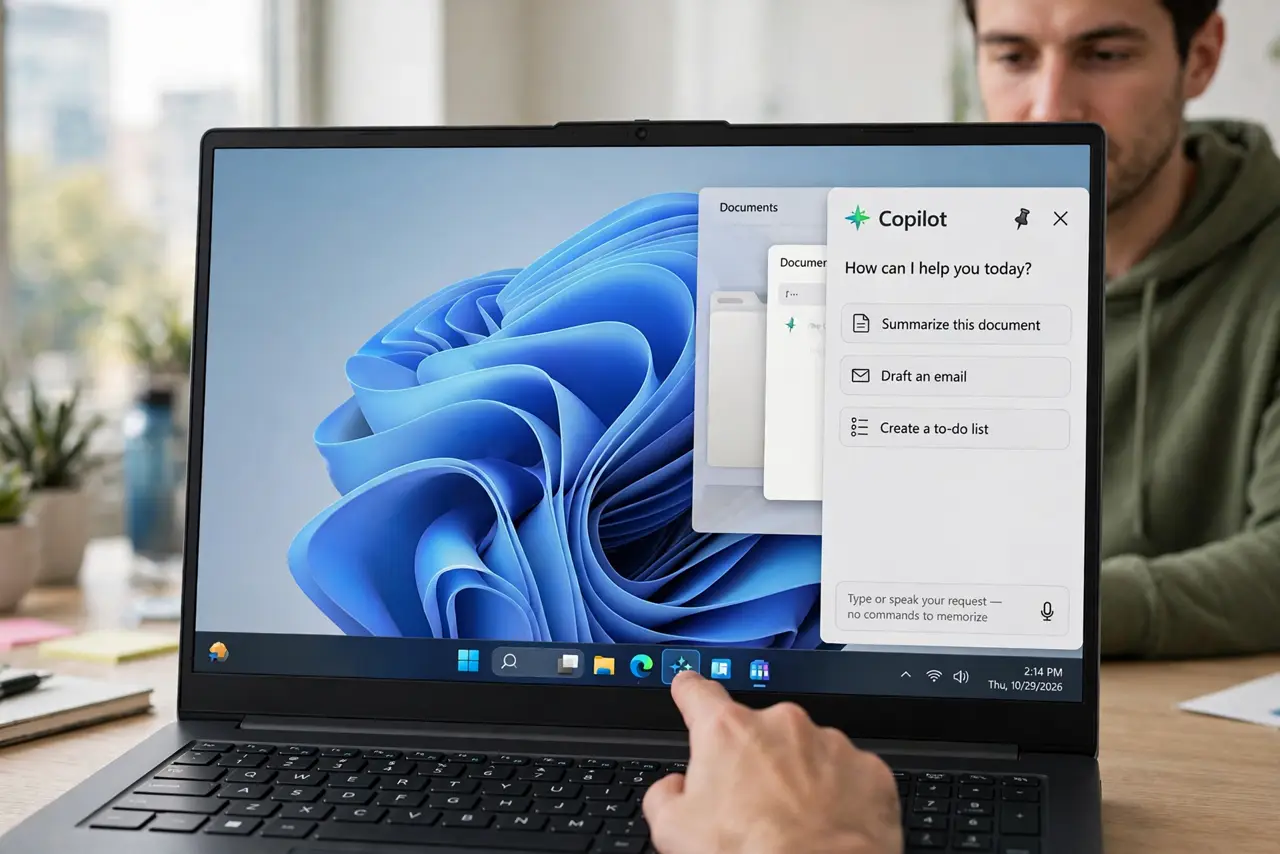
- Open Copilot from the taskbar. Click the Copilot button on the taskbar, or press the Copilot key if your keyboard has one. A side panel opens where you type or speak requests in plain words — no commands to memorize.
- Ask settings questions in plain words. Type things like how do I make text bigger or turn on night light, and Copilot explains the steps. It is a tutor that talks back, not a button that changes things silently.
- Draft messages and emails. Give it the rough idea — a polite reply saying you need one more day — and it drafts something you can edit. You stay the author; it just beats the blank page.
- Summarize long pages and documents. Paste a long article or drop in a document and ask for the key points. You get the gist in seconds, then read only the parts that matter.
- Use it for planning and brainstorming. Trip packing lists, meal ideas for the week, pros and cons of a purchase — Copilot is good at structured lists from a one-line prompt.
- Verify anything important. Copilot sometimes states wrong facts confidently. For medical, legal, or money questions, treat its answer as a starting point and confirm with a trusted source. For help with something visible on screen, try Copilot Vision.
What NOT to do
- Do not paste passwords, account numbers, or private documents into Copilot. Treat the chat box like a public form — keep sensitive details out.
- Do not follow its instructions blindly when they change system settings. Read what it suggests, then decide for yourself.
- Do not use it for medical, legal, or financial decisions. It can summarize information, but it is not a professional.
- Do not expect it to control your PC like a remote assistant. It explains and drafts; it does not click through tasks for you.
Frequently asked questions
Is Copilot free on Windows?
The basic Copilot in Windows is free with a Microsoft account. There are paid tiers with more features, but everyday uses — drafting, explaining, summarizing — work on the free version.
Does Copilot replace web search?
Not really. Search finds sources; Copilot synthesizes answers. Use search when you need the original page, and Copilot when you want a quick explanation or a draft.
Can Copilot see what is on my screen?
Only if you use its screen-sharing feature, which asks permission first. The regular chat sees only what you type or paste.