Set a Data Usage Limit
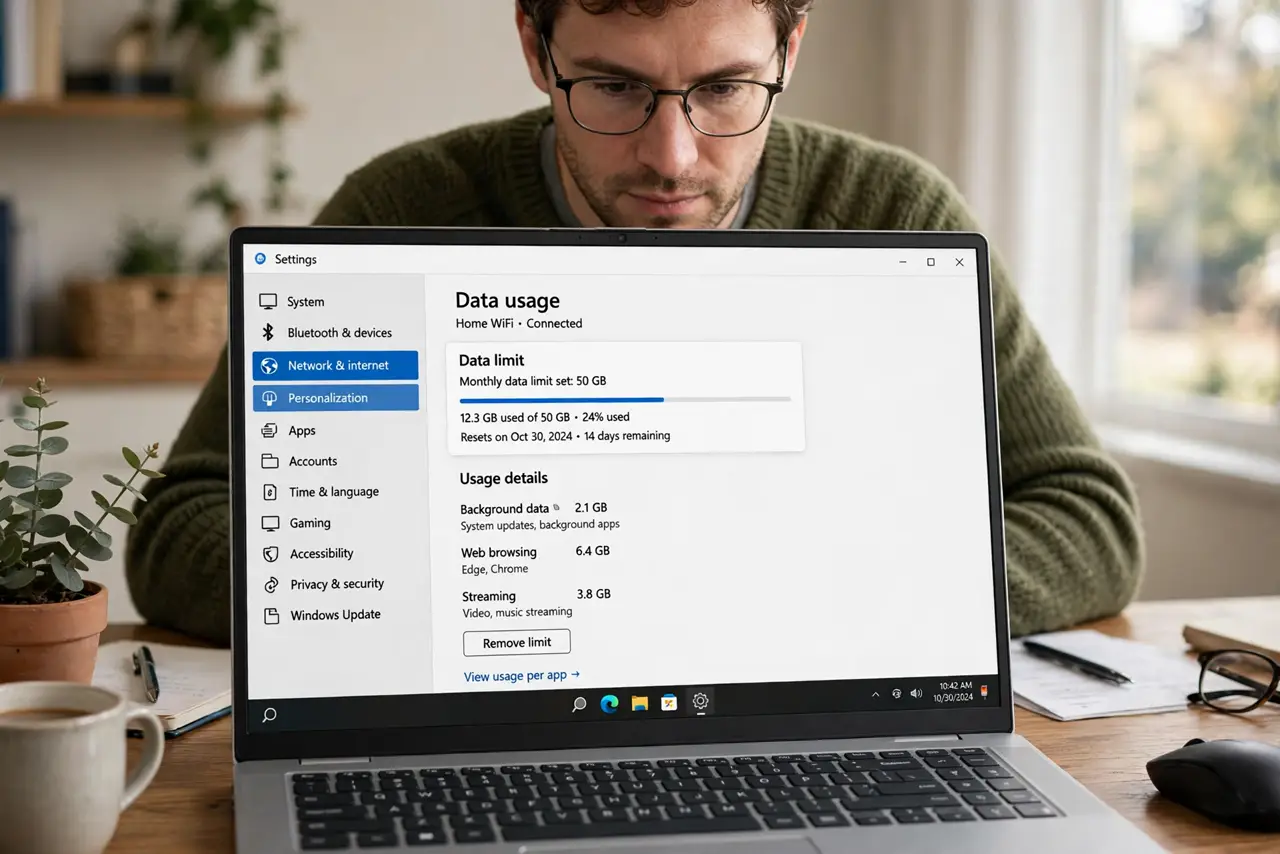
Your hotspot data cap worries are justified — one Windows update can eat a month's allowance overnight. Windows lets you set a data usage limit per network, warning you as you approach it. It will not stop the data by itself, but it makes the invisible visible.
TL;DR / Quick Fix
Quick fix: in Windows Settings, Network, set a data limit on your hotspot or metered connection — Windows warns you at 90% and at the cap. Pair it with a metered connection so updates pause automatically. Check your carrier's real allowance first.
Follow these steps
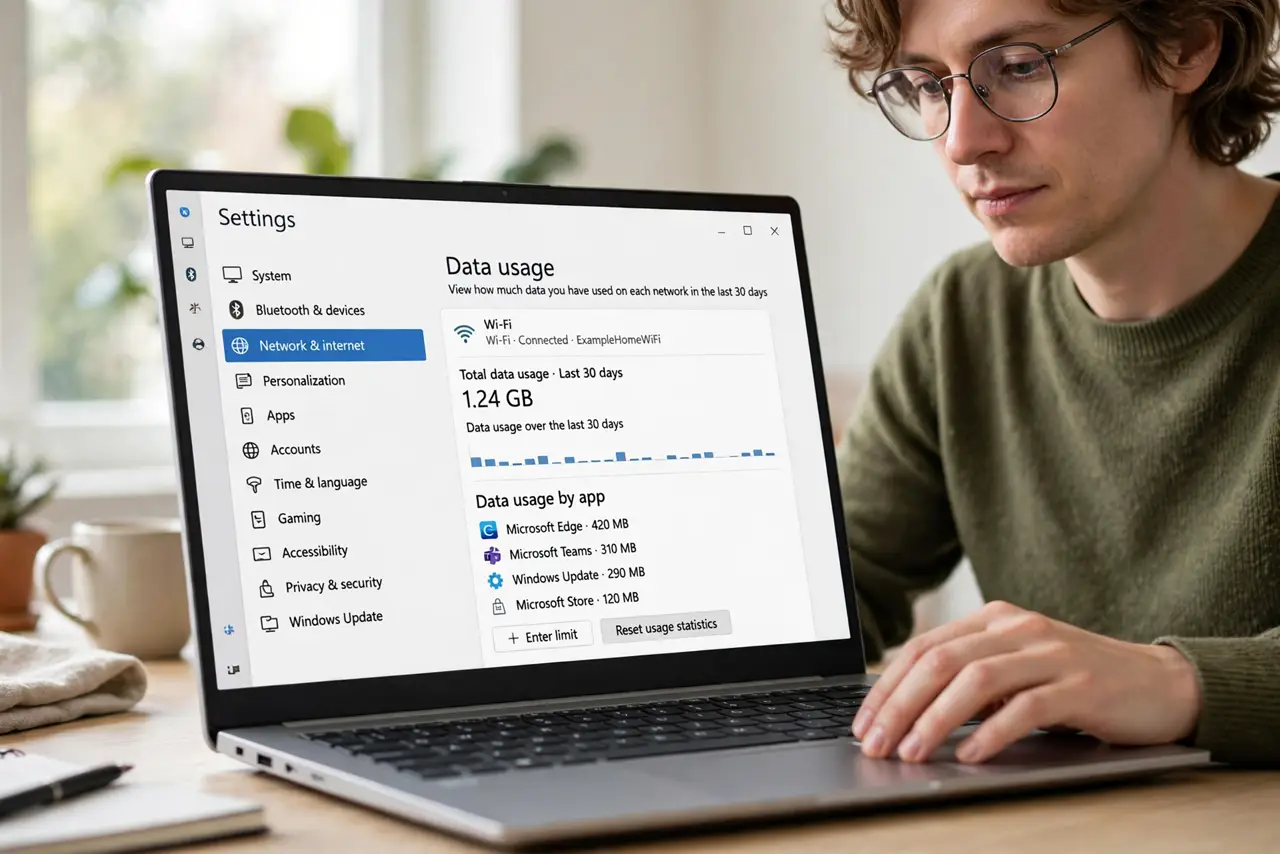
- Open data usage settings. Settings, Network and internet, Advanced network settings, Data usage. Select the hotspot or metered connection from the list.
- Enter your real limit. Set the cap to your plan's actual allowance — check the carrier app, not your memory. A wrong number makes the warning useless.
- Understand what the warning does. Windows alerts at 90% and at 100% — it does not cut you off. The limit is a tripwire, not a wall; see limit surprises.
- Mark the connection as metered. On the same network's settings, enable 'Set as metered connection.' That actually reduces background data — the limit alone only warns.
- Reset each billing cycle. Windows can reset automatically monthly — set the reset date to your billing date so the numbers stay honest.
- Watch what uses it. The data usage page breaks down usage per app. One surprise hog — usually cloud sync or updates — is where the drain lives.
What NOT to do
- Do not set the limit and forget metered mode. Warnings without reduced background usage just narrate the disaster.
- Do not guess your allowance. Carriers' hotspot caps differ from phone data caps — verify the hotspot number.
- Do not expect the limit to stop overages. It warns; it does not block. Overage protection is the carrier's job.
- Do not set it once and ignore the reset date. A limit tracking the wrong month is worse than none.
Frequently asked questions
Will Windows stop my data at the limit?
No — it warns at 90% and 100% but keeps going. Only the carrier can cut you off.
Does this work on any connection?
Yes — set limits per network, including Ethernet and Wi-Fi, though it matters most on capped connections.
Metered vs. data limit — which first?
Both. Metered reduces usage; the limit warns you. See USB vs Wi-Fi tethering for the connection choice.