Drivers From Windows Update? Basics
Windows Update sometimes offers drivers alongside security fixes, and the question is whether to let it. For most hardware, Microsoft's drivers are fine — tested, signed, and keeping things current is good. But a driver that works should not be fixed, and graphics cards deserve special treatment. Here is the calm, safe way to handle driver updates.
TL;DR / Quick Fix
Quick fix: accept driver updates from Windows Update for everyday hardware — they are tested and safe. If one breaks something, roll it back in Device Manager. For graphics cards, prefer drivers from NVIDIA, AMD, or Intel — theirs are newer and better tuned than the Windows Update versions.
Follow these steps
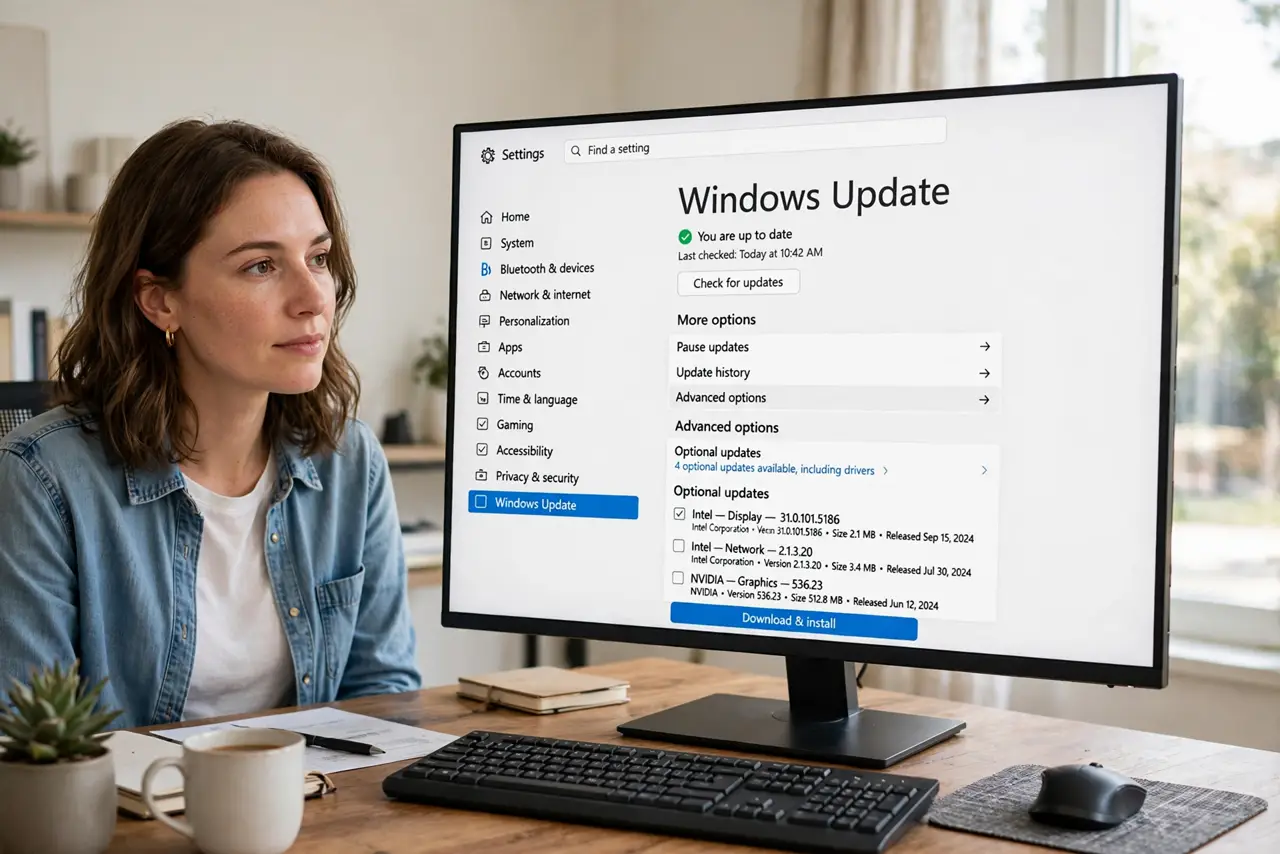
- Know where driver updates appear. Open Windows Update > Advanced options > Optional updates > Driver updates. Windows lists them separately so you can choose.
- Let routine drivers install. Printers, network adapters, and chipset drivers from Windows Update are safe to accept. They fix bugs and close security holes in hardware.
- Check what changed in history. Your update history shows exactly which drivers installed and when — the first place to look when hardware misbehaves.
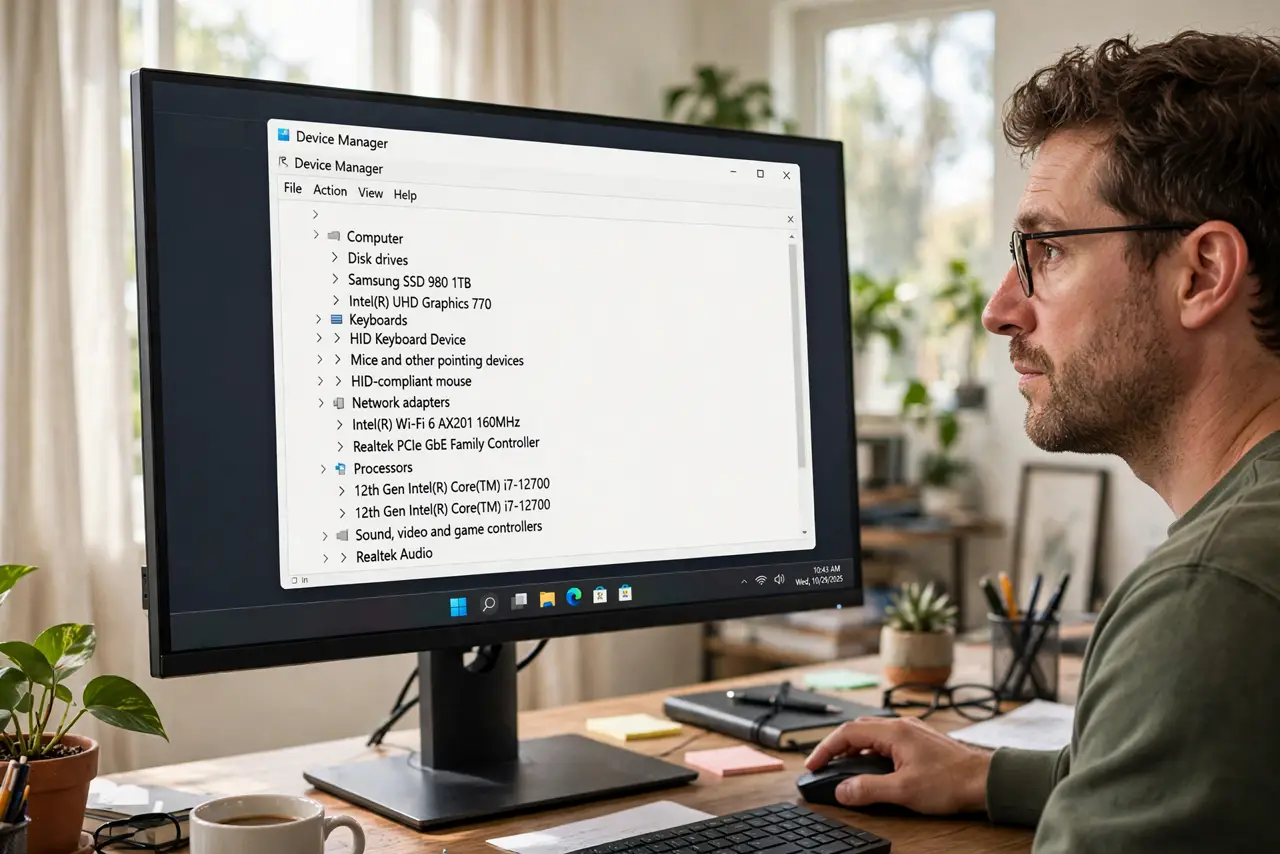
- Roll back a bad driver fast. In Device Manager, right-click the device, open Properties > Driver, and choose Roll Back Driver. If the breakage is wider, undo the whole update.
- Get graphics drivers from the maker. NVIDIA, AMD, and Intel release newer, better-tuned graphics drivers than Windows Update carries. Gamers and creators should always go to the source.
- Do not chase optional driver updates. If the hardware works fine, optional driver updates can wait. 'Newer' is not automatically 'better' for a device doing its job.
What NOT to do
- Do not install every optional driver just because it is listed. If the device works, the update is optional in the truest sense.
- Do not download drivers from random websites. Stick to Windows Update or the hardware maker's official site — anything else risks bundled junk.
- Do not use driver-updater apps. They upsell, bundle adware, and solve a problem the built-in tools already handle.
- Do not update the BIOS casually through an update listing. BIOS updates are safe when needed but unnecessary as routine maintenance.
Frequently asked questions
Are Windows Update drivers safe?
Yes — Microsoft tests and signs them before listing. They skew conservative, which is exactly what you want for everyday hardware.
Why is my graphics driver old on Windows Update?
Microsoft certifies graphics drivers slowly. The maker's site is always fresher — that lag is normal, not a problem.
A driver update broke my hardware — what now?
Roll it back in Device Manager immediately, then pause updates briefly so it does not reinstall before a fix ships.