Turn On GPU Hardware Scheduling
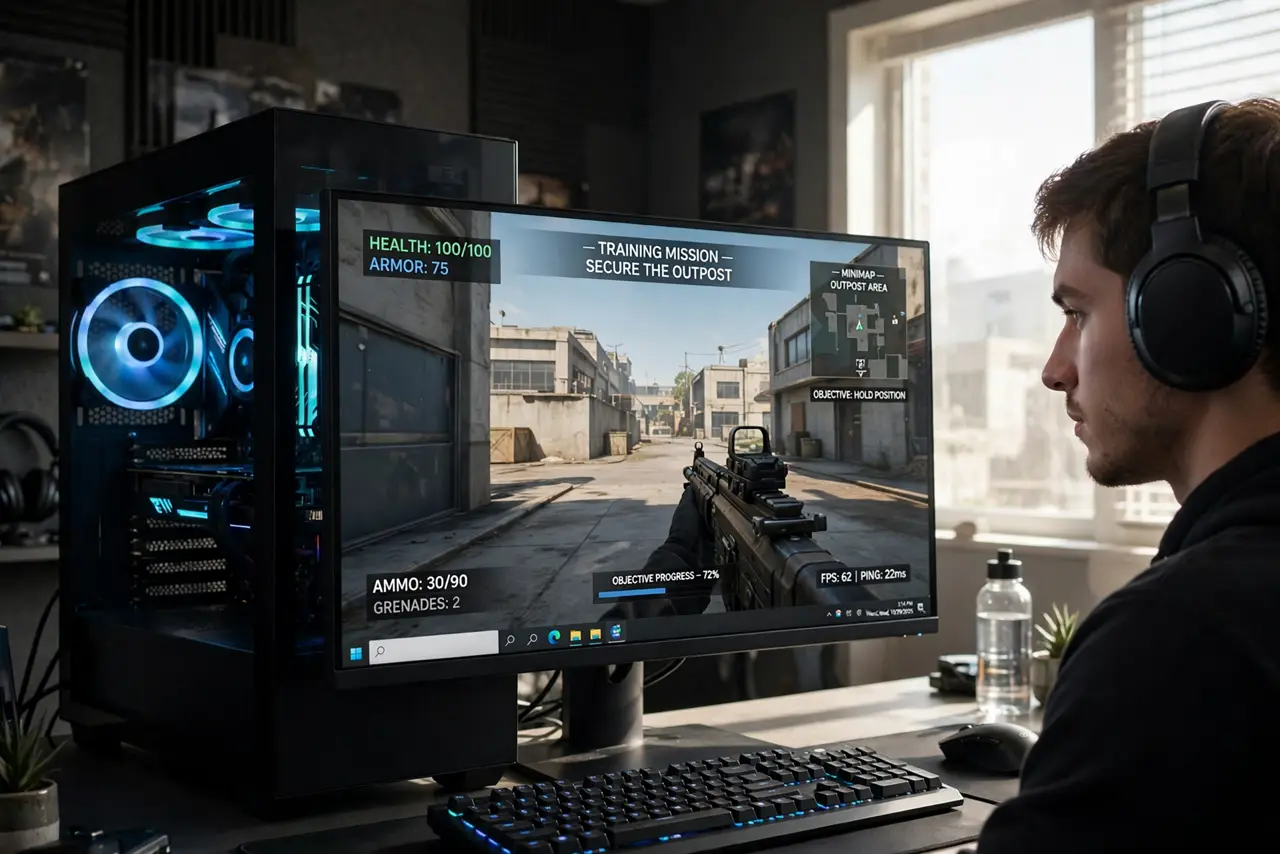
Your games stutter even though the graphics card should handle them easily — frames hitch, timing feels off, and nothing is obviously wrong. One overlooked Windows setting can help: Hardware-Accelerated GPU Scheduling, which lets the GPU manage its own memory instead of waiting on the CPU. Here is what it does and how to enable it.
TL;DR / Quick Fix
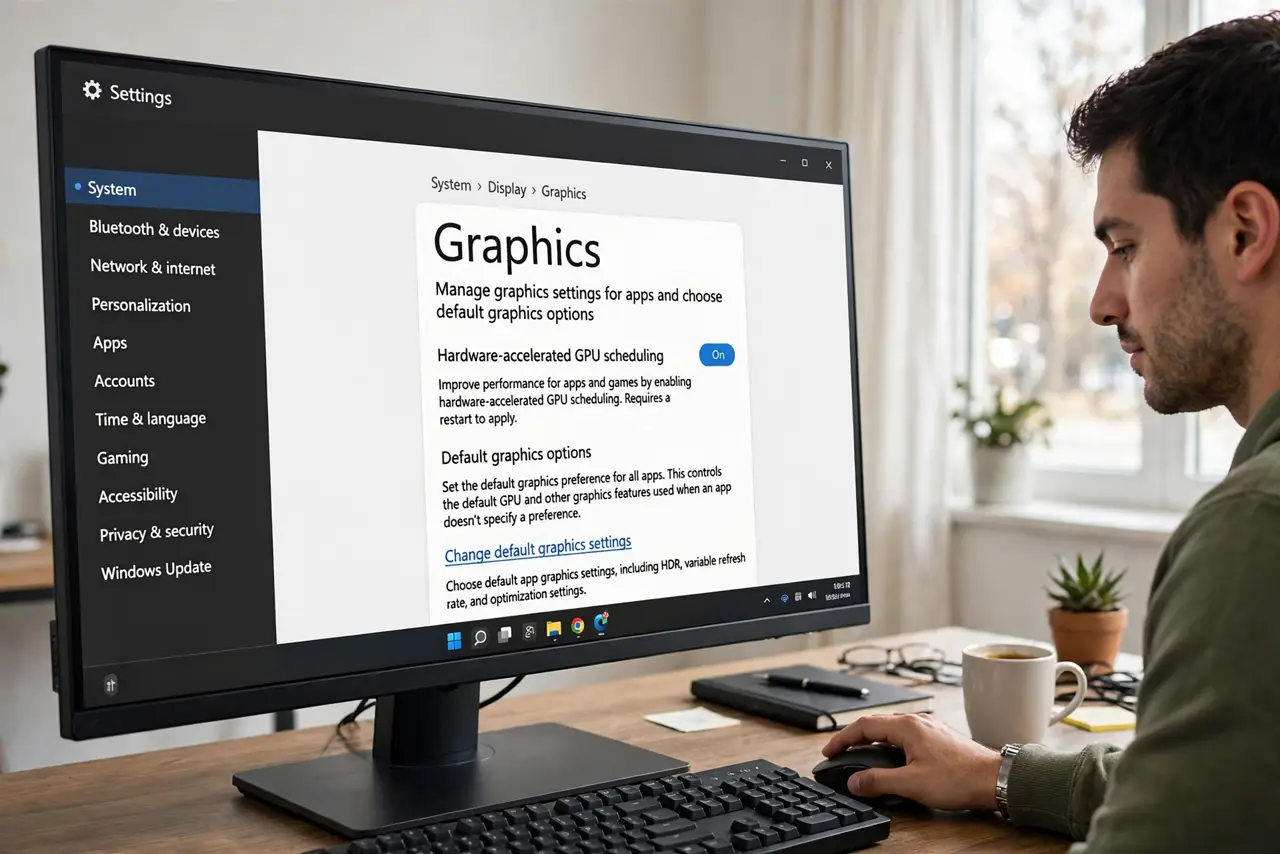
Quick fix: Hardware-Accelerated GPU Scheduling lets your graphics card manage its own video memory, cutting CPU overhead and smoothing stutters in some games. Turn it on in Settings, System, Display, Graphics, then change default graphics settings. Restart afterward — gains are modest but free, and lower-end CPUs benefit most.
Follow these steps
- Open the graphics settings page. Go to Settings, System, Display, then Graphics. At the bottom of that page, click 'Change default graphics settings' — the scheduling toggle lives there, not in the main display options.
- Turn on Hardware-accelerated GPU scheduling. Flip the toggle on. Windows describes what it does in plain terms on that page — it hands memory scheduling from the CPU to the GPU.
- Restart your PC. The change needs a reboot to take effect. A restart also clears the old scheduling state, so do it promptly rather than letting it sit pending.
- Update your GPU driver too. The feature needs a recent driver to work properly. A clean driver install first removes the other common cause of stuttering, so you can judge the scheduling change fairly.
- Test with your actual games. Run the games that stuttered and compare. Gains vary — some titles smooth out noticeably, others barely change. Judge by your games, not by benchmarks.
- Turn it back off if things worsen. On rare hardware combinations the feature causes issues instead of fixing them. If stuttering increases, the same toggle turns it off — no harm done.
What to avoid
- Do not expect miracles. This trims CPU overhead; it does not make a weak GPU strong or fix stuttering caused by other bottlenecks.
- Do not enable it on ancient drivers. Outdated drivers plus a new scheduling path is a crash recipe — update first.
- Do not confuse this with Game Mode. They are separate toggles addressing different things; both can be on without conflict.
- Do not forget the restart. The toggle does nothing until you reboot — testing before restarting measures nothing.
Frequently asked questions
What does GPU scheduling actually change?
Normally the CPU schedules GPU memory tasks; with it on, the GPU's own scheduler takes over. Less CPU middleman work means lower latency in scheduling-heavy scenes.
Will this help a high-end PC?
Less — powerful CPUs already schedule quickly, so the gain shrinks. Budget and mid-range CPUs paired with decent GPUs see the most benefit.
Is it safe to leave on permanently?
Yes for the vast majority of systems. It is a supported Windows feature, not an experimental hack — and the off switch is right there if needed.