Calibrate HDR Properly
You enabled HDR and everything looks off — washed-out desktop, glowing whites, colors that feel wrong. HDR needs calibration: your display and Windows must agree on what bright and dark mean, or the expanded range just looks broken. Here is how to calibrate it properly with Microsoft's free tool.
TL;DR / Quick Fix
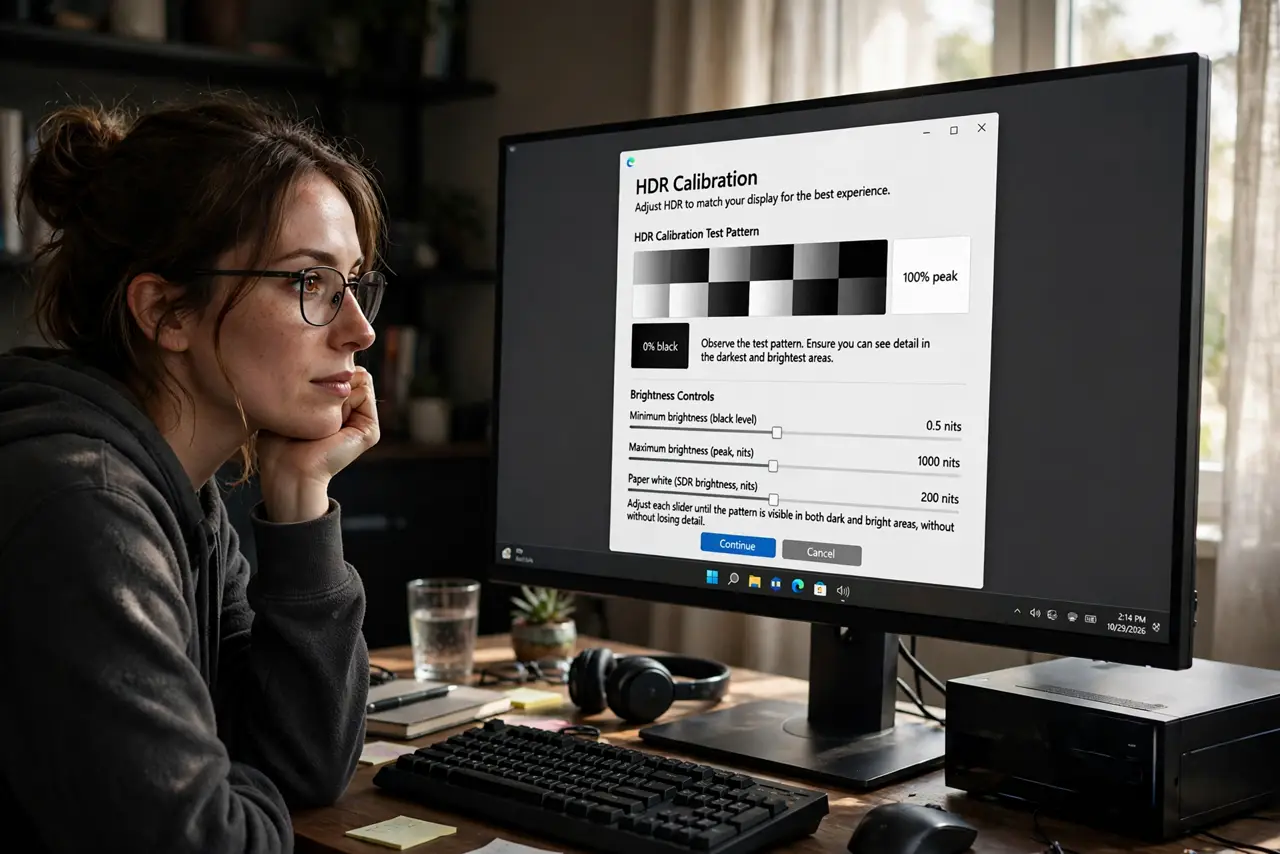
Quick fix: HDR looks wrong when Windows and the display disagree on brightness mapping — calibrate with the Windows HDR Calibration app from Microsoft's store. Run its patterns for black point, brightness, and saturation. Use your normal room lighting; re-run if lighting or monitor changes.
Follow these steps
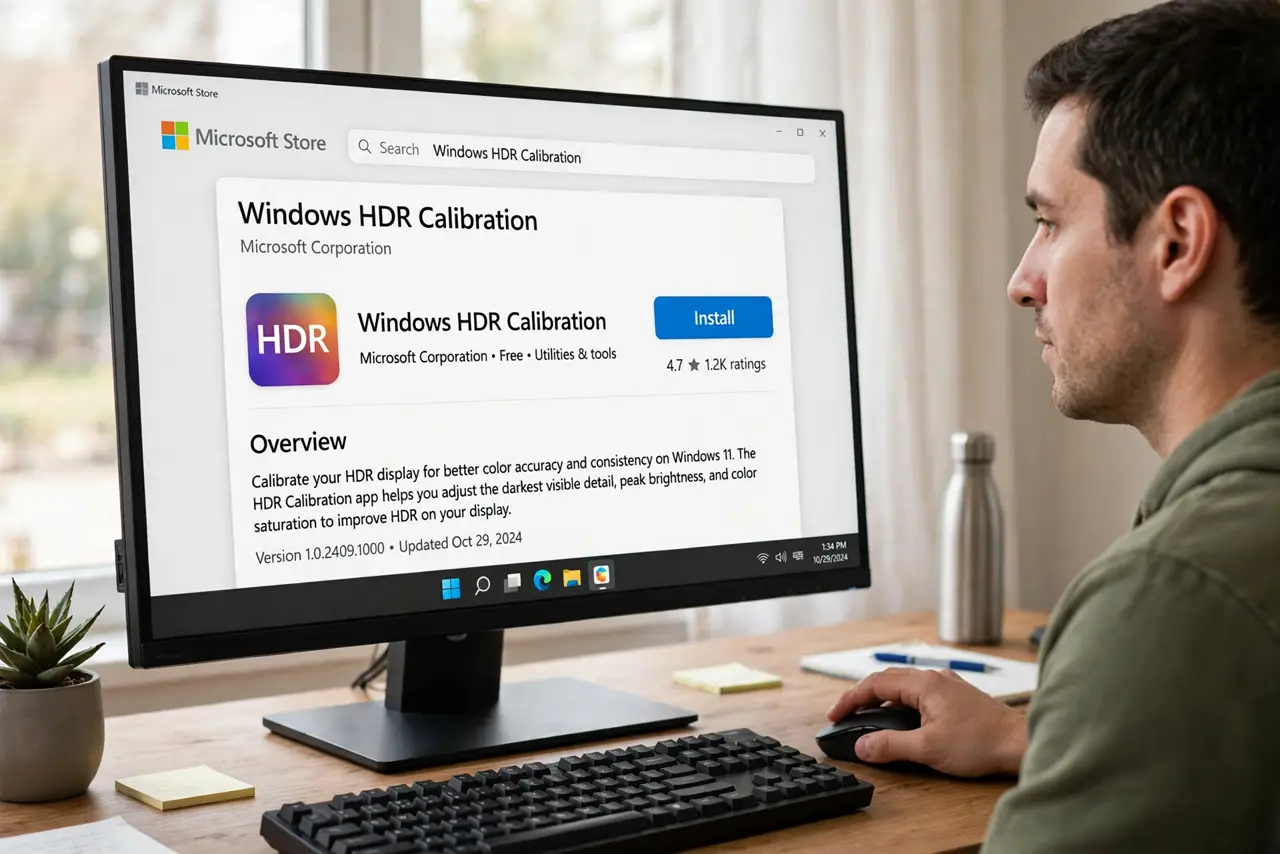
- Install the Windows HDR Calibration app. Get the free 'Windows HDR Calibration' app from the Microsoft Store — it is Microsoft's official tool, and the calibration app guide walks through each screen.
- Set your room lighting first. Calibrate in the lighting you actually use. A calibration done in daylight looks wrong at night — consistency of conditions is half the calibration.
- Adjust the black point. The app's first patterns set true black — drag until the test image's dark details just disappear. Crushed blacks lose shadow detail; raised blacks look grey and washed.
- Set peak brightness honestly. Follow the app's pattern to your display's real peak — not the fantasy number from the box. Overstating it blows out highlights; understating dulls the image.
- Tune saturation to taste. The final slider sets color intensity. Aim for natural, not neon — HDR should look real, just with more range. Compare a photo you know well.
- Create the profile and test broadly. Save the calibration profile, then check the desktop, a video, and a game. If the desktop still washes out, revisit the SDR brightness balance in HDR settings.
What to avoid
- Do not calibrate in the wrong lighting. Daylight calibration for nighttime viewing guarantees disappointment — match conditions to use.
- Do not max every slider. Calibration is about accuracy, not intensity — pushed sliders produce the neon look people complain about.
- Do not skip the app for manual guessing. Eyeballing HDR settings without test patterns is guesswork; the patterns exist to remove the guess.
- Do not expect calibration to fix a fake-HDR panel. On displays with weak HDR hardware, calibration helps but cannot create range the panel lacks — see real vs fake HDR.
Frequently asked questions
Why does HDR look washed out after calibration?
Usually the SDR content brightness slider — it balances non-HDR content inside HDR mode. Nudge it until the desktop looks normal without dimming HDR highlights.
How often should I recalibrate?
Only when something changes: new monitor, moved desk, very different lighting. HDR calibration is stable, not a monthly chore.
Does calibration affect SDR too?
The profile targets HDR mode; SDR content uses the SDR brightness balance. They are tuned separately, which is why both settings matter.