Sign In with Your Face
Typing a PIN every time you open your laptop gets old — and Windows Hello face sign-in removes it entirely. Glance at the screen and you are in, usually before you have finished sitting down. It needs the right camera hardware and a minute of setup, and it is genuinely more secure than the PIN it replaces. If your laptop lacks the camera, the Hello PIN is the next best thing.

TL;DR / Quick Fix
Quick fix: if your laptop has an infrared camera, set up Windows Hello face sign-in under Settings, Accounts, Sign-in options — glance to unlock, no typing. You will still set a PIN as backup. Improve recognition if it misses you with glasses or in odd lighting.
Follow these steps
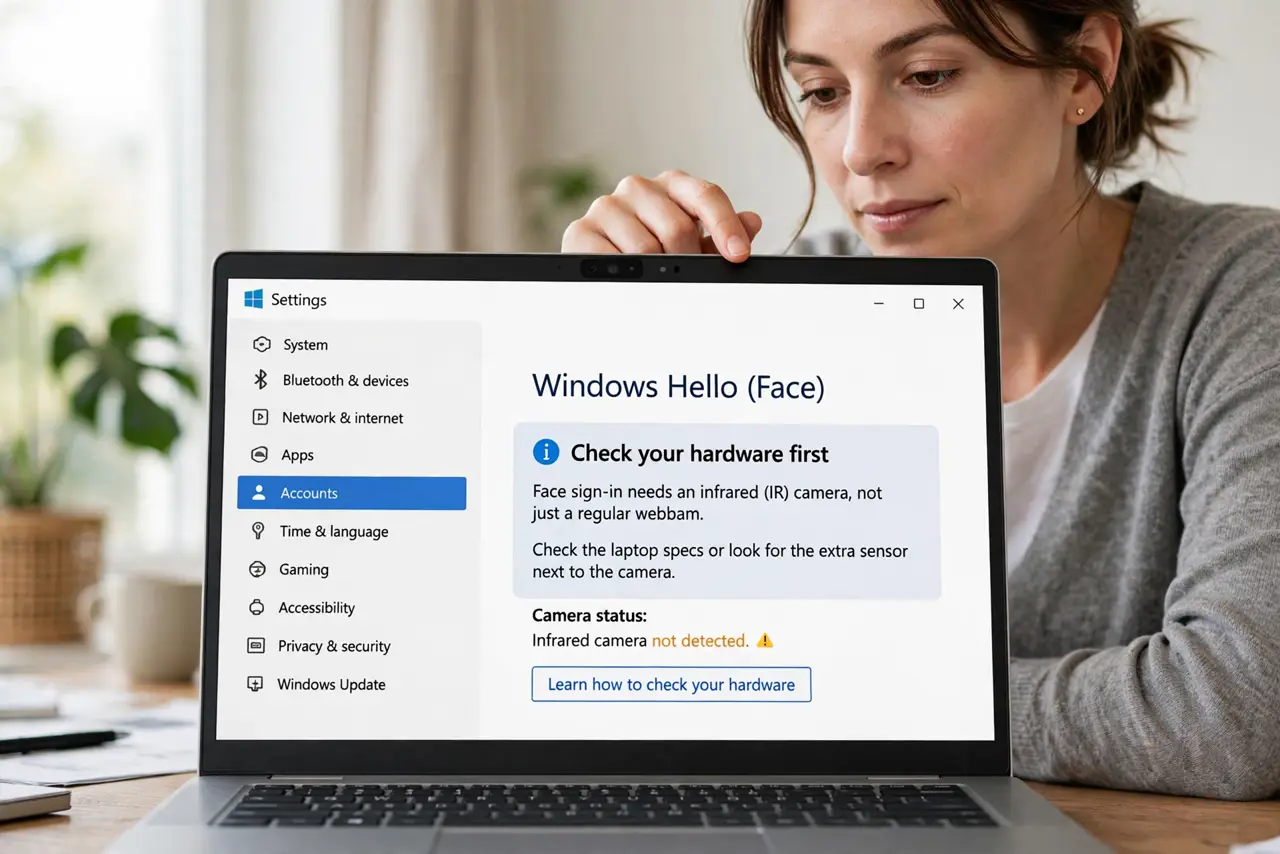
- Check your hardware first. Face sign-in needs an infrared (IR) camera, not just a regular webcam. Check the laptop specs or look for the extra sensor next to the camera — without IR, the option simply will not appear.
- Open Sign-in options. Go to Settings, then Accounts, then Sign-in options, and select Facial recognition. Windows will walk you through the enrollment.
- Set a PIN as backup. Windows requires a PIN before enabling face sign-in. This is your fallback when the camera cannot see you — set one you will remember.
- Enroll your face. Sit normally in decent light and let the camera scan. Keep your face centered and still; the whole process takes under a minute.
- Improve recognition. If it misses you with glasses, a hat, or in dim rooms, use the Improve recognition option to add more looks. Two or three enrollments cover most daily variation.
- Know when it will ask for the PIN. After a restart, or if the camera is covered or the lighting is extreme, Windows falls back to the PIN. That is by design — not a malfunction.
What NOT to do
- Do not expect it to work with the camera covered. A closed privacy shutter or a sticker means PIN time — that is the tradeoff you chose.
- Do not enroll in a dark room. Poor enrollment light teaches the camera a bad reference; enroll in normal lighting.
- Do not confuse it with a photo unlock. Hello uses depth-sensing infrared — a photo of you will not fool it.
- Do not skip the backup PIN. Without it, one bad camera day becomes a lockout.
Frequently asked questions
Is face sign-in secure?
Yes — the infrared depth map cannot be fooled by a photo, and the data stays on your device. It is stronger than a short PIN against guessing.
Why does it fail in bright sunlight?
Strong backlight can overwhelm the IR sensor. Shade the screen or angle away from direct sun and it recovers.
Can I use it and keep a password too?
Yes. Hello is a convenience layer on top — your account password still exists and is still required in some situations.