Set Up Windows Hello
Typing your password every time you sit down is a friction tax you pay dozens of times daily. Windows Hello replaces it with your face or fingerprint — glance or touch and you are in. Setup takes minutes, and most modern laptops already have the hardware.
TL;DR / Quick Fix
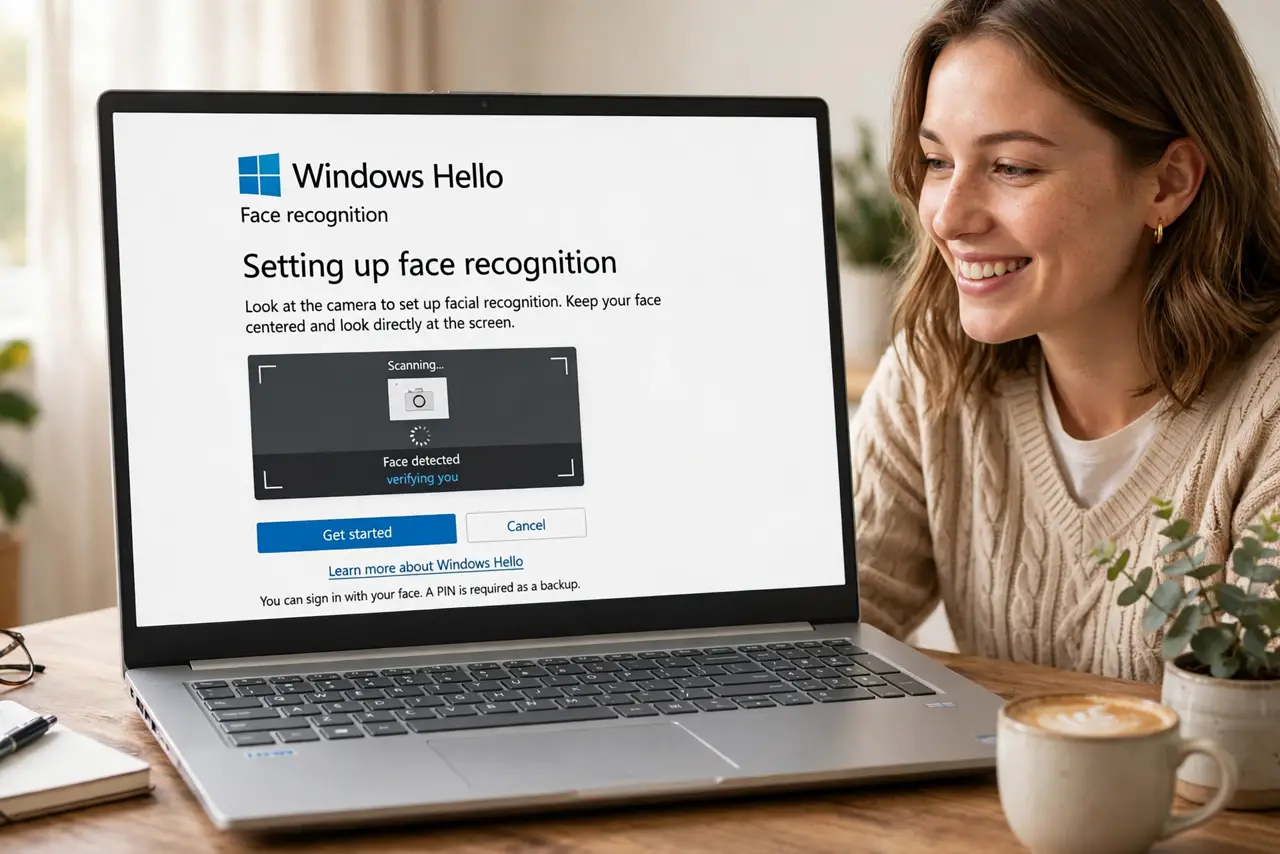
Quick fix: open Settings, Accounts, Sign-in options, and set up Windows Hello Face, Fingerprint, or PIN. Your device needs a compatible camera or fingerprint reader — most modern laptops have one. Enroll in good lighting for face, or with dry fingers for print. Hello stays on your device; nothing uploads.
Follow these steps
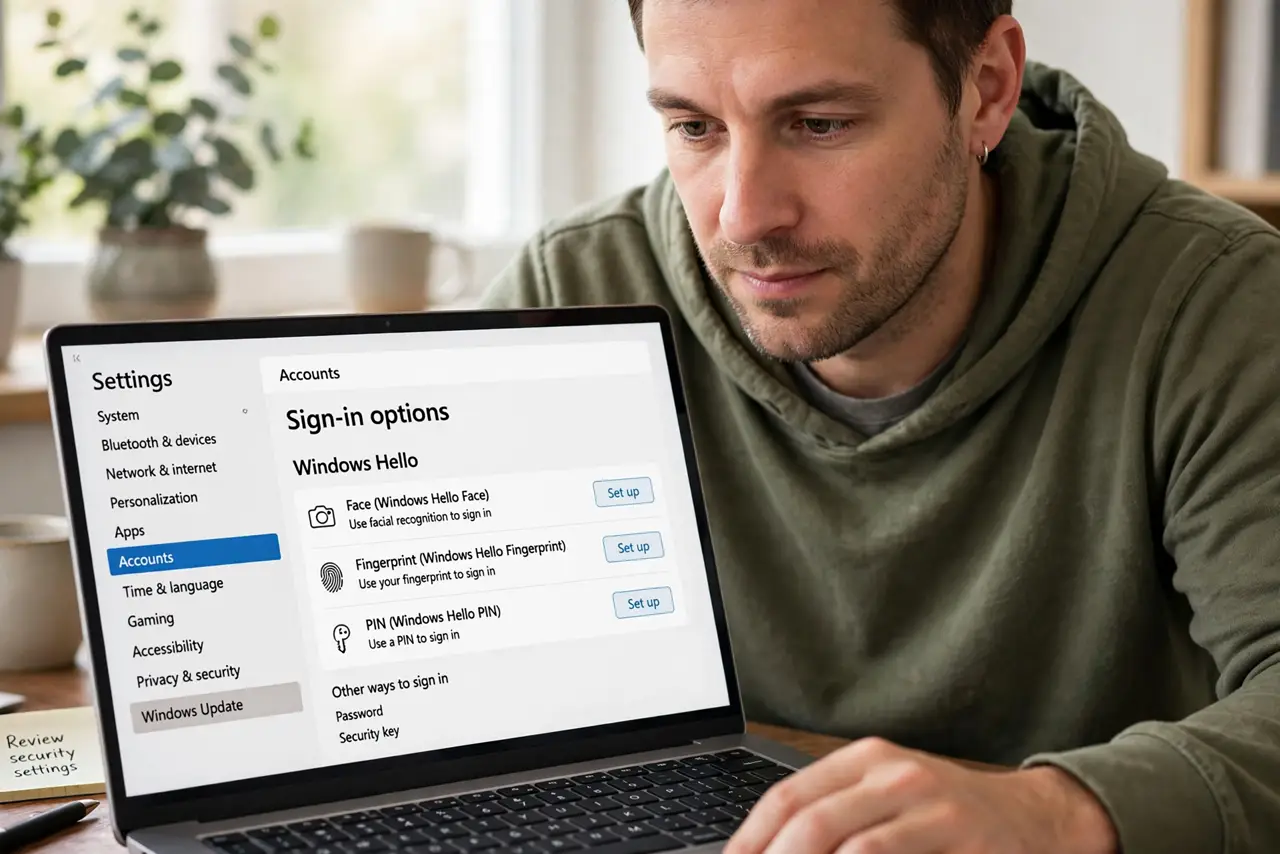
- Open Sign-in options. Go to Settings, Accounts, Sign-in options. The Windows Hello section lists Face, Fingerprint, and PIN.
- Set up the PIN first. Hello requires a PIN as backup. Set it before biometrics — the PIN setup takes a minute.
- Enroll your face. Choose Face, then look at the camera in good lighting. Move your head slowly as instructed — glasses on if you wear them daily.
- Or enroll fingerprints. Choose Fingerprint and tap the reader repeatedly at different angles. Enroll the fingers you actually unlock with.
- Improve recognition if it struggles. Use Improve recognition to add looks — with glasses, without, different lighting. The glasses troubleshooting helps edge cases.
- Test the lock-unlock loop. Press Win+L, then unlock with your face or finger. If the camera is not recognized, check privacy shutter and drivers.
What NOT to do
- Do not skip the PIN. Biometrics fail — wet fingers, dark rooms — and the PIN is your way back in.
- Do not enroll in terrible lighting. Face enrollment in a dark room trains on shadows — use normal light.
- Do not expect it on old hardware. Hello needs an IR camera or fingerprint reader; ancient laptops simply lack them.
- Do not forget it is device-bound. Hello on this laptop does not unlock your other devices — set up each one.
Frequently asked questions
Is Windows Hello secure?
Yes — biometric data stays on the device in a secure enclave. Nothing uploads to Microsoft.
Face or fingerprint — which is better?
Whichever your hardware does well. Both beat passwords; pick the one that works reliably for you.
Can someone unlock it with a photo?
No — Hello uses infrared depth sensing, not a flat image. Photos and masks do not fool it.