Tame the Lock Screen
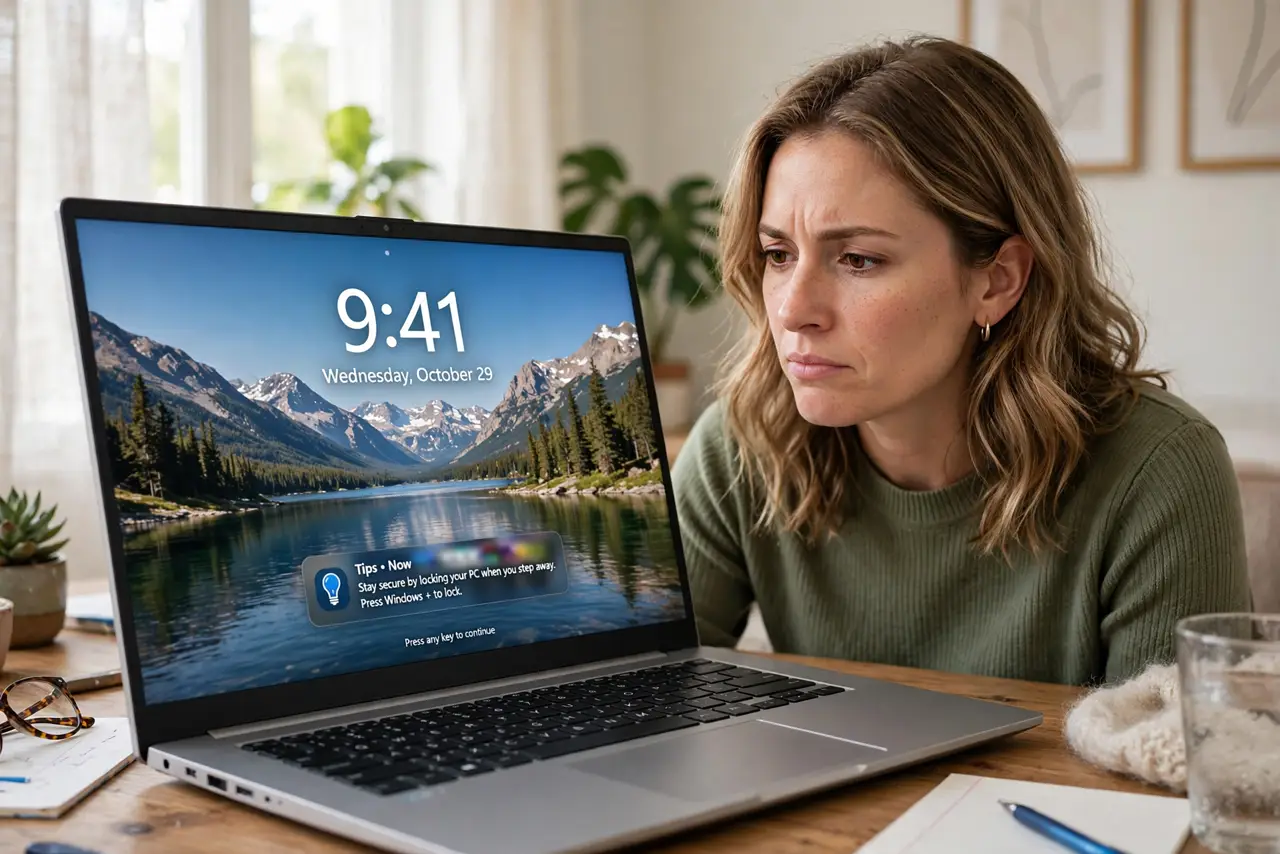
Your Windows lock screen shows rotating landscapes — and lately, tips, ads, and suggestions mixed in. That is Windows Spotlight trying to be helpful, but it turns your lock screen into a billboard. Switching the background to a plain picture takes a minute and ends it. Here is exactly where the switches live.
TL;DR / Quick Fix
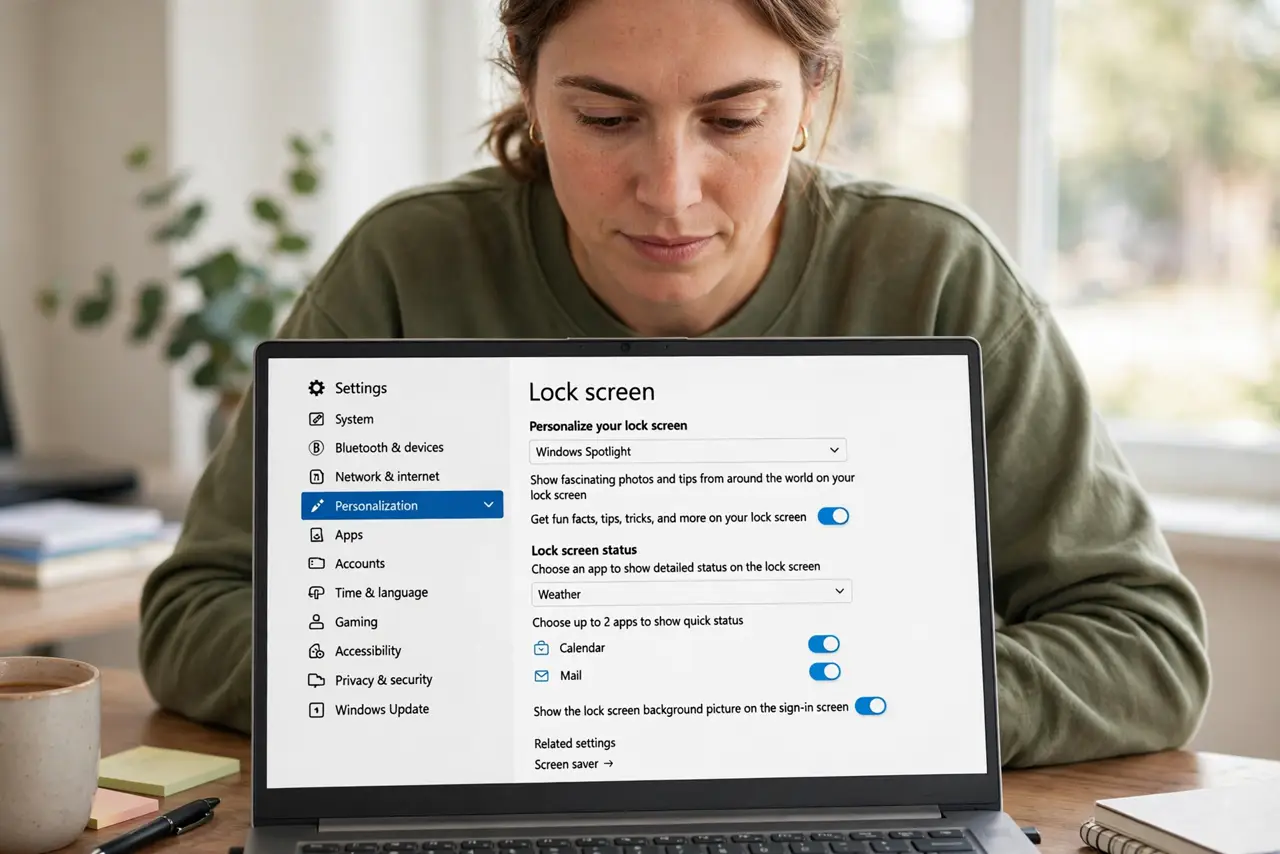
Quick fix: open Settings, Personalization, Lock screen, and set the background to Picture or Slideshow instead of Windows spotlight to stop rotating ads and tips. Also turn off Get fun facts on the lock screen. Your sign-in stays exactly the same — only the backdrop changes.
Follow these steps
- Open the Lock screen settings. Go to Settings, Personalization, Lock screen. Everything about the lock screen backdrop lives on this one page — background choice, app notifications, and the fun-facts toggle.
- Switch the background to Picture. Change Personalize your lock screen from Windows spotlight to Picture, then pick an image. Spotlight is the source of the rotating content and suggestions — Picture ends it instantly.
- Turn off fun facts and tips. Uncheck Get fun facts, tips, tricks, and more on your lock screen. This is the actual ad switch — with it off, the lock screen shows only your picture and the clock.
- Decide on lock screen app notifications. Below the toggles you can choose which app shows detailed status. Leave it empty or pick just the calendar — fewer apps means a calmer lock screen.
- Set up a PIN for faster unlock. While you are tidying sign-in, consider a Hello PIN — it makes unlocking faster without changing anything about the lock screen itself.
- Check after updates. Major Windows updates sometimes flip the background back to Spotlight. If ads reappear, revisit this page — the fix takes thirty seconds the second time.
What NOT to do
- Do not edit the registry to kill Spotlight. The Settings page does it cleanly — registry edits break on updates.
- Do not confuse the lock screen with the sign-in screen background. They are separate settings; this guide covers the lock screen you see before signing in.
- Do not disable the lock screen entirely with hacks. You lose a useful privacy boundary for zero real benefit.
- Do not blame Spotlight for slow sign-in. The background choice does not affect speed — if sign-in is slow, the cause is elsewhere.
Frequently asked questions
Will this remove the pretty rotating wallpapers?
Yes — that is the tradeoff. Picture mode shows one image; Slideshow rotates your own photos, which is the nicer middle ground.
Why did the ads come back after an update?
Feature updates sometimes reset personalization settings. Revisit the Lock screen page and flip the switches again.
Can I use my own photos?
Yes — choose Slideshow and point it at a folder of your photos. Your lock screen becomes a personal photo frame with no ads.