Silence Taskbar Widgets
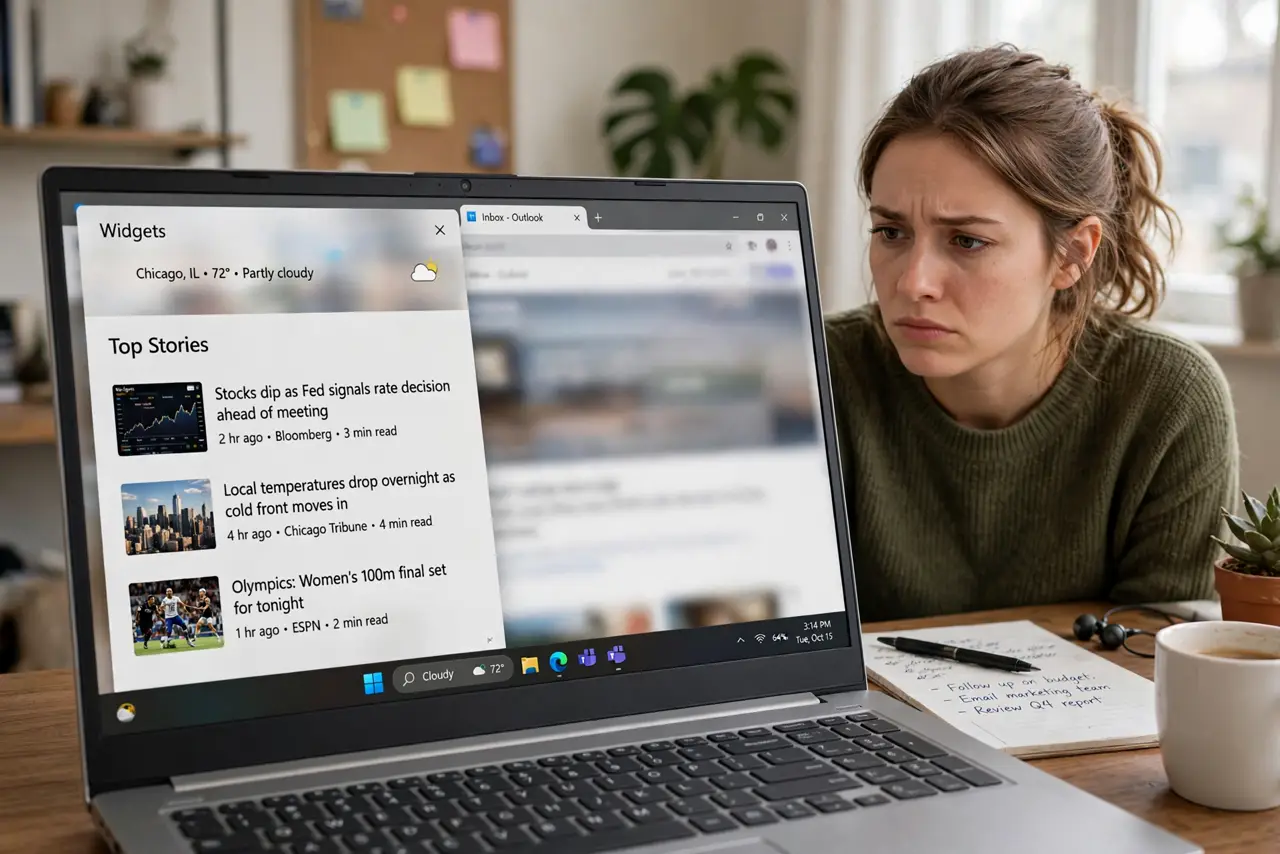
You hover near the taskbar and a news panel springs open, stealing your screen and your focus. That is the Windows Widgets board, and it is on by default. The good news: you can switch it off in seconds without deleting anything or turning off any protection. This guide shows the exact settings to silence it for good.
TL;DR / Quick Fix
Quick fix: right-click the taskbar, open Taskbar settings, and turn off Widgets to stop the news feed from popping open. Also disable Show widgets on hover so accidental mouse touches stop triggering it. The panel stays available from its icon if you ever want it back.
Follow these steps
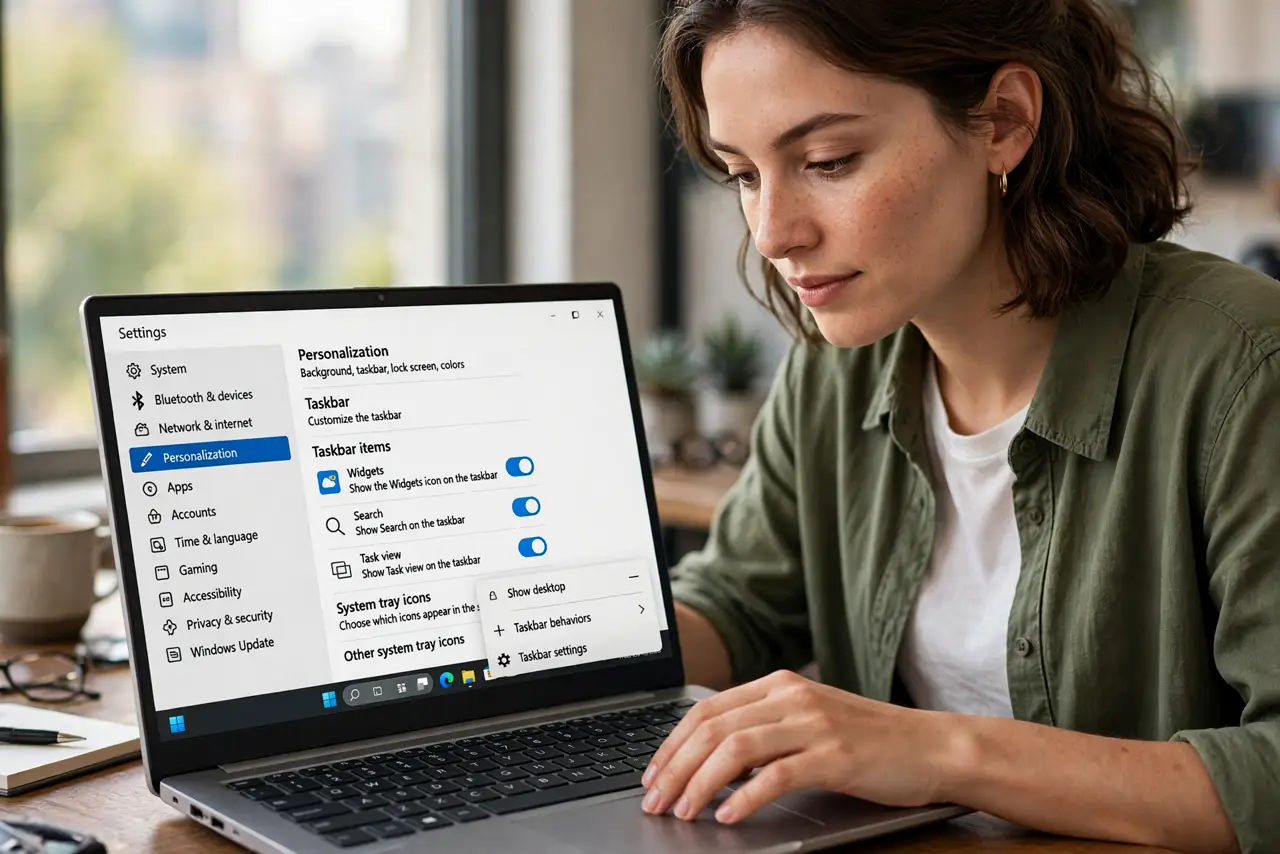
- Open Taskbar settings. Right-click an empty spot on the taskbar and choose Taskbar settings. This opens the personalization page where every taskbar item — Widgets, Search, Task view — has its own on/off switch.
- Turn off the Widgets toggle. Find the Widgets entry and switch it to Off. The weather icon disappears from the taskbar and the news board stops launching. Nothing is deleted; the feature just goes quiet.
- Stop the hover trigger. On newer Windows builds there is a separate option for opening the board on hover. Turn that off too, or the panel can still appear when your cursor brushes the corner. See the broader taskbar options if you want to tidy other icons as well.
- Check the Widgets app itself. If the board still pops up, open Widgets from the Start menu, click your profile picture, and turn off notification badges and announcements. Those can wake the panel on their own.
- Restart to confirm. Sign out and back in, or restart the PC. If the taskbar stays clean, the fix stuck. If it returns, a recent update may have re-enabled it — updates do that sometimes.
- Know what you are giving up. With Widgets off, you lose the quick weather glance and news feed. Your desktop gadgets, calendar, and everything else keep working normally.
What NOT to do
- Do not edit the registry to kill Widgets. The Settings toggle does the job — registry hacks risk breaking the taskbar on updates.
- Do not uninstall the Widgets experience package with commands you found online. It can break Start menu features and is hard to undo cleanly.
- Do not confuse Widgets with Copilot. They are separate taskbar items with separate switches — removing Copilot is a different guide.
- Do not assume the toggle failed if the board opens once. Some builds show it a final time after updates; turn the toggle off again and move on.
Frequently asked questions
Will turning off Widgets speed up my PC?
Barely — it frees a little memory and stops background refreshes, but the difference is small on a modern PC. The real win is a calmer taskbar, not speed.
Can I still check the weather quickly?
Yes. Open the Weather app from the Start menu, or pin it to the taskbar. You get the same forecast without the surprise news panel.
Why did Widgets turn itself back on?
Feature updates sometimes reset taskbar settings. If it reappears after an update, revisit Taskbar settings and switch it off again — it takes ten seconds.