Map a Network Drive
You access the same shared folder on your home server or office NAS every day — browsing to it through the network each time is tedious. Mapping it as a drive letter (like Z:) puts it in File Explorer permanently, behaving like a local disk. It reconnects at login and works in every app's file dialog. Here is the two-minute setup.
TL;DR / Quick Fix
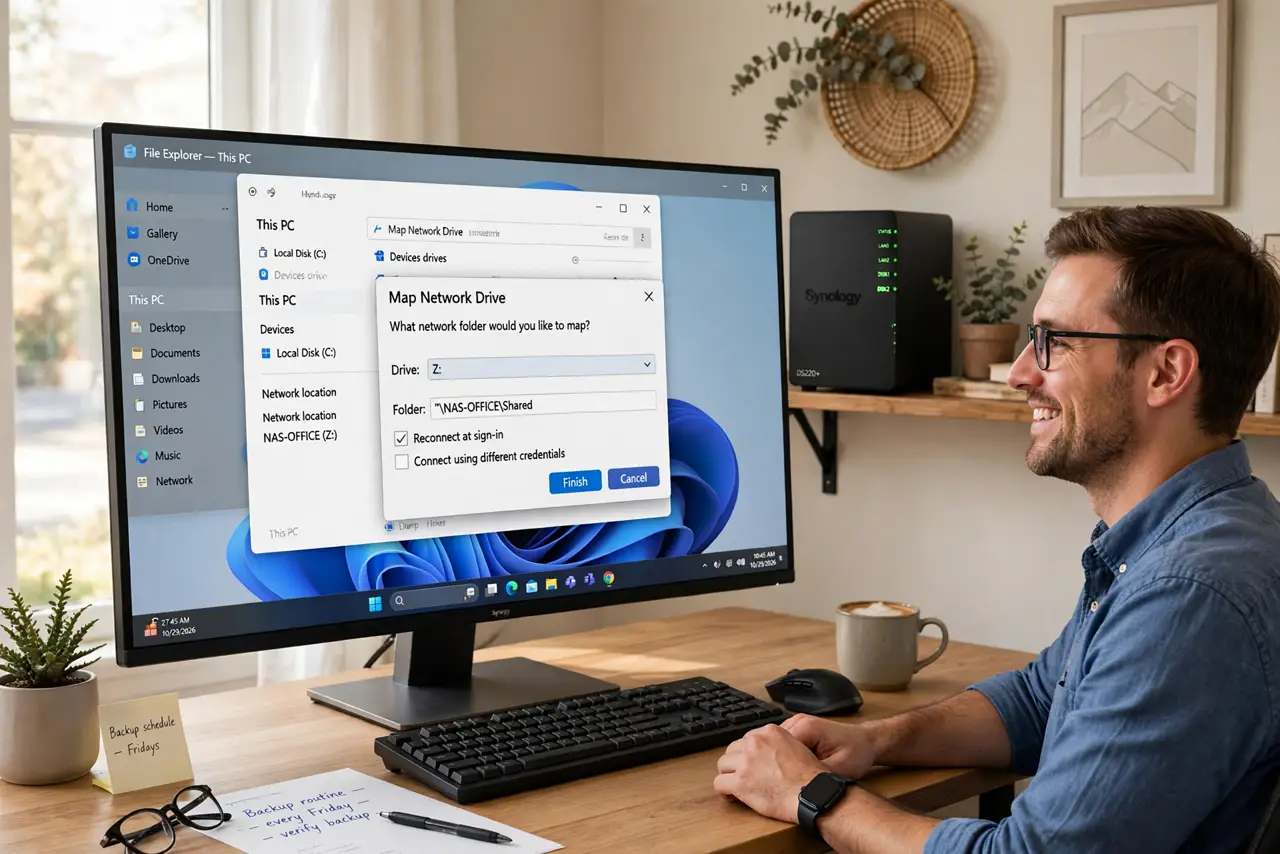
Quick fix: in File Explorer, click This PC → Map network drive, pick a letter, and enter the folder path. Check 'Reconnect at sign-in' so it persists. Enter network credentials when asked and save them. The share now behaves like a local drive in every program.
Follow these steps
- Open Map network drive. File Explorer → This PC → three-dot menu → 'Map network drive' (or right-click This PC). Pick a drive letter — Z: working downward avoids clashing with USB drives. This is the whole ceremony's front door.
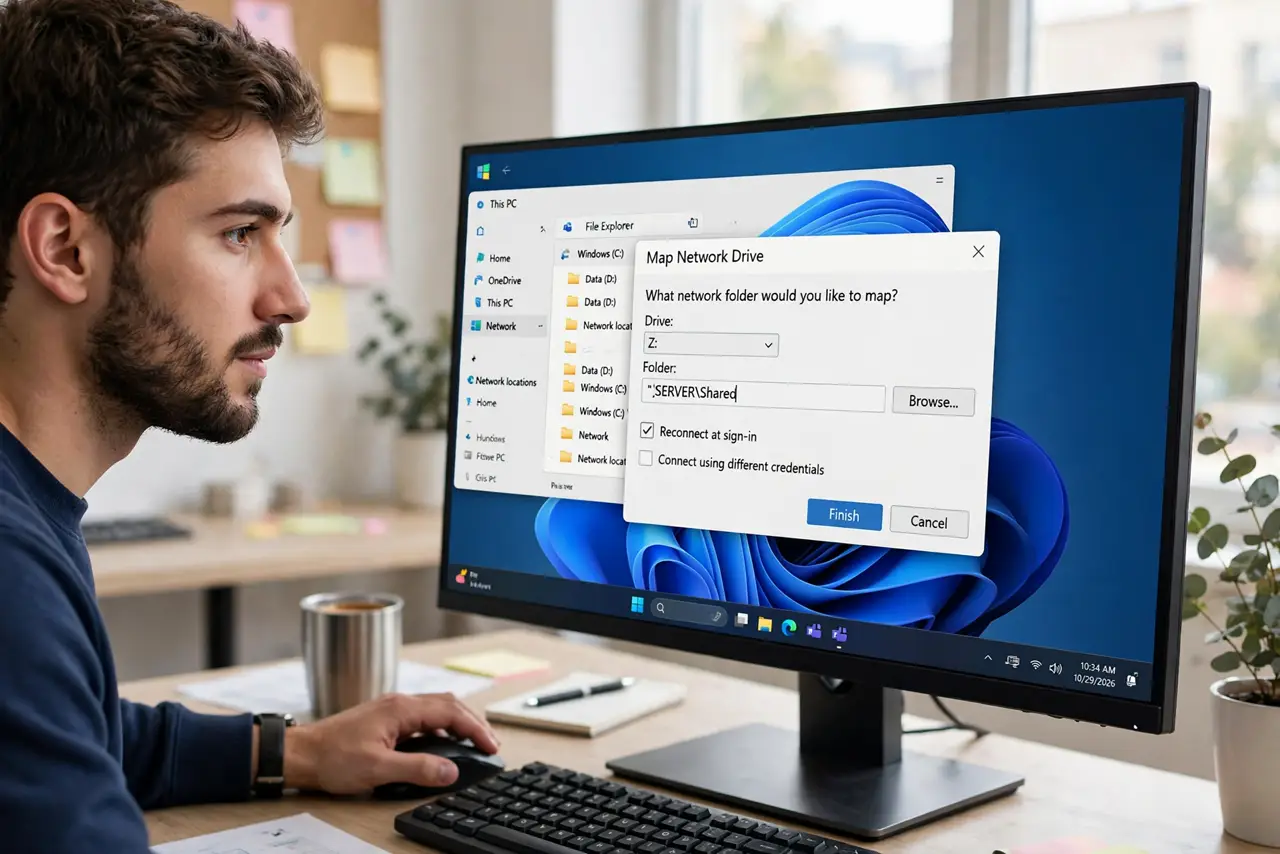
- Enter the folder path. Type the UNC path: \\server\share (server name or IP, then the shared folder name). Browse works too if network discovery is on — click Browse and navigate. The path is the address; the letter is the nickname.
- Check Reconnect at sign-in. This is what makes it permanent — without it, the mapping vanishes on reboot. Also check 'Connect using different credentials' if the share needs a different login than your Windows account.
- Enter and save credentials. When prompted, enter the username and password for the share and check 'Remember my credentials.' Saved credentials go to Credential Manager — no daily password typing. Wrong credentials here is the number one mapping failure.
- Verify it behaves like a drive. Open the new drive letter — browse, open files, save a test document. Every app's Open/Save dialog sees it as a normal drive. If it's slow, that's the network, not the mapping — consider whether a NAS vs external drive rethink is due.
- Know how to remove it. Right-click the mapped drive → Disconnect. Mappings are per-user — other accounts on the PC don't see yours. Disconnect stale mappings to keep File Explorer snappy.
What NOT to do
- Do not map over an unreliable network. A mapped drive to a sleeping NAS hangs File Explorer — fix the sleep behavior or accept the pauses.
- Do not use the same letter as a USB drive. Letter collisions cause bizarre errors — pick high letters (X, Y, Z) for network.
- Do not skip 'Reconnect at sign-in' and wonder why it vanished. That checkbox is the entire persistence mechanism.
- Do not store the only copy of important files on a mapped share without backups. Network convenience isn't backup — the server needs its own backup plan.
Frequently asked questions
Why does it ask for credentials every reboot?
The credentials weren't saved, or the server changed its password. Re-enter with 'Remember' checked; manage saved ones in Credential Manager.
Can I map a drive to a cloud folder?
Not directly as a drive letter — cloud services use their own sync apps. Some NAS devices offer cloud gateways, but native mapping is for local network shares.
Mapped drive is slow — why?
Network speed is the limit: Wi-Fi bottlenecks, old 100 Mbps links, or a busy server. Ethernet to the server is the single biggest speedup.