Make Windows Install Media
You need to reinstall Windows — a fresh start, a dead drive, a new SSD — and the path runs through a USB stick made the right way. Microsoft's Media Creation Tool builds that stick for you, downloading a clean Windows image and making the drive bootable. This guide covers the safe way to make install media without wiping the wrong drive.
TL;DR / Quick Fix
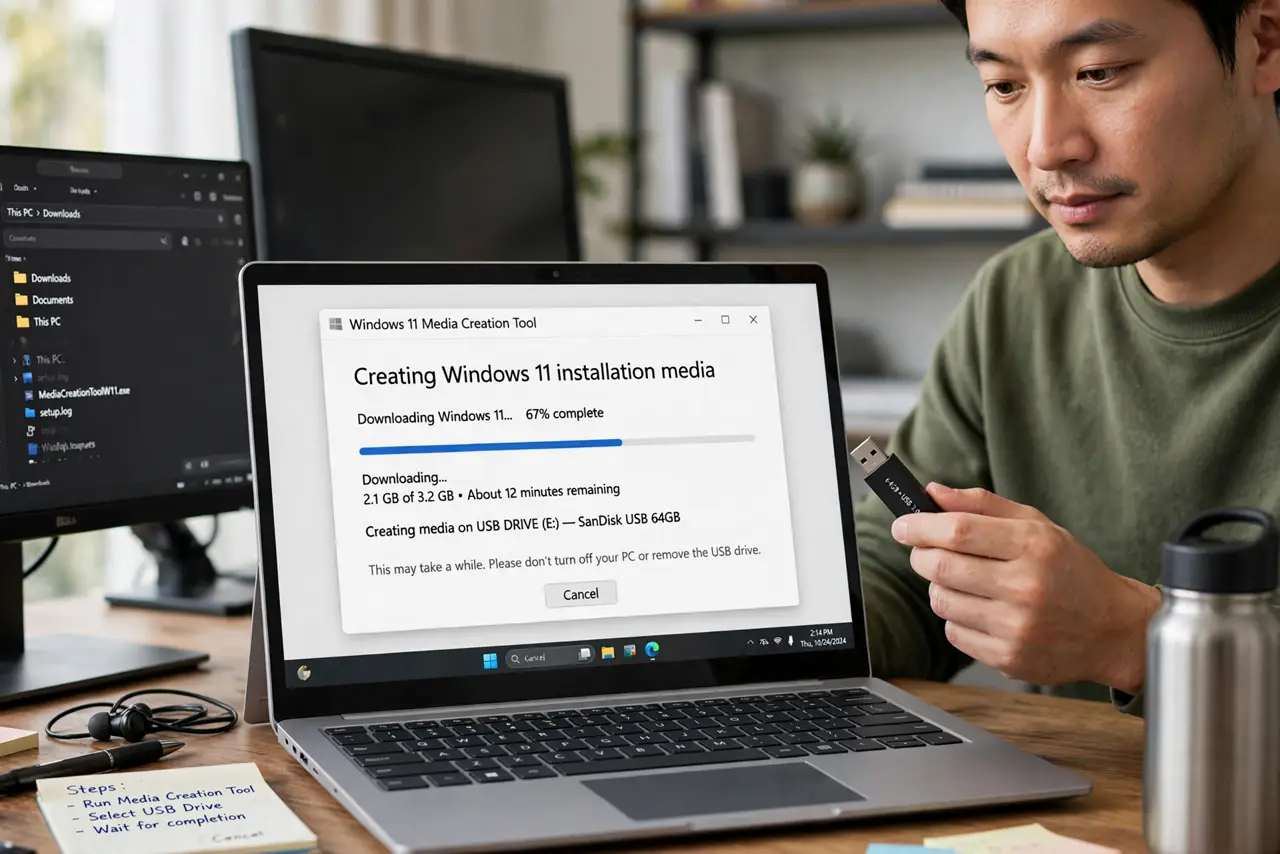
Quick fix: download Microsoft's Media Creation Tool on a working PC, plug in an empty 8GB+ USB drive, and let the tool build bootable Windows install media. Back up the USB's contents first — everything on it gets erased. Then boot the target PC from the USB to reinstall.
Follow these steps
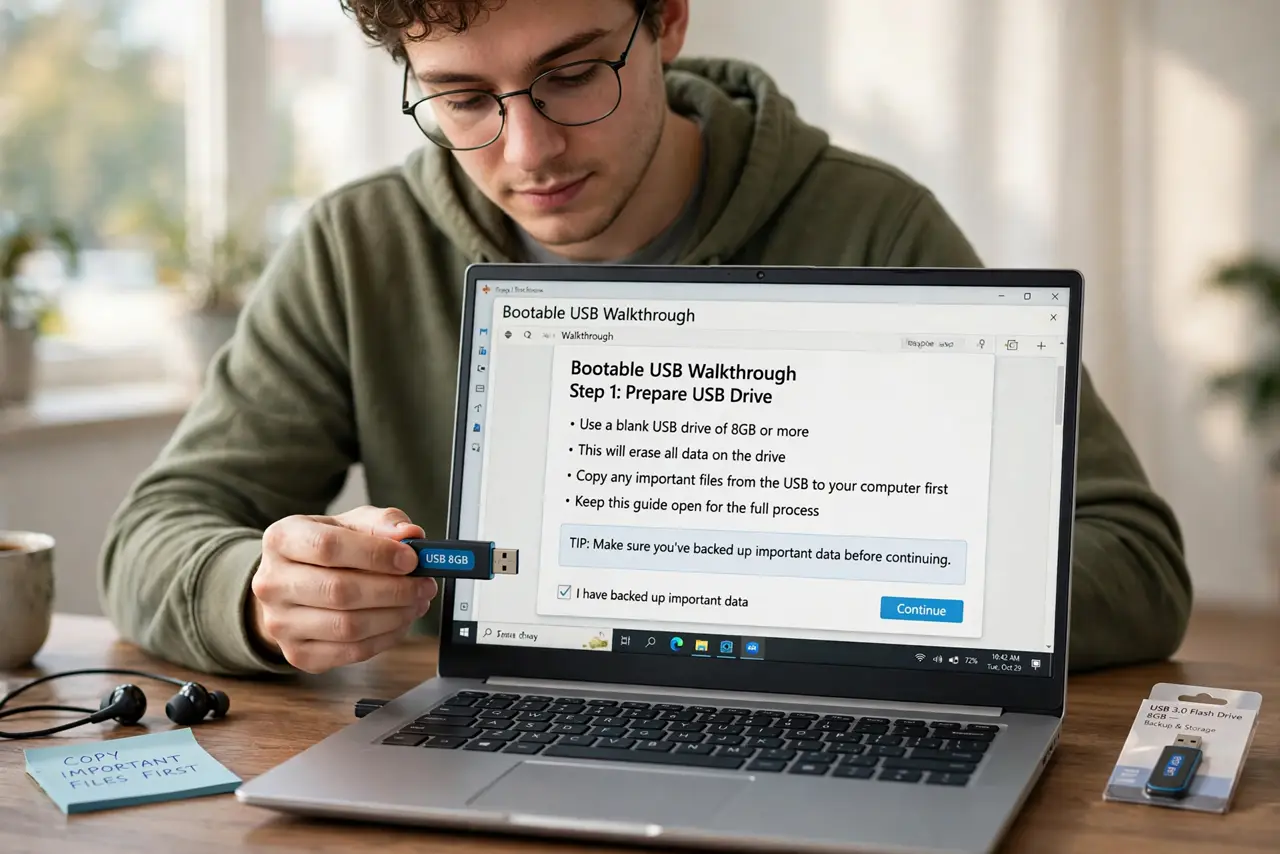
- Get a USB drive of 8 GB or more. Use a blank drive you can afford to erase — the tool wipes it completely. Copy anything important off it first. For the full bootable USB walkthrough, keep that guide handy if this is your first time.
- Download the tool from Microsoft's official site. On a working PC, search for 'Windows media creation tool' and download it from microsoft.com — never from a random download site. Run it; it needs no install.
- Choose 'Create installation media'. Pick language, edition, and architecture (64-bit for modern PCs). The tool downloads a fresh Windows image — this takes a while on slow connections.
- Select your USB drive carefully. Choose the USB flash drive option and double-check the drive letter. Picking the wrong drive erases the wrong disk — this is the step where mistakes hurt.
- Let the tool finish and verify. Do not unplug the drive mid-write. When it says the media is ready, eject the drive properly.
- Boot the target PC from the USB. Plug it in, power on, and press the boot menu key (often F12, F2, or Esc) to pick the USB. Then follow the Windows installer prompts.
What NOT to do
- Do not download Windows images from unofficial sites. Tampered ISOs carry malware — Microsoft's tool is free and safe.
- Do not use a USB drive with files you need. The creation process erases everything on the drive.
- Do not unplug the drive while the tool is writing. A half-written drive will not boot and you start over.
- Do not confuse this with a recovery drive. Install media reinstalls Windows; it does not restore your personal files.
Frequently asked questions
Does making install media delete anything on my working PC?
No — the tool only touches the USB drive you select. Your working PC stays exactly as it was.
Can I use the same USB for other files afterward?
Yes, once Windows is installed you can reformat the drive and reuse it. During creation it is dedicated to the installer.
What if the target PC won't boot from the USB?
Recheck the boot order in the BIOS/UEFI, try a different USB port, and make sure Secure Boot settings match the install type.