Turn On Network Discovery
Your PCs are invisible to each other on the network — no shared folders, no printers, nothing. Windows hides PCs from the network when discovery is off, which is the safe default on public networks but a blocker at home. Here is how to turn it on where it belongs.
TL;DR / Quick Fix
Quick fix: open Advanced sharing settings and turn on network discovery for Private networks — leave it off for Public. Both PCs must be on Private for sharing to work. If it keeps turning itself off, a third-party firewall is usually the cause.
Follow these steps
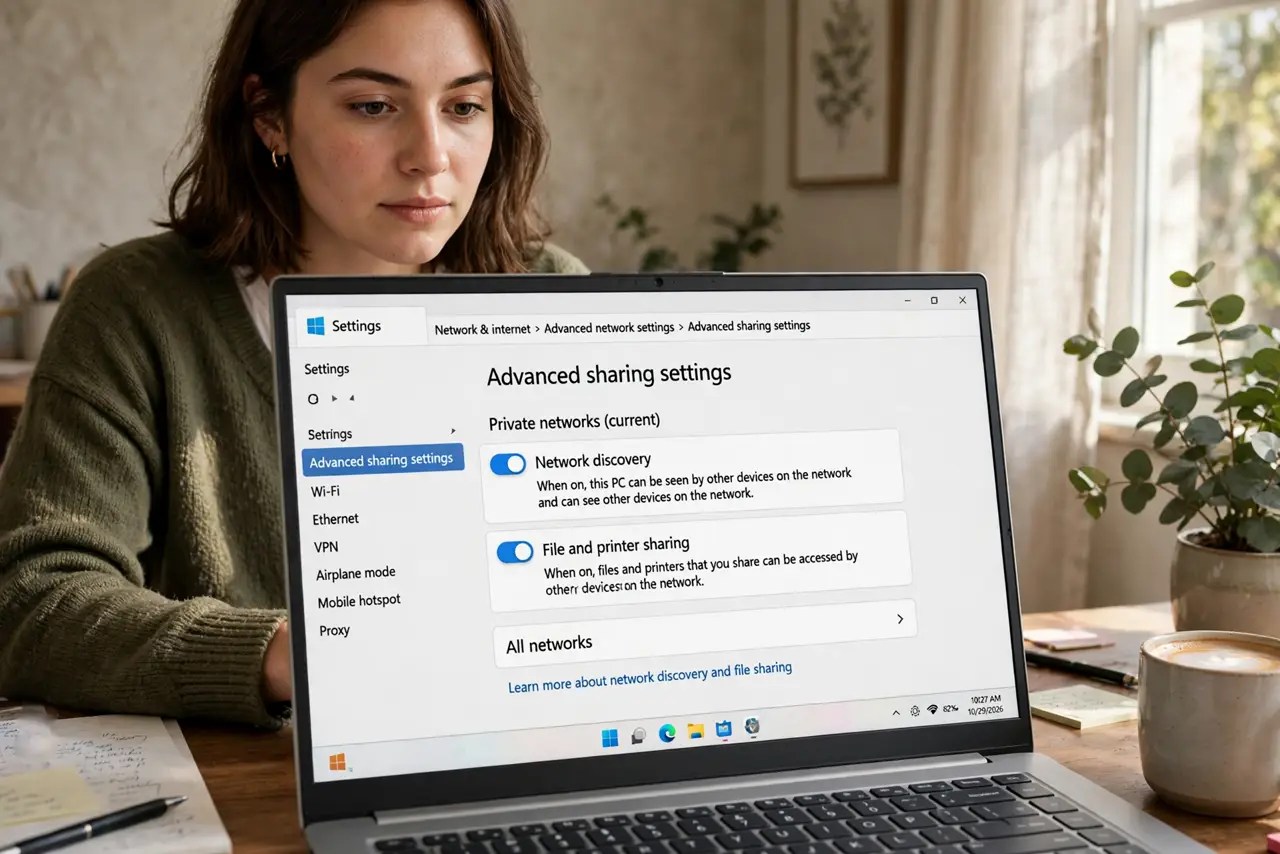
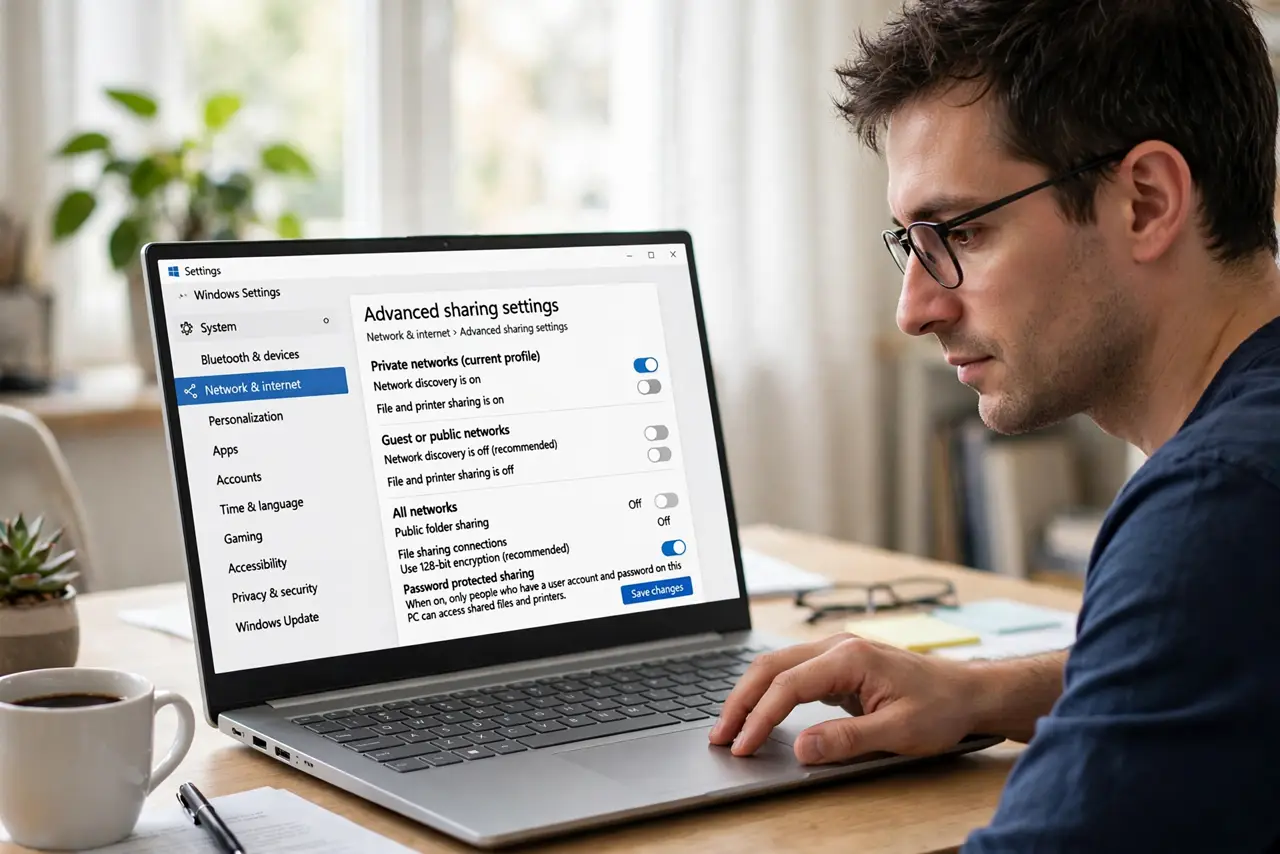
- Open advanced sharing settings. Search for 'Advanced sharing settings' in Windows. You will see separate sections for Private, Public, and All Networks.
- Turn it on for Private only. Enable network discovery under Private networks. Leave Public off — that is the protection when you join cafe Wi-Fi.
- Check the network profile. Discovery settings follow the profile. If your home network shows as Public, switch it to Private first — see public vs private.
- Enable it on every PC. Discovery is per-machine. Both the sharing PC and the browsing PC need it on, or they stay invisible to each other.
- Check the firewall. Third-party firewalls and security suites often block discovery silently. If it keeps turning off, the firewall is suspect number one.
- Test with a share. After enabling, try opening a shared folder from the other PC. Visibility plus working shares means you are done.
What NOT to do
- Do not turn on discovery for Public networks. That advertises your PC to everyone on cafe and airport Wi-Fi.
- Do not enable it on just one PC. Both sides need it — one-sided discovery still shows nothing.
- Do not forget the profile after a Windows update. Updates occasionally reset networks to Public — recheck.
- Do not confuse discovery with sharing. Discovery makes PCs visible; sharing permissions control access — you need both.
Frequently asked questions
Why does it keep turning itself off?
Usually a third-party firewall or a network profile flip to Public — see turns off.
Is network discovery safe?
On a trusted home Private network, yes. On Public networks, keep it off.
Do I need it for mapped drives?
Not strictly — mapped drives work by address. But discovery makes finding PCs far easier; see mapped drives.