Change Proxy Settings
A proxy sits between your PC and the internet, routing your traffic through another server — workplaces and schools use them to filter and monitor browsing. When proxy settings are wrong or left over from an old network, pages stall or fail with cryptic errors. Here is how to find the settings and set them right.
TL;DR / Quick Fix
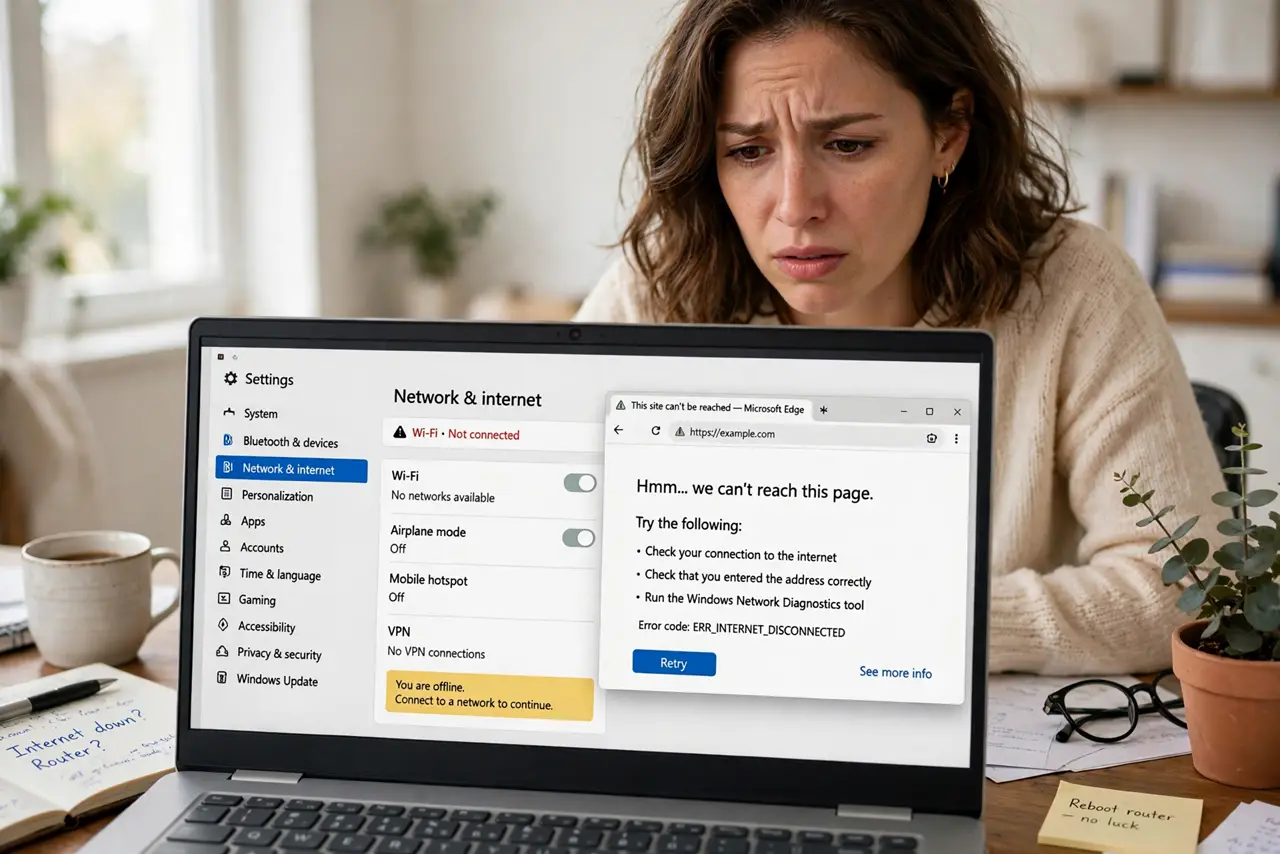
Quick fix: open Settings > Network & internet > Proxy and turn off ‘Use a proxy server’ unless work or school gave you one — leftover proxy settings are a classic cause of pages not loading. If you do need one, enter the address and port exactly as provided.
Follow these steps
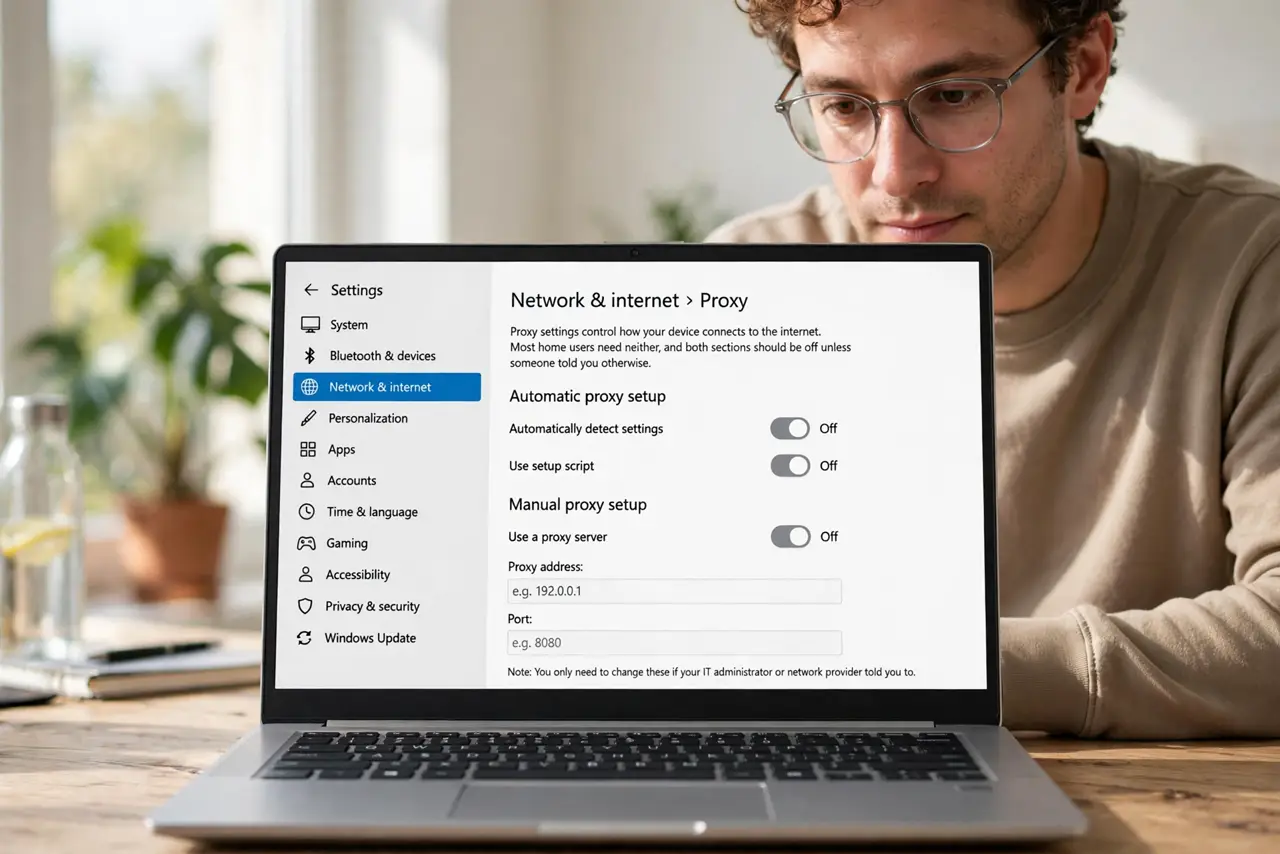
- Open the Proxy settings page. Go to Settings > Network & internet > Proxy. Windows separates automatic and manual setup — most home users need neither, and both sections should be off unless someone told you otherwise.
- Check automatic setup first. If ‘Automatically detect settings’ is on and your connection misbehaves, try turning it off — a bad auto-configuration script is a sneaky failure. The ‘Use setup script’ field should be empty unless your IT department gave you a script address.
- Turn off a manual proxy you do not need. Under Manual proxy setup, switch off ‘Use a proxy server.’ Leftover entries from a hotel, office, or old VPN are the most common cause of ‘page cannot be displayed’ at home — and they can change on their own after updates.
- Enter a real proxy correctly. If your workplace did give you a proxy, type the address and port exactly — proxies are unforgiving of typos. Add local addresses to the exception list so printers and intranet sites still work directly.
- Test with a fresh browser session. Close the browser completely and reopen it, then load a plain site. Proxy changes sometimes need the browser restarted to take effect — a stale tab can fake a failure.
- Know when the proxy is not the problem. If pages still fail with the proxy off, the issue is elsewhere — DNS or the connection itself. Do not keep toggling proxy settings hoping; diagnose instead.
What NOT to do
- Do not copy proxy settings from a random forum. A malicious proxy sees all your unencrypted traffic — only use ones from your employer, school, or a provider you chose.
- Do not leave a hotel or office proxy on at home. It points your traffic at a server you can no longer reach, and everything silently breaks.
- Do not confuse a proxy with a VPN. A proxy usually covers only browser traffic and rarely encrypts it; a VPN covers the whole device.
- Do not edit the registry to fix proxy issues. The Settings page handles everything — registry edits for this are a classic way to make things worse.
Frequently asked questions
Why do my proxy settings keep turning themselves on?
Usually a VPN client, security software, or malware re-enabling them. See the self-changing proxy guide — and scan for malware if nothing you installed explains it.
Should I use a proxy for privacy?
A proxy hides your IP from websites but the proxy operator sees your traffic instead — you are just moving your trust. For real privacy, a reputable VPN plus HTTPS matters more.
What is the difference between HTTP and SOCKS proxies?
HTTP proxies handle web traffic only; SOCKS proxies can carry any kind of traffic. For normal browsing the distinction rarely matters — use what your provider specifies.