Safely Remove Hardware Icon Is Missing
The Safely Remove Hardware icon has vanished from the taskbar corner, so there is no obvious way to eject a USB drive. The icon is not gone because ejection is unsafe — it is just hidden, disabled, or the drive uses quick-removal mode. This guide shows how to bring the icon back and eject safely either way.
TL;DR / Quick Fix
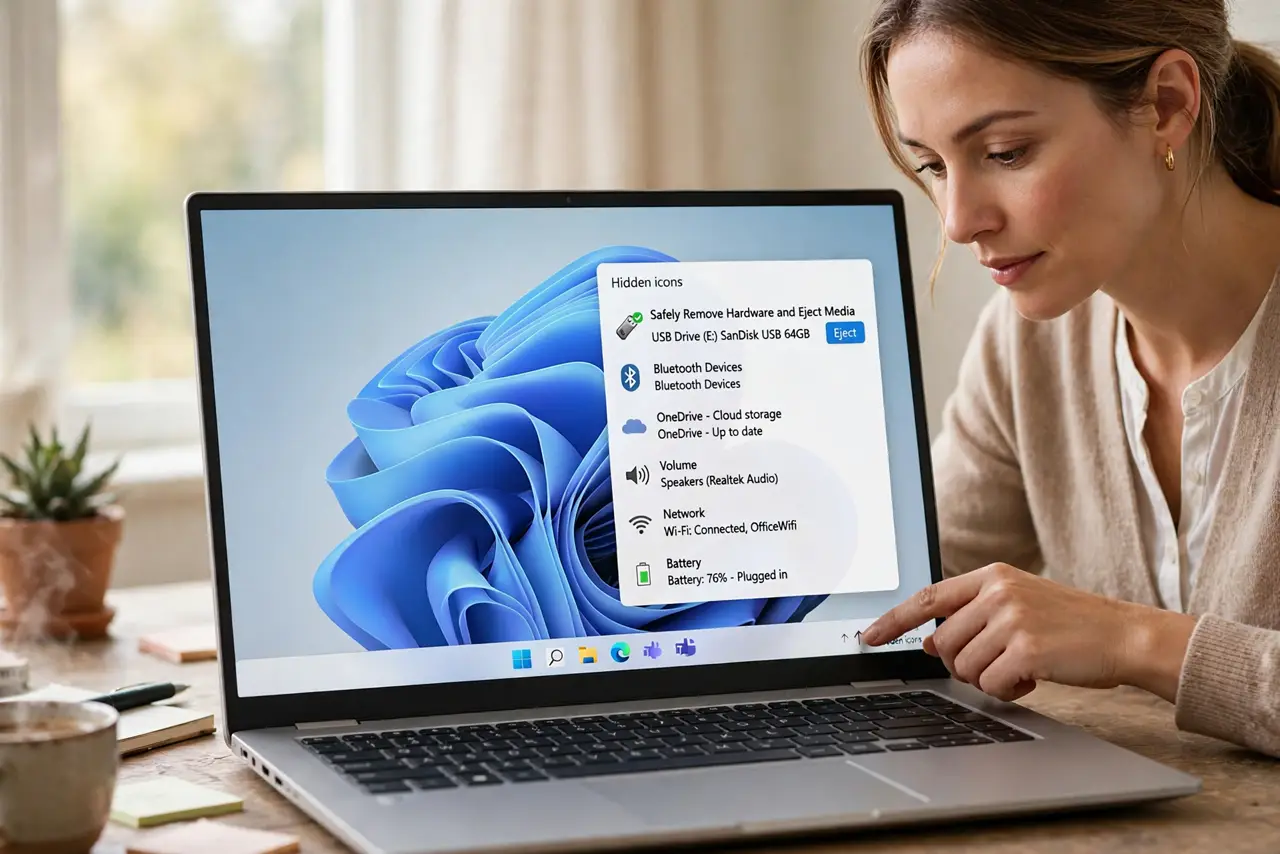
Quick fix: click the taskbar corner overflow arrow to find the hidden icon — updates often move it there. Or open File Explorer, right-click the drive, and choose Eject, which works with or without the icon. Re-enable it in taskbar settings.
Follow these steps
- Check the hidden icons overflow. Click the up arrow in the taskbar corner. Windows often moves the Safely Remove icon into the overflow area after an update, where it sits out of sight but fully working.
- Eject from File Explorer instead. Open File Explorer, right-click the USB drive, and choose Eject. This method works with or without the tray icon and is just as safe.
- Re-enable the icon in taskbar settings. Go to Settings > Personalization > Taskbar > Taskbar corner overflow and make sure Windows Explorer's Safely Remove entry is turned on.
- Check whether quick removal is active. In Device Manager, open the drive's Policies tab. If 'Quick removal' is selected, Windows allows unplugging without the icon — but only when the drive is idle.
- Restart Windows Explorer. Open Task Manager, find Windows Explorer, and choose Restart. A stuck Explorer process can hide tray icons that are actually enabled.
- Verify the drive still ejects cleanly. After the icon returns, eject the drive and confirm Windows says it is safe. If ejection hangs, close any program using the drive first.
What NOT to do
- Do not unplug a drive while files are copying. The missing icon does not make it safe — wait for the transfer to finish.
- Do not assume every drive is quick-removal. External hard drives often use better-performance mode, which truly needs the eject step.
- Do not restart the PC with the drive mid-transfer. A restart during a write can corrupt the drive worse than a bad unplug.
- Do not install a third-party eject tool. Windows already ejects safely from File Explorer; extra tools add nothing but risk.
Frequently asked questions
Is it safe to unplug without the icon?
Only if the drive uses quick removal and nothing is writing to it. When in doubt, eject from File Explorer first.
Why did the icon disappear after an update?
Updates sometimes reset taskbar overflow settings, moving the icon into the hidden area. Re-enable it in taskbar settings.
Can I eject an external hard drive the same way?
Yes — right-click and Eject in File Explorer works for flash drives and external hard drives alike.