Capture a Scrolling Screenshot
You need to capture a whole web page or a long chat, and every screenshot cuts it off mid-scroll. Windows' built-in Snipping Tool cannot scroll-capture, which sends people hunting for sketchy 'free screen capture' downloads. The safe options are built into your browser or a quick manual stitch — no dubious software required.
TL;DR / Quick Fix
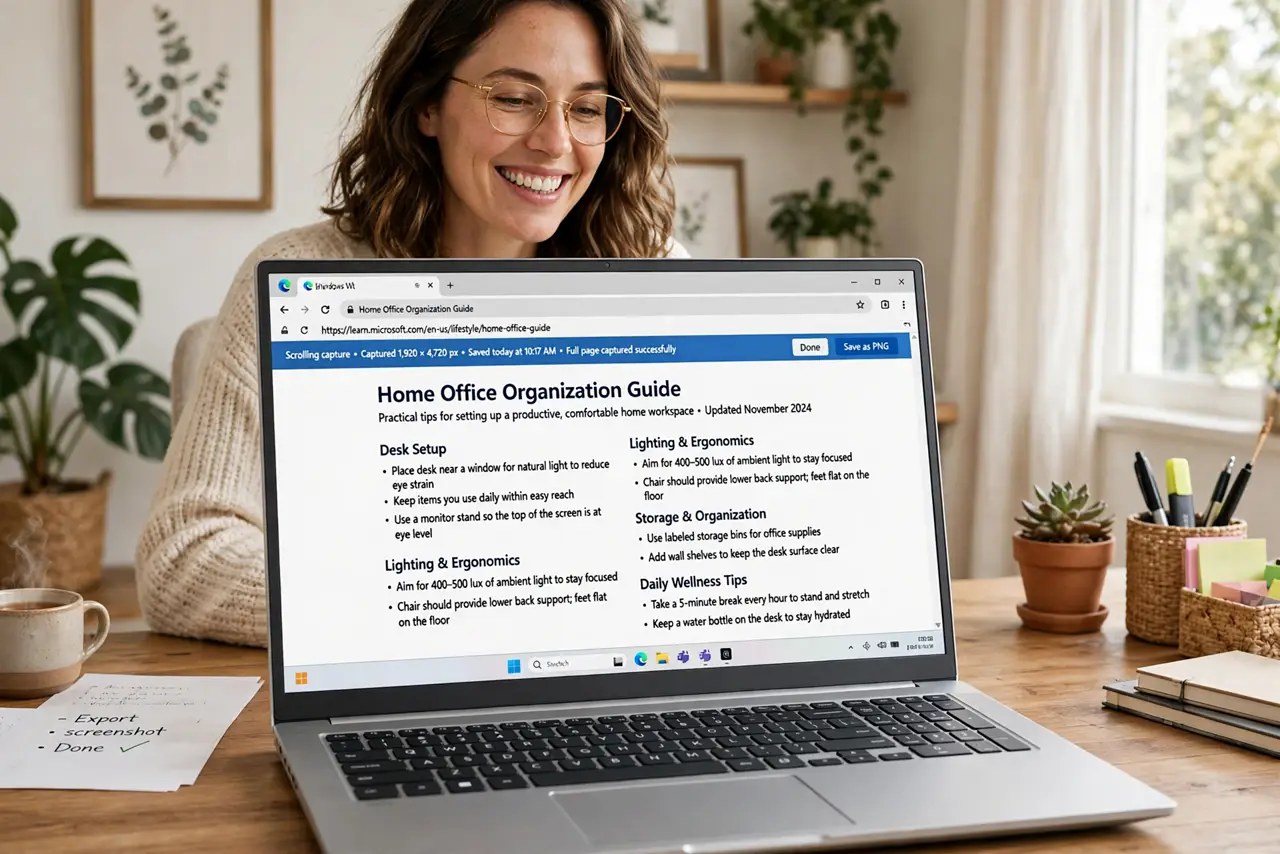
Quick fix: in Edge or Chrome, open the screenshot tool and choose Capture full page — the browser stitches the whole page into one image. For anything outside the browser, take overlapping screenshots and let free Photos stitch them, or scroll-capture in sections. Avoid random capture tools from ads.
Follow these steps
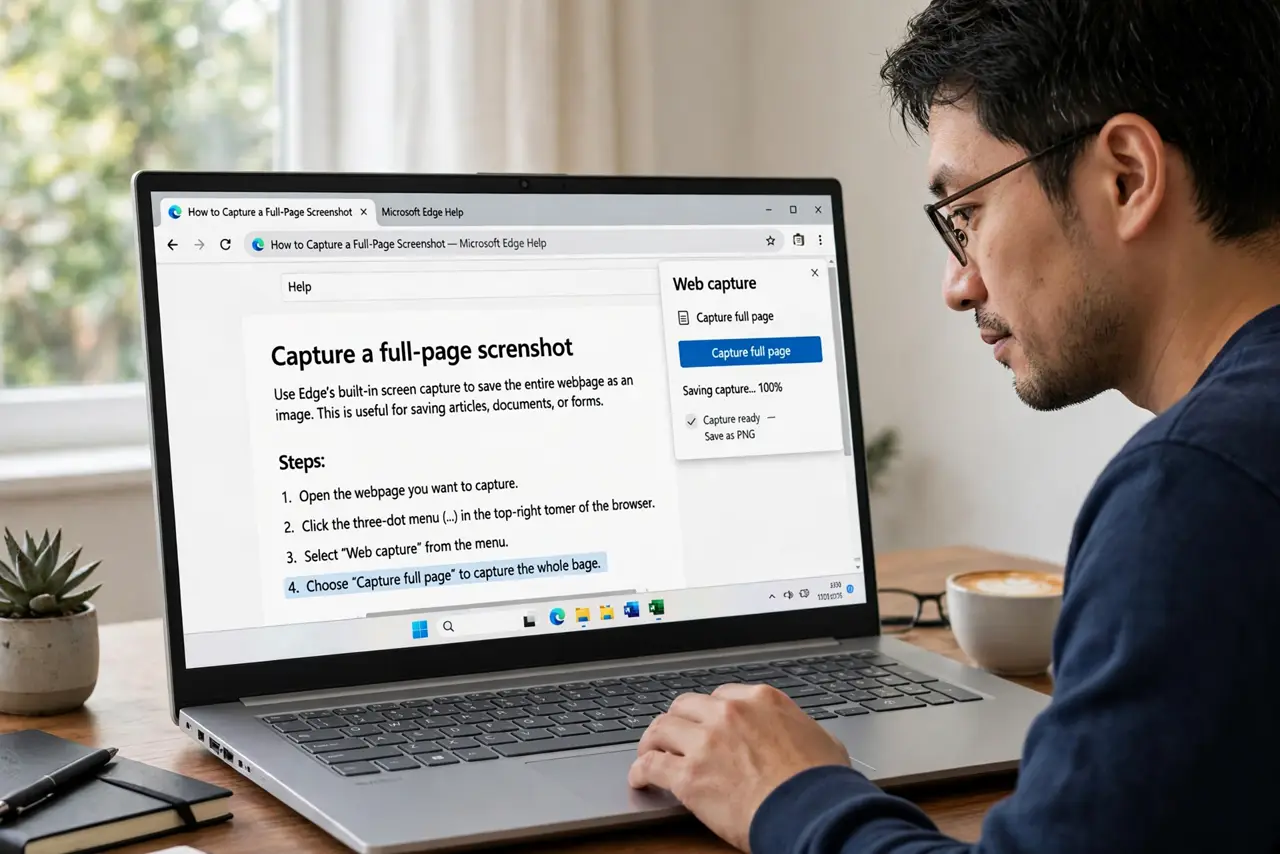
- Use the browser's full-page capture. In Edge, press Ctrl+Shift+S and choose Capture full page; in Chrome, open DevTools with F12, press Ctrl+Shift+P, and type 'capture full size screenshot.' The browser renders the entire page — above and below the fold — into one PNG.
- Save it where you will find it. The capture downloads to your Downloads folder or copies to the clipboard depending on the browser. Rename it immediately — 'full-page-capture.png' beats hunting later.
- Capture app windows in sections. For long chats or documents outside a browser, take overlapping screenshots with the Snipping Tool delay for menus, scrolling a bit between each. Overlap by a third so nothing is missed.
- Stitch with free tools. Drop the overlapping shots into any free photo stitcher or even PowerPoint — align, crop the overlaps, export as one image. It takes five minutes and needs no new software.
- Know the Snipping Tool's limit. The built-in Snipping Tool captures only what is visible — no scrolling mode exists. Anyone promising a 'Snipping Tool scrolling update' is selling something; use the browser method instead.
- Avoid sketchy capture tools. Search ads push 'free scrolling capture' tools bundled with junk. The browser-native method covers web pages, which is ninety percent of the need — the rest is stitching.
What NOT to do
- Do not download random capture tools from ads. Freeware screen capturers are a classic bundleware vector — the browser does it natively.
- Do not expect Snipping Tool to scroll. It captures the visible screen only; waiting for a scrolling update wastes your time.
- Do not screenshot tiny sections and guess. Overlap generously when stitching — gaps are worse than redundancy.
- Do not capture sensitive pages carelessly. Full-page screenshots include everything on the page — check for personal data before sharing.
Frequently asked questions
Can Snipping Tool capture a scrolling window?
No — it captures only the visible area. Use the browser's full-page capture for web pages, or stitch overlapping shots for apps.
The full-page capture looks broken. Why?
Pages with lazy-loading or sticky elements sometimes render oddly. Try scrolling the page top to bottom first to load everything, then capture.
Where did Chrome save my screenshot?
To your Downloads folder by default. Edge offers clipboard or save — pick save and rename it right away.