SD Card Not Showing on Windows? Fix It
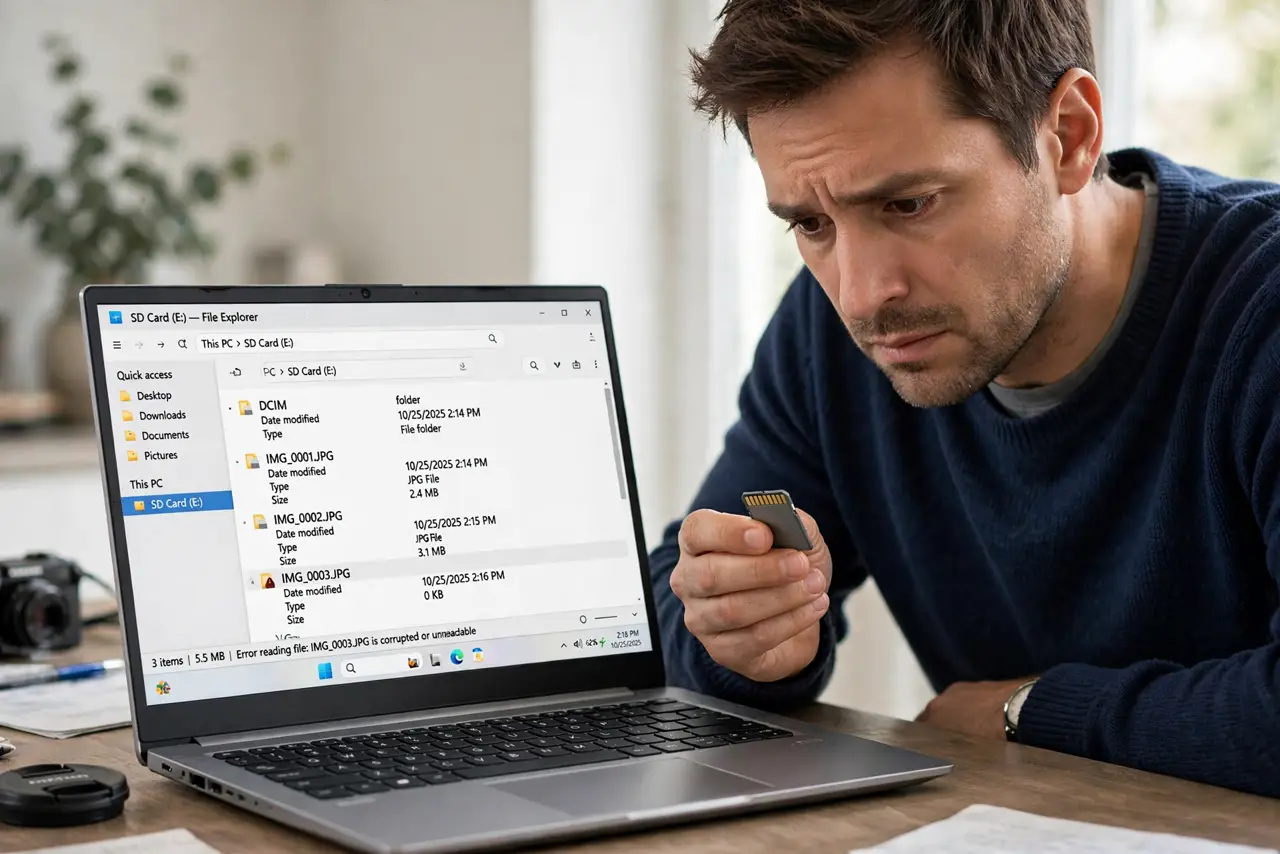
You slide an SD card into the reader and Windows acts like nothing happened — no drive letter, no autoplay, nothing. The card, the reader, or the driver is at fault, and each has a quick test. This guide walks through them in order so you find the culprit without formatting anything.
TL;DR / Quick Fix
Quick fix: push the card in firmly until it clicks, then try a different USB port or a borrowed reader to rule out dead hardware. Check Disk Management for the card missing a drive letter, and update the card reader driver if nothing appears.
Follow these steps
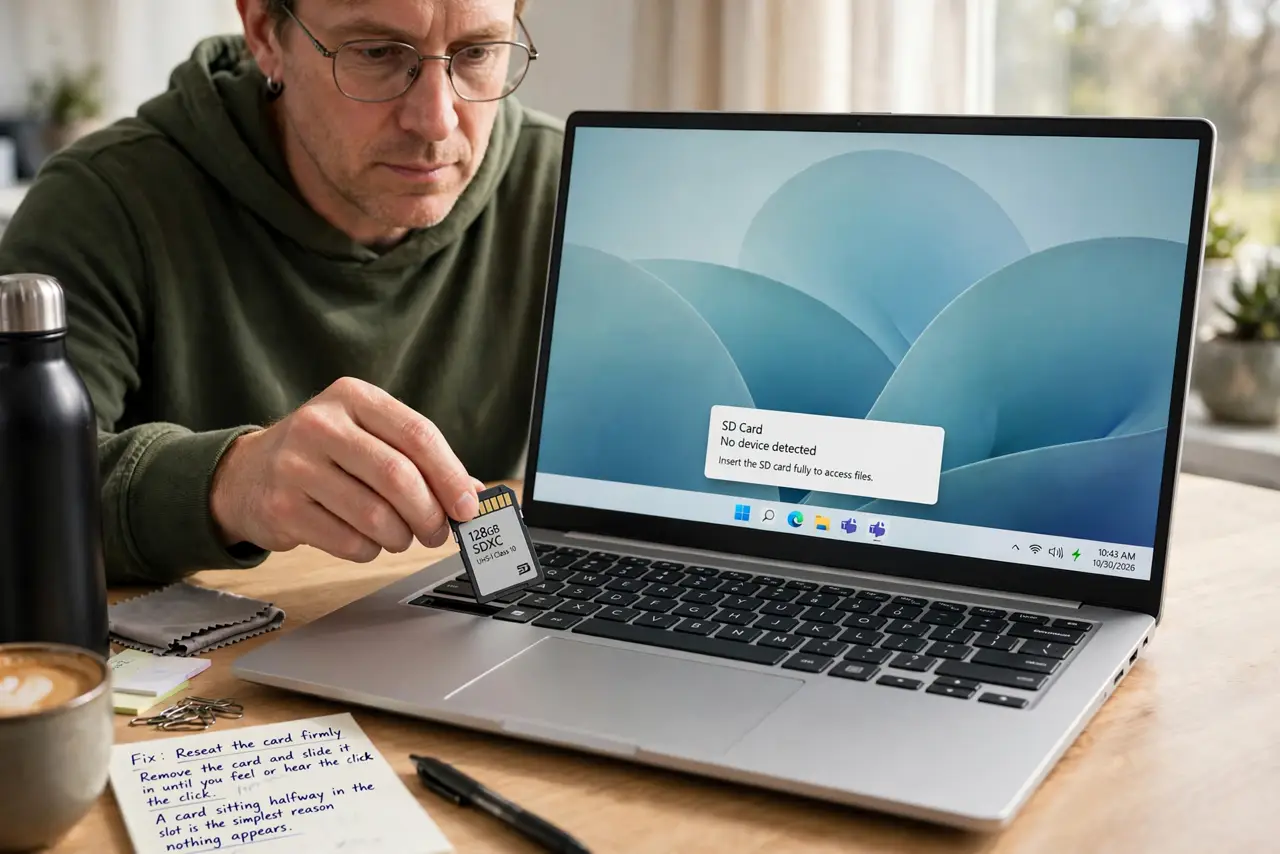
- Reseat the card firmly. Remove the card and slide it back in until you feel or hear the click. A card sitting halfway in the slot is the simplest reason nothing appears.
- Try a different port or reader. Move the reader to another USB port directly on the PC, or try a different reader. Readers fail often, and a second reader tells you in seconds whether yours is dead.
- Check Disk Management. Press Windows + X and open Disk Management. If the card appears there without a drive letter, right-click it and assign one — the card is fine, Windows just did not mount it.
- Inspect the card for damage. Look at the gold contacts for dirt or scratches and blow out the reader slot. Try the card in a camera or phone to confirm the card itself still reads.
- Update the card reader driver. In Device Manager, find the card reader under Memory technology devices or USB controllers, right-click, and update the driver. Windows Update sometimes replaces a working driver with a broken one.
- Test with a second card. Try a different SD card in the same reader. If the second card works, the first card is failing — back up its files immediately on whatever device still reads it.
What NOT to do
- Do not format the card to 'fix' it not showing. Formatting erases photos you might still recover, and an unreadable card will not format anyway.
- Do not force a microSD adapter in the wrong way. Adapters only fit one direction, and forcing one can bend the reader's pins.
- Do not keep trying a card that smells hot. A physically damaged card can overheat — stop and take it to a data recovery shop instead.
- Do not buy a new reader before testing. Borrow one or test the card in a camera first, so you replace the part that is actually broken.
Frequently asked questions
Why does my SD card work in the camera but not the PC?
The camera tolerates a weak card or odd format that the PC reader rejects. Copy the files off with the camera's USB cable as a workaround.
Should the card appear in File Explorer or Disk Management first?
Disk Management. If it shows there, the hardware works and it is a mounting problem; if not, it is hardware.
Can a dead reader damage my card?
A failing reader can corrupt data during writes, so stop using a reader that intermittently drops the card.