Stuck in Automatic Repair? Fix It
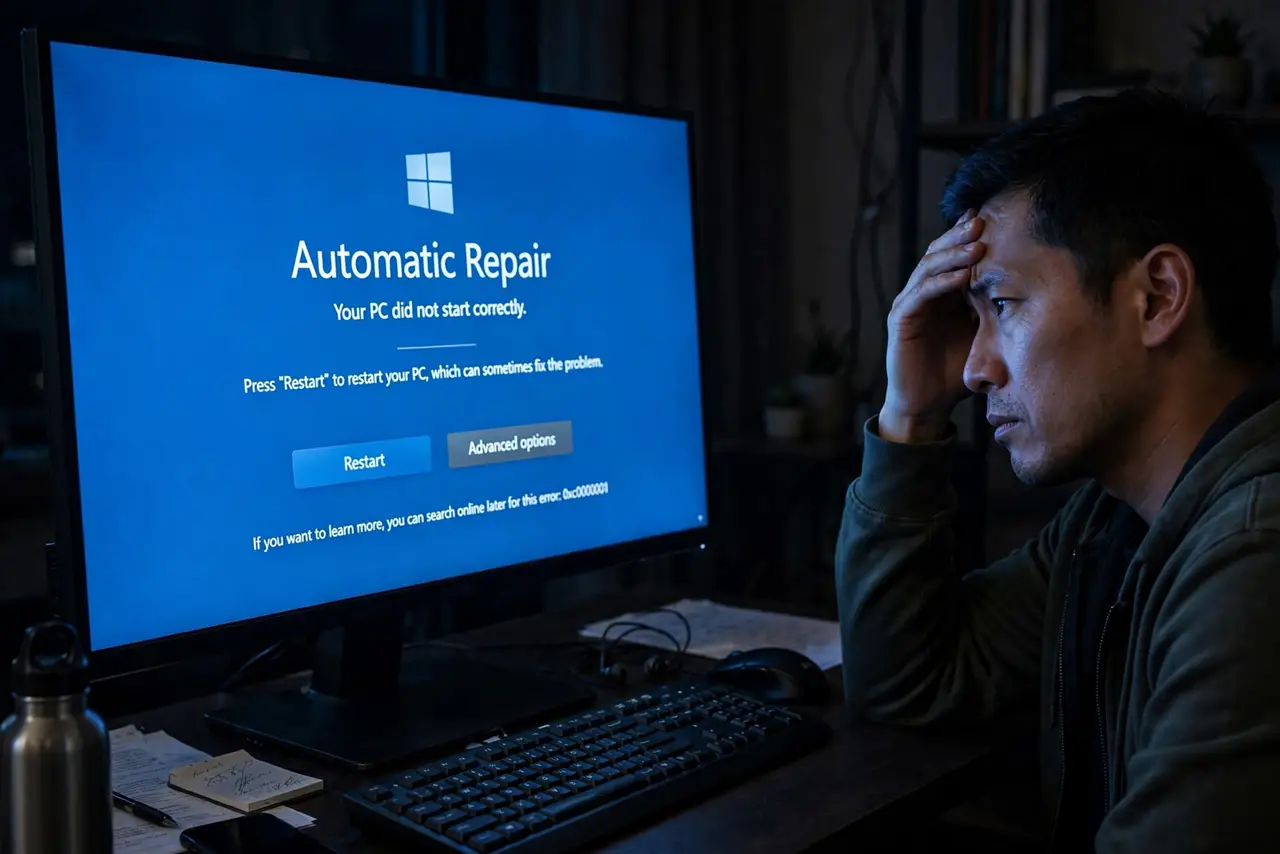
Your PC shows Preparing Automatic Repair, then Diagnosing your PC, then the same screen again. Forever. The automatic repair loop means Windows tried to fix itself, failed, and keeps retrying. It feels hopeless, but the loop is escapable — the real rescue tools are one menu away.
TL;DR / Quick Fix
Quick fix: on the Automatic Repair screen choose Advanced options — do not let it retry forever. From there run Startup Repair, then Safe Mode to remove a recent driver or update, then System Restore. Your files are usually untouched; the loop is a boot problem, not a data problem.
Follow these steps
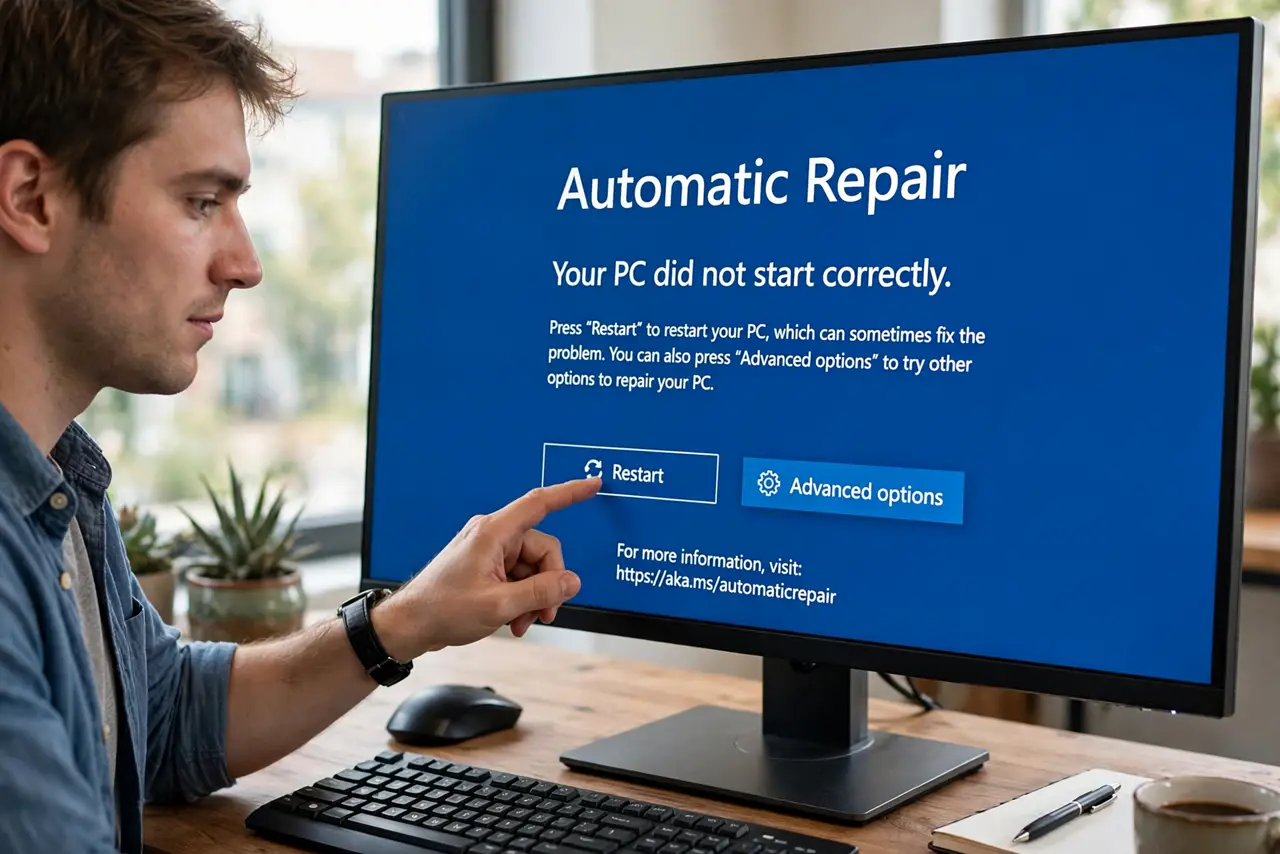
- Break the loop into Advanced options. On the Automatic Repair screen, click Advanced options instead of Restart. Restart just starts the loop again; Advanced options opens the toolbox.
- Try Startup Repair deliberately. Choose Troubleshoot > Advanced options > Startup Repair. Launched on purpose, it sometimes succeeds where the automatic attempt failed.
- Boot into Safe Mode and undo the trigger. From Startup Settings, enter Safe Mode and remove the likely trigger: a new driver, a fresh program, a bad update.
- Use System Restore. Back in Advanced options, roll the system to a restore point from before the loop began. This fixes most loops caused by updates.
- Uninstall the latest update. Advanced options also holds Uninstall Updates — remove the latest quality or feature update if the loop started right after one.
- Reset as the last resort. If every tool fails, a reset keeping your files breaks the loop by reinstalling Windows. Your files survive; the loop does not.
What NOT to do
- Do not let it loop for hours hoping it resolves itself. It will not — each cycle is identical. Break out to Advanced options.
- Do not force-shutdown mid-repair repeatedly. One interruption to reach the menu is sometimes needed; making a habit of it risks corrupting the disk.
- Do not assume your files are gone. The loop is a boot failure, and personal files are usually sitting intact underneath it.
- Do not reinstall Windows from scratch before trying System Restore. The gentler tools fix most loops with far less work.
Frequently asked questions
Will I lose my files?
No. Automatic Repair and the tools behind Advanced options do not delete personal files. The loop is scary, not destructive.
What causes the loop?
Usually a failed update, a bad driver, or disk errors interrupting boot. The trigger is recent — which is why restore points work so well.
It loops again after every fix — is the drive dying?
Possible. If repairs succeed and the loop returns, check the drive's health and back up immediately — hardware may be the real cause.