What Is Sync Center?
Your network files vanished when the Wi-Fi dropped, or Sync Center keeps popping up sync errors you never asked for. Sync Center is Windows' older tool for offline files — it keeps a local copy of network folders so you can work disconnected, then syncs changes when you reconnect. Most people never need to touch it, but when it misbehaves it is worth understanding.
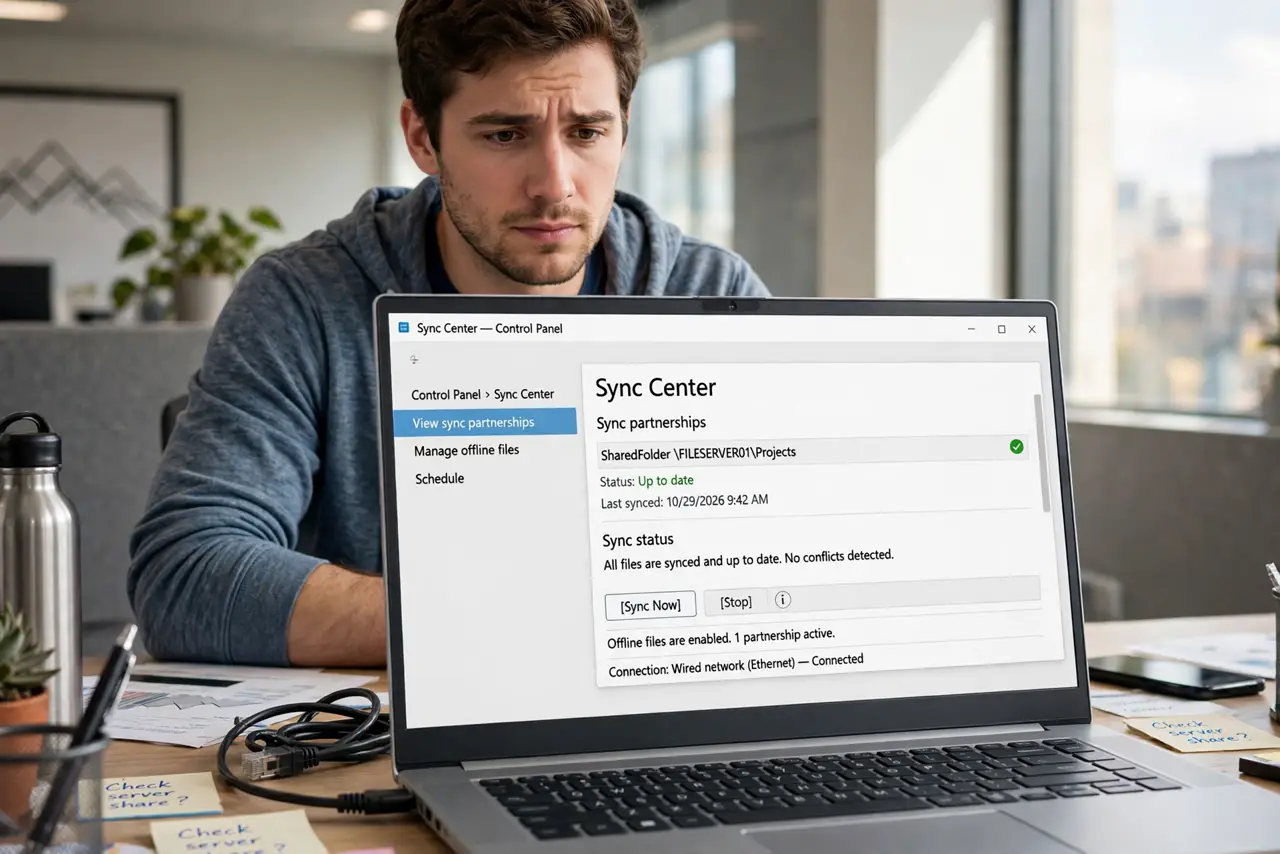
TL;DR / Quick Fix
Quick fix: Sync Center is Windows' tool for managing offline files — copies of network files you can use without a connection. If sync errors confuse you, open Sync Center from the Control Panel, check the sync results, and resolve conflicts there. Skip it if you never work offline.
Follow these steps
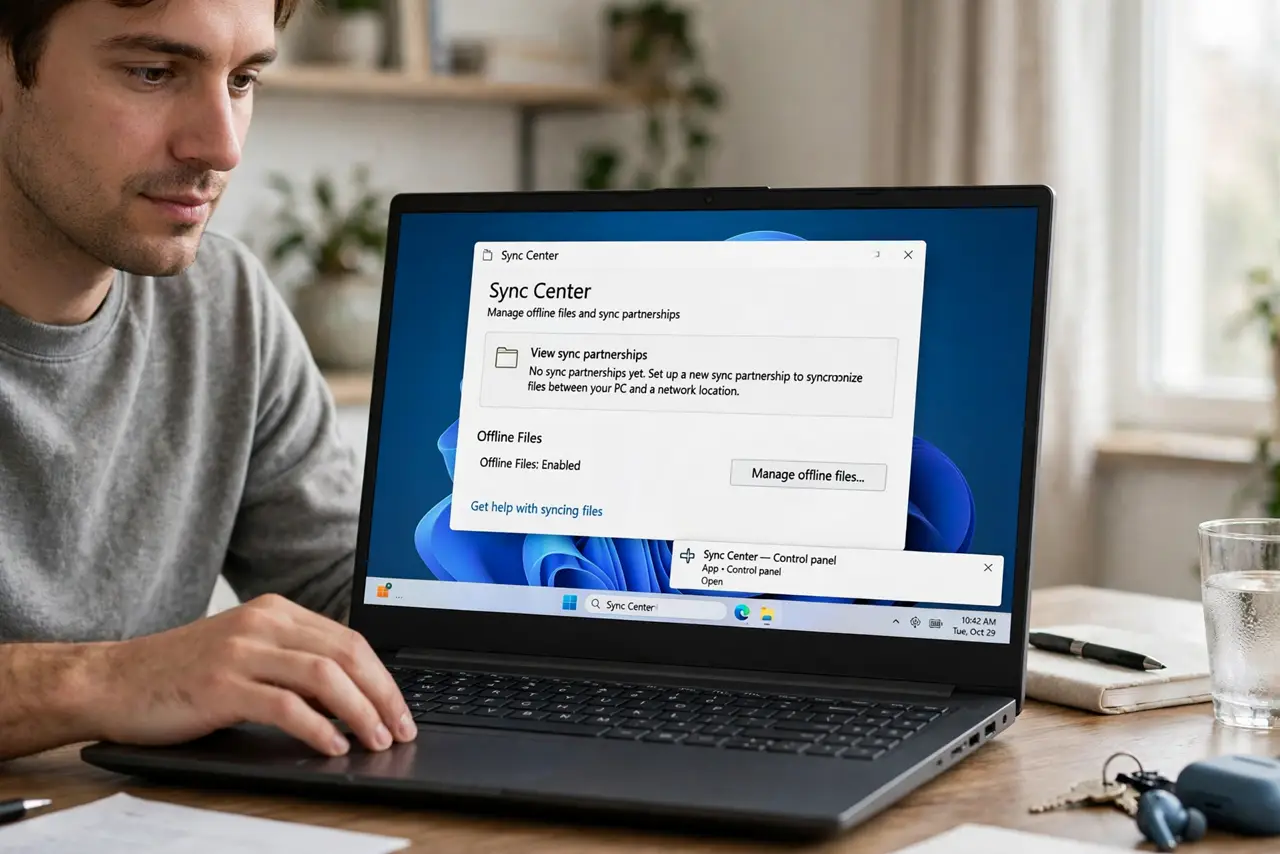
- Open Sync Center the direct way. Press the Windows key, type Sync Center, and open it. If it is empty or says no partnerships are set up, you are not using offline files at all — and that is fine.
- Read the sync results before acting. Click View sync results to see what actually failed. A failed sync is usually a file that changed in two places, not a disaster.
- Resolve conflicts by choosing a version. When the same file changed both offline and on the server, Sync Center asks you to pick. Choose the newer version, and keep a copy of the other if it matters.
- Check that you are actually connected. Sync only runs when the network folder is reachable. If the drive is offline, fix the connection first — the sync errors are a symptom, not the cause.
- End partnerships you do not need. If you see old partnerships for folders you no longer use, delete them from Sync Center. Fewer partnerships means fewer confusing errors.
- Turn offline files off if you never need them. In Sync Center, Manage offline files lets you disable the feature. If you always work connected, turning it off removes the whole category of problems.
What NOT to do
- Do not delete files from the sync results. The results list reports errors; deleting there does not fix anything and can remove real files.
- Do not panic over a sync conflict. A conflict just means two versions exist — pick one and move on.
- Do not disable offline files while a sync is running. Let the current sync finish or stop it cleanly first.
- Do not ignore repeated failures for weeks. A sync error that never clears usually points to one stubborn file — find it in the results.
Frequently asked questions
Is Sync Center still used in Windows 11?
It is still present but legacy — most homes and small offices never touch it. Cloud storage has largely replaced offline files for personal use.
Why does Sync Center run at startup?
Because a partnership is configured and Windows checks it at sign-in. Remove the partnership if you do not need it.
Can I use Sync Center with cloud storage?
No — it only handles network folders on local servers. Cloud drives have their own sync clients.