See GPU Usage per App
Your PC fans are screaming, games stutter, and something is hammering your graphics card — but which app? Windows Task Manager has a GPU column that names the culprit in seconds, plus a Performance view with temperature and memory detail. No downloads, no guesswork. Once you know the hog, you can close it, lower its settings, or reinstall its graphics driver cleanly if it misbehaves constantly.
TL;DR / Quick Fix
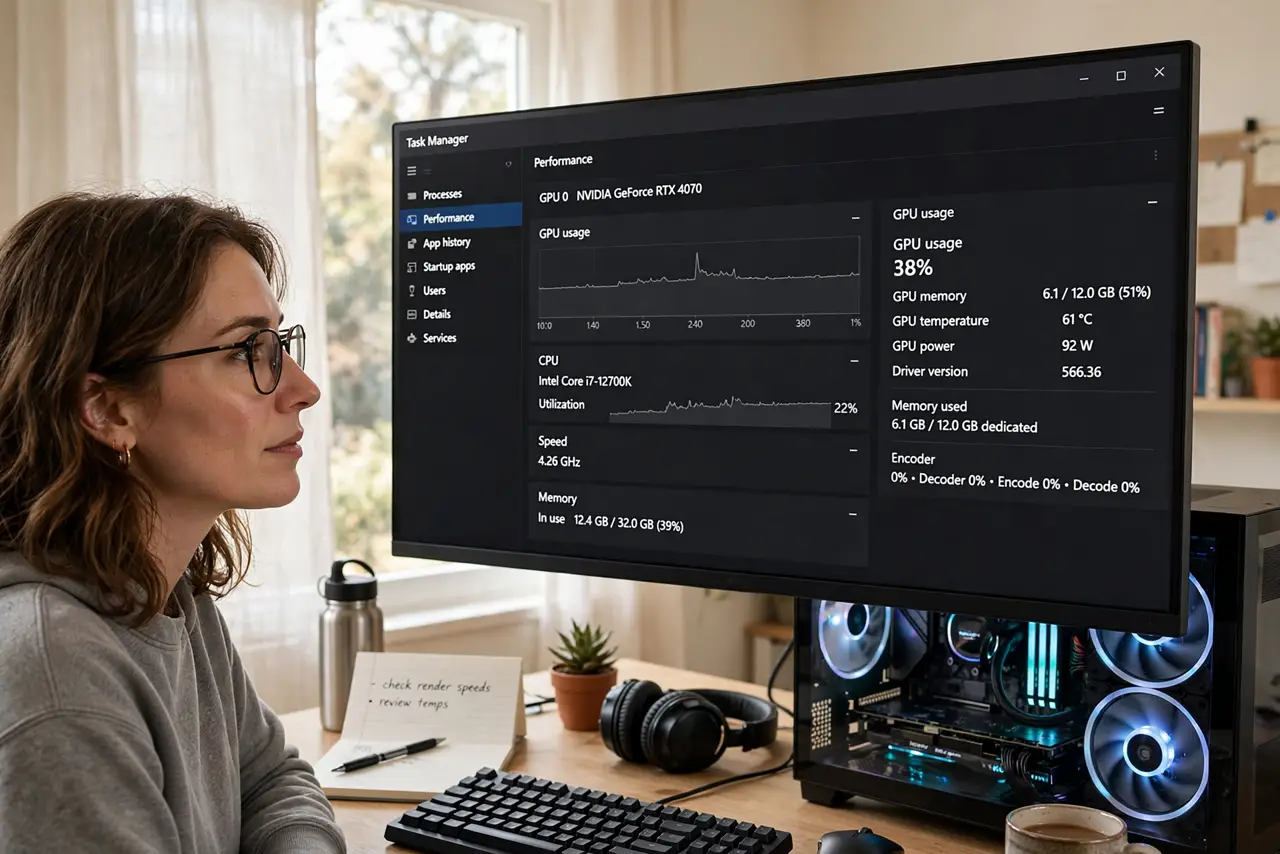
Quick fix: open Task Manager with Ctrl+Shift+Esc, add the GPU column on the Processes tab, and sort it to see exactly which app is hammering your graphics card right now. Click Performance, then GPU, for temperatures and memory detail before you close anything.
Follow these steps
- Open Task Manager fast. Press Ctrl+Shift+Esc — the direct shortcut, no Ctrl+Alt+Del detour. It opens straight to the Processes tab where the action is.
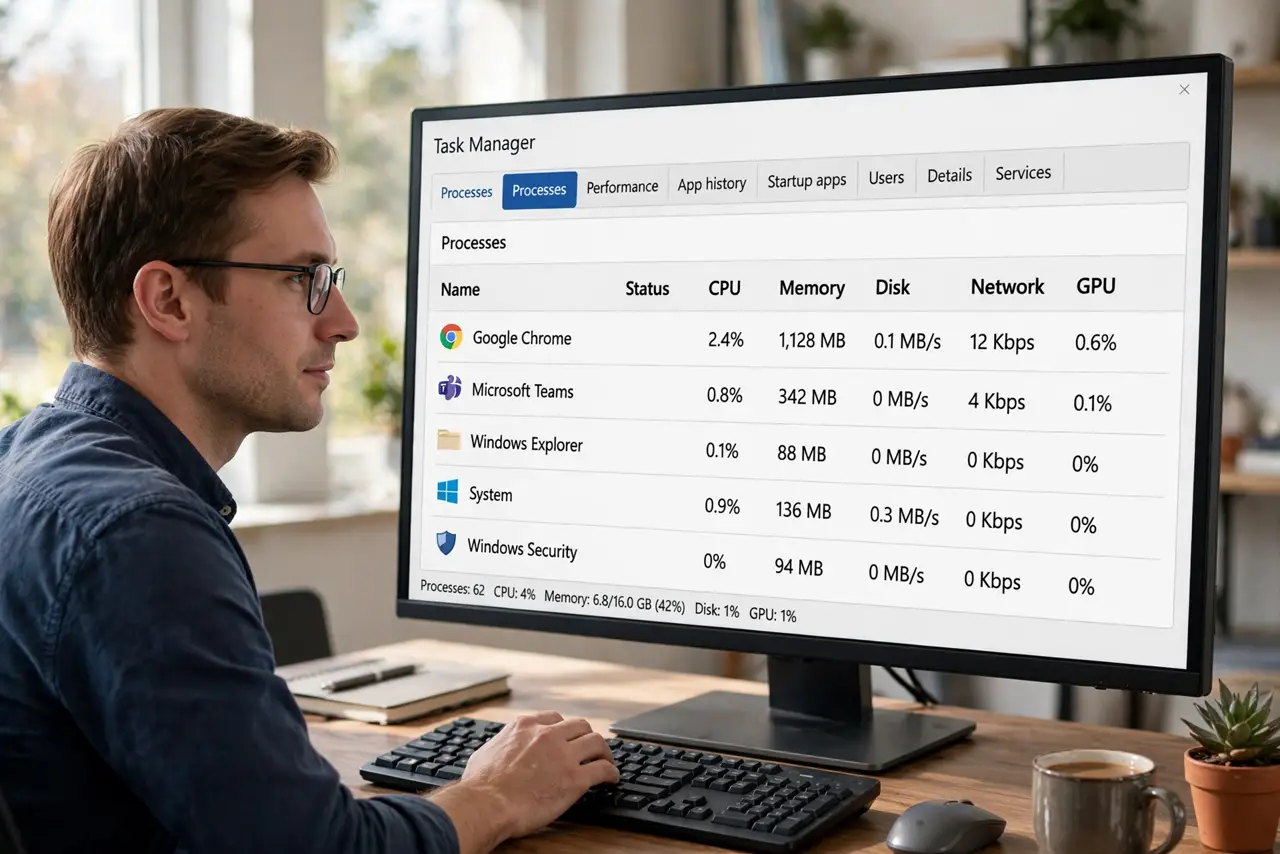
- Add the GPU column. Right-click any column header on the Processes tab and tick GPU. Now every running app shows its graphics usage as a percentage — the numbers update live.
- Sort by GPU to find the hog. Click the GPU column header to sort highest-first. The app at the top is your answer — browsers with hardware acceleration and background game launchers are classic surprises.
- Check the Performance tab for detail. Click Performance, then GPU: you see temperature, memory usage, and which GPU engine is busy. High temperature plus 100% usage means the card is genuinely maxed out, not just misreported.
- Decide: close it or tame it. A runaway background app? End the task. A game you are actually playing? Lower its graphics settings or cap its frame rate — the GPU column tells you whether the load is legitimate.
- Watch it over time, not just once. Spikes are normal; a constant 90%+ from an app you are not using is not. Leave Task Manager open for a few minutes to separate a brief spike from a real hog.
What NOT to do
- Do not end tasks blindly by name. Ending the wrong system process can crash your session — identify the app first, then act.
- Do not assume 100% GPU is always bad. Rendering video or playing a game legitimately maxes the card — context decides.
- Do not ignore the temperature. A hog plus overheating means cooling trouble too — clean dust and check fans, not just software.
- Do not install 'GPU booster' utilities. They add background load themselves — Task Manager plus the app's own settings are enough.
Frequently asked questions
Why is my browser using so much GPU?
Hardware acceleration hands video and animations to the GPU — normal for video calls and streaming. Dozens of animated tabs or a stuck video call are the usual excess.
What is a normal idle GPU percentage?
Near zero to a few percent on the desktop. Anything steadily above 30% with no game or video running deserves investigation.
Can I see GPU usage per app on a laptop with two GPUs?
Yes — Task Manager lists each GPU separately (GPU 0, GPU 1). Check both: a misbehaving app may be hammering the power-hungry discrete GPU while the efficient one idles.